Watch DJ.Studio’s tutorial above (14K views on YouTube).
This guide is for DJs who need to mix, prep sets, or build a party-ready workflow without hauling full hardware. If you are stuck wondering how to DJ with a laptop in a way that still feels professional, this will show you the setup, software, workflow, and transitions that actually matter. By the end, you will know how to choose your method, build a mix, and export something you can share or play live.
- Choose laptop DJ software that fits your workflow.
- Import or gather tracks in one organized library.
- Order tracks by BPM, key, and energy.
- Build transitions with volume, EQ, and timing control.
- Use stems or samples only where they solve a real problem.
- Export audio, playlists, or live-ready set files.
That is the short version of how to DJ with a laptop. The real skill is not pressing play on software. It is controlling track order, transition timing, and library access well enough that the mix still sounds intentional.
If your collection is still messy, start by cleaning the structure first. A sorted library makes every laptop workflow easier, especially when you are moving between prep, practice, and live performance. For that, see DJ library organization and how to prepare a DJ set.
Can You DJ on a Laptop?
Yes. You can DJ on a laptop for practice, recorded mixes, mashups, radio sets, house parties, and in some live setups. The limit is not the laptop itself. The limit is whether your software, music library, and monitoring setup let you control timing and track selection fast enough.
This matters because many beginners assume they need a full controller before they can start. They do not. A laptop alone can handle track loading, waveform view, cue points, beat grids, tempo changes, and export workflows.
Professional use is a separate question. Some DJs use a laptop as the main performance device. Others use it for prep only, then export playlists to CDJs or controllers. Both are valid.
That split gives you a useful mental model. Think in two modes: laptop as performance tool and laptop as preparation studio. Most frustration comes from mixing those up.
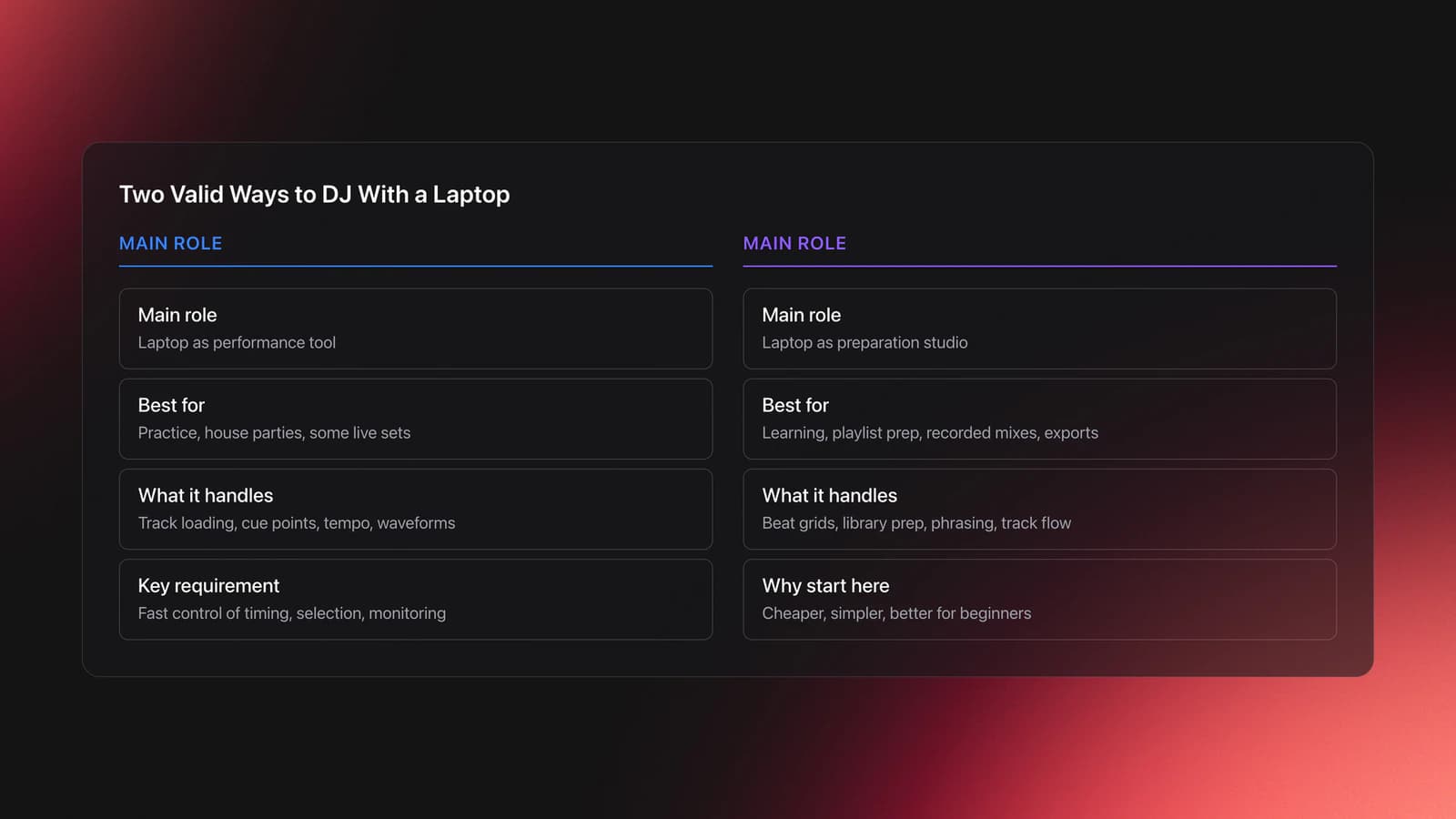
If you want to learn how to become a DJ with just a laptop, start with the preparation-studio model first. It is simpler, cheaper, and better for learning phrasing, transitions, and track flow before you add hardware.
Laptop DJ Setup: What You Actually Need
You need less gear than most beginner guides suggest. For a basic laptop DJ setup, the core pieces are a laptop, DJ software, local music files, headphones, and enough storage to keep the library responsive.
If you want to practice transitions seriously, add a mouse. Trackpads work, but they slow down precise edits. If you want to play parties, add an audio interface or controller later.
- Laptop with stable performance and enough free storage
- DJ software for mixing, prep, or export
- Local music files with usable metadata
- Headphones for cueing and checking details
- Optional mouse for faster editing
- Optional controller, mixer, or interface for live output
From a practical standpoint, the most important laptop specs are not flashy. Screen size matters because cramped waveforms and tiny automation controls are harder to read in dim rooms. Portability matters if you travel. Battery life matters if power is unreliable. For underground gigs, reliability beats raw power almost every time.
A common beginner failure mode is overspending on hardware before fixing the workflow. The symptom is having a nice controller but still wasting time searching for tracks, correcting beat grids, or rebuilding playlists from scratch.
You will know your setup is good enough when you can load tracks, audition transitions, and export a finished mix without the computer feeling like the bottleneck.
Choose Software for How to DJ With a Laptop
Software choice shapes the entire workflow. If your goal is live mixing on a laptop, tools like Rekordbox, Serato DJ Pro, VirtualDJ, and Traktor are the common paths. If your goal is building structured mixes and mashups inside the computer, timeline-based tools can be faster for arranging transitions and stems.
This is where beginners often get stuck. They compare feature lists instead of matching software to the job.
| Use Case | Best Software Style | Why It Fits |
|---|---|---|
| Learning phrasing and set flow | Timeline or arrangement-based DJ software | You can see track order and transitions clearly |
| Playing parties live | Performance DJ software | You need fast loading, cueing, and output control |
| Building mixes for upload | Arrangement-based workflow | It is easier to refine transitions and export |
| Practicing with a controller later | Controller-friendly DJ software | You can carry the same library into hardware |
| Testing laptop-only DJing for free | Entry-level or free software tiers | Lower cost while you learn basics |
Match the software to the job before you worry about advanced features.
If you already manage your library in Rekordbox, keep that in mind when choosing your laptop workflow. A tool that can read playlist structure, metadata, cue points, and beat grids reduces duplicate work. That matters more than a long list of effects.
The same principle applies to organization. If you sort tracks by mood, function, or energy before you build mixes, you remove guesswork later. Some DJs do that with folders and tags. Others use a dedicated library tool like Vibes to build custom category systems, track progress, and export structure back into DJ software. Either way, the gain comes from having an intentional system before you start arranging.
For a deeper look at software choices, see best DJ software for beginners, Rekordbox workflow basics, and VirtualDJ setup guide.
Import and Organize Your Music Library
The fastest way to fail at how to DJ with a laptop is loading random tracks into a playlist and hoping the order reveals itself. A laptop workflow only feels smooth when the library is already clean enough to filter by BPM, key, genre, and purpose.
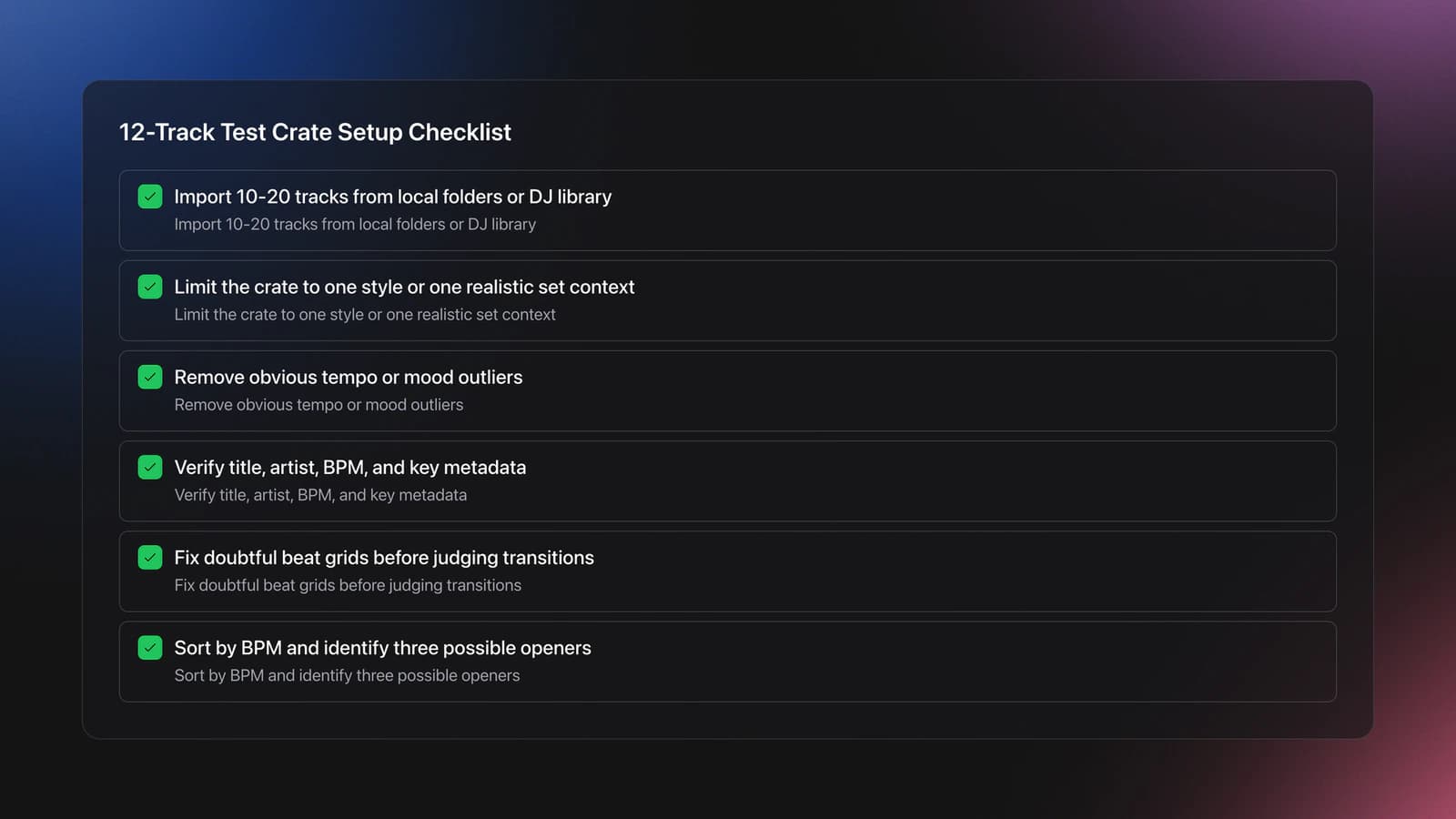
Start with a single working playlist. Do not throw your entire collection into one mix. Pull in 10 to 20 tracks you would realistically combine for one party, one radio set, or one recorded session.
Then check the metadata. You need track title, artist, BPM, and key at minimum. Cue points and beat grids help a lot, but they are not mandatory on day one.
- Import tracks from your main DJ library or local folders.
- Filter to one style or one realistic set context.
- Remove obvious outliers in tempo or mood.
- Check BPM and key fields for accuracy.
- Keep the shortlist small enough to compare transitions quickly.
This is also where self-taught DJs usually make the biggest leap. Many people start in a very rough DIY way. One common path is learning with a friend, a borrowed controller, and whatever surface is available, then gradually realizing that curation and organization matter as much as mixing technique. The spirit is simple: download tracks, try combinations, keep what works, and stay close to the music you actually want to share.
Worked example one: say you are building a 30-minute warm-up mix. You pull 12 tracks between 118 and 124 BPM. Two tracks sit at 128 BPM and have bright peak-time energy. Remove them for now. The output is a narrower pool that will mix more smoothly.
Worked example two: you want a party set from 100 to 128 BPM. Instead of mixing every jump in one file, build three mini-clusters. For example, 100 to 108 BPM, 118 to 122 BPM, and 124 to 128 BPM. Then decide how you will bridge between clusters.
A specific failure mode here is trusting bad beat grids. The symptom is that transitions drift even when the BPM numbers look close. Fix the beat grid before you blame your ears.
You will know this section is done when you can explain why each track is in the playlist and what role it might play.
Order Tracks by BPM, Key, and Energy
Track order is the hidden engine behind laptop DJing. If the order is wrong, you will spend all your time rescuing transitions. If the order is solid, even simple fades can sound deliberate.
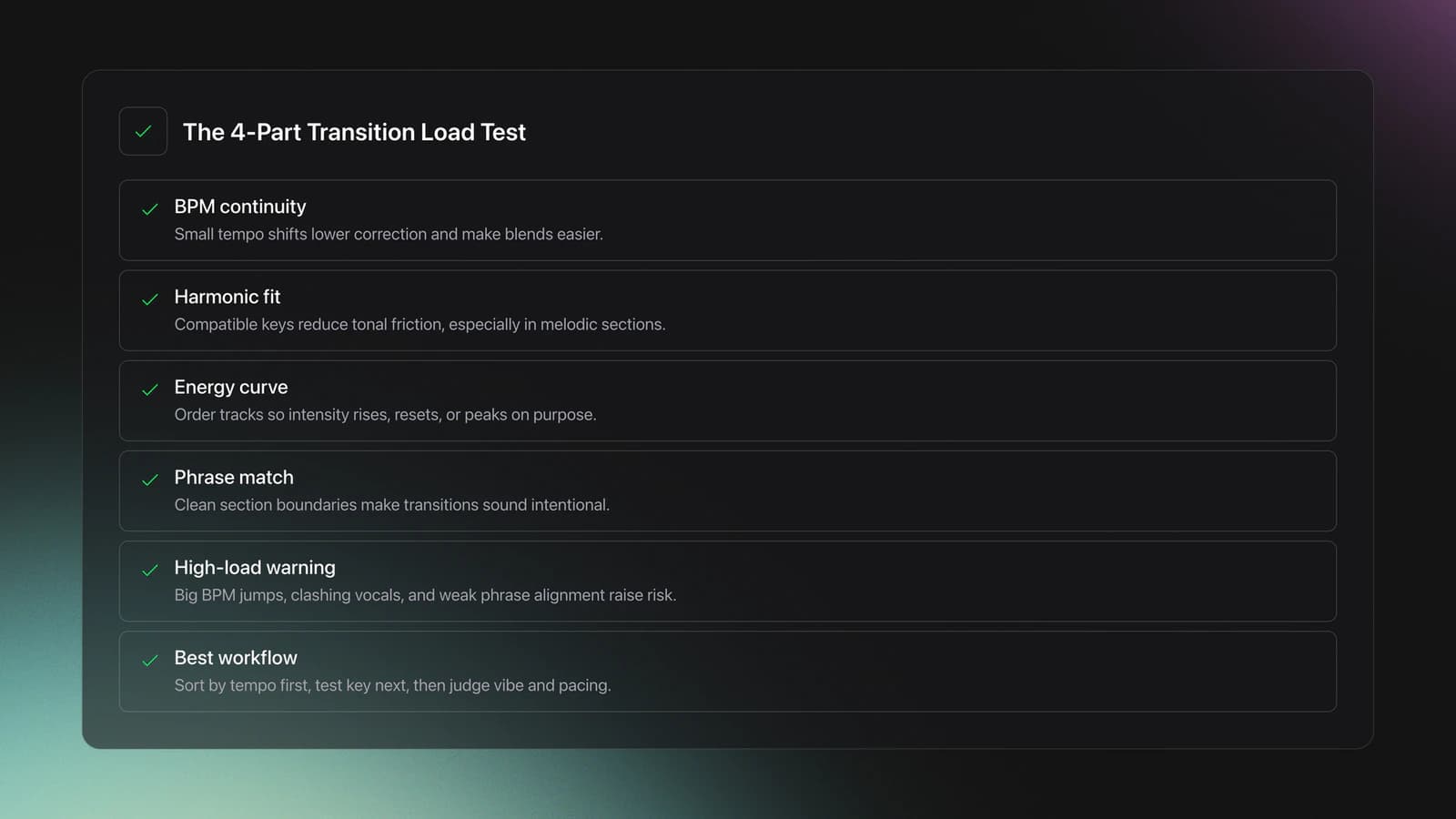
Use three variables together: BPM, harmonic compatibility, and energy curve. BPM controls motion. Key controls tonal friction. Energy controls emotional pacing.
Do not treat those variables as equal all the time. A small key clash may be fine if the phrasing and energy are perfect. A large BPM leap may work if it creates a planned reset. The point is to decide, not drift.
A useful mental model is the transition load. Transition load is how much correction a mix point needs before it sounds intentional. High BPM jump, weak phrase match, and clashing vocals create high load. Similar groove, compatible key, and clear phrase boundaries create low load.
Description before prescription matters here. What happens in practice is simple. Your software shows BPM shifts, key relationships, and warnings. That behavior is diagnostic. It tells you where the risky points are before you hear them fail.
In practice, start by sorting for obvious tempo continuity. Then test harmonic compatibility. Then listen for energy pacing. That order saves time because it removes impossible transitions early.
Worked example one: track A is 122 BPM in 8A. Track B is 123 BPM in 9A. Track C is 126 BPM in 3B. Put A into B first. The tempo shift is minor and the harmonic move is easier. Save C for a later jump or a breakdown transition.
Worked example two: track A and B are both 124 BPM, but both have full vocals in the chorus. Even if the key is compatible, the transition load is high. Delay the mix point, use instrumental sections, or choose another track.
Some software can suggest a stronger order automatically. Treat that as a draft, not a command. It is useful when you need a starting point fast, especially if your playlist is big and you want to surface likely bridges between awkward key or tempo gaps.
The organizational side matters here too. Once your library grows, you need faster ways to isolate tracks that solve specific transitions. That can be done with tags, playlists, or a structured system like Vibes that groups tracks into custom categories and keeps those groupings exportable into your DJ platform. The method matters less than the result. You need to find the right bridge track before the mix stalls.
A failure mode in this stage is chasing perfect harmonic mixing and ignoring vibe. The symptom is a set that sounds smooth but flat. A good order should feel like it is going somewhere.
You will know your order works when three to five transitions in a row feel easy before you touch detailed EQ or effects.
Build Transitions in a Laptop DJ Mix
Once the order works, move to transitions. This is where how to DJ mix on laptop stops being theory and starts sounding like a set.
Most laptop transitions use the same building blocks as hardware DJing. You control overlap, volume, EQ, filter movement, and timing. The difference is that laptop software often lets you see the overlap window and automation more clearly.
Start with the simplest version first. Use a crossfade or manual volume fade. Then add a bass swap. Only after that should you add effects.
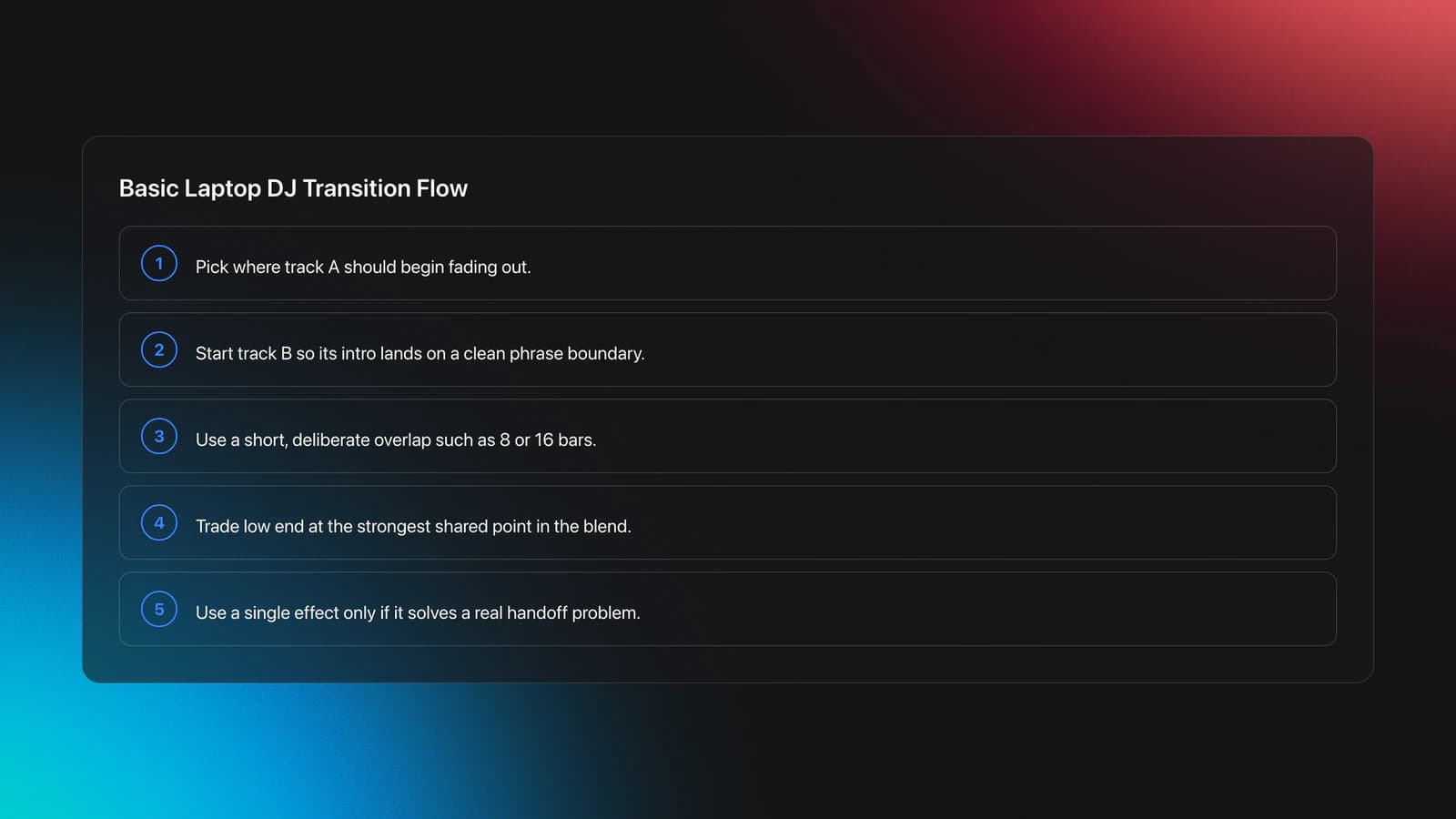
- Pick the phrase where track A should start fading.
- Align track B so its intro lands on a clean phrase.
- Set the overlap length.
- Fade volume gradually between the two tracks.
- Swap bass at the strongest shared point.
- Add one effect only if it solves a problem.
Worked example one: you have two house tracks at 124 and 125 BPM. Set a 16-bar overlap. Fade in track B over the first 8 bars. Swap bass at bar 9. Fade track A out fully by bar 16. The result is clean and predictable.
Worked example two: your incoming track has a weak intro. Instead of forcing a long blend, cut the overlap to 8 bars and use a short reverb tail on the outgoing track. The output is a tighter handoff with less dead space.
A common failure mode is stacking too many effects because the software makes it easy. The symptom is that every transition sounds processed, but none sounds stronger. Effects should clarify the handoff, not hide it.
What about the rule of 32 in DJing? It is a phrasing shortcut. Many dance tracks change in blocks of 32 beats, often eight bars in 4/4 time. Use it as a listening guide, not a law. If the phrase turns after 16 or 64 beats, follow the music.
Validation Check
Use Stems, Samples, and Mashup Moves Carefully
Laptop DJing becomes powerful when you can isolate problems instead of abandoning the whole transition. That is where stems and sample lanes help.
The best use of stems is not showing off. It is removing one obstacle. A vocal clash, muddy bass conflict, or cluttered breakdown is often enough reason.
If two tracks almost work together except both vocals hit at once, mute one vocal stem during the overlap. If you want to tease a hook earlier, copy a short vocal sample and place it over an instrumental section.
This means you can create mashup-style moments without rebuilding the full song. But restraint matters. A stem trick that solves one clear issue is stronger than constant stem swapping.
Worked example one: track A has a spoken vocal at 1:20 and track B starts a sung chorus at the same point. Mute the outgoing vocal for 8 bars. Keep drums and bass intact. The output keeps momentum without lyric clutter.
Worked example two: you copy a 4-bar vocal phrase from one track and place it 32 beats before the drop of another. Because the key and grid stay aligned, it acts like a teaser instead of a collision.
The failure mode is obvious. If the copied vocal is in the wrong emotional register or the timing fights the groove, the mix sounds forced. Undo it quickly.
You will know the stem move works when listeners hear a new connection between tracks, not an edit trying to prove a point.
Export Your Mix for Sharing or Live Use
Export is the last step, but it should shape decisions earlier. Ask what the mix is for. A SoundCloud upload, a Mixcloud set, a demo for promoters, and a playlist you want to bring back into Rekordbox do not need the same output.
For a finished recorded mix, export audio. For a video upload, export video and create a timestamp-friendly track list. For live continuation in DJ software, export playlists or platform-ready data if your software supports it.
- Audio export for demos, radios, and direct listening
- Playlist export for bringing structure into DJ software
- Video export for YouTube or visual mix content
- Project export if you want to continue editing in a DAW
Keep the file naming clean. Include date, set type, and version number. This sounds minor until you have five drafts of the same mix on a hotel Wi-Fi upload.
For DJs who prepare across multiple gigs, this is also where structured planning helps. A system that keeps playlist hierarchy, set names, and category logic consistent makes re-exporting much less painful. That is one reason some DJs prep libraries and sets in Vibes before exporting the structure back to Rekordbox or another performance platform.
You will know your export workflow is healthy when you can tell, at a glance, which file is the master mix, which one is the live-ready playlist, and which one is an unfinished draft.
Common Mistakes in How to DJ With a Laptop
| Mistake | Why It Happens | How to Avoid |
|---|---|---|
| Using too many tracks at once | Beginners think bigger playlists create better options | Start with 10 to 20 tracks and narrow the context |
| Trusting bad beat grids | Software analysis looks correct until the mix drifts | Check suspect tracks before building transitions |
| Forcing harmonic perfection | Camelot matches feel objective and safe | Balance key with phrasing and energy |
| Overusing effects | Laptop tools make automation easy to pile on | Add one effect only when it solves a specific problem |
| Ignoring export format early | The final destination is treated as an afterthought | Choose output type before detailed editing |
These mistakes are easy to fix once you know what they look like.
Practice Routine for Laptop DJ Beginners
If you are learning how to DJ for beginners laptop style, keep practice tight and repeatable. You do not need long sessions. You need focused reps.
- Week 1: Spend 20 minutes building one 10-track playlist and marking phrase starts.
- Week 2: Spend 20 minutes testing only fade and bass swap transitions between adjacent tracks.
- Week 3: Spend 30 minutes fixing one bad transition with timing, EQ, or a vocal mute.
That kind of repetition is enough to build pattern recognition. Many self-taught DJs learn this way. The early sessions are often informal, messy, and surprisingly effective. What matters is repeating the core decisions until they become fast.
Measure Progress in Laptop DJing
Do not measure progress by how many features you touched. Measure it by how many transitions sound intentional without rescue work.
Use these checkpoints:
- You can explain why each track is in the playlist.
- You can predict where a transition will fail before playing it.
- You can fix a vocal clash without rebuilding the whole mix.
- You can export a clean draft in one pass.
In other words, progress in how to DJ on your laptop is mostly decision speed. The software is only useful when it shortens the gap between what you hear and what you do next.
How to DJ With a Laptop: Final Take
How to DJ with a laptop is really about managing three things well: library control, track order, and transition timing. If those are solid, the laptop stops feeling like a compromise and starts feeling like a compact studio.
Take these points with you:
- Use the laptop first as a preparation tool, then expand into live performance.
- Sort tracks by BPM, key, and energy before you build transitions.
- Use stems and effects to solve problems, not to decorate every mix point.
Next, build one short mix with 10 to 12 tracks and force yourself to finish it. That single complete cycle will teach you more than another week of browsing software menus.
The visual way to organize your DJ library
Tag tracks by vibe. See everything at once. Export to rekordbox, Serato, Traktor or Engine DJ.
14-day free trial. Full access, no strings attached.
or see how it works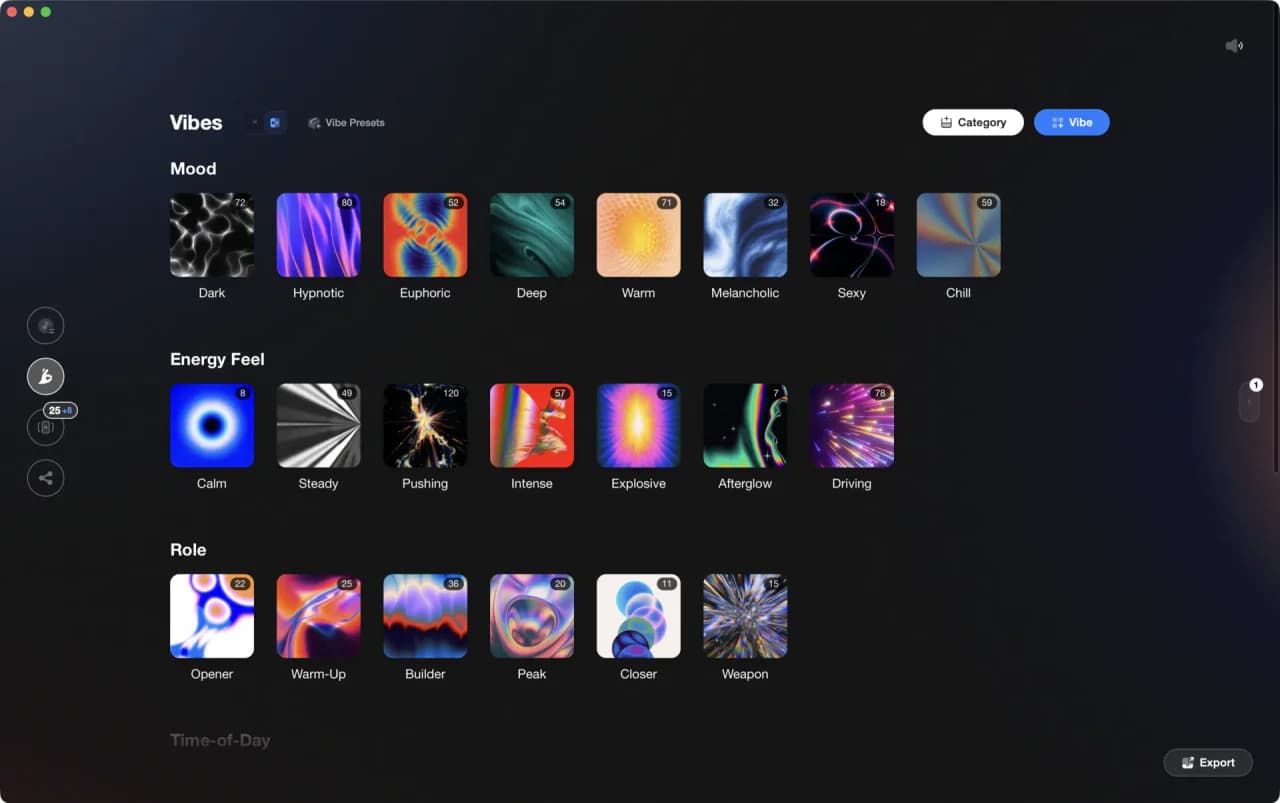
Techniques Covered

Beat Matching
Types of DJ Transitions
Layering
Sync Button Technique
Cueing Tracks

Track Analysis
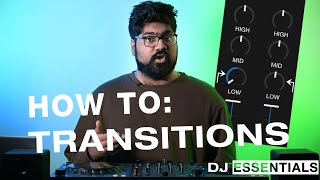
DJ System Configuration
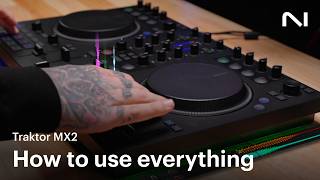
Cross-Platform Playlist Integration
DJ Rig Setup
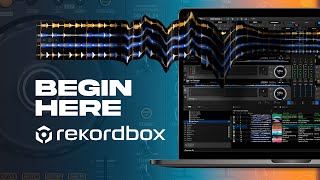
EQ Adjustments

Mashup
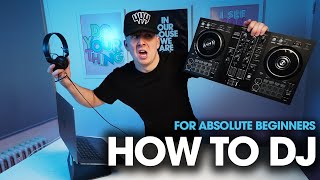
Auto BPM Transitions Across Genres
Equipment & Software
Featured Gear
Continue Your Learning Journey
Start Here First
Related Content
Transition DJ Online: Browser Mixer Workflow
intermediate
DJ Playlist Spotify: Mixing With Streaming Inside Rekordbox
intermediateDJ Transitions: The Three-Layer Handoff for Beginners
intermediate
How To Mix In Key Live: Worked Transitions And Failure Fixes
intermediate
DJ Library Organization System: Tags, Crates, Keys
intermediate
DJ Record Pool Guide for Working DJs
intermediate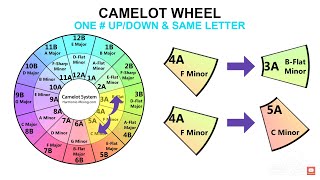
DJ Key Wheel Decision Framework: Four Safe Moves and Advanced Jumps
intermediateHouse Trance: Sound, Structure, Mixing
intermediateFrequently Asked Questions

Hey, it's Ben Modigell 👋
I DJ and produce as so I so: downtempo, minimal, dub house, tech house, and techno (releases on Spotify and SoundCloud, links above). Everything I write here comes from my own gigs, studio sessions, and library cleanups: the rules I follow, the failure modes I have actually hit, and the workflow I use when nobody is watching. If a technique did not earn its place in my own sets, it does not make it into a tutorial.