
DJ System Configuration
DJ System Configuration is the systematic setup of DJ hardware, software, and signal flow to achieve stable, low-latency, distortion-free performance.
DJ System Configuration Tutorials
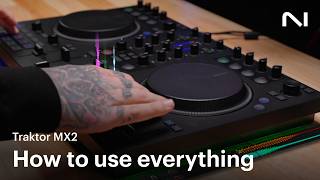

Configuration turns a pile of gear into a reliable instrument. You align drivers, routes, and levels so the system feels tight, sounds clean, and stays stable.
Why learn configuration now? Because click-free playback and confident cueing unlock expressive mixing. Solid configuration reduces latency, prevents clipping, and makes your decisions translate.
In this guide you will set buffer size, map outputs, dial trims, and verify headphone cueing. You will also stress-test your setup and create a repeatable checklist. Configuration is a skill, not a one-time task.
If you already master beat matching fundamentals, correct configuration lets timing and phrasing shine. The goal is consistent behavior every time you plug in.
What Is Configuration?
Configuration is the deliberate setup of DJ software, hardware, and signal flow. It covers driver selection, buffer size, sample rate, routing, gain staging, and cue monitoring.
On Windows, choose ASIO drivers when available for lower latency and better stability. WDM and WASAPI are general-purpose and often add delay. See the Focusrite explanation for context.
On macOS, Core Audio provides low-latency performance. Your choices are still practical: set an appropriate buffer, match sample rates, and avoid unnecessary background tasks.
Configuration also means selecting internal or external mixing modes, mapping master and headphone outputs, and confirming meters sit below clip during peaks.
Why Master This Technique
- Clean, distortion-free sound at clubs and on streams.
- Tighter jog and fader response for precise blends and cuts.
- Predictable cueing and routing across venues.
- Faster troubleshooting under time pressure.
Core Configuration Breakdown
1) Connect and select the correct audio device. Use the controller or mixer’s native driver. ASIO on Windows, Core Audio on macOS.
2) Set buffer size. Start around 5 ms or 256 samples. Lower for responsiveness, raise if you hear crackles. Serato and AlphaTheta advise using the lowest stable value.
3) Match sample rate across OS, driver panel, and app. Keep it consistent to avoid resampling and clock hiccups.
4) Configure output routing. Assign Master to the device’s master outputs and Headphones to PHONES. Verify internal vs external mixing modes according to your hardware.
5) Gain stage. Set channel trims so peaks sit near nominal and avoid red. Keep the master below clip. AlphaTheta recommends staying out of the red to prevent spikes.
6) Verify cueing. Press CUE on the incoming channel, set the headphone mix control toward CUE, and adjust headphone level. Confirm the master is not bleeding into phones.
7) Save a profile. Store your configuration as a template or exportable setting so the baseline is repeatable.
| Step | Action | Key Point |
|---|---|---|
| Drivers | Select device-specific driver | Prefer ASIO on Windows for low latency |
| Buffer | Start at 256 samples or ~5 ms | Lower until artifacts, then back off |
| Sample Rate | Use one rate across system | Consistency prevents resampling issues |
| Routing | Assign Master and PHONES correctly | Confirm internal vs external mixing |
| Gain | Trim to nominal, master below clip | Avoid red indicators on meters |
| Cue | Test CUE, mix knob, level | No master bleed in headphones |
Practice Drills
Through daily 15–30 minute sessions over years, I found short, focused configuration drills reduce hiccups on gig day. Consistency beats marathon tweaking.
Common Mistakes
| Mistake | Why It Happens | Solution |
|---|---|---|
| Using generic drivers on Windows | WDM/WASAPI add latency and limit routing | Select ASIO device drivers in your DJ app |
| Buffer set too low | CPU spikes cause clicks and dropouts | Raise buffer to the lowest stable value |
| Headphone cue bleeding to master | Misassigned outputs or cue/master knob position | Assign PHONES correctly and set the cue mix toward CUE |
| Redlining channels or master | Trims and master set too hot | Trim to nominal, keep meters out of the red |
| Sample rate mismatches | OS, driver, and app use different rates | Match sample rate across all devices and software |
Preparation Workflow
Configuration reaches full value when your library is consistent. Pre-analyze BPM and key, group tracks by energy, and keep reference crates for tempo ranges. Some DJs use app-based smart playlists. Others prefer categorical organization systems and visual set planning in tools like Vibes while still exporting to performance software. The point is to prepare material so cue checks are fast and transitions feel natural.
References and Standards
For buffer size behavior and starting values, see the Serato DJ Pro manual and the Native Instruments optimization guide.
For rekordbox buffer adjustments, see AlphaTheta’s buffer size article. For level targets on meters, see AlphaTheta’s guidance on staying out of the red.
For driver types on Windows, see the Focusrite overview of ASIO vs WDM/WASAPI. For hearing safety, see NIOSH on noise-induced hearing loss.
The visual way to organize your DJ library
Tag tracks by vibe. See everything at once. Export to rekordbox, Serato, Traktor or Engine DJ.
14-day free trial. Full access, no strings attached.
or see how it works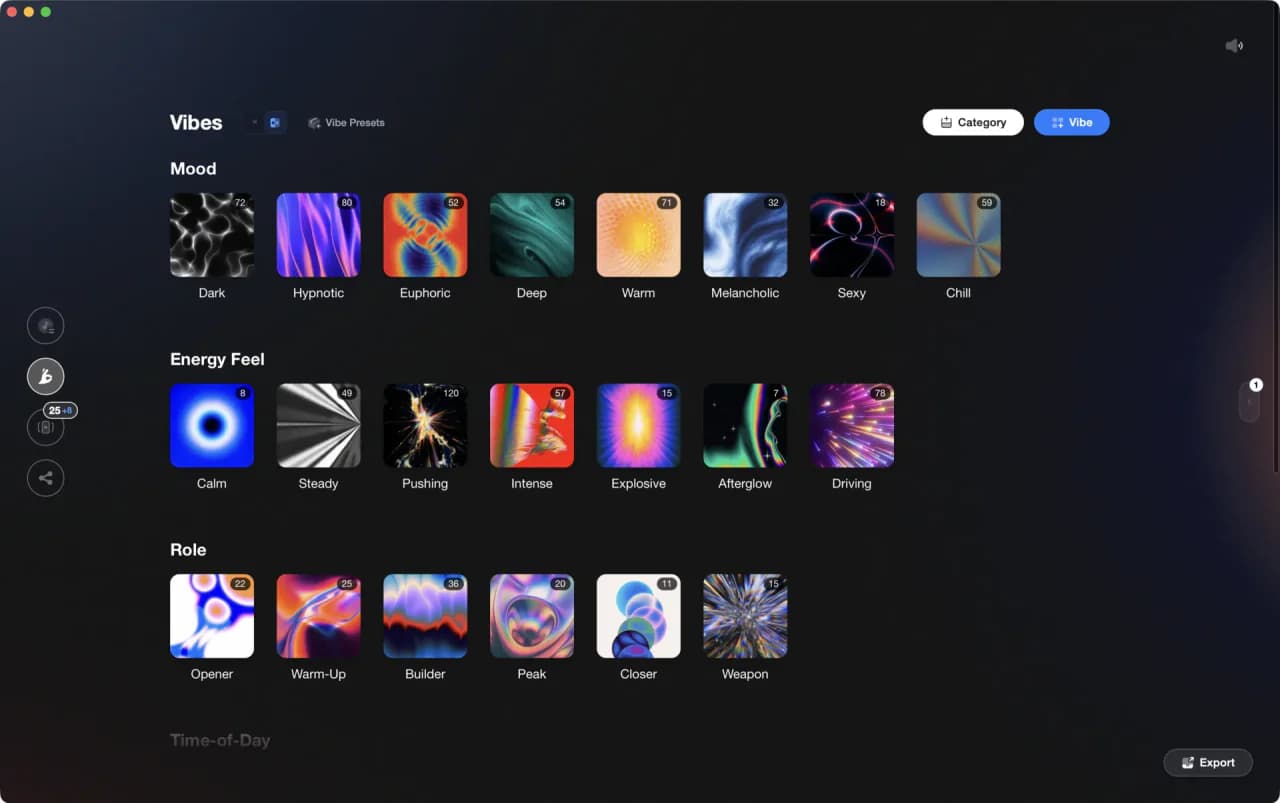
More Tutorials
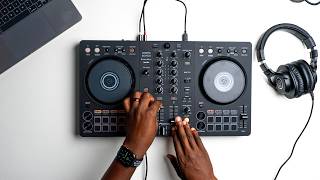
DJ Setup Types
Transition DJ Online: Browser Mixer Workflow
Professional DJ Controller: Battle vs Club Layout, Jogs, and I/O
DJ Transitions: The Three-Layer Handoff for Beginners
Beginner DJ Equipment: What You Need
How To Mix In Key Live: Worked Transitions And Failure Fixes
Starter DJ Controller Buying Guide
How to DJ: First Mix, Step by Step

How Can I Be a DJ and Start Strong
DJ Starter Equipment: What to Buy First (and What to Skip)
Best DJ Controller: How to Choose
Equipment You'll Need
Novation Launchpad X
optionalThe Novation Launchpad X is a 64-pad MIDI grid controller built for live clip launching and DJ performance. Trigger stems, loops, and one-shots in Ableton Session View or map to Traktor Remix Decks. RGB feedback keeps you oriented during high-energy sets.
MIDI Controller
optionalA MIDI Controller is an input device that sends performance data to software instruments, hardware synths, drum machines, and DAWs. If you need hands-on control for playing notes, triggering clips, or automating parameters, a MIDI Controller is the tool that ties your setup together. It does not generate audio on its own.
Pioneer DJ DDJ-FLX4
optionalA compact 2-channel DJ controller with built-in audio interface, USB-C connectivity, and beginner-friendly smart mixing features.
Ableton Live
optionalAbleton Live is the go-to DAW for hybrid DJ sets and live electronic performance. Session View enables non-linear clip launching perfect for DJs transitioning from decks. Use it alongside CDJs, with controllers like Push and Launchpad, or as your complete performance rig.
Hercules DJControl Inpulse 500
optionalA 2-channel USB DJ controller with built-in audio interface, performance pads, and guided mixing features for home practice and small public sets.
VirtualDJ
optionalDJ software for Windows and macOS that handles audio mixing, video mixing, karaoke, stems, and broad hardware support.
Serato DJ Pro
optionalProfessional DJ software for mixing, performance, library management, recording, and hardware-integrated club workflows.
Yamaha REV5
optionalThe Yamaha REV5 is a 2U rackmount digital **reverberator** built for studios and live rigs. If you want hardware ambience with surgical control, the Yamaha REV5 still delivers. Its balanced I/O, per‑program parametric EQ, and MIDI backup make it a reliable problem solver as well as a creative reverb. This page covers Yamaha REV5 features, specifications, pricing context, and the best alternatives.
Pioneer DJ DDJ-1000
optionalA 4-channel rekordbox DJ controller with full-size jog wheels, onboard displays, and club-style mixer controls.
Pioneer DJ CDJ-3000
optionalProfessional flagship DJ media player with a 9-inch touchscreen, advanced MPU processing, and club-standard Pro DJ Link workflow.
DJControl Inpulse 200 MK2
optionalCompact 2‑deck USB DJ controller with built‑in audio, Beatmatch Guide LEDs, and Serato DJ Lite/DJUCED integration.
Traktor MX2
optionalA 2-channel DJ controller with integrated audio interface and tight Traktor Pro 4 integration for mixing, stems, effects, and performance pads.
Mixed In Key 11
optionalStandalone harmonic-mixing and library-prep software that detects keys, energy levels, cue points, and tags for DJ sets.
rekordbox
optionalCloud-connected DJ software for music management, performance, export prep, and club-standard hardware integration.
Pioneer DJ DDJ-400
optionalA compact 2-channel USB DJ controller built for rekordbox with a club-style layout aimed at new and progressing DJs.
Numark Mixtrack Pro FX
optionalA 2-deck USB DJ controller with a built-in audio interface, capacitive jog wheels, performance pads, and Serato DJ Lite support.
VirtualDJ 7
optionalA legacy DJ software platform for audio and video mixing, controller mapping, and DVS playback on Windows and Mac.
Native Instruments FM8
optionalNative Instruments FM8 is a powerhouse FM synthesizer for hybrid DJ sets and live performance. Its low CPU usage and bright, cutting tones make it ideal for layering over tracks in a live mix. Bounce FM8 basslines as audio loops for Traktor Remix Decks or Ableton clips.
Pioneer CDJ-400
optionalA discontinued digital DJ media player that plays CDs and MP3 files from USB storage, and can also work as a MIDI controller and USB audio interface.
Cockos REAPER
optionalA lightweight, deeply customizable digital audio workstation for recording, editing, mixing, MIDI production, and post work on Windows, macOS, and Linux.
Pioneer DJ DDJ-SB
optionalA compact 2-channel USB DJ controller designed for Serato DJ Intro and later supported with Serato DJ Lite and Serato DJ Pro.
Pioneer CDJ-1000
optionalA discontinued professional CD-based DJ player that helped define the modern club-standard jog-wheel workflow.
Beatport
optionalBeatport is a DJ-focused electronic music store and streaming platform for discovering, buying, and streaming tracks into supported DJ software and hardware.
Native Instruments Traktor Pro 4
optionalA professional 4-deck DJ software platform with stem separation, flexible beatgrids, effects, DVS support, and broad controller integration.
Frequently Asked Questions

Hey, it's Ben Modigell 👋
I DJ and produce as so I so: downtempo, minimal, dub house, tech house, and techno (releases on Spotify and SoundCloud, links above). Everything I write here comes from my own gigs, studio sessions, and library cleanups: the rules I follow, the failure modes I have actually hit, and the workflow I use when nobody is watching. If a technique did not earn its place in my own sets, it does not make it into a tutorial.