Auto BPM Transitions Across Genres
Auto BPM transitions move a DJ set across big tempo gaps with sync, key lock, cue timing, and phrase-aware tempo changes.
Auto BPM Transitions Across Genres Tutorials

Quick Answer
Auto BPM transitions move a DJ set across big tempo gaps without losing the groove. You align tracks, use sync and key lock carefully, then change tempo in a phrase-aware arc so the switch feels musical rather than abrupt.
Why learn Auto BPM Transition? It unlocks creative freedom across genres and energy levels. You can go from 126 house into 174 drum and bass, or from halftime trap into techno, while keeping phrasing intact. Many call it tempo transitioning or BPM transitioning.
In practice, the technique depends on solid beatgrids and knowing when to use beat sync versus tempo sync. Serato explains that tempo sync keeps tempos matched while allowing free placement in the bar, which is ideal during a gradual tempo change. See the Serato Support: SYNC with Serato DJ.
What Is Auto BPM Transition?
Auto BPM Transition is a DJ method for shifting the master tempo during a mix while both decks remain tempo-matched. You start by syncing tempos or beats, then switch to a mode that maintains equal BPM across decks while you move the master tempo gradually.
In Rekordbox, a blinking SYNC light indicates only BPM is synchronized and beat position is free, which matches this workflow. That behavior is documented in the AlphaTheta Help Center: SYNC button blinking meaning.
The deck designated as sync master matters. Rekordbox describes how master status switches and why only the master deck’s tempo changes the group when sync is on. See the AlphaTheta Help Center: Sync master switching conditions.
Auto BPM Transition works best after you master beat matching fundamentals and basic phrase timing. It is not only about sliding a fader. It is about where in the arrangement you shift and how fast you climb or descend.
Why Master This Technique
- Blend across genres and moods without hard cuts.
- Control crowd energy with measured tempo arcs.
- Reduce artifacts by distributing tempo change between tracks.
- Create signature transitions that feel intentional, not accidental.
Core Technique Breakdown
1) Grid and analyze. Use accurate beatgrids. Serato’s Smart Sync relies on correct grids for reliable syncing. Reference the Serato Support: SYNC with Serato DJ.
2) Set the master. Decide which deck controls tempo. In Rekordbox, the master deck rules the group tempo when sync is enabled. See the AlphaTheta Help Center: Sync master switching conditions.
3) Lock beats, then free bar position. Start with beat sync to enter on-grid, then nudge or jog to drop into tempo sync. Rekordbox indicates this with a blinking SYNC light, and Serato documents tempo-sync behavior in their sync guide. See the AlphaTheta SYNC blinking meaning.
4) Move the master tempo slowly. Change 1 BPM every 8 bars for subtle shifts, or 2–3 BPM every 16 bars for medium arcs. Keep key lock on to preserve pitch when needed.
5) Meet in the middle. For large gaps, split the change. Raise the outgoing track a few BPM and lower the incoming track to meet halfway. Then complete the move after the handoff. Educational overviews like the DJ.Studio: 9 DJ tempo change techniques cover half-time and midpoint strategies.
6) Use phrasing. Make the fastest changes during breakdowns, noise sweeps, or drumless intros. Combine with tight phrase mixing so the drop lands on a strong 1.
| Step | Action | Key Point |
|---|---|---|
| 1 | Analyze and fix grids | Accurate grids stabilize sync and reduce drift |
| 2 | Choose master deck | Master deck’s tempo moves both decks when sync is on |
| 3 | Enter beat sync, then tempo sync | Blinking SYNC in Rekordbox indicates BPM-only sync |
| 4 | Change tempo gradually | 1 BPM per 8 bars is subtle for most dance floors |
| 5 | Meet in the middle if needed | Split the change across both tracks |
| 6 | Finalize at the drop | Complete the last BPM step as drums return |
Practice Drills
Through daily 15–30 minute sessions over years, I found that tempo-only drills, done at fixed bar counts, build the smoothness needed for reliable Auto BPM Transition in real sets.
Organize tempo corridors for practice. Label crates like 118–122, 122–126, 126–130 so you can drill transitions efficiently in Vibes.
Common Mistakes
| Mistake | Why It Happens | Solution |
|---|---|---|
| Moving the wrong deck’s fader | Non-master deck tempo does not control group tempo under sync | Confirm master status before moving tempo. See AlphaTheta on master switching. |
| Drift during the change | Inaccurate beatgrids or mode confusion between beat sync and tempo sync | Fix grids and re-enter tempo sync. Serato explains tempo sync behavior and bar freedom. |
| Noticeable artifacts on big jumps | Heavy time-stretching at extreme percentages | Split the change or use breakdowns and loops. See DJ.Studio Help on artifacts for large changes. |
| Off-key feel with key lock off | Pitch rises or falls with tempo change | Enable key lock during the arc. After the handoff, evaluate whether to disable for natural feel. |
Documentation sources for the above include the Serato Support: SYNC with Serato DJ, the AlphaTheta SYNC blinking meaning, and DJ.Studio Help: BPM controls.
Advanced Techniques
Half-time and double-time pivots. Move 160 into 80 or 140 into 70 by aligning bars and cutting at a build. The DJ.Studio tempo change techniques outline this strategy.
Automated rehearsals. In Ableton, draw tempo automation to learn the feel of different slopes. This builds intuition for how fast you can move on hardware. See the Ableton Help on tempo automation.
Midpoint plus effect mask. Meet halfway, then finish the change under an echo tail or filtered drum loop. Keep the loop on phrase boundaries to avoid phase smear.
Key-aware arcs. When changing tempo alters perceived tension, pair with learn harmonic mixing so the destination key supports the new energy.
Troubleshooting
SYNC light is blinking. That is BPM-only sync. To relock beats, toggle sync off and on. See the AlphaTheta SYNC blinking meaning.
Tempo fader does nothing. You are on the non-master deck or have not matched the physical fader to the virtual value. Set the correct master and “grab” the tempo by matching the on-screen value first. See master behavior in the AlphaTheta master switching article.
Beat sync keeps snapping during the move. Enter tempo sync so you can choose bar placement freely while tempos remain locked. Serato documents this distinction in the SYNC with Serato DJ article.
Large gap sounds warped. Split the change across both tracks or pivot via halftime. The DJ.Studio Help: BPM controls notes artifacts increase with extreme stretching.
Equipment Notes
Use players or software with beat and tempo sync. Confirm adjustable tempo ranges and key lock. If you rehearse in a DAW, tempo automation teaches timing that transfers to decks. See Ableton tempo automation.
Keep your library labeled by tempo ranges to speed up selection. Group tracks that share compatible phrasing and intros so you can transition during breakdowns more often.
Educational references used in this guide include Serato Support: SYNC with Serato DJ, AlphaTheta SYNC blinking meaning, AlphaTheta master switching, Ableton tempo automation, and the DJ.Studio tempo change techniques.
The visual way to organize your DJ library
Tag tracks by vibe. See everything at once. Export to rekordbox, Serato, Traktor or Engine DJ.
14-day free trial. Full access, no strings attached.
or see how it works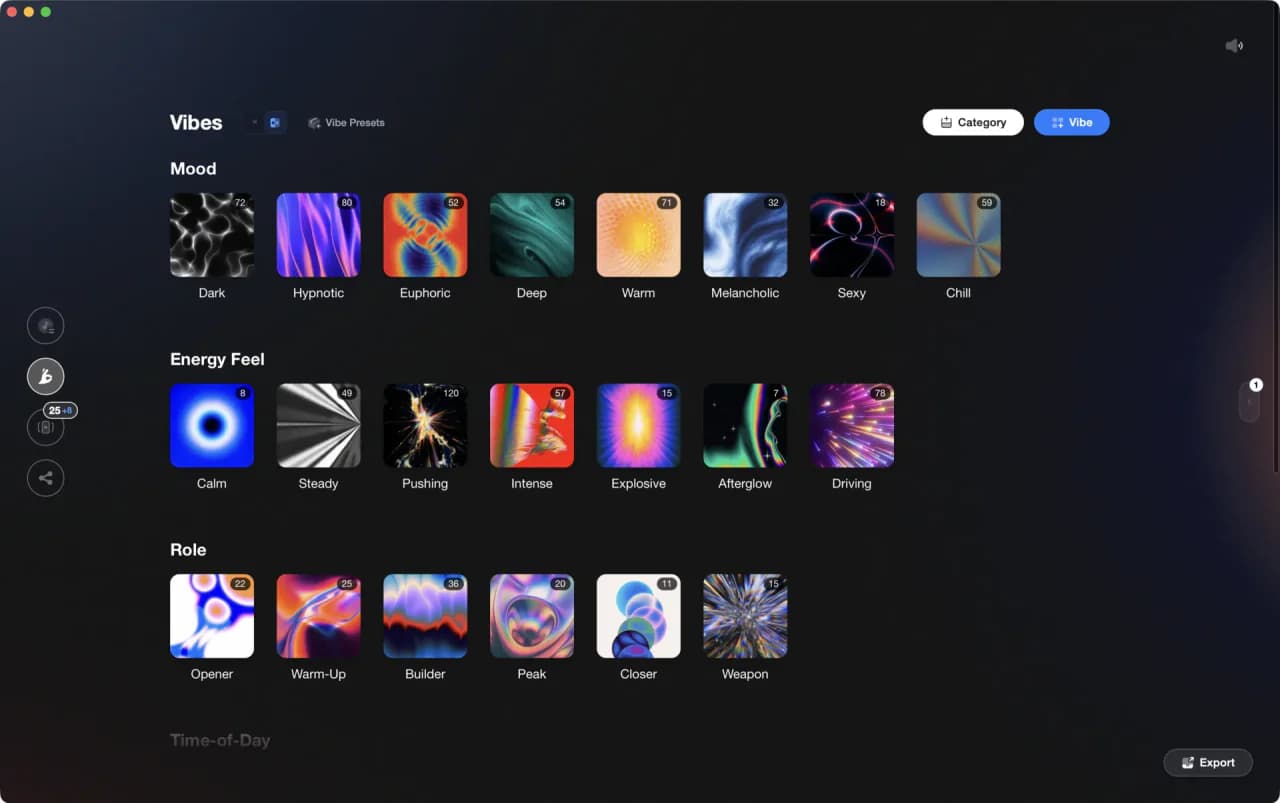
More Tutorials
Professional DJ Controller: Battle vs Club Layout, Jogs, and I/O
DJ Transitions: The Three-Layer Handoff for Beginners
How To Mix In Key Live: Worked Transitions And Failure Fixes
How to DJ: First Mix, Step by Step

How Can I Be a DJ and Start Strong
Virtual DJ Tutorial: Beatmatching Basics
DJ Library Organization System: Tags, Crates, Keys
Equipment You'll Need
Yamaha REV5
optionalThe Yamaha REV5 is a 2U rackmount digital **reverberator** built for studios and live rigs. If you want hardware ambience with surgical control, the Yamaha REV5 still delivers. Its balanced I/O, per‑program parametric EQ, and MIDI backup make it a reliable problem solver as well as a creative reverb. This page covers Yamaha REV5 features, specifications, pricing context, and the best alternatives.
Native Instruments FM8
optionalNative Instruments FM8 is a powerhouse FM synthesizer for hybrid DJ sets and live performance. Its low CPU usage and bright, cutting tones make it ideal for layering over tracks in a live mix. Bounce FM8 basslines as audio loops for Traktor Remix Decks or Ableton clips.
Pioneer CDJ-400
optionalA discontinued digital DJ media player that plays CDs and MP3 files from USB storage, and can also work as a MIDI controller and USB audio interface.
Cockos REAPER
optionalA lightweight, deeply customizable digital audio workstation for recording, editing, mixing, MIDI production, and post work on Windows, macOS, and Linux.
Native Instruments Traktor Pro 4
optionalA professional 4-deck DJ software platform with stem separation, flexible beatgrids, effects, DVS support, and broad controller integration.
Pioneer DJ DDJ-FLX4
optionalA compact 2-channel DJ controller with built-in audio interface, USB-C connectivity, and beginner-friendly smart mixing features.
Beatport
optionalBeatport is a DJ-focused electronic music store and streaming platform for discovering, buying, and streaming tracks into supported DJ software and hardware.
VirtualDJ
optionalDJ software for Windows and macOS that handles audio mixing, video mixing, karaoke, stems, and broad hardware support.
Serato DJ Pro
optionalProfessional DJ software for mixing, performance, library management, recording, and hardware-integrated club workflows.
Pioneer DJ DDJ-1000
optionalA 4-channel rekordbox DJ controller with full-size jog wheels, onboard displays, and club-style mixer controls.
Pioneer DJ CDJ-3000
optionalProfessional flagship DJ media player with a 9-inch touchscreen, advanced MPU processing, and club-standard Pro DJ Link workflow.
DJControl Inpulse 200 MK2
optionalCompact 2‑deck USB DJ controller with built‑in audio, Beatmatch Guide LEDs, and Serato DJ Lite/DJUCED integration.
Traktor MX2
optionalA 2-channel DJ controller with integrated audio interface and tight Traktor Pro 4 integration for mixing, stems, effects, and performance pads.
Mixed In Key 11
optionalStandalone harmonic-mixing and library-prep software that detects keys, energy levels, cue points, and tags for DJ sets.
rekordbox
optionalCloud-connected DJ software for music management, performance, export prep, and club-standard hardware integration.
Pioneer DJ DDJ-400
optionalA compact 2-channel USB DJ controller built for rekordbox with a club-style layout aimed at new and progressing DJs.
Numark Mixtrack Pro FX
optionalA 2-deck USB DJ controller with a built-in audio interface, capacitive jog wheels, performance pads, and Serato DJ Lite support.
VirtualDJ 7
optionalA legacy DJ software platform for audio and video mixing, controller mapping, and DVS playback on Windows and Mac.
Frequently Asked Questions

Hey, it's Ben Modigell 👋
I DJ and produce as so I so: downtempo, minimal, dub house, tech house, and techno (releases on Spotify and SoundCloud, links above). Everything I write here comes from my own gigs, studio sessions, and library cleanups: the rules I follow, the failure modes I have actually hit, and the workflow I use when nobody is watching. If a technique did not earn its place in my own sets, it does not make it into a tutorial.