
How to Tag Your Music Library
Tagging a music library means writing consistent metadata into your audio files, artist, title, genre, BPM, key and your own labels, so any app you load them into can sort and filter them. This guide covers the fields worth filling, the steps in rekordbox, Serato, Traktor and Engine DJ, and how to keep the scheme from collapsing halfway through.
Quick Answer
The fields that do the work
A tag is a metadata field stored inside the audio file itself. Your DJ app reads those fields when the track is imported and then keeps its own copy, which is why two apps can show different information for the same file. Fill a short, fixed list of fields on every file and every app you ever use inherits the same library.
| Field | What it is for | Fill it with |
|---|---|---|
| Artist and Title | Search, and the two lines you read in the booth | One spelling per artist, and no featured-artist variants in the artist field |
| Album | Groups releases, EPs and label compilations | The release name, left empty rather than guessed |
| Genre | The coarse filter every app offers | A closed list of 10 to 20 genres, never free text |
| Year | Separating old records from new ones | The year of the version you actually own |
| BPM | Tempo filtering and playlist building | Your app's analysis result, corrected by hand where it halved or doubled |
| Key | Harmonic selection | One notation for the whole library, Camelot or musical, not both |
| Comment | The free-text field every DJ app shows | Your own labels: energy, vocal or instrumental, part of the night |
| Label or Grouping | A second free-text field most DJs leave empty | The record label, or a second tag axis you keep out of Comment |
The eight fields worth filling on every track.
Which tag format holds those fields depends on the file type. The rekordbox manual lists what it can read: ID3 tags (v1, v1.1, v2.2.0, v2.3.0 and v2.4.0) in MP3 and AIFF files, the meta tag of M4A files, RIFF INFO in WAVE files, and Vorbis Comment in FLAC files. It also warns that a WAVE file's tag information may not be displayed at all, which is worth knowing before you pick a format for thousands of files.
How to tag music library files, step by step
The order matters more than the tool. Fix the identity of the file first, let analysis add the numbers, and only then add your own opinions on top.
- 1
Write the vocabulary down first
Decide the closed list for each field before you touch a file: your genres, your energy scale, the handful of words allowed in Comment. A scheme you invent at track 400 will not match track 4, and re-tagging is far slower than deciding. One page is enough.
- 2
Fix artist, title and album in a batch editor
Stray capitals, featured-artist spellings and missing album names are a batch job, not a per-track one. A tag editor edits hundreds of files at once, and our MP3 metadata editor does a folder at a time in the browser. Rename the files from the finished tags, following one naming convention, never the other way round.
- 3
Let analysis write BPM and key
Every DJ app detects BPM and key when it analyzes a track. rekordbox can push the result back into the file: in Preferences, under the Analysis category, Key Analysis has a Write the value to the ID3 tag option that stores the detected key in the ID3 tag, so the next app you load the file into reads the same key.
- 4
Put your own labels in one field
Energy, vocal or instrumental, warm-up or peak: these are the labels no database can supply, and they belong in one field. Comment is the safe choice because every DJ app displays it. Keep Label or Grouping for a second axis if you need one, and leave the rest of the fields alone.
- 5
Tag inside the app where the app owns the field
In rekordbox, click the icon on the right of the screen to open the My Tag configuration window, rename the categories to your own, and check tags onto the selected track. Preferences > Advanced > Browse > My Tag > Add “My Tag” to the “Comments” mirrors those tags into the Comments column, so they survive a trip to another app. Our My Tag walkthrough covers the panel in detail.
- 6
Re-read the tags after any edit made outside the app
Serato has a Re-scan File Info button in the Files panel that re-reads file tags for the whole library, and Serato's documentation says to use it after editing tags in other software. rekordbox has Reload Tag in the track's right-click menu. Engine DJ has Re-import track information. Run one of them after every batch edit, or the app keeps showing you yesterday's tags.
Where each DJ app lets you edit tags
| App | Where you edit a tag | Documented detail |
|---|---|---|
| rekordbox 7.2 | The track information window, plus the My Tag panel for your own labels | Reload Tag reads the ID3 tag information from the selected track |
| Serato DJ Pro 4 | Double-click the field in the main library | Control plus E edits song names, and with several tracks selected the edit applies to all of them |
| Traktor Pro 4 | Inline in the Track List, or the Edit dialog for a whole selection | Native Instruments recommends editing tag metadata in iTunes only, if iTunes manages your collection |
| Engine DJ Desktop 5.0 | Click a field in the track list and type | Hold Shift and double-click a field to edit a multi-track selection, confirmed by a dialog |
Sources for the table: Serato on editing ID3 tags, Serato on re-scanning file information, the Traktor Pro manual, and the Engine DJ user guide, which lists Title, Artist, Album, Key, Comment, Genre, Label, Year, Composer, Mixartist and Track number as editable fields.
How to automatically tag and organize a music library
Three parts of this job automate cleanly. Analysis fills BPM and key without your help. Fingerprint-based taggers match a file against a public music database and fill artist, album and year, which rescues the unlabeled half of most downloaded collections. Rule-based crates then maintain themselves: Serato's Smart Crates match rules against the tags of your library tracks, and with Live Update ticked, any change to the library updates the crate automatically.
What no database can automate is the part a DJ actually selects on. Whether a record is a warm-up tool or a peak-time weapon is your opinion about your floor, and it is the reason a library full of perfect album art still does not answer the question at 1 a.m.
The faster way when the labels are yours
Vibes does the first pass over the part that stays manual everywhere else. Auto-Tagging suggests vibes from the track's own sound, Vibe Sort puts one track on screen at a time so you can tag with hotkeys, and tag import reads what you already wrote in the Genre, Mood or Grouping fields instead of making you start from zero. Its analysis covers BPM, key, energy and sections, and the finished library exports back to rekordbox, Serato, Traktor and Engine DJ as a folder tree. See Auto-Tagging for what the model does.
The honest limits: Vibes works on files you own, so there is no streaming import or playback, and it does not play to hardware. Everything leaves through your DJ app, which is where the tags end up anyway. If you would rather stay inside your current app, the per-app routes are auto-tagging in Serato and auto-tagging in Traktor.
Rules that keep a tag scheme alive
- One notation per field. Camelot or musical keys, never a mix, or sorting stops working.
- A closed genre list. If a track needs a new genre, add it to the list first, then use it.
- One free-text field for your own labels. A second one turns into a graveyard within a month.
- Tag in batches by folder, not by mood. A finished folder is measurable, a finished mood is not.
- Clean before you tag. Duplicates double the work and then disagree with each other.
Tags are only half the system. The crates and folders they feed are the other half, covered in organizing a DJ library, and star ratings are worth a rule of their own before you spend them on 4,000 tracks.
The visual way to organize your DJ library
Tag tracks by vibe. See everything at once. Export to rekordbox, Serato, Traktor or Engine DJ.
14-day free trial. Full access, no strings attached.
or see how it works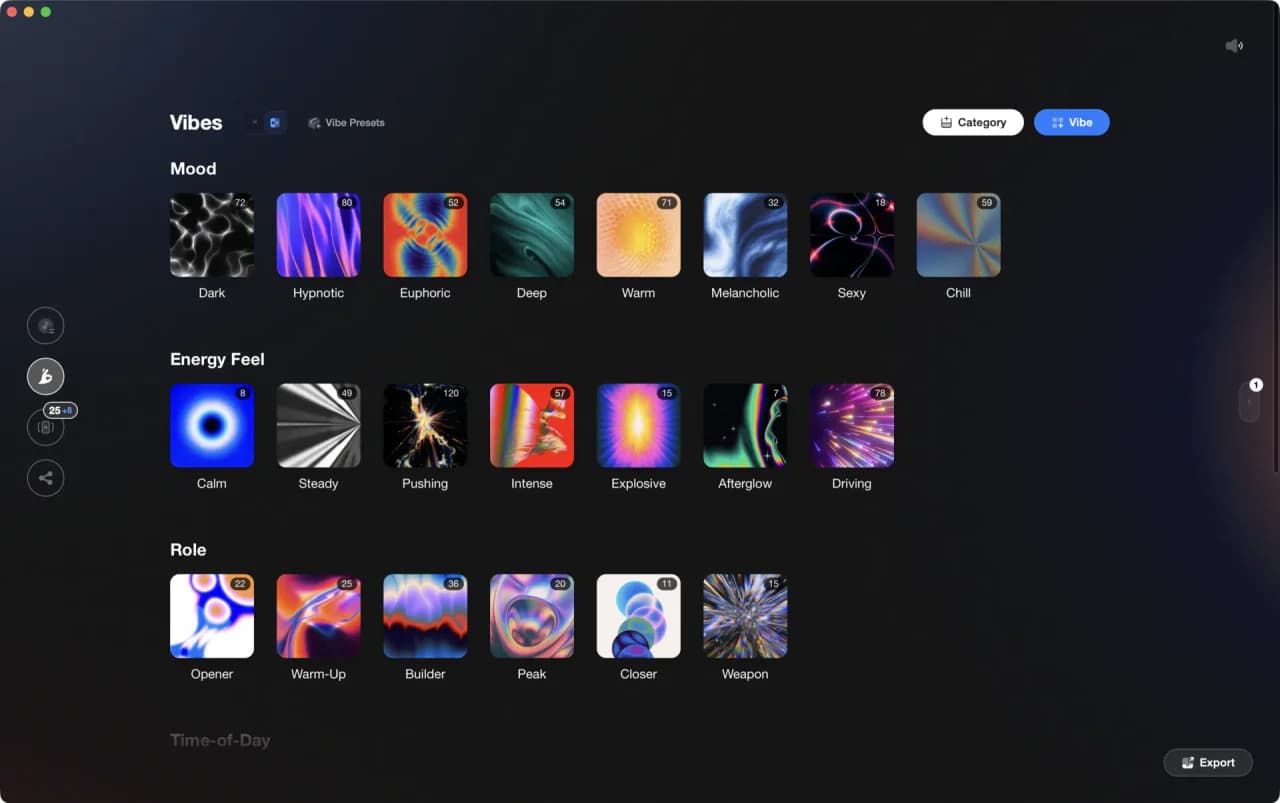
Frequently Asked Questions

Hey, it's Ben Modigell 👋
I DJ and produce as so I so: downtempo, minimal, dub house, tech house, and techno (releases on Spotify and SoundCloud, links above). Everything I write here comes from my own gigs, studio sessions, and library cleanups: the rules I follow, the failure modes I have actually hit, and the workflow I use when nobody is watching. If a technique did not earn its place in my own sets, it does not make it into a tutorial.