
Star Ratings for DJs
Star ratings are a one to five score you set by hand on each track so a library sorts by trust, not by taste. This guide defines what each star should mean and shows where the field lives in rekordbox, Traktor, Engine DJ, VirtualDJ, and Serato.
Quick Answer
What a Star Rating Actually Is
The rating is the most deliberate field in a DJ library. BPM, key, waveform, and beat grid are written for you by an analysis engine. Nothing writes the stars. They carry exactly the meaning you give them, and nothing more, which is why two DJs can both have a crate of five star tracks that share no standard at all.
Most rating habits start from feeling, and feeling drifts. A DJ rating system tracks evidence instead: what a record did in a room, on a night, in front of people who were not you. That is the difference between a field you can sort by and a field you keep quietly rewriting every few months.
Give Each Star One Job
Pick the scale first and write it down. The scale below is one that holds up because every level answers the same question, how much do I trust this track, and none of the levels overlap.
| Rating | What it means | When you reach for it |
|---|---|---|
| 5 stars | Proven. It has worked more than once, in front of more than one crowd. | Peak time, or any moment where you cannot afford to lose the floor. |
| 4 stars | Strong and safe. Played once and it landed, or an obvious fit you trust. | The main body of a set, sitting next to the fives. |
| 3 stars | Useful but situational. Needs the right room, hour, or lane. | Warm up, closing, or one specific type of booking. |
| 2 stars | Bought and prepped, never played. Unproven. | Practice at home. Promote it or demote it after you try it. |
| 1 star | One usable section only. Kept for a single edit, loop, or transition. | Rare and deliberate use. |
One workable scale. Any scale works as long as each level has a job and you apply it the same way every time.
How to Set and Use Star Ratings in Your DJ App
Every app hides the field somewhere slightly different, and one major app does not have it at all. The procedure below is the same everywhere: define the scale, expose the field, rate in short passes, then turn the ratings into lists you can actually load.
- 1
Write the scale down before you rate anything
Five lines, one per level, saved where you can see them. A scale you cannot recite is a scale you will apply inconsistently by the second crate.
- 2
Expose the rating field in the browser
In rekordbox, right-click the column header at the top of the track list and click the column you want to display. In Engine DJ, right-click any column and pick Rating from the list.
- 3
Set the value where the app puts it
rekordbox shows Rating at the top of the INFO panel for the loaded track. Engine DJ lets you click the Rating field in the track list and edit it inline, and clicking to the left of the first star clears the rating. VirtualDJ shows a rating out of 5 stars in the File Info panel, set by hovering the stars and clicking the value you want.
- 4
Rate in short passes, not in one sitting
Rate the crate you are prepping this week, not the whole library. A rating on a track you have never heard is a guess wearing a number.
- 5
Turn the ratings into lists
Traktor lists Rating among the filters you can choose when you create a Smartlist. Engine DJ Smartlist rules let you match Rating is greater than, is less than, or is equal to a value. rekordbox lets you set Ratings as one of the RELATED TRACKS conditions, next to BPM, Key, and My Tag.
- 6
Re-rate after the gig
Promote what worked, demote what died. This is the step that makes the field worth having, and the one everyone skips.
| App | Where you set it | What you can do with it |
|---|---|---|
| rekordbox 7 | The Rating item in the INFO panel. Add the rating column by right-clicking the track list header. | Display it as a column, and use Ratings as a RELATED TRACKS condition. |
| Traktor Pro 4 | The Rating attribute on the track. | Rating is one of the documented Smartlist filters, so a rating can drive a self-updating list. |
| Engine DJ 5.0 | The Rating field, 1 to 5 stars, edited inline in the track list. Engine DJ 5.0 also adds star ratings on the hardware itself. | Sort the Rating column, and build Smartlist rules on greater than, less than, or equal to. |
| VirtualDJ 2025 | The star rating in the File Info panel: hover the stars and click the value. | Read it while you audition tracks in the browser. |
| Serato DJ Pro 4 | No rating field exists. The column list runs from Added and Album through to Year with no rating in it. | Use the label color column, or a text column such as Grouping or Comment, as a stand-in. |
Checked against each vendor's own documentation. Serato is the outlier: it has color, not stars.
Ratings, Energy, and Tags Are Three Different Axes
What a rating answers
- How much do I trust this track.
- How many times has it actually worked.
- Does it belong on tonight's shortlist at all.
- Which unproven tracks still need a test run.
What a rating cannot answer
- -Where in the set the track belongs.
- -How hard it hits next to the record before it.
- -Which room, hour, or genre lane it fits.
- -What the track does structurally, such as a long intro or a vocal hook.
Those second questions belong to other fields. Energy is a separate scale for intensity, covered in energy analysis, and function belongs in tags, covered in how to tag your music library. Keep them apart. A rating that also tries to mean energy ends up meaning neither.
Keeping the Ratings Honest
- Rate after the gig, not during it. Scores set at 2am reward relief, not results.
- Cap the top level. If a quarter of the library is five stars, the five has stopped filtering anything.
- Demote on purpose. A track that emptied the floor twice is not a four because you paid for it.
- Leave untested tracks unrated or at the bottom. Blank is information: it means you have not proven this one yet.
- Use one scale across every genre and every crate. A five in your disco folder has to mean what a five means in your techno folder, or sorting breaks.
Where Vibes Fits
Rating a backlog one track at a time inside a DJ app is slow, and the rating is only one of the fields a prepped library needs. Vibes imports your collection from rekordbox, Serato, Traktor, Engine DJ, an Apple Music library XML, or plain folders, with the Import Wizard auto-detecting which app you came from. From there you set star ratings and an energy value from 1 to 10, edit per-track metadata in Track Inspector, tag tracks into vibes with Vibe Sort hotkeys or Auto-Tagging, and bulk re-analyze anything that came in thin.
When the prep is done, Vibes exports playlists and vibes back to rekordbox, Serato, Traktor, and Engine DJ. What it does not do is play. Vibes works on files you own, so there is no streaming import or playback, no cloud sync, and no mobile app. There are no decks, no mixing, and no recording either: playback to hardware goes through your DJ app, which is where the export lands.
Related toolVibes DJ library managerRate, tag, and analyze a whole library in one pass, then export it back to your DJ app.The visual way to organize your DJ library
Tag tracks by vibe. See everything at once. Export to rekordbox, Serato, Traktor or Engine DJ.
14-day free trial. Full access, no strings attached.
or see how it works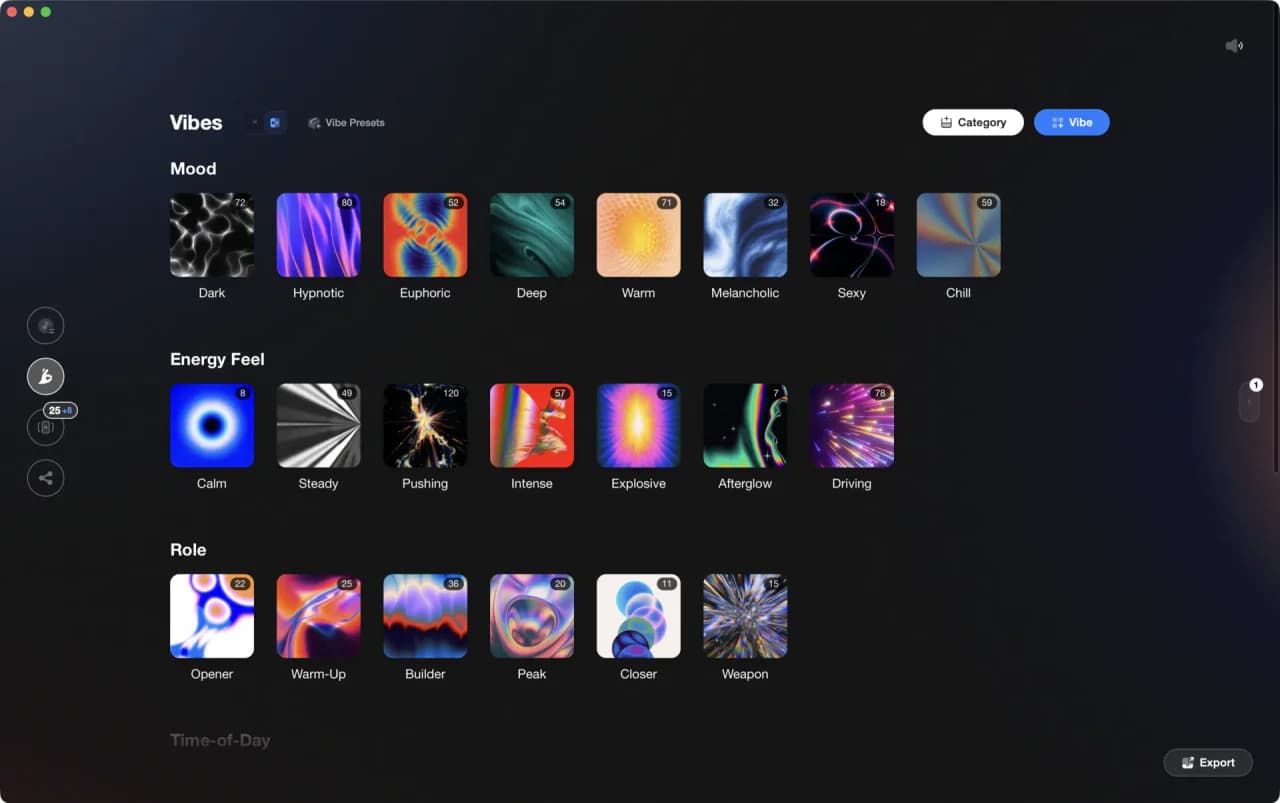
Frequently Asked Questions

Hey, it's Ben Modigell 👋
I DJ and produce as so I so: downtempo, minimal, dub house, tech house, and techno (releases on Spotify and SoundCloud, links above). Everything I write here comes from my own gigs, studio sessions, and library cleanups: the rules I follow, the failure modes I have actually hit, and the workflow I use when nobody is watching. If a technique did not earn its place in my own sets, it does not make it into a tutorial.