

Use stems in Rekordbox.
To use stems in Rekordbox, switch to PERFORMANCE mode, open [Preferences] > [Extensions] > [STEMS] and tick [Enable the STEMS Function]. Stem buttons then appear on the deck, mixer and effect panels, and each track splits in real time into VOCAL, DRUMS, INST and, in 4 Stems mode, BASS. One limit worth knowing first: it never works on Apple Music or Spotify tracks.
$49$79USD one-time purchase. First 250 licenses at this price. 14-day free trial.
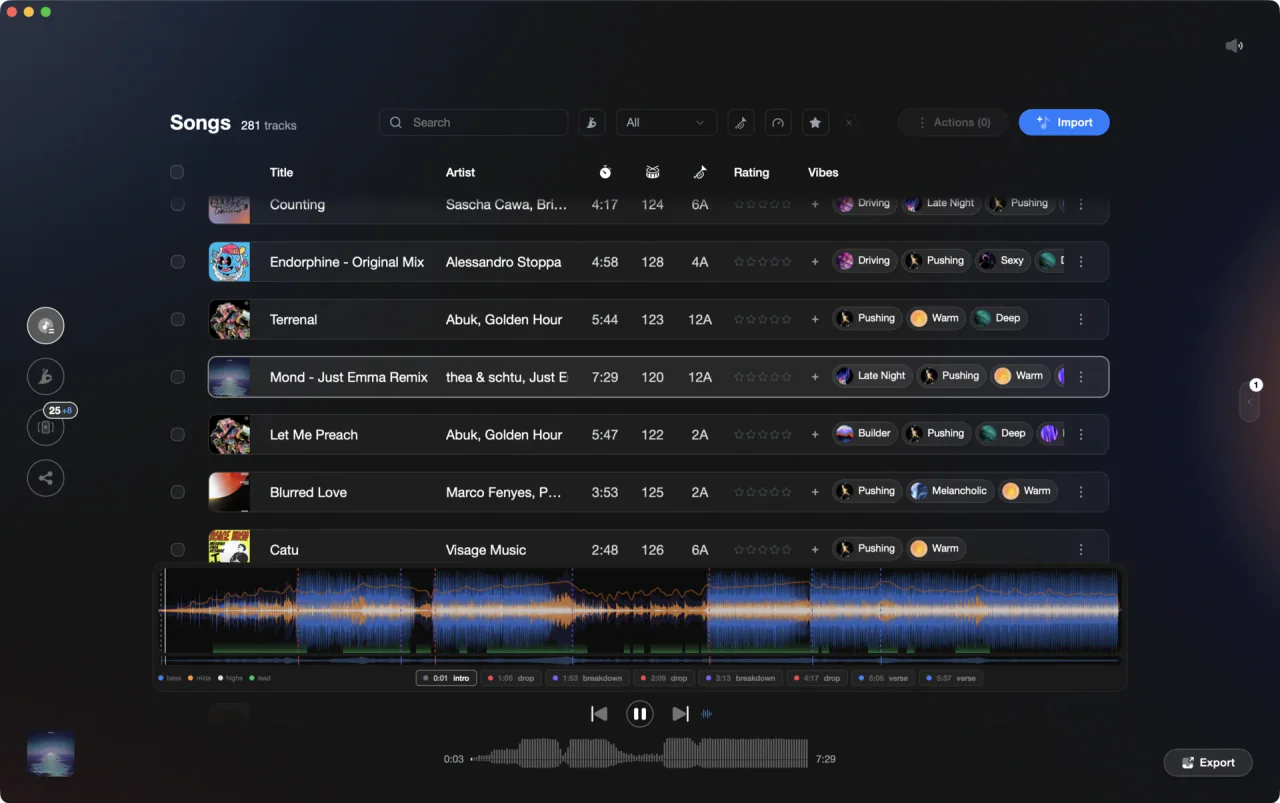
Rekordbox does the splitting live. Knowing where the vocal sits is prep work.
Use stems in Rekordbox, step by step.
STEMS is a PERFORMANCE mode function: with stems, Rekordbox does the separating itself, live, on your own processor, which is why AlphaTheta publishes a recommended CPU list for it. Eight steps take you from the checkbox to a controller mapping.
Switch to PERFORMANCE mode
STEMS lives in PERFORMANCE mode only, so you will not find it in EXPORT mode. Open rekordbox and pick [PERFORMANCE] from the mode selector in the upper-left of the screen. The deck, mixer and effect panels that carry the Stem controls all belong to this view.
Tick the STEMS checkbox in Preferences
Click the settings icon in the upper-right of the screen, or open [Preferences] from the menu. Select the [Extensions] category, open the [STEMS] tab, and check [Enable the STEMS Function]. That one checkbox is all it takes to enable stems in Rekordbox. The manual is explicit about what happens next: the buttons for the function appear on the deck, effect panel and mixer panel.
Pick 3 Stems or 4 Stems, and MUTE or SOLO
Stay on the same tab. Under [STEMS Mode], choose [3 Stems (VOCAL, INST, DRUMS)] or [4 Stems (VOCAL, INST, BASS, DRUMS)]. Under [ACTIVE STEM Setting], choose [MUTE] to switch parts on and off one at a time, or [SOLO] to jump between all Stems and a single one. [STEMS Analysis Process] also offers [Prioritize sound quality], which asks more of the CPU.
Analyze playlist in Rekordbox, or one track at a time
Rekordbox calls the separation an analysis process, and its settings sit on that same STEMS tab. Make sure the music itself is analyzed too. You analyze tracks in Rekordbox from the [Track] menu or the right-click menu with [Analyze Track], or automatically when [Preferences] > [Analysis] > [Track Analysis] > [Auto Analysis] is set to [Enable]. To select multiple tracks in Rekordbox, click into the track list and press [Ctrl+A].
Mute and solo parts on the deck (ACTIVE STEM)
Load a track and look at the deck. Each Stem has a STEM MUTE button: on outputs that part, off mutes it. Kill the VOCAL Stem for an instant instrumental, or mute everything except VOCAL for an acapella. With the [SOLO] setting instead, you switch between hearing all Stems and hearing one.
Blend instead of cutting with STEM ISO
On the mixer panel, turn the STEM ISO mode button on. The channel knobs stop working as HIGH, MID and LOW EQ and become volume controls for the INST, VOCAL and DRUMS Stems, so you can ride a vocal down rather than cut it dead. Switch STEM ISO off and the knobs go back to EQ.
Effect one part only with STEM FX
In the effect panel, switch on the STEM FX button for INST, VOCAL or DRUMS. The effect then lands on that part alone. The manual notes that all effect types can be applied here, including BEAT FX, SOUND COLOR FX, PAD FX and MERGE FX, so a long reverb on the vocal leaves the drums completely dry.
Map the Stem controls to your controller
Some DJ equipment has STEMS controls built in and needs no setup. For everything else, use MIDI LEARN to assign each Stem function to a pad or knob, or PAD EDITOR on controllers that support it. MIDI LEARN requires a Core plan or higher, or a Hardware Unlock device connected to the computer.
The catch
Separation runs on your own processor while you play. AlphaTheta lists a far higher CPU bar for STEMS on four decks than on two, and rekordbox will refuse with a not-enough-free-memory message on a tight machine, so a laptop that handles a normal set can still stutter with Stems on.
Where Vibes fits
Know which tracks are worth a stem move before you load them.
Vibes does not separate stems, isolate vocals or build mashups. It analyzes the files you own for BPM, key, energy and sections such as intro, buildup, drop, breakdown and outro, including where the lead and vocal regions sit. That tells you which tracks carry a usable acapella and which ones fall apart without their drums. Tag those into a vibe, export the playlist back to rekordbox, and do the splitting there.
See how it worksOrganize in Vibes, export to Rekordbox.
Your playlists, tags, ratings, and cue points travel back to the gear you play on, so nothing you do in Vibes is locked away.

Track 001
Artist A
Afterhours Mysterious
 Introspective
Track 002
Artist B
 Cozy FloorPeaceful
 Home
Home
Track 003
Artist C
Rave Aggressive
 Festival
 Build & Release
Frequently asked questions
The honest answers, including the trade-offs.
From a Vibes customer
The import worked perfectly. Have created several sets now and my life is so much easier
One-time purchase
Get Vibes with a single payment. No subscription.
Vibes is the step before you open your DJ software, not a replacement for it.
First 250 licenses at this price, then $79.
14 days • Full access
No strings attached
Secure checkout with Stripe
Already have Companion Pro? Upgrade instead


Methodology
How we keep this honest.

Verified against the app
Every step is checked against the current version of Rekordbox.
We own our bias
We make Vibes. We show the native way first and honestly, then where Vibes genuinely helps, and we say when it does not.
Live pricing
The Vibes price shown comes straight from our checkout, never a hardcoded marketing number.
Kept current
Last reviewed September 2026.
Keep exploring
Compare Vibes
DJ apps head to head
Works with your software
Vibes for DJs
Vibes features
How-to guides
Best DJ software
Move between apps
Learn to DJ