

Use stems in Engine DJ.
Engine DJ splits a track into four parts, vocals, melody, bass and drums, on your computer in Engine DJ Desktop, and plays them back on standalone hardware. Render the tracks you want, pack the drive with Sync Manager, then double-press the Hot Cue pad mode button on the deck. Rendering is free for everyone, playback needs Engine OS 4.2 or later, and the RANE SYSTEM ONE is the only unit that can render on its own.
$49$79USD one-time purchase. First 250 licenses at this price. 14-day free trial.
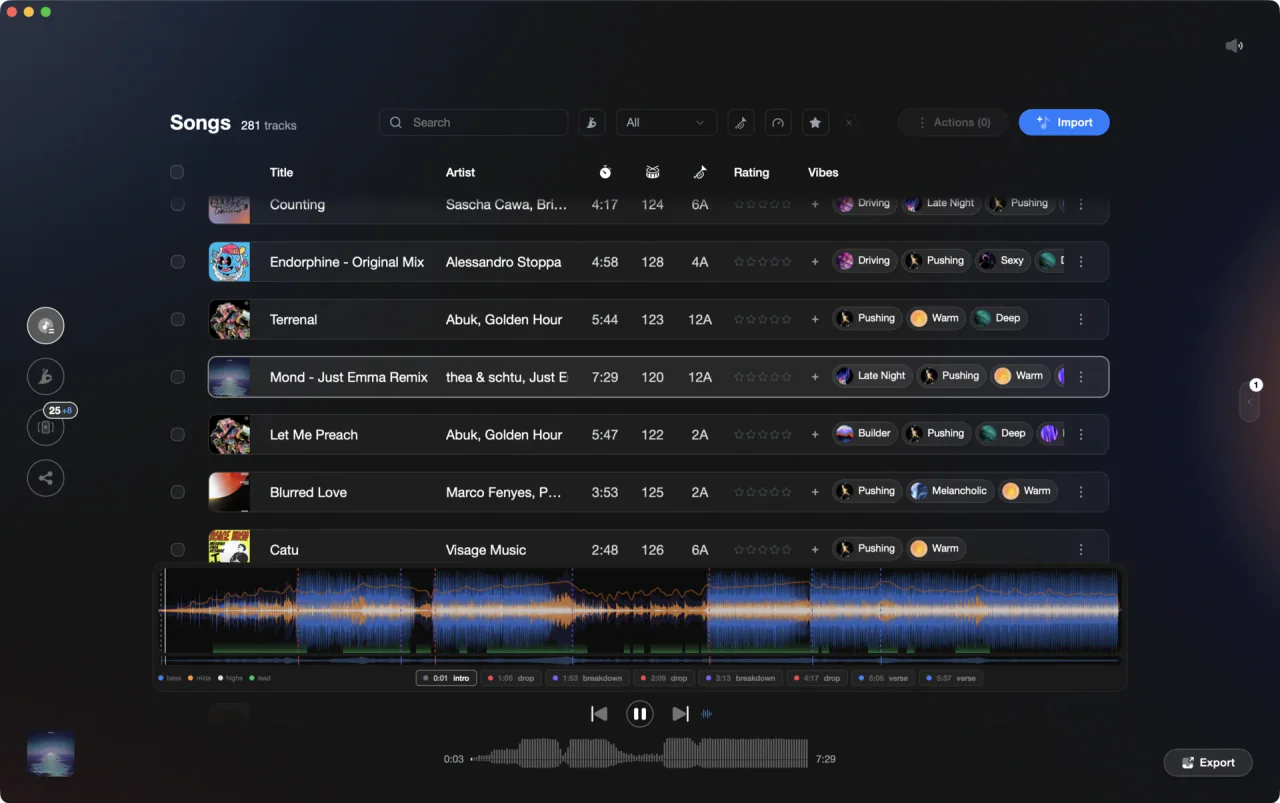
Decide which tracks are worth rendering before you queue up a batch.
Use stems in Engine DJ, step by step.
The job is three moves: render on the computer, pack to the drive, play on the hardware. If you are just asking does Engine DJ have stems, the answer is yes since version 4.2, which is why searches for engine dj 4.0 stems turn up nothing useful.
Update Engine DJ Desktop and Engine OS
Stems arrived in version 4.2 and have been in every release since. The current desktop download is 5.1.0, and the hardware updates its own Engine OS over Wi-Fi or a wired connection. The denon prime 4 stems update people search for is exactly this, and there is no engine dj stems beta to sign up for.
Unlock the license on the hardware
Rendering costs nothing, but playback on the deck needs an unlock. Every Engine OS unit except the PRIME 4+ needs a one-time engine dj stems license from the Engine DJ store, bought with the email on your Engine DJ Profile and activated by signing in to that profile on the deck. PRIME 4+ owners skip it, since Denon DJ Prime 4 Plus stems unlock automatically.
Render the tracks in Engine DJ Desktop
Open your Engine Library in Desktop. Right-click a track or a selection and choose Create stems, or drag tracks and whole playlists onto the Stems list under the Collection header. Progress shows at the bottom of the window, and the Stems column marks each track: a spinner means rendering, a gray icon means queued, a white icon means done.
Pack the drive with Sync Manager
Rendered parts live in extra files beside the track, so they have to be packed. Open Sync Manager, select the playlists already on your drive and choose Export To Drive: only the new files copy across, with no duplicate tracks. Exporting is blocked while analysis is still running, so let it finish first.
Open the Stems pad mode on the deck
Load a rendered track. Double-press the Hot Cue pad mode button on Denon DJ hardware, or hold SHIFT and press Hot Cue on Numark units. Pads 1 to 4 toggle vocals, melody, bass and drums, and a lit pad means that part is audible. The pads are identical across the range, so engine dj stems mixstream pro and denon dj prime go stems land in the same place.
Trigger an instant acapella or instrumental
Where the hardware has parameter buttons, the left one drops everything but the vocal and the right one drops the vocal, without touching the pads. Turn on Performance Pads under Layout and the main display mirrors which parts are muted, which is worth doing before you try this in front of a room.
Render on the deck itself, on SYSTEM ONE
Engine DJ 5.0 added on-device rendering, and the RANE SYSTEM ONE is the only hardware that can do it with no computer attached. Tracks keep playing while they render, and several tracks or whole playlists can render at once. Every other unit in the range still needs Desktop to render first.
The catch
Rendered parts only play on the hardware. Engine DJ Desktop will not play them back, and they do not travel over Engine Remote Library or Dropbox, which is why engine dj stems sc live 4 threads keep circling the same answer: the files have to be packed onto a USB stick, SD card or internal drive.
Where Vibes fits
Choose the tracks worth rendering before you start.
Vibes does not separate stems, isolate vocals, or play anything back to your hardware. It does the library work in front of that: analysis that shows BPM, key, an energy curve, section markers for intro, buildup, drop, breakdown and outro, and where the lead and vocal regions sit. Use it to shortlist the tracks with a vocal or a hook worth pulling apart, then export those playlists and render only those.
See how it worksOrganize in Vibes, export to Engine DJ.
Your playlists, tags, ratings, and cue points travel back to the gear you play on, so nothing you do in Vibes is locked away.

Track 001
Artist A
Afterhours Mysterious
 Introspective
Track 002
Artist B
 Cozy FloorPeaceful
 Home
Home
Track 003
Artist C
Rave Aggressive
 Festival
 Build & Release
Frequently asked questions
The honest answers, including the trade-offs.
From a Vibes customer
The import worked perfectly. Have created several sets now and my life is so much easier
One-time purchase
Get Vibes with a single payment. No subscription.
Vibes is the step before you open your DJ software, not a replacement for it.
First 250 licenses at this price, then $79.
14 days • Full access
No strings attached
Secure checkout with Stripe
Already have Companion Pro? Upgrade instead


Methodology
How we keep this honest.

Verified against the app
Every step is checked against the current version of Engine DJ.
We own our bias
We make Vibes. We show the native way first and honestly, then where Vibes genuinely helps, and we say when it does not.
Live pricing
The Vibes price shown comes straight from our checkout, never a hardcoded marketing number.
Kept current
Last reviewed September 2026.
Keep exploring
DJ apps head to head
Works with your software
Vibes for DJs
Vibes features
How-to guides
Best DJ software
Move between apps
Learn to DJ