

Use Stems in Traktor.
Stems in Traktor split a track into four parts, so you can drop the vocal or keep only the drums during a live set. Here is how to load Stems files onto a Stem Deck, mix the parts, and separate regular tracks in Traktor Pro 4, plus how to keep your stem-ready tracks organized before you play.
$49$79USD one-time purchase. First 250 licenses at this price. 14-day free trial.
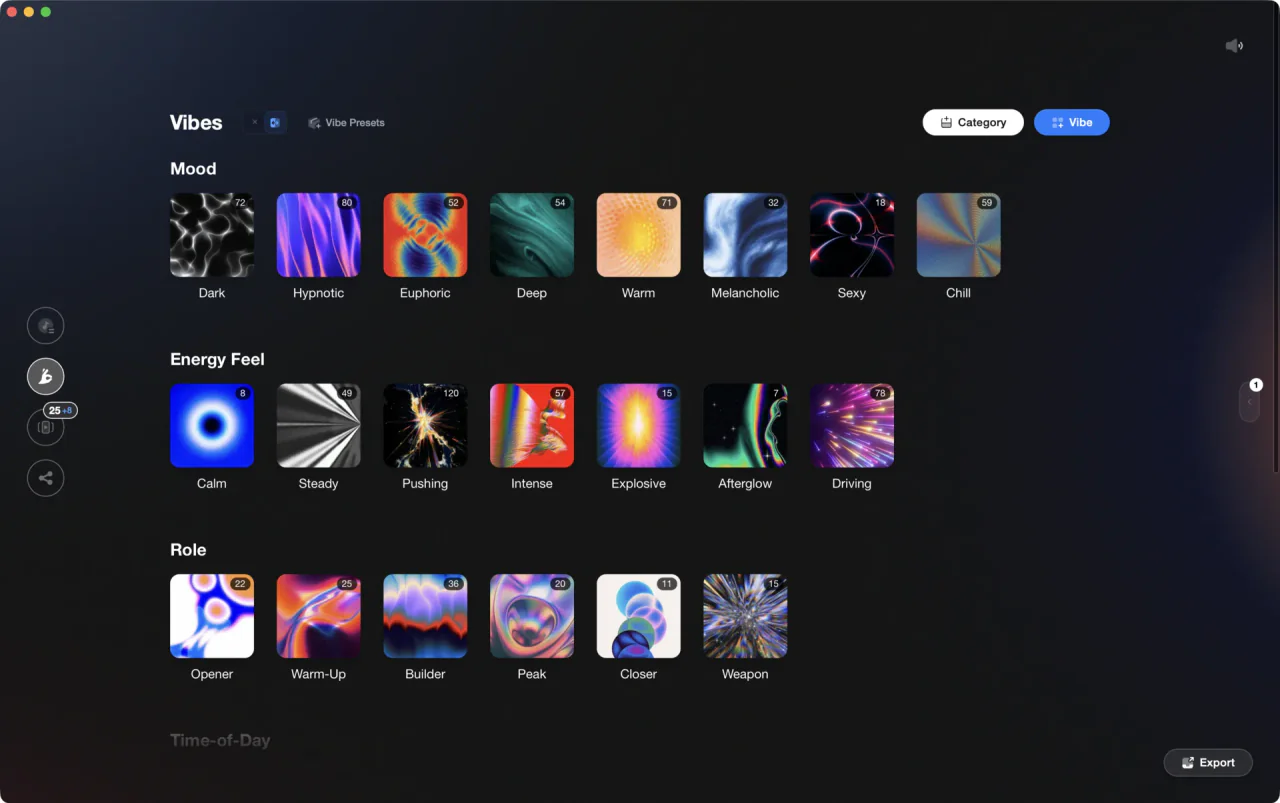
Tag and crate your Stems tracks in Vibes, then export straight into Traktor.
Use Stems in Traktor, step by step.
Traktor Stems is a four-part audio format that gives you independent control over four musical elements of a track from a single file, typically drums, bass, vocals, and a fourth part such as melody or synths. Pre-made Stems (.stem.mp4) files have played on Stem Decks since the format launched on Traktor Pro 2, so any current Traktor Pro 3 or 4 install handles them, and Traktor Pro 4 can also separate a regular track into stems inside the app. You control the parts from the software mixer, a Traktor controller with stem controls, or a MIDI mapping.
Get Stems files
Stems files use the .stem.mp4 extension and are sold by select labels and stores that carry the Stems format, such as Bleep, Juno, Traxsource, and whatpeopleplay. Download them to a folder on your drive. A standard MP3 or WAV does not turn into a Stems file on its own. If you run Traktor Pro 4 you can skip this step and let Traktor generate Stems from a regular track instead (see step 5).
Add your Stems folder to Traktor
Open Preferences, then File Management, and click Add under Music Folders. Then right-click Track Collection in the browser tree and choose Import Music Folders. Traktor analyzes the .stem.mp4 files next to your regular tracks, which matters because a Stems file has to be analyzed before it can be loaded onto a Stem Deck. After that you can search, tag, and playlist them like any other track.
Load a Stems track onto a Stem Deck
Drag the file onto a deck. Traktor switches that deck to the Stem Deck flavor and shows the Multi-Track Waveform with the four stems. If you want a deck set up as a Stem Deck permanently, open Preferences, then Decks Layout, and set the Deck Flavor to Stem Deck. Each stem has its own Volume knob with a Mute button, a Filter knob, and an FX Send knob.
Mix and isolate stems live
Pull the vocal stem's Volume knob down on the incoming track while its drums keep running, or leave only the bass of the outgoing track for a clean handover. The Filter knob on each stem sweeps one part without touching the rest, and the FX Send knob sets how much of that part is sent to the FX Units. The rest of the deck operates like a Track Deck, so transport, sync, cue points, and loops work the way you already know.
Separate regular tracks in Traktor Pro 4
Traktor Pro 4 adds stem separation, so you no longer need to buy Stems versions. Right-click (Windows) or ctrl-click (Mac) the track in the Track Collection and choose Generate Stems. Traktor separates the track on your computer and stores the Stem version in the Stem Files Location set in Preferences, linked to the original track, which stays in your collection. Separation takes between one and two thirds of the track's playing time depending on your CPU, so prepare the tracks you plan to split before the set rather than in the middle of a transition. Once generated, dragging the track onto a deck loads the Stem version on a Stem Deck automatically; hold Shift while dragging to load the original instead.
The catch
Pre-made Stems files are a separate purchase, so your existing MP3 and WAV collection does not become Stems unless you buy Stems versions or run Traktor Pro 4 and generate Stems there. Separation in Traktor Pro 4 runs on your computer and takes a good fraction of each track's length, so it needs a reasonably fast machine, and separated parts are never as clean as a producer's own multitrack export: reverb tails, backing vocals, and layered synths can bleed between parts.
Where Vibes fits
Prep your Stems crates before you play.
Vibes does not perform Stems mixing, but it is where you organize the tracks you plan to play. Tag your Stems files by energy, mood, and role so you can find the right one in seconds during a live set, then export clean playlists straight into Traktor.
See how it worksOrganize in Vibes, export to Traktor.
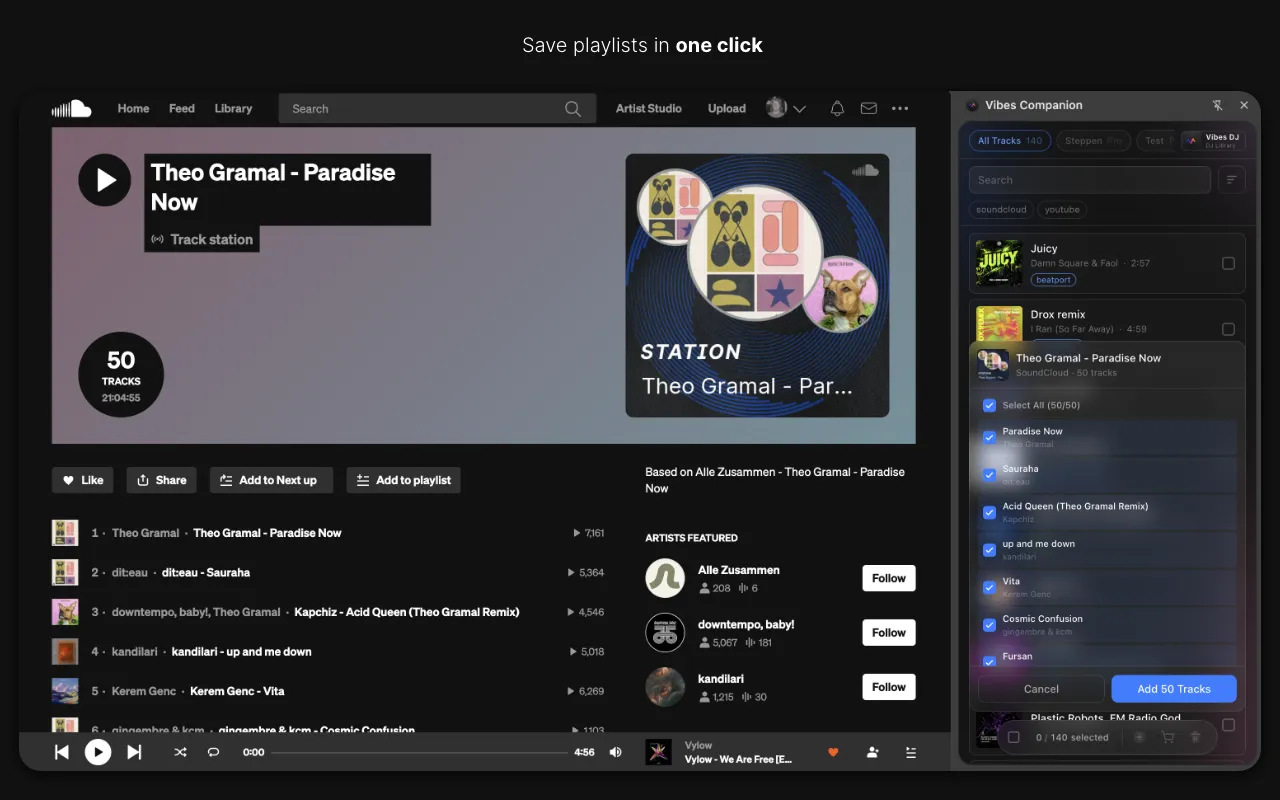
Your playlists, tags, ratings, and cue points travel back to the gear you play on, so nothing you do in Vibes is locked away.

Track 001
Artist A
Afterhours Mysterious
 Introspective
Track 002
Artist B
 Cozy FloorPeaceful
 Home
Home
Track 003
Artist C
Rave Aggressive
 Festival
 Build & Release
Frequently asked questions
The honest answers, including the trade-offs.
From a Vibes customer
The import worked perfectly. Have created several sets now and my life is so much easier
One-time purchase
Get Vibes with a single payment. No subscription.
Vibes is the step before you open your DJ software, not a replacement for it.
First 250 licenses at this price, then $79.
14 days • Full access
No strings attached
Secure checkout with Stripe
Already have Companion Pro? Upgrade instead

Methodology
How we keep this honest.

Verified against the app
Every step is checked against the current version of Traktor.
We own our bias
We make Vibes. We show the native way first and honestly, then where Vibes genuinely helps, and we say when it does not.
Live pricing
The Vibes price shown comes straight from our checkout, never a hardcoded marketing number.
Kept current
Last reviewed September 2026.
Keep exploring
Compare Vibes
DJ apps head to head
Works with your software
Vibes for DJs
Vibes features
How-to guides
Best DJ software
Move between apps
Learn to DJ