

Record your set in Traktor Pro.
Traktor Pro 4 includes a built-in Audio Recorder that captures your mix straight to an audio file on disk, and Traktor Pro 3 has the same recorder in the same place. Set the recording folder and source under Preferences, then press Record in the Audio Recorder panel. Plan and sequence your set in Vibes first so every recording session starts with a clear roadmap.
$49$79USD one-time purchase. First 250 licenses at this price. 14-day free trial.
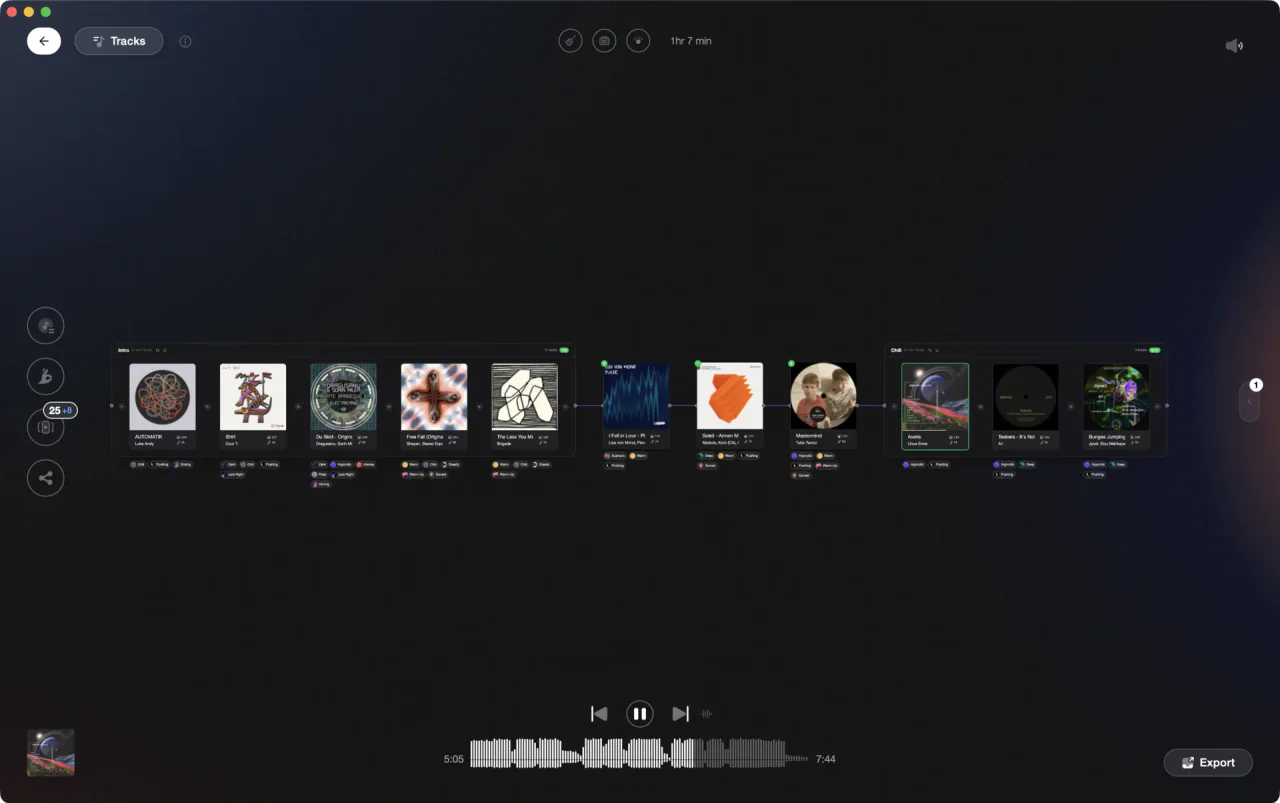
Build your set in Vibes, then hit record in Traktor with a plan in hand.
Record your set in Traktor Pro, step by step.
Traktor Pro 4 has a built-in Audio Recorder (called the Mix Recorder in Preferences) that writes your mix to a file without any extra software. Here is how to set it up and start capturing.
Open the Audio Recorder panel
In Traktor Pro 4, click the tape (cassette) icon in the Global Section at the top of the interface to display the Audio Recorder panel. The Global Section is the central header area containing the Master Control, FX panels, Loop Recorder, and Audio Recorder. The tape icon swaps the right-hand slot of that header between FX Unit 2 and the Audio Recorder, so if FX Unit 2 is sitting there, one click brings the recorder up. If the whole header is hidden, turn on Show Global Section under Preferences > Global Settings before you go looking for the icon.
Set your recording folder and file options
Go to Preferences > Mix Recorder > File > Directory to choose where Traktor saves your recordings. This is separate from the music library path under File Management. In the same Mix Recorder section you can set a filename prefix and a Split File at Size value (up to 2048 MB) so long sessions split automatically. Recordings get large, so leave room on the drive and convert to MP3 afterwards if you need smaller files.
Select your recording source
In Preferences > Mix Recorder, set Source to Internal to capture Traktor's master output (internal mixer mode). If you are recording a live hardware input through an external mixer, set Source to External and under External Input choose the input channel you assigned in Preferences > Input Routing.
Hit record and monitor your levels
Press the Record button in the Audio Recorder panel to start capturing. Watch the recording meter inside the panel and use the Audio Recorder's own GAIN knob (not the Master Control volume) to keep peaks out of the red. Press Record again to stop and save the file. To split into a new file without stopping playback, press the CUT button instead. Traktor saves the file automatically to the directory you set in Mix Recorder preferences.
The catch
Traktor's Audio Recorder captures audio well, but it gives you no help planning which tracks to play, in what order, or how they will flow together before you hit record.
Opening

Track 002
Artist B

Track 004
Artist D

Track 001
Artist A
Track 003
Artist C
Where Vibes fits
Walk into every recording session with a finished plan.
Vibes does not record audio, but Set Designer lets you map out your entire set before you open Traktor. Sequence tracks by BPM, key, and vibe, then export the playlist directly into Traktor so your crates are waiting when you press record.
See how it worksOrganize in Vibes, export to Traktor Pro.
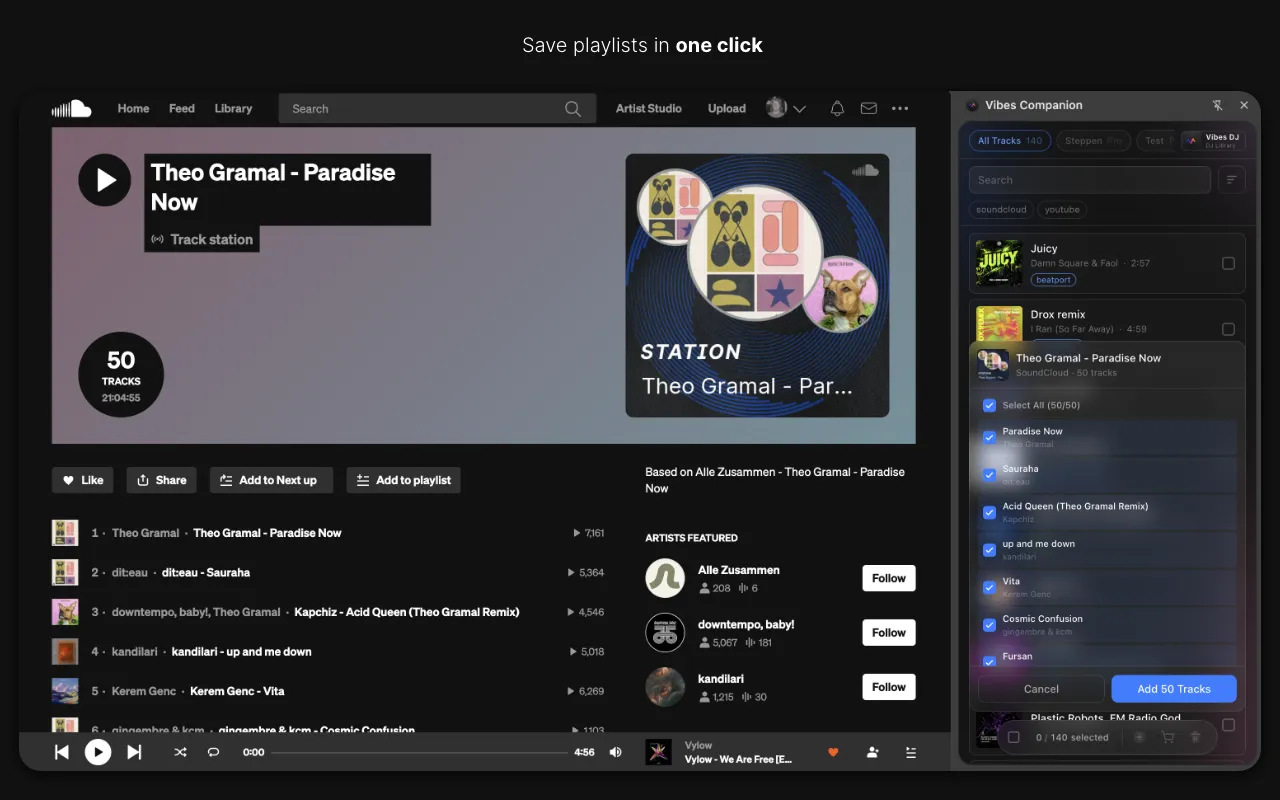
Your playlists, tags, ratings, and cue points travel back to the gear you play on, so nothing you do in Vibes is locked away.

Track 001
Artist A
Afterhours Mysterious
 Introspective
Track 002
Artist B
 Cozy FloorPeaceful
 Home
Home
Track 003
Artist C
Rave Aggressive
 Festival
 Build & Release
Frequently asked questions
The honest answers, including the trade-offs.
From a Vibes customer
The import worked perfectly. Have created several sets now and my life is so much easier
One-time purchase
Get Vibes with a single payment. No subscription.
Vibes is the step before you open your DJ software, not a replacement for it.
First 250 licenses at this price, then $79.
14 days • Full access
No strings attached
Secure checkout with Stripe
Already have Companion Pro? Upgrade instead

Methodology
How we keep this honest.

Verified against the app
Every step is checked against the current version of Traktor Pro.
We own our bias
We make Vibes. We show the native way first and honestly, then where Vibes genuinely helps, and we say when it does not.
Live pricing
The Vibes price shown comes straight from our checkout, never a hardcoded marketing number.
Kept current
Last reviewed September 2026.
Keep exploring
Compare Vibes
DJ apps head to head
Works with your software
Vibes for DJs
Vibes features
How-to guides
Best DJ software
Move between apps
Learn to DJ