
Use Stems in Serato DJ.
With Stems, Serato DJ Pro separates any track into vocals, drums, bass, and melody in real time. Open the Stems tab on the deck, tap a pad to mute or bring back an element, and you have an acapella or instrumental on demand. Here is how to turn it on, control it from the screen or your pads, and what Serato DJ Lite can and cannot do.
$49$79USD one-time purchase. First 250 licenses at this price. 14-day free trial.
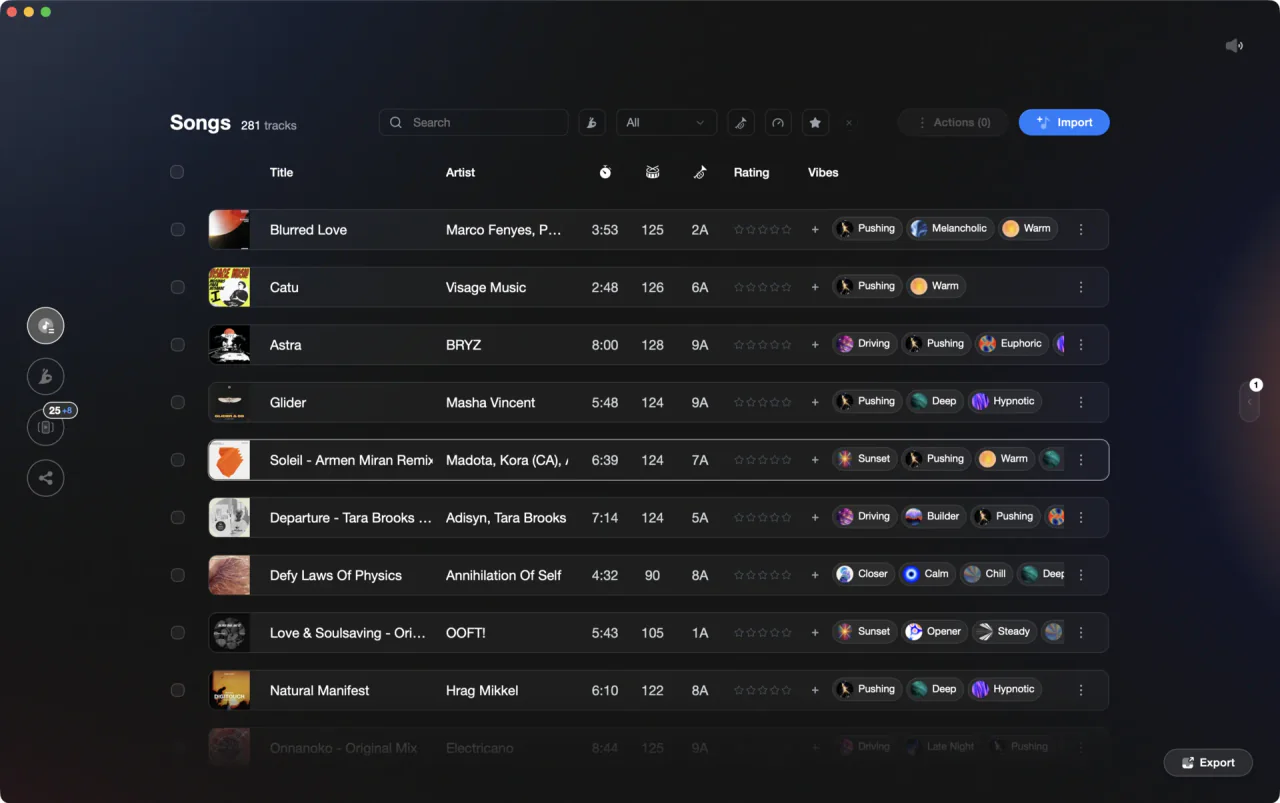
Prep your stem-ready tracks in Vibes, then perform with confidence in Serato.
Use Stems in Serato DJ, step by step.
Stems is built into Serato DJ Pro and Serato DJ Lite and splits any track into vocal, melody, bass, and drums on the fly. Pro adds Stems Pad FX on top. Follow these steps to turn it on, control it, and work it into your set.
Check your version and license
Stems has been part of Serato DJ Pro since version 3.0, and the current release is in the 4.0 series. It belongs to Serato DJ Pro itself, not to an Expansion Pack, so there is nothing extra to buy or unlock. Serato DJ Lite has Stems too, for free, with the same four stem pads and the Acapella and Instrumental buttons; only the Stems Pad FX are a Pro feature. Open Serato, check which version you are running, and update from the Serato website if you are behind. Stems analysis runs on your computer and Serato says it needs significant CPU, so an older laptop may struggle.
Load a track and open the Stems tab
Load a track on a deck as normal. The Acapella and Instrumental buttons sit in the virtual deck area at all times. For the full controls, click the Stems tab, which lives in the same tab row as the Cue Point, Loops, and Auto Loop tabs. Serato shows the Stems tab once your Serato hardware is connected, or when you run Serato Play in 2 deck mode. Four Stem pads appear, one each for Vocal, Melody, Bass, and Drums. The track needs no special preparation: by default Serato analyses the stems the first time you trigger a Stems function, so there can be a short delay before the isolation is audible. If you want it instant, turn on Analyze Stems under Setup, DJ Preferences, On Song Load, or drag the track into the Stems crate ahead of time.
Mute or isolate individual stems
Each pad is a toggle. Click a Stem pad to mute that element in the playing track, click it again to bring it back. Any combination of pads can be on at once: drop the vocal for a clean instrumental, or kill drums and bass to leave a floating breakdown. The Acapella button isolates the vocal and the Instrumental button isolates the instruments, so the two most common moves take one click. Serato describes the Stems tab as toggles: each element is either on or off. The main waveform changes colour as you mute stems, so you can see what is playing.
Add a Stems Pad FX on the way out
Stems Pad FX apply an effect to a single element instead of the whole track. Serato DJ Pro has four of them in the Stems tab: FX Vocal Echo, FX Instrumental Echo, FX Instrumental Braker, and FX Drums Echo. Each one mutes its stem and applies an echo out or braker effect as it goes. The classic move is the Vocal Echo: trigger it on the last phrase and the vocal tails off in time while the incoming track takes over. The Instrumental Braker winds the music bed down while the vocal stays dry on top. The echo pads can be set to a 1/2 beat or 1 beat value, so the effect length follows the current tempo. Preview each one in headphones first.
Control Stems from your controller pads
On supported Serato hardware, Stems take over an existing performance pad mode. In Serato DJ Pro, go to Setup, DJ Preferences, turn on Replace Primary Hardware Pad mode with Stems (or Replace Accessory Pad mode with Stems), and pick the pad mode to replace in the drop-down. Select that pad mode on your hardware and pads 1 to 4 become Vocal, Melody, Bass, and Drums, with pads 5 to 8 firing the four Stems Pad FX. In Serato DJ Lite the pads only pick up Stems once you turn on the Replace Sampler with Stems preference in Setup, under DJ Preferences, and then select the Sampler pad mode on your hardware. Check Serato's Stems hardware compatibility list for your controller; hardware that is not on it can still MIDI map the Stems controls in Pro.
Practice transitions using stem drops
A common technique is to mute the melody and vocals of the outgoing track while the incoming track fades in, then gradually restore the stems of the new track. Another is to keep only the vocal of the outgoing track over the full instrumental of the incoming one. Practice this in a low-stakes setting so the timing feels natural before you try it at a show.
The catch
Stem separation is processed in real time and quality varies by track: dense mixes and heavily layered productions can produce audible artifacts, so preview each stem in headphones before committing to it live. Serato says Stems analysis needs significant CPU and can cause dropouts if it runs during a performance, so on a slower laptop prepare your tracks in the Stems crate before the show.
 Euphoric
 Melancholic
 Mysterious
 Aggressive
 Peaceful
 Rave
Rave Afterhours
 Club
Club Home
HomeWhere Vibes fits
Build stem-ready crates before you ever open Serato.
Vibes does not control Stems at the decks, but it does the prep work that makes your Stems moments land. Tag tracks by energy and feel, then export tidy crates to Serato so you always know which tracks in your current section are ready for a vocal drop or drum solo.
See how it worksOrganize in Vibes, export to Serato DJ.
Your playlists, tags, ratings, and cue points travel back to the gear you play on, so nothing you do in Vibes is locked away.
Track 001
Artist A
AfterhoursMysterious Introspective
Track 002
Artist B
 Cozy FloorPeacefulHome
Track 003
Artist C
RaveAggressive Festival
 Build & Release
Frequently asked questions
The honest answers, including the trade-offs.
From a Vibes customer
The import worked perfectly. Have created several sets now and my life is so much easier
One-time purchase
Get Vibes with a single payment. No subscription.
Vibes is the step before you open your DJ software, not a replacement for it.
First 250 licenses at this price, then $79.
14 days • Full access
No strings attached
Secure checkout with Stripe
Already have Companion Pro? Upgrade instead

Methodology
How we keep this honest.

Verified against the app
Every step is checked against the current version of Serato DJ.
We own our bias
We make Vibes. We show the native way first and honestly, then where Vibes genuinely helps, and we say when it does not.
Live pricing
The Vibes price shown comes straight from our checkout, never a hardcoded marketing number.
Kept current
Last reviewed September 2026.
Keep exploring
DJ apps head to head
Works with your software
Vibes for DJs
Vibes features
How-to guides
Best DJ software
Move between apps
Learn to DJ