

Prepare tracks for a gig in Rekordbox.
To prepare tracks in Rekordbox, import them into [Collection], let track analysis finish, check the beatgrid, set hot cues and loops, tag and rate each track, then build the playlist and drag it onto your drive under [Devices]. Do the analysis before the cues: a cue saves to a fixed time position in the track, so a grid you correct afterwards leaves every cue you already placed off the beat. Format the drive FAT32 unless your player is one of the newer models that reads exFAT, because Rekordbox will not write to an NTFS drive at all.
$49$79USD one-time purchase. First 250 licenses at this price. 14-day free trial.
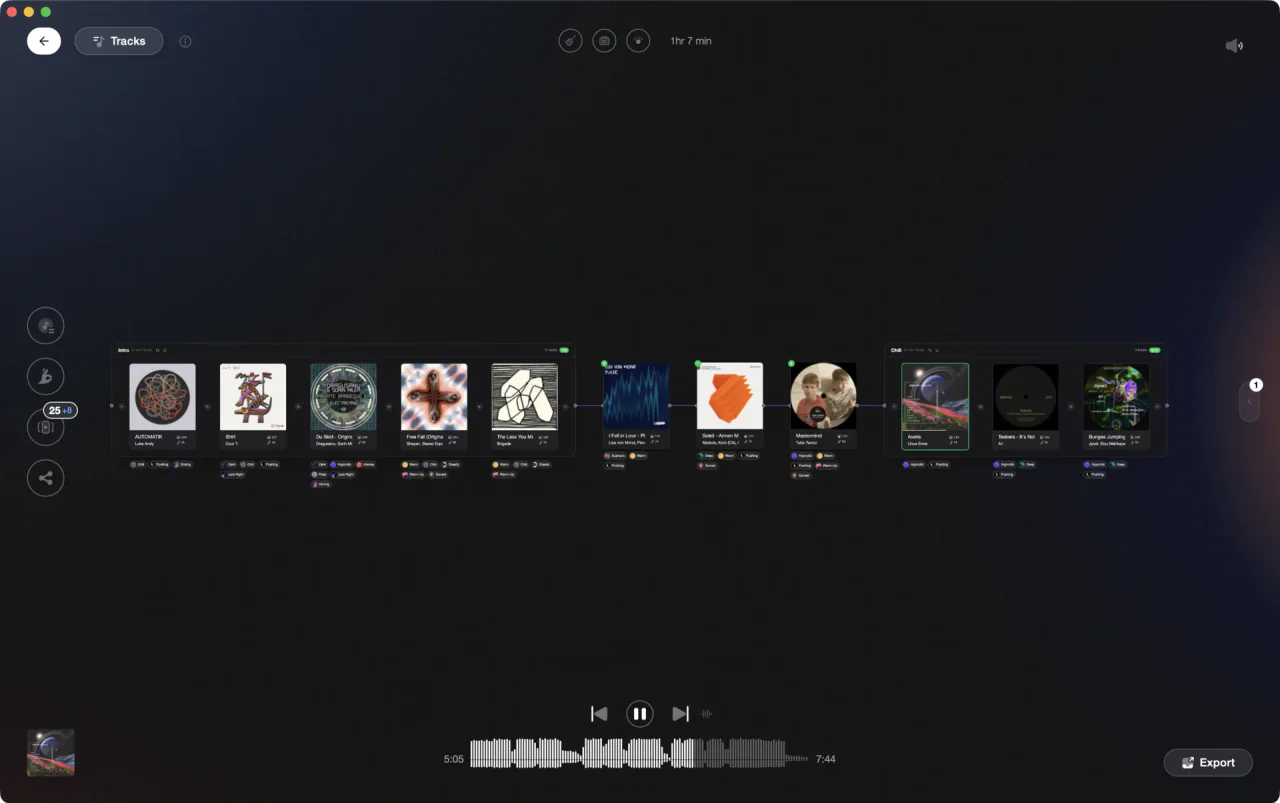
Prep and order the set first, then hand a finished playlist to Rekordbox.
Prepare tracks for a gig in Rekordbox, step by step.
Track prep in Rekordbox is one job in a fixed order: get the files in, analyze them, fix the grid, mark the points you will use, label them so you can find them, then put the playlist on a drive. Doing it out of order is what creates work later.
Import the tracks into your Collection
Open the [File] menu, choose [Import], then pick [Import Track] for single files or [Import Folder] for a whole folder. Dragging files from Finder or Explorer into the [Collection] window does the same thing. Tag information loads immediately, and if Auto Analysis is set to [Enable], analysis starts as soon as the tracks land.
Tell analysis what to look for, then run it
Open the [Preferences] window > [Analysis] category > [Track Analysis] tab and tick what you want under [Track Analysis Setting]: [BPM / Grid], [KEY], [Phrase] and [Vocal]. Turning on [Use high precision BeatGrid analysis] gives a more accurate result but takes longer. If Auto Analysis is set to [Disable], select the tracks, right-click and choose [Analyze Track].
Check the beatgrid and the first downbeat
Before you place a single cue, confirm the grid lines up with the track. In EXPORT mode click [GRID] in the function panel; in PERFORMANCE mode switch the deck to the [GRID/PHRASE EDIT] panel. Pin the first beat marker to the downbeat and check that later bars still line up. Cue points save to a fixed time position, so fixing the grid later leaves them stranded.
Set memory cues and hot cues at the points you will use
Play to the spot you want, then click [MEMORY] in the function panel to store a memory cue, or click one of [A] to [H] in the [HOT CUE] panel to store a hot cue. Rekordbox lets you save up to eight hot cues per track this way. With quantize on, each one snaps to the nearest beatgrid line rather than the exact click.
Tag, rate and color so you can find tracks in the booth
Click the My Tag button on the right of the screen to open the My Tag configuration window, rename the tags to words you actually use, then tick the boxes track by track. Add a star rating and one of the eight color labels while you are in there. The track filter then narrows the list by My Tag, [BPM], [KEY], [RATING] and [COLOR].
Build the playlist in the order you will play it
Click the add-playlist icon to the right of [Playlists] in the tree view, type a name, press [Enter], then drag tracks in from [Collection] and drag rows up or down to set the order. For a rule-based list instead, right-click [Playlists], choose [Create New Intelligent Playlist] and set filters on fields such as BPM, key or genre.
Transfer to the drive and eject it cleanly
Plug in a FAT32 drive, open [Devices] in the tree view, and drag the playlist onto the device. Rekordbox copies the tracks and their information together. Do not unplug during the transfer: wait for the progress bar at the bottom of the screen to finish, then click the eject control next to the device before you pull the drive.
The catch
Rekordbox stores everything you tell it, but it makes none of the decisions. My Tag values are typed and ticked by hand, one track at a time, and the track filter narrows by BPM, key, rating and color, not by how a track actually lands on a floor. On a few hundred fresh promos that is an evening of clicking before the set order even starts.
Opening

Track 002
Artist B

Track 004
Artist D

Track 001
Artist A
Track 003
Artist C
The faster way
Do the tagging and the set order before Rekordbox ever sees the tracks.
Vibes imports your existing Rekordbox library, analyzes every track for BPM, key, an energy curve and sections such as intro, buildup, drop, breakdown and outro, then puts tracks into vibes with Auto-Tagging or with Vibe Sort hotkeys. Set Designer orders the night by Energy Flow, ascending, descending or an arc, or along a key path. The finished playlist exports straight back into Rekordbox, so the only thing left in the app is the cue work.
See how it worksOrganize in Vibes, export to Rekordbox.
Your playlists, tags, ratings, and cue points travel back to the gear you play on, so nothing you do in Vibes is locked away.

Track 001
Artist A
Afterhours Mysterious
 Introspective
Track 002
Artist B
 Cozy FloorPeaceful
 Home
Home
Track 003
Artist C
Rave Aggressive
 Festival
 Build & Release
Frequently asked questions
The honest answers, including the trade-offs.
From a Vibes customer
The import worked perfectly. Have created several sets now and my life is so much easier
One-time purchase
Get Vibes with a single payment. No subscription.
Vibes is the step before you open your DJ software, not a replacement for it.
First 250 licenses at this price, then $79.
14 days • Full access
No strings attached
Secure checkout with Stripe
Already have Companion Pro? Upgrade instead


Methodology
How we keep this honest.

Verified against the app
Every step is checked against the current version of Rekordbox.
We own our bias
We make Vibes. We show the native way first and honestly, then where Vibes genuinely helps, and we say when it does not.
Live pricing
The Vibes price shown comes straight from our checkout, never a hardcoded marketing number.
Kept current
Last reviewed September 2026.
Keep exploring
Compare Vibes
DJ apps head to head
Works with your software
Vibes for DJs
Vibes features
How-to guides
Best DJ software
Move between apps
DJ tools
Learn to DJ