
How to Find Duplicate Songs in Your Library
Duplicate songs hide in three different forms, and the finder built into your DJ or music app only catches two of them. Here is where each app keeps its duplicate list, what that list compares, and how to clean a library without losing your cue points.
Quick Answer
A duplicate is cheap to ignore and expensive to keep. Two copies of the same track means two sets of cue points, two ratings, and a fifty-fifty chance of loading the unanalyzed one at the worst moment. This page covers where each app hides its duplicate list, what that list actually matches on, and what to do about the libraries that have no list at all.
Three Kinds of Duplicate, Only One of Them Easy
Most cleanup advice fails because it treats all duplicates as one problem. They are three problems, and they need three different comparisons.
- The same file, twice. One music file copied into two folders. A byte comparison catches every one of these and never gets it wrong.
- The same recording, different file. A 320 kbps MP3 and a WAV of one track, or the same download named twice. Tags may or may not agree, and byte comparison is useless.
- The same title, different recording. The radio edit, the extended mix and a live version. These are not duplicates at all, and a careless bulk delete removes the one you needed.
Built-in duplicate finders solve the first and third cases well and the second case badly, because they read the text in your tags rather than the sound in the file. That is the gap worth knowing about before you start deleting.
Where the Duplicate Finder Lives, App by App
| App | Where the duplicate list lives | What it compares |
|---|---|---|
| rekordbox 7 | File > Display All Duplicated Files, which opens the Duplicated File Manager; the Merge Duplicate Files button consolidates a group | Title and artist text |
| Apple Music on Mac | File > Library > Show Duplicate Items; hold Option first for Show Exact Duplicate Items | Every instance by the same artist, or song plus artist, album and version for the exact view |
| iTunes on Windows | File > Library > Show Duplicate Items; hold Shift first for Show Exact Duplicate Items | Same two levels as Apple Music |
| Serato DJ Pro | No duplicate report in the documented library tools | Sort the Song or Location column and read it yourself |
| Traktor Pro | No duplicate report. Check Consistency reports missing tracks and tracks to analyze | Sort by Title or Filename and read it yourself |
| Engine DJ | No duplicate report in the user guide | Sort by hand, or route the library through a separate manager |
| Media Player on Windows 11 | No duplicate list, per Microsoft support | File Explorer, or a separate duplicate cleaner |
Menu paths taken from each vendor's current documentation, checked in August 2026.
The rekordbox tool arrived in version 7.0.4, described in the release notes as the ability to view and delete duplicate tracks, and the manual is explicit that the Duplicated File Manager lists tracks with the same title and artist. Serato's library documentation covers crates, smart crates and Relocate Lost Files, with no duplicate report among them. Traktor's Consistency Check report offers Relocate, Remove Missing and Analyze, which is a different job entirely.
Each app has its own walkthrough for the manual pass: rekordbox, Serato DJ Pro, Traktor, Engine DJ and VirtualDJ.
The Duplicates View in iTunes and Apple Music
Apple built one feature into both apps, so how to find duplicate songs on iTunes and how the same thing works in Apple Music is a single answer. Select any song, then choose File > Library > Show Duplicate Items. Apple describes this as finding every instance of a song by the same artist anywhere in your library, which deliberately includes the album version and the soundtrack version of one track. Click Done, or choose File > Library > Show All Items, to leave the view.
For a tighter list, hold a modifier before you open the menu. On the Mac that is Option, and the item becomes Show Exact Duplicate Items, which matches only when song, artist, album and version all agree. On Windows iTunes uses Shift for the same thing. That is the view to trust when you want how to find duplicate songs in iTunes library entries that really are one track stored twice rather than two different masters.
The wording people search with varies more than the answer does. How do I find duplicate songs in iTunes, how do you find duplicate songs in iTunes, and find duplicate songs iTunes all end at the same File menu on both platforms.
To find and delete duplicate songs in iTunes or Apple Music, select the copies you do not want and press Delete. Removing an entry from the library is not the same as removing the file from your drive, so read what the confirmation offers before you confirm. A file left on disk gets picked up again the next time your DJ app scans that folder, which is how most people end up doing this twice.
There is no per-playlist scan, so how to find duplicate songs in Apple Music playlist by playlist has no direct answer. The duplicates view always covers the whole library. Work through it once, and use the option to see which playlists a song belongs to before you decide which copy survives.
Streaming Libraries Are Not Files
A streaming playlist is a list of identifiers, not a folder, and the service decides what counts as the same track. Spotify ships no library-wide duplicate scan. Searches for how to find duplicate songs on Spotify playlist pages and how to find duplicate songs in Spotify playlist views end at two options: sort the playlist by title and read it, or hand the playlist to a browser tool you grant edit permission. If you search find duplicate songs Spotify and land on a web app, check exactly what it asks for before connecting your account, and revoke it afterwards.
For a DJ this matters less than it looks. The tracks you play at a gig are files on your own drive, and a streaming playlist is a shopping list that feeds them.
When Nothing Indexes the Folder
Plenty of libraries live in a folder tree no music app owns: a downloads folder, an old backup, a drive inherited from a dead laptop. Windows will not help you here. Microsoft's own support answer states that the Media Player app in Windows 11 has no built-in feature to generate a list of duplicate songs, and sends people to File Explorer or a separate cleaner instead, so how to find duplicate songs in Windows Media Player has no in-app answer. That leaves the plain question of how to find duplicate songs in folder trees, where the comparison you pick decides the result.
- Byte-for-byte hash. Catches the same file copied twice, never produces a false positive, and misses everything else.
- Tag match on artist and title. Catches re-downloads, and breaks on a typo, a featured-artist convention, or an empty tag.
- Filename and size. Rough, and easily fooled by a folder full of files called track 01.
- Audio comparison. Reads the sound itself, so an MP3 and a WAV of one recording group together even when the names and tags share nothing. This is the layer no built-in tool has.
- 1
Back up the library database first
Deduplication deletes rows in a database, and undo is rarely offered. rekordbox has File > Backup Library, which saves the Collection, playlists and analysis information in one file. Serato keeps its database and crates in the Serato folder inside your Music directory. Copy whichever applies somewhere else before you touch anything.
- 2
Run the finder the app already has
Open the app's own duplicate list if it has one and read a few groups before acting. rekordbox groups by title and artist. Apple Music and iTunes give you the loose view and the exact view. This first pass costs nothing and clears the obvious cases.
- 3
Sort each group by format and bitrate, not by date
Newest is not best. Show the columns for file type, bitrate and file path, and compare the copies side by side. A WAV added last year usually beats a 192 kbps MP3 downloaded this morning, and the copy sitting in your main music folder beats the one in a downloads directory.
- 4
Keep the copy that carries the work
Cue points, beatgrids, ratings and tags live against a specific file. Check which copy your DJ app has analyzed and which one your playlists point at. Keeping the higher-quality file is worth the reanalysis; keeping a file that no playlist references is not.
- 5
Delete from the library and from disk deliberately
Decide which one you are doing. Removing a library entry leaves the file in place, ready to be reimported on the next scan. Deleting the file frees the space and breaks anything still pointing at it. Do the library first, verify the playlists, then clean the disk.
- 6
Rescan, then check your playlist counts
Rescan the folder so the app rebuilds its picture, and compare the track count of your key playlists against what you had before. A count that dropped further than you expected means a copy you deleted was the one a playlist referenced.
The Faster Way
The layer every built-in tool skips is the audio comparison, and that is the one that catches the duplicates costing you real space. Vibes runs a duplicate finder with exact, metadata and audio-similarity layers across whatever you import: a rekordbox, Serato, Traktor or Engine DJ library, an Apple Music or iTunes Library.xml file, or a plain folder nothing has ever indexed. Smart Import detects which app you are coming from, watched folders keep new downloads flowing in, and Track Inspector lets you fix the tags on the copy you keep before you export the library back out.
It works on files you own. Vibes does not read streaming libraries, so a Spotify playlist stays a Spotify problem, and it is not a DJ app: no decks, no mixing, no playback to hardware. Export goes back through rekordbox, Serato, Traktor or Engine DJ. What the app does with a library once the duplicates are gone is covered on the DJ library page, and the wider tidy-up sits in cleaning up a DJ library.
The visual way to organize your DJ library
Tag tracks by vibe. See everything at once. Export to rekordbox, Serato, Traktor or Engine DJ.
14-day free trial. Full access, no strings attached.
or see how it works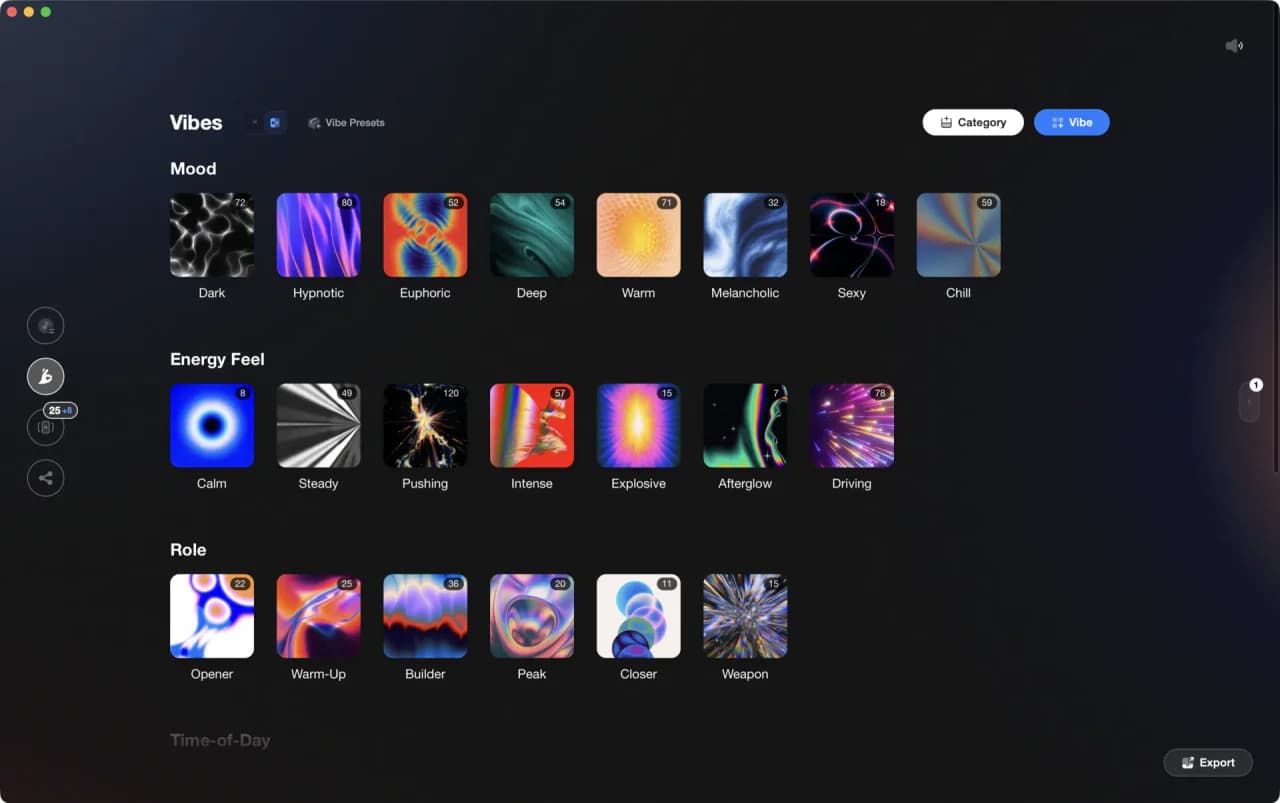
Frequently Asked Questions

Hey, it's Ben Modigell 👋
I DJ and produce as so I so: downtempo, minimal, dub house, tech house, and techno (releases on Spotify and SoundCloud, links above). Everything I write here comes from my own gigs, studio sessions, and library cleanups: the rules I follow, the failure modes I have actually hit, and the workflow I use when nobody is watching. If a technique did not earn its place in my own sets, it does not make it into a tutorial.