

Move from Lexicon to Serato DJ.
Lexicon writes Serato's own library format, so this is one import inside Lexicon and one sync out, with no crates to rebuild by hand. Here is exactly what carries across, what gets lost, and how to bring your whole library over without starting from scratch.
$49$79USD one-time purchase. First 250 licenses at this price. 14-day free trial.

Bring your collection across without losing your work.
Moving from Lexicon to Serato DJ is one sync into Serato's own database: crates, cues, grids and ratings carry, FLIP does not, and Vibes imports the Serato library afterwards and exports playlists back as crates.
Your playlists, cues, grids, and tags already live in Lexicon, and Serato DJ needs them in its own database format. Lexicon writes that format directly, and the conversion half of Lexicon is free, so the trip costs you time rather than money. Serato has no importer for other libraries of its own: it reads what Lexicon writes, and it links to your files where they already sit on disk.
What transfers from Lexicon to Serato DJ.
| Capability | Carries | What happens |
|---|---|---|
| Audio files | Nothing is copied or moved. Serato references your files where they already live on your drive or external disk. | |
| Playlists | Playlists convert into Serato crates and keep their folder structure. | |
| Key & BPM | Key and BPM convert with the tracks; anything that arrives without values gets analyzed in Serato. | |
| Hot cues | Cues and loops convert with their colors and names. Serato FLIP is not supported by the conversion, and Serato DJ Lite shows up to four cue points. | |
| Beatgrids | Grid adjustments carry across. Re-analyzing in Serato overwrites them, so analyze new tracks only. | |
| Star ratings | Ratings convert with the rest of the track data; spot-check one crate after the first sync. | |
| Comments & tags | Comments convert. Custom Lexicon tags land in the fields Serato is able to read, so check where they end up before you filter on them. |
Using Lexicon's own Serato sync, which is the free half of the app. A manual rebuild inside Serato keeps the audio files and nothing else. Serato has no importer for other libraries of its own: it reads what Lexicon writes, and it links to your files where they already sit on disk.
Moving from Lexicon to Serato DJ, step by step.
Lexicon integrates directly with the Serato database, so the native path genuinely works. Quit Serato first, run the sync, then treat it as a snapshot you repeat whenever you change something in Lexicon.
Close Serato and refresh your Lexicon library
Quit Serato DJ completely so nothing is holding its database open. In Lexicon, open the Sync page and click Import tracks & playlists if part of your collection still lives in another DJ app: pick the app, leave the import set to Full, and start it. If everything is already managed in Lexicon, go straight to the sync.
Sync your library into Serato
Back on the Sync page, choose Serato from the dropdown, confirm the sync is set to Full with the default options, and click Sync to Serato. Lexicon writes into the Serato database itself, so your playlists arrive as crates with their folder structure rather than as one flat list of tracks.
Open Serato and check what arrived
Start Serato DJ and walk the crates panel: folder structure, track counts, the key and BPM columns, then hot cues and beatgrids on a few tracks per crate. Serato does not copy music into the app, it references the files where they live on your drive, so a crate full of missing tracks is a path problem, not a failed conversion.
Analyze only the tracks that need it
In the analysis settings, check Set Key and Analyze BPM / Beatgrid, then analyze just the tracks that came across without values. Do not press Analyze Entire Library: re-analyzing sets a fresh beatgrid and overwrites manual adjustments, including the grid work you just brought over. Spot-check cues on a deck before you play the library out.
The sync is a one-way snapshot, not a live link. Tag or re-cue in Lexicon and you sync again, and edits you make inside Serato do not travel back until you re-import them. Serato FLIP is not carried by the conversion, and Serato DJ Lite shows up to four cue points per track, so on Lite anything richer looks truncated.


The cleaner path
One library, every app.
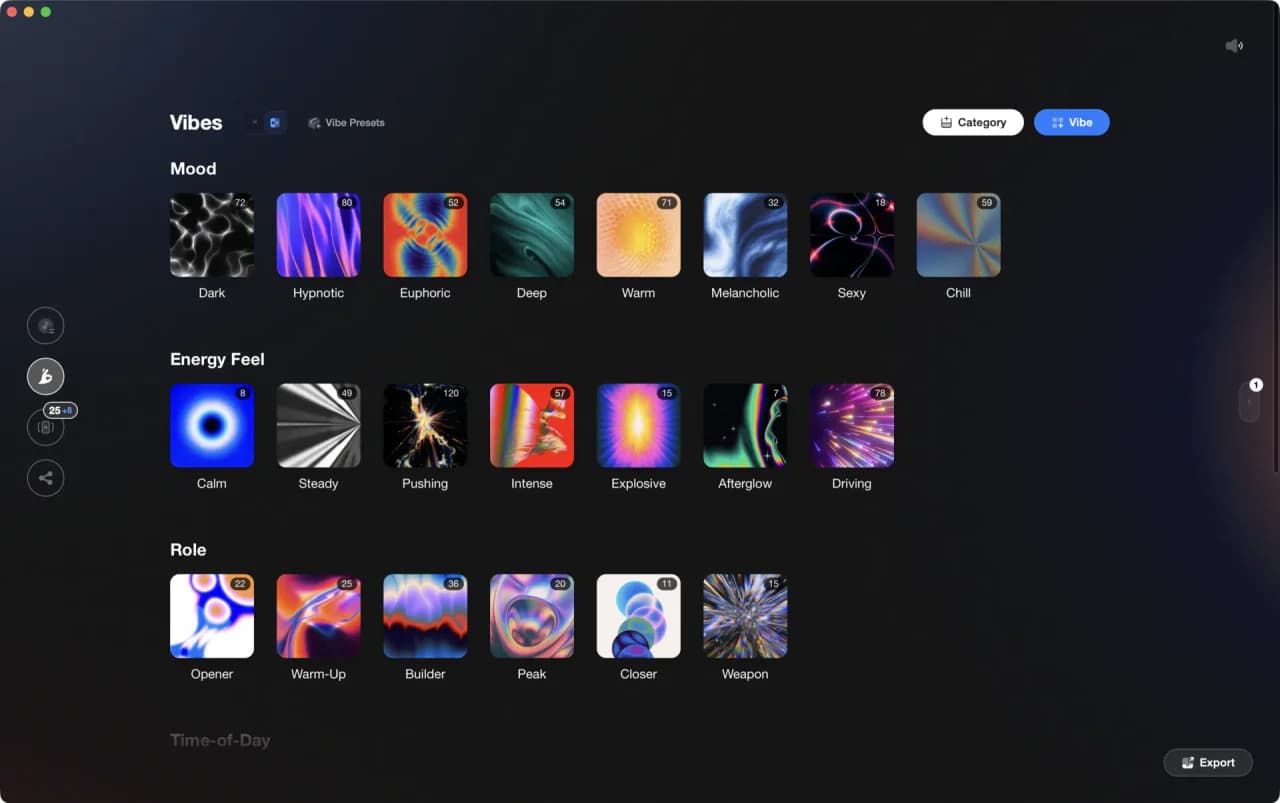
Vibes does not read Lexicon's database, so it picks your library up on the Serato side, once the sync has run. Smart Import auto-detects the Serato library and brings it in, then Vibes analyzes BPM, key, energy, and track sections, and you tag tracks into vibes by hand with Vibe Sort, by combination, or with Auto-Tagging. Set Designer sorts a set by energy flow or by key path, and the export writes playlists and vibes back into Serato DJ. It is a prep tool, not a converter: no cloud sync, no mobile app, no playback.
See the DJ LibraryOrganize once, export to Serato DJ.
Your playlists, tags, ratings, and cue points travel to the gear you play on, so nothing you do in Vibes is locked away.

Track 001
Artist A
Afterhours Mysterious
 Introspective
Track 002
Artist B
 Cozy FloorPeaceful
 Home
Home
Track 003
Artist C
Rave Aggressive
 Festival
 Build & Release
Frequently asked questions
The honest answers, including the trade-offs.
From a Vibes customer
The import worked perfectly. Have created several sets now and my life is so much easier
One-time purchase
Get Vibes with a single payment. No subscription.
Vibes is the step before you open your DJ software, not a replacement for it.
First 250 licenses at this price, then $79.
14 days • Full access
No strings attached
Secure checkout with Stripe
Already have Companion Pro? Upgrade instead


Methodology
How we keep this honest.

Verified against the apps
What transfers is tested against the current versions of Lexicon and Serato DJ.
We own our bias
We make Vibes. We show the native process and its limits honestly, and we are upfront about what no tool can carry across.
Live pricing
The Vibes price shown comes straight from our checkout, never a hardcoded marketing number.
Kept current
Last reviewed September 2026.
Keep exploring
DJ apps head to head
Works with your software
Vibes for DJs
Vibes features
How-to guides
Best DJ software
Move between apps
Learn to DJ