

Move from Rekord Buddy to Serato DJ.
Rekord Buddy is discontinued and its website no longer resolves, so the dependable route into Serato DJ now is to add your audio files, rebuild the crates, and let a maintained library tool carry the cues, grids, and tags across. Here is exactly what carries across, what gets lost, and how to bring your whole library over without starting from scratch.
$49$79USD one-time purchase. First 250 licenses at this price. 14-day free trial.

Bring your collection across without losing your work.
Moving from Rekord Buddy to Serato DJ is no longer a route, since the app is discontinued: Serato reads only files and its own crates, and Vibes imports your rekordbox or Traktor library and exports playlists as Serato crates.
Rekord Buddy was a converter, not a library. Your tracks, playlists, and cues always lived in rekordbox, Traktor, or Serato DJ, and Rekord Buddy only translated between them, so with the project shut down nothing of yours is lost, it is simply stranded in the app you built it in. Serato DJ has no importer for another app's library: it reads audio files and its own crates, so everything past the files depends on a tool that writes Serato's own format.
What transfers from Rekord Buddy to Serato DJ.
| Capability | Carries | What happens |
|---|---|---|
| Audio files | The files never moved: Rekord Buddy only read them. Drag the same folders onto Serato's All icon and everything links up in place. | |
| Playlists | Serato reads no other app's playlists. A maintained library tool rebuilds them as crates from your old collection; by hand you retype the names and drag the tracks. | |
| Key & BPM | Serato writes its own values during analysis. Analyze on Import is on by default in Serato DJ 4.0, or run Analyze Files across the library once. | |
| Hot cues | Serato saves cue points into the track itself, so once they exist they survive a move or rename. A hand rebuild writes none of them; a library tool has to put them there. | |
| Beatgrids | Serato builds its own grid during analysis. A grid you corrected in another app does not travel on its own, so either re-check the edited tracks or let a tool write the grids in. | |
| Star ratings | Ratings are not part of the audio file, so they only arrive if a tool writes them into Serato's library data. Verify them after the move rather than assuming. | |
| Comments & tags | Anything stored in the file's own tags travels with the file. Anything an app kept only in its database, custom tag fields included, does not. |
Using a maintained library tool to read the rekordbox, Traktor, or Serato collection Rekord Buddy used to sit between. A hand rebuild in Serato gives you the audio and the crate names alone. Serato DJ has no importer for another app's library, so everything past the files depends on a tool that writes Serato's own format.
Moving from Rekord Buddy to Serato DJ, step by step.
Serato cannot read a Rekord Buddy conversion, a rekordbox collection, or a Traktor NML. What it does read is folders and files, so the manual path is files first, crates second, analysis third.
Point Serato at your music folder
Open Serato DJ and click the Files button to open the Files panel, then find the folder your music actually lives in and drag it onto the purple All icon at the top of the crates panel. Serato imports every compatible file inside it. It does not copy anything: it references the files where they sit on your drive, so leave that folder where it is afterwards.
Rebuild your crates
Serato has no way to read a rekordbox or Traktor playlist, so the structure is on you. Click Add Crate for each one you need and drag tracks in, or drag a folder from the Files panel straight into the crates panel and Serato creates a crate from it on the spot. Drag one crate onto another to nest it as a subcrate. There is no practical limit on crates, and a track can sit in as many as you like.
Analyze the whole library
Click Analyze Files to run the whole library, or drag single folders, crates, or tracks onto that button for a smaller batch. Serato DJ 4.0 also analyzes newly imported files on its own, with Analyze on Import switched on by default, and lets you right click a selection and analyze just that. If you are re-analyzing and want fresh beatgrids, tick Analyze BPM / Beatgrid first.
Set cues and check the library before a gig
With no hardware connected Serato opens the offline player, which exists for exactly this: auditioning tracks, preparing crates, adding cue points and loops, and editing grids through Edit Grid. Cue points are saved into the track itself, so they come back even if the file is moved or renamed. Serato also backs its library database up on its own, into the Serato, Library, Backups folder. Spot-check a handful of crates and cues before you play out.
That path gives you files and crate names, and nothing else. The cues, grids, ratings, and tags you built in rekordbox or Traktor stay in that app's database, and Rekord Buddy is no longer there to translate them, so carrying them over now means a maintained library tool.


The cleaner path
One library, every app.
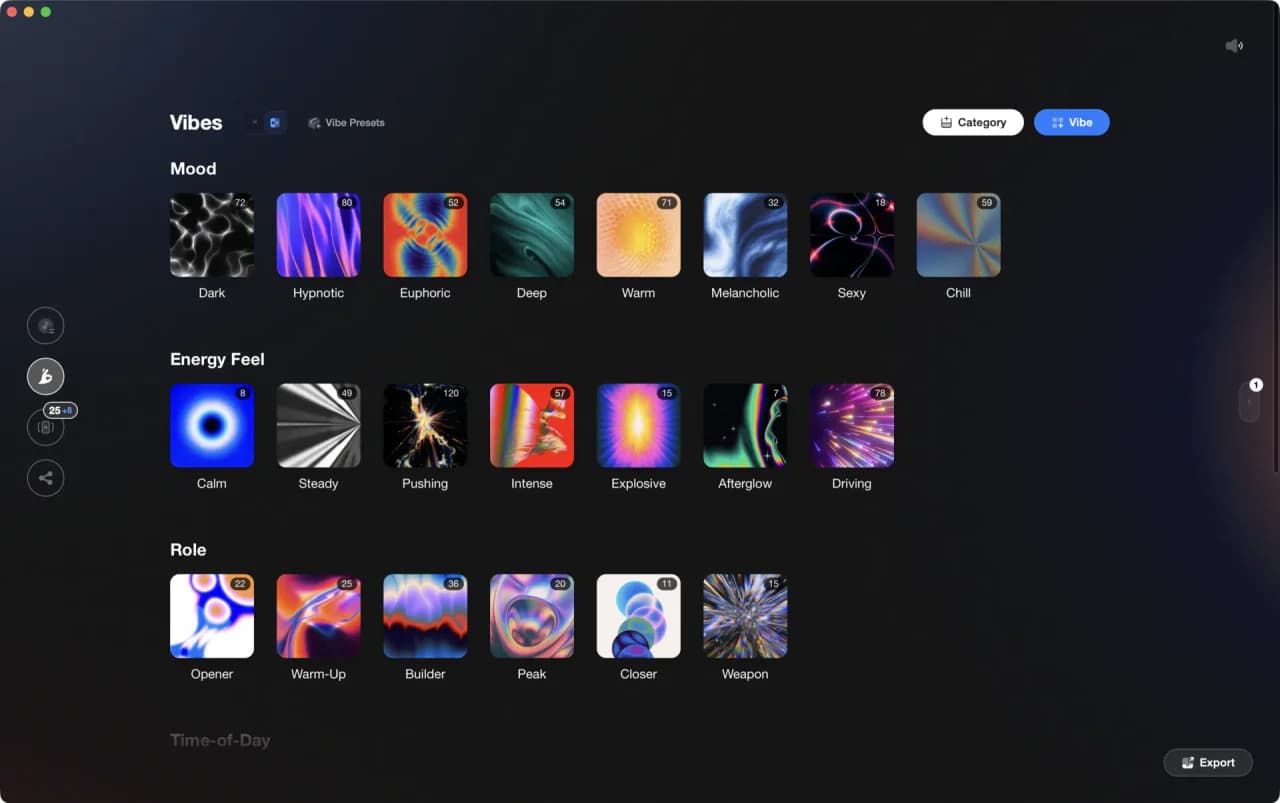
Vibes reads the collection Rekord Buddy used to translate. Point the Import Wizard at your rekordbox, Traktor, or Engine DJ library, at an Apple Music or iTunes Library.xml, or at the plain folders your music sits in, and Smart Import works out which app it came from. From there it analyzes BPM, key, energy, and track sections, you tag tracks into vibes, and it exports playlists and vibes back into Serato DJ. It works on files you own, and it hands the result to Serato rather than playing anything itself.
See the DJ LibraryOrganize once, export to Serato DJ.
Your playlists, tags, ratings, and cue points travel to the gear you play on, so nothing you do in Vibes is locked away.

Track 001
Artist A
Afterhours Mysterious
 Introspective
Track 002
Artist B
 Cozy FloorPeaceful
 Home
Home
Track 003
Artist C
Rave Aggressive
 Festival
 Build & Release
Frequently asked questions
The honest answers, including the trade-offs.
From a Vibes customer
The import worked perfectly. Have created several sets now and my life is so much easier
One-time purchase
Get Vibes with a single payment. No subscription.
Vibes is the step before you open your DJ software, not a replacement for it.
First 250 licenses at this price, then $79.
14 days • Full access
No strings attached
Secure checkout with Stripe
Already have Companion Pro? Upgrade instead


Methodology
How we keep this honest.

Verified against the apps
What transfers is tested against the current versions of Rekord Buddy and Serato DJ.
We own our bias
We make Vibes. We show the native process and its limits honestly, and we are upfront about what no tool can carry across.
Live pricing
The Vibes price shown comes straight from our checkout, never a hardcoded marketing number.
Kept current
Last reviewed September 2026.
Keep exploring
Compare Vibes
DJ apps head to head
Works with your software
Vibes for DJs
Vibes features
How-to guides
Best DJ software
Move between apps
Learn to DJ