
How to Clean Up a Music Library
A DJ library gets cleaned in three layers: the tags inside the files, the folders on the drive, and the database your DJ app keeps. This walks through all three in the order that does not break the work you already did.
Quick Answer
Most music cleanup advice is written for a listening collection, where a wrong album name is cosmetic. In a library you play from it is not cosmetic. A track with no genre never appears in the crate you built by genre, a duplicate splits your play history across two entries, and a moved file is simply gone until the app finds it again.
What a clean library actually means
Clean is not a look. It is five checks that either pass or fail on every track.
- The file exists where the database thinks it does.
- Artist, title, and remixer are written the same way on every track, so search and sorting behave.
- Genre, grouping, and comment fields use a short fixed vocabulary, not fifty one-off labels.
- BPM and key are analyzed, and wrong values get corrected instead of ignored.
- Every track exists once. A Beatport Top 100 grab, a promo pool zip, and a friend's drive can put the same record in a library three times under three names.
The cleanup, step by step
Order matters. Renaming before you deduplicate means you clean the same track twice, and importing before you move means every path in the database is wrong the moment you finish.
- 1
Back up the files and the database
Copy your music folder to a second drive, then copy your DJ app's library folder with it. Serato's own guidance is to keep a copy of its library folder and your music on an external drive, and the same logic covers rekordbox, Traktor, and Engine DJ: the database is where cues, grids, and crates live.
- 2
Put everything under one root
Pick one drive and one root folder, with a single inbox subfolder for anything new. Files on the desktop, in Downloads, or on an old stick either move in or get deleted now. On Mac, File > Library > Organize Library with Consolidate files copies scattered files into your Music folder and leaves the originals in place, so plan the disk space and clear the originals afterwards.
- 3
Remove duplicates before you edit anything
In Music on Mac, File > Library > Show Duplicate Items lists every version of a song. Hold the Option key and choose File > Library > Show Exact Duplicate Items to narrow it to matches where song, artist, album, and version are identical. Keep the best copy, and check that the one you keep is the one your playlists point at.
- 4
Fix tags in batches
Write the standard down first: how a remix is credited, how featured artists appear, which genre words exist at all. Then batch edit. In Serato DJ Pro you double-click a field in the library to edit it, control and E is the shortcut, and editing a field with several tracks selected changes all of them. Mp3tag writes ID3v2, MP4, WMA, and Vorbis tags to many files at once and can import tags from Discogs, freedb, or MusicBrainz.
- 5
Rescue the files with no tags at all
Anything called track01 will not be fixed by hand. MusicBrainz Picard uses AcoustID audio fingerprints, which identify a file by the music itself even when it carries no metadata, then renames the file and sorts it into the folder structure you defined.
- 6
Relocate what the app flagged as missing
Every DJ app keeps a list of files it can no longer find, and that list has to be fixed inside the app, not in Finder or File Explorer. The table below has the exact panel for rekordbox, Serato, and Traktor.
- 7
Re-analyze, then set the rule
With files in their final place, let the app rescan so BPM, key, and waveforms match the copies you kept. Then keep it clean with one habit: new music lands in the inbox folder, gets tagged and analyzed in one sitting, and only then joins the library.
Where each app hides the mess
Missing files are the one part of the cleanup you cannot do from the file manager, because the fix has to be written back into the app's database.
| App | How the problem shows | What to click |
|---|---|---|
| rekordbox 7 | Missing tracks carry an exclamation mark | File > Display All Missing Files, then Auto Relocate, Relocate, or Delete inside the Missing File Manager |
| Serato DJ Pro 4 | Tracks that were moved show as not found | Relocate Lost Files in the Files panel, which scans the whole computer, or Relocate from folder for a known location |
| Traktor Pro 4 | A collection left inconsistent by moved or deleted files | Right-click Track Collection in the Browser Tree, run Check Consistency, then use Relocate or Remove Missing in the report |
Menu paths as documented by each vendor. Serato notes that a full Relocate Lost Files scan can take a long time on a large library.
Per-app walkthroughs: relocate missing files in rekordbox, clean up your Serato library, relocate missing files in Traktor, and find duplicate tracks in rekordbox.
Cleaning up an iTunes or Apple Music library
On Windows, Apple split the old all-in-one program into three: the Apple Music app, the Apple TV app, and the Apple Devices app, all installed from the Microsoft Store. The iTunes app is still there for podcasts and audiobooks, which is why a search for iTunes download Windows 11 now lands on a much smaller program, and why iTunes for PC is no longer where a DJ collection lives. An iTunes download Windows 10 search ends in the same place.
The split does not change the cleanup, because the tags a DJ app reads live inside the files, not in an account. Your iTunes login controls purchases and Sync Library, while a track bought from the iTunes Store is a normal file on your drive and gets cleaned like any other. There is no iTunes web tool for this either: Apple's browser player gives you the catalog and your library without an app, which is fine for listening and useless for fixing tags.
One trap catches DJs whose app reads the Apple library. Serato tells you to turn off Show iTunes Library under Setup > Library + Display before running Relocate Lost Files, because leaving it on can leave duplicate entries in your library once the relocation finishes.
Two Apple behaviors also get mistaken for library mess. Apple Music autoplay keeps queueing similar songs after your list ends, and the switch sits at the top of the Playing Next queue and follows your Apple Account to every signed-in device. And if you are searching how to disable Apple Music because songs show up that you never added, the switch you want is Sync Library, with Apple's own warning attached: turning Sync Library off removes all of your downloaded music.
Where the files should live
One root folder on one drive is the whole answer for most DJs. An internal or external SSD is the working copy, because analysis and track loading are read-heavy, and a slower drive does fine as backup. Keep three copies on two kinds of storage with one copy off site, and back up the DJ app's library folder in the same pass, since a rebuilt collection without cues and crates is still hours of lost work.
Before deleting a file that will not play, check whether you can get it again: a Beatport login, a record pool account, or a store purchase history often still lists it. Streaming is a separate category. A Beatport subscription, or any streaming source inside a DJ app, plays tracks that are not files on your drive, and rekordbox is explicit that tracks from streaming services cannot be exported to a USB storage device or SD memory card, so they sit outside a file cleanup entirely.
What this cleanup is not
Library cleanup is not audio repair. Tools that promise to remove noise from audio online free, or to remove noise from video online free, work on the sound inside one recording and do nothing about an untitled track, a duplicate, or a dead file path. If a track itself sounds broken, replace the file from the source instead of processing it. A re-encoded copy of a bad rip is still a bad rip.
The faster way, with Vibes
Every step above is a manual pass over a few thousand files. Vibes runs those passes in one place. Smart Import auto-detects the app you already use and reads your library from rekordbox, Serato, Traktor, Engine DJ, an Apple Music or iTunes library XML file, or plain folders, so you clean once instead of once per app. The duplicate finder works in layers, exact, metadata, and audio similarity, so it catches the same record sitting under two names. Track Inspector handles per-track metadata, bulk re-analyze fixes BPM, key, and energy in one run, and watched folders keep the inbox habit going without you.
When the pass is done, export back to rekordbox, Serato, Traktor, or Engine DJ as a folder tree, with optional Camelot key or BPM sub-folders, and your DJ app sees clean crates instead of a cleanup project. The DJ library feature lists exactly what it reads and what it writes back.
What Vibes does for a cleanup
- Imports from rekordbox, Serato, Traktor, Engine DJ, Apple Music or iTunes library XML, and plain folders.
- Finds duplicates by exact match, by metadata, and by audio similarity.
- Edits per-track metadata in Track Inspector and re-analyzes BPM, key, and energy in bulk.
- Watches folders so new downloads are picked up on their own.
- Exports back as a folder tree with optional Camelot key or BPM sub-folders.
What it does not do
- -No streaming import or playback: it works on files you own.
- -No cloud sync between machines and no mobile app.
- -No playback to DJ hardware, so the export goes through your DJ app.
- -No decks, no mixing, no recording.
- -No [stem separation](/learn/techniques/stem-separation) and no vocal isolation.
The visual way to organize your DJ library
Tag tracks by vibe. See everything at once. Export to rekordbox, Serato, Traktor or Engine DJ.
14-day free trial. Full access, no strings attached.
or see how it works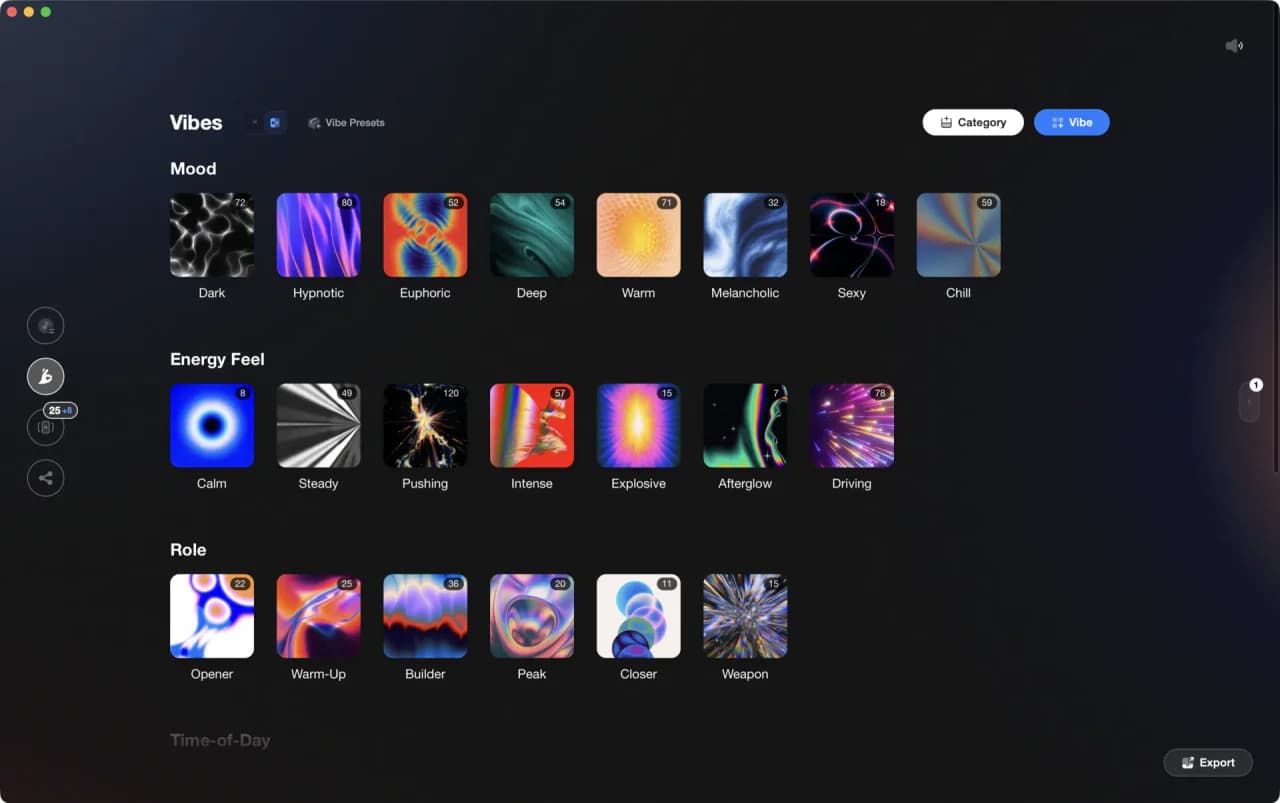
Frequently Asked Questions

Hey, it's Ben Modigell 👋
I DJ and produce as so I so: downtempo, minimal, dub house, tech house, and techno (releases on Spotify and SoundCloud, links above). Everything I write here comes from my own gigs, studio sessions, and library cleanups: the rules I follow, the failure modes I have actually hit, and the workflow I use when nobody is watching. If a technique did not earn its place in my own sets, it does not make it into a tutorial.