
Relocate missing files in Traktor.
When you move or rename folders, Traktor loses track of your files. Here is how to relink them and protect all the prep work you put in.
$49$79USD one-time purchase. First 250 licenses at this price. 14-day free trial.
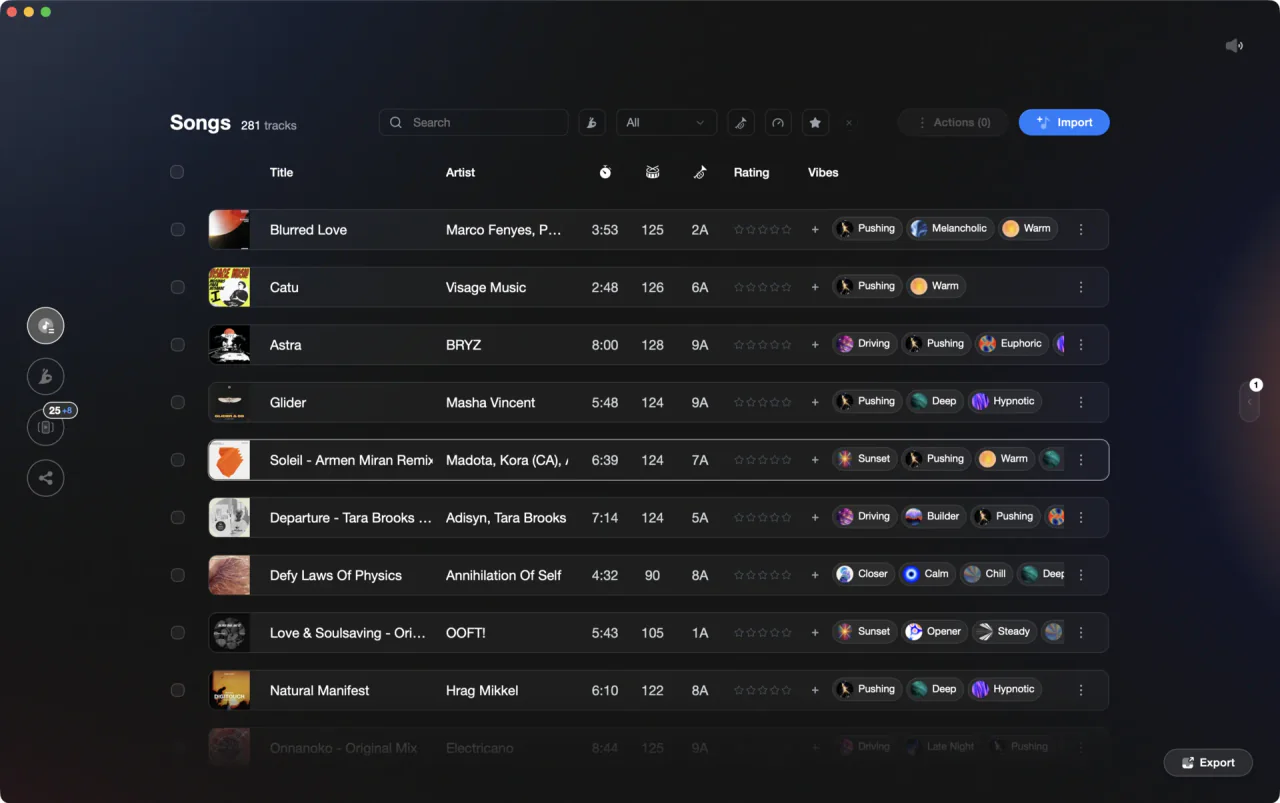
Prep your library in Vibes before reorganizing folders so nothing gets lost.
Relocate missing files in Traktor, step by step.
Traktor marks tracks with a warning icon when it cannot find the file at its original path. You can relink them one by one or point Traktor at a new root folder to resolve many at once.
Spot the missing tracks
Open Traktor and look for tracks marked with a yellow exclamation mark in your collection. This icon indicates Traktor cannot locate the file at the stored path. You can also run a Consistency Check (see Step 3) to surface all missing entries at once in a dedicated report.
Use Relocate to find a single file
Right-click a missing track and choose Relocate. A file browser opens so you can navigate to the file's new location and confirm it. Traktor updates the stored path for that track.
Use Check Consistency to resolve missing files in bulk
Right-click 'Track Collection' in the Browser tree and select Check Consistency. When the Consistency Check Report appears, open the Missing Tracks tab and click Relocate. Point Traktor at the root folder where your music now lives and it will attempt to match missing tracks by filename. This resolves large batches far faster than relocating one at a time. Note: you can also configure Traktor to run this check automatically on startup via Preferences > File Management, but the check itself is launched from the browser tree, not from Preferences.
Save and verify your collection
After relinking, save your collection so the updated paths are written to your NML file. Spot-check a few previously missing tracks to confirm they load correctly. If any remain unlinked, repeat the right-click Relocate step for those individual files.
The catch
Traktor's Consistency Check matches by filename, so if you renamed files while moving them you will need to relink those tracks manually one by one.
 Euphoric
 Melancholic
 Mysterious
 Aggressive
 Peaceful
 Rave
Rave Afterhours
 Club
Club Home
HomeWhere Vibes fits
Import your NML into Vibes before you reorganize.
Vibes reads your Traktor NML and stores all your tags, cue points, and prep data in its own library. If you import before moving files, your organization survives any folder restructure and exports cleanly back into a fresh NML.
See how it worksOrganize in Vibes, export to Traktor.
Your playlists, tags, ratings, and cue points travel back to the gear you play on, so nothing you do in Vibes is locked away.
Track 001
Artist A
AfterhoursMysterious Introspective
Track 002
Artist B
 Cozy FloorPeacefulHome
Track 003
Artist C
RaveAggressive Festival
 Build & Release
Frequently asked questions
The honest answers, including the trade-offs.
From a Vibes customer
The import worked perfectly. Have created several sets now and my life is so much easier
One-time purchase
Get Vibes with a single payment. No subscription.
Vibes is the step before you open your DJ software, not a replacement for it.
First 250 licenses at this price, then $79.
14 days • Full access
No strings attached
Secure checkout with Stripe
Already have Companion Pro? Upgrade instead

Methodology
How we keep this honest.

Verified against the app
Every step is checked against the current version of Traktor.
We own our bias
We make Vibes. We show the native way first and honestly, then where Vibes genuinely helps, and we say when it does not.
Live pricing
The Vibes price shown comes straight from our checkout, never a hardcoded marketing number.
Kept current
Last reviewed September 2026.
Keep exploring
DJ apps head to head
Works with your software
Vibes for DJs
Vibes features
How-to guides
Best DJ software
Move between apps
Learn to DJ