

Analyze tracks in Traktor.
Traktor's analyzer detects BPM, key, gain, and a beatgrid for the tracks in your collection. Select them in the browser, right-click, choose Analyze, and Traktor fills in the values in the background while you keep working. Vibes batch-analyzes BPM, key and sections across your whole library, then exports playlists and cue points into your NML collection. Traktor keeps its own beatgrid.
$49$79USD one-time purchase. First 250 licenses at this price. 14-day free trial.
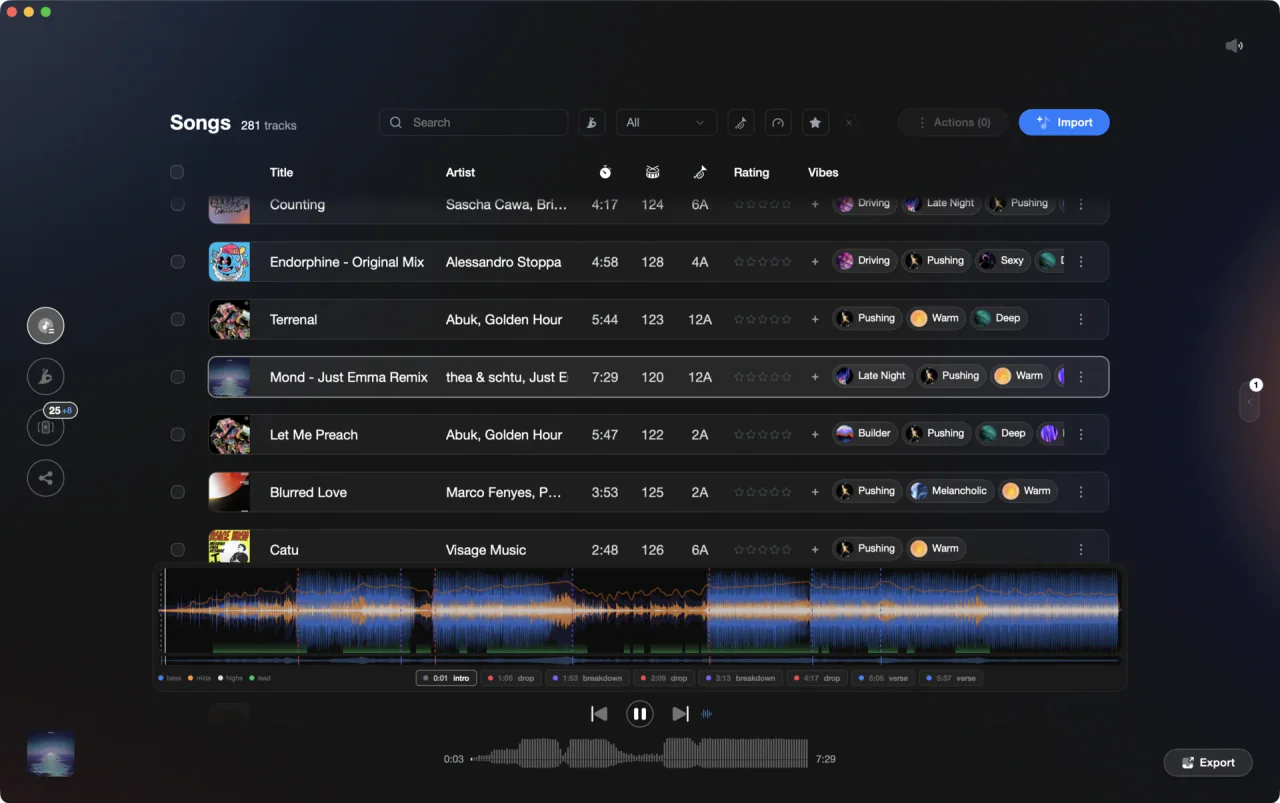
Vibes displays BPM, key, waveform, and sections for every track in your library.
Analyze tracks in Traktor, step by step.
Traktor Pro 3 and Traktor Pro 4 share the same analysis workflow: add tracks to the collection, set your analysis preferences once, then run Analyze on a selection. Here is how to do it with the native tools.
Add tracks to your collection
Drag your music files from your computer and drop them onto the Track Collection folder in the Browser tree, or right-click the Track Collection folder and choose Import Music Folders. Whether Traktor analyzes the new tracks straight away depends on the Analyze new imported tracks option in Preferences under File Management. With it off, new tracks show without BPM or key values until you run Analyze on them.
Set the analysis preferences
Open Preferences and go to the Analyze Options page. Here you set the BPM Range Traktor should assume, choose the key notation shown in the Key column (Displayed in Traktor: Musical, Musical (all sharps), or Open Key), and decide whether analysis sets a beatgrid marker automatically (Set Beatgrid when detecting BPM in Pro 3, Automatic Markers in Pro 4). Under File Management you can also decide whether new tracks are analyzed on import (Analyze new imported tracks) or only when loaded into a deck (Analyze new tracks when loading into deck). Set your BPM range before running a batch, because a wrong range is the most common cause of doubled or halved BPM values.
Run analysis on your tracks
Select the tracks you want to analyze in the Track List, right-click, and choose Analyze (Async). You can also right-click a playlist in the Browser tree to analyze everything in it. In the Analyze dialog, pick All to use the defaults from the Analyze Options page, or Special to choose BPM (with a tempo range), Set Beatgrid, Key, and Gain individually and tick Replace Locked Values if locked tracks should be re-analyzed too. Click OK. Traktor then processes the selection with low priority while you keep working and fills in the BPM and Key columns.
Check the results in the browser
Sort the Track List by the BPM or Key column to spot tracks that came out empty or landed at half or double tempo. The Status bar at the bottom of Traktor shows the analysis progress and any errors, so let the whole selection finish before you judge the results. Re-run Analyze (Async) on any tracks that failed or look wrong.
Verify and correct beatgrids
Load the track into a deck, switch the deck to the Advanced layout, and open the GRID page of the Advanced Panel to check that the grid sits on the downbeat. Move Grid BWD and FWD shift the grid, Set Gridmarker drops a new marker at the playhead, and BPM x2 and /2 fix doubled or halved tempos in one click. To type an exact tempo, double-click the BPM Edit Display; the TAP button in the same panel sets the BPM from your taps instead. Correcting grids manually is time-consuming on a large library.
The catch
Traktor analyzes tracks one session at a time and does not detect sections or energy curves. Corrections are stored in the NML file, and while batch review via sortable browser columns is possible, there is no dedicated batch-review or export workflow for grid corrections across your entire library.

Track 001
Artist A
Afterhours Mysterious
 Introspective
Track 001
Artist A
AfterhoursMysteriousIntrospective
Track 002
Artist B
 Cozy FloorPeaceful
 Home
HomeTrack 002
Artist B
Cozy FloorPeacefulHome
Track 003
Artist C
Rave Aggressive
 Festival
 Build & Release
Track 003
Artist C
RaveAggressiveFestivalBuild & ReleaseThe faster way
Batch-analyze your Traktor library in Vibes, then export back.
Vibes imports your Traktor NML, runs BPM detection, neural-net key analysis, downbeat-locked beat detection, section detection, and a 3-band waveform across your whole library at once. The analysis stays in Vibes. The export writes playlists, cue points, ratings and comments back into your NML, and leaves Traktor's beatgrid alone.
See how it worksOrganize in Vibes, export to Traktor.
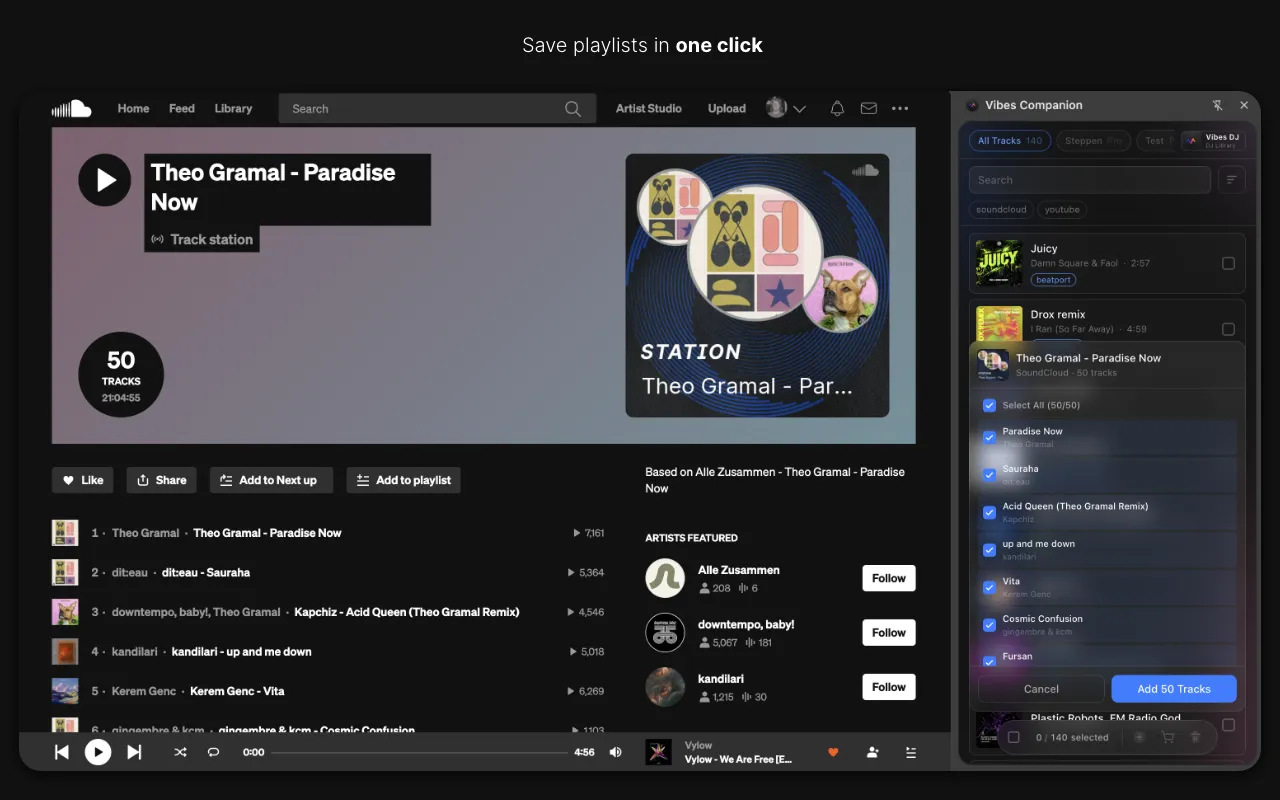
Your playlists, tags, ratings, and cue points travel back to the gear you play on, so nothing you do in Vibes is locked away.
Track 001
Artist A
AfterhoursMysteriousIntrospectiveTrack 002
Artist B
Cozy FloorPeacefulHomeTrack 003
Artist C
RaveAggressiveFestivalBuild & Release
Frequently asked questions
The honest answers, including the trade-offs.
From a Vibes customer
The import worked perfectly. Have created several sets now and my life is so much easier
One-time purchase
Get Vibes with a single payment. No subscription.
Vibes is the step before you open your DJ software, not a replacement for it.
First 250 licenses at this price, then $79.
14 days • Full access
No strings attached
Secure checkout with Stripe
Already have Companion Pro? Upgrade instead

Methodology
How we keep this honest.

Verified against the app
Every step is checked against the current version of Traktor.
We own our bias
We make Vibes. We show the native way first and honestly, then where Vibes genuinely helps, and we say when it does not.
Live pricing
The Vibes price shown comes straight from our checkout, never a hardcoded marketing number.
Kept current
Last reviewed September 2026.
Keep exploring
DJ apps head to head
Works with your software
Vibes for DJs
Vibes features
How-to guides
Best DJ software
Move between apps
Learn to DJ