
How to Build a DJ Music Library From Scratch
A first DJ library is a small, tagged set of tracks you own as files, built one genre and one weekly batch at a time. This guide covers sources, folder structure, tagging and the maintenance that keeps it usable.
Quick Answer
Pick a Lane Before You Buy Anything
A library is a set of tracks that work together. Before you spend anything, write down the two or three rooms you want to play: a house night, a wedding, a bar warm up. That decision sets the tempo band, the era and the mood you shop for, and it stops the most common beginner failure, which is a thousand random tracks that never mix into each other.
Narrow beats broad at the start. Twenty tracks that share a tempo range and a feel give you a real set. Two hundred tracks scattered across every genre give you a search problem.
Where the Music Comes From
There are four honest sources for a DJ library, and you will end up using more than one. What they share is that you get a file at the end, sitting on your own drive.
| Source | Best for | What you end up with |
|---|---|---|
| Genre stores | Dance and club music, deep back catalog | A purchased file, usually with clean tags |
| Open format stores | Pop, hip hop, older chart music | A purchased file, tags vary by release |
| Record pools | High volume open format work, clean edits and intros | Files while the subscription runs |
| Direct from artists and labels | Independent music nobody else is playing | A purchased file, often in a lossless format |
The four sources most working DJs build from
Promos and friend-of-a-friend folders will find you too. Treat them as a bonus, not a plan: they arrive with broken tags, duplicated versions and wildly mixed quality, and cleaning that up costs more time than the tracks are worth.
Owned Files Beat Streaming for Prep
Streaming inside a DJ app is genuinely useful for auditioning and for practice at home. It is not a library. rekordbox added Spotify playback for Mac and Windows in September 2025, and its own announcement frames the feature around practicing at home or playing for friends and family, with a Spotify Premium subscription and an internet connection required. Serato says the same about SoundCloud: an active connection is needed, and recording is not available with SoundCloud tracks.
Files you own
- Live on your drive, export to a USB stick, play offline on club gear, keep your cues, keys and tags forever, and cost money once per track.
Streaming inside a DJ app
- -Great for auditioning and home practice, needs a connection, disappears when the subscription ends, and rekordbox states streamed tracks cannot be exported to a USB storage device or SD memory card.
So the rule is simple. Discover on streaming, buy what survives a second listen, and let the purchased files be the library. When you buy, pick one format and stay with it, which the best audio format for DJs covers in detail.
Set Up the Structure Before the Tracks Pile Up
The system is much easier to build at fifty tracks than at five thousand. You need two things on day one: a folder tree for the files on disk, and a tag vocabulary for finding them inside the app.
- One music folder, with the DJ app and the files in separate places, so a reinstall never loses your audio.
- A shallow folder tree, three levels at most: see DJ library folder structure.
- A short tag vocabulary you can recall under pressure, usually genre, energy and one mood word: see how to tag your music library.
- A consistent file naming rule, so Artist and Title always land in the same fields.
- A rating scale with a written meaning for each star, not a vague sense of quality.
Playlists and crates are where the real organizing happens. The folder tree only has to be boring and stable. Organizing a DJ library walks through the full system once the tracks are in.
- 1
Write the lane
Name the two or three rooms you want to play and the tempo range and mood that go with them. Every purchase gets checked against that sentence.
- 2
Create the folder and the naming rule
Make one music folder outside the DJ app directory, decide on a shallow tree, and fix an Artist and Title naming pattern before the first file lands.
- 3
Buy the first batch
Buy 20 to 30 tracks from one or two sources in your lane. Buy in one format, and buy tracks you have heard twice, not tracks you liked in a fifteen second preview.
- 4
Import and analyze
Point the DJ app at the folder and let it analyze BPM, key and waveform. Fix bad grids now, while the batch is small enough to care about.
- 5
Tag while the batch is fresh
Give every new track its genre, energy and mood tags in the same session it arrives. Tagging later never happens.
- 6
Build the first working playlists
Make three playlists: warm up, main, and last hour. A track that fits none of them was probably not worth buying, which is useful feedback.
- 7
Repeat weekly and prune
Add a small batch every week, and once a month delete or archive what you never loaded. A library grows best in small, tagged increments.
Keep It Clean While It Grows
Everything that goes wrong with a large library starts small: two copies of the same track, a missing file after a drive move, a genre field that says four different things. Catch those weekly and the library stays usable at any size.
- Run a duplicate check after every import batch: finding duplicate songs in your library.
- Fix missing files immediately, before the app forgets where they were.
- Do a proper tidy pass a few times a year: cleaning up a DJ library.
- Export to a stick the same way every time: organizing music on a USB for DJing.
Size follows the gig, not the other way round. A few hundred well tagged tracks cover most nights, and how many tracks a DJ needs puts real numbers on it.
The Faster Way: Where Vibes Fits
The slow part of all of this is the metadata. Vibes takes the library you already have and fills that in for you. Smart Import auto-detects rekordbox, Serato, Traktor, Engine DJ, an Apple Music or iTunes Library.xml, or a plain folder, and the Import Wizard brings the tracks across; watched folders pick up what you buy next.
- Analysis gives you BPM, key in Camelot, musical or Open Key display, an energy curve, section markers and lead or vocal regions.
- Auto-Tagging sorts tracks into vibes, or you do it yourself with Vibe Sort and hotkeys, or by combination; existing Genre, Mood and Grouping fields import as tags.
- The duplicate finder works in layers: exact, metadata and audio similarity.
- Find Compatible shows harmonic Camelot neighbours inside a BPM window, half and double time aware.
- Set Designer with Energy Flow sorting builds the first playlists, ascending, descending or as an arc.
- Export playlists and vibes back to rekordbox, Serato, Traktor or Engine DJ as a folder tree, with optional Camelot key or BPM sub-folders.
What it does not do is worth stating plainly: no streaming import or playback, no stems, no cloud sync, no mobile app and no playback to DJ hardware. Vibes works on files you own, and the export goes back through your DJ app. If you want the import and tagging part done in one pass, start with import your library.
The visual way to organize your DJ library
Tag tracks by vibe. See everything at once. Export to rekordbox, Serato, Traktor or Engine DJ.
14-day free trial. Full access, no strings attached.
or see how it works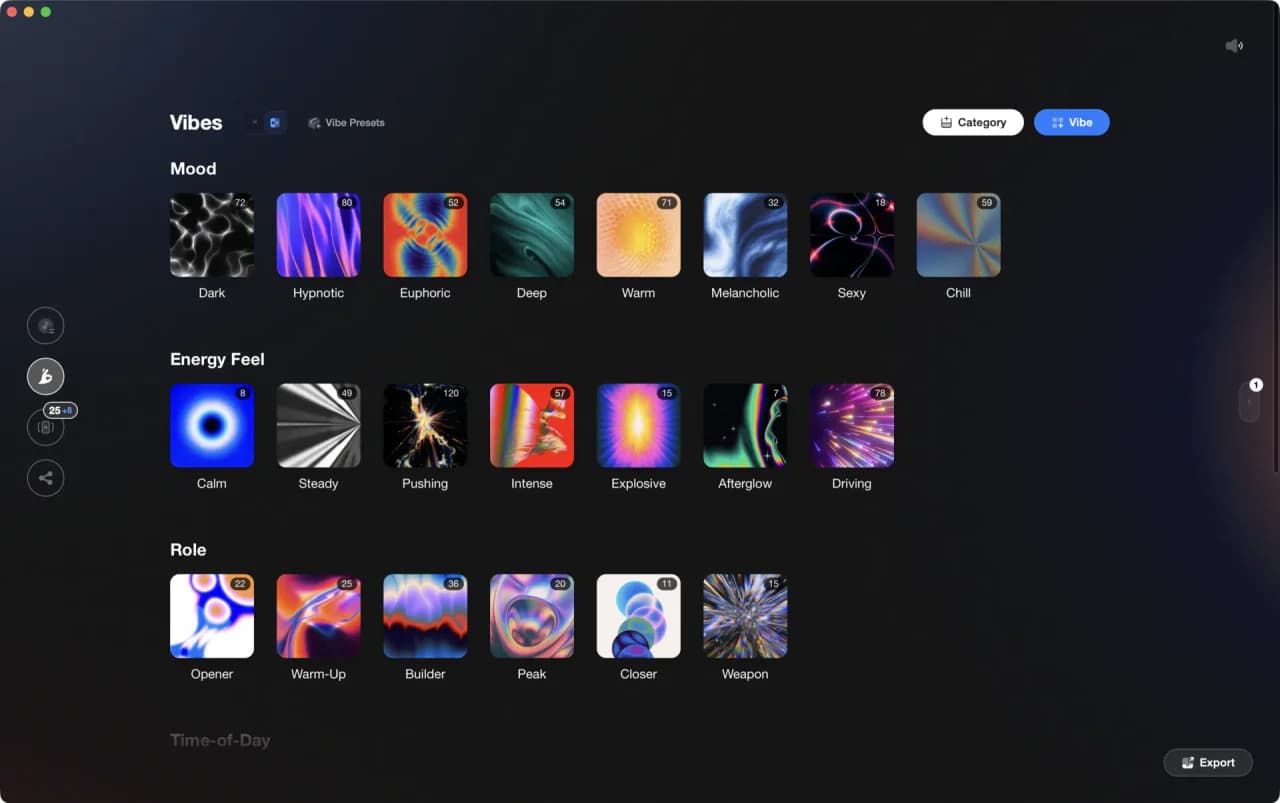
Frequently Asked Questions

Hey, it's Ben Modigell 👋
I DJ and produce as so I so: downtempo, minimal, dub house, tech house, and techno (releases on Spotify and SoundCloud, links above). Everything I write here comes from my own gigs, studio sessions, and library cleanups: the rules I follow, the failure modes I have actually hit, and the workflow I use when nobody is watching. If a technique did not earn its place in my own sets, it does not make it into a tutorial.