
Organizing Music on a USB for DJing
A DJ USB drive is a record box, not a music folder. This guide covers the playlist structure that survives a dark booth, the file system to format it with, and the export step that carries your cue points across.
Quick Answer
How to organize your USB as a DJ
A DJ USB is not a music folder. It is a record box you search under pressure, on a small screen, with a track already playing, so the structure has to be readable in about two seconds. That means few top-level lists, obvious names, and no folder you have to open twice to remember what is inside.
Most advice on how to organize music on USB for DJ sets stops at genre folders. Genre alone fails at 2am, because it tells you what a track is, not when it works. The lists that survive a real gig describe a moment.
- Four moment lists: warm-up, build, peak, closers. This is the layer you actually browse mid-set.
- One list per genre or scene you play, as the fallback when the room turns out different from the brief.
- One list per booking, built the day before, forty to sixty tracks, in rough order.
- A short "new and untested" list so fresh promos never get lost behind the old ones.
- An "anything, anywhere" list of twenty safe tracks that work in almost any room.
Sort inside those lists by whatever your eyes read fastest. BPM and key columns beat folder names for that job, because the app can sort them for you and they stay correct when you add tracks. For the deeper naming and folder logic behind this, see DJ library folder structure.
The steps, inside the app
- 1
Clean the library first
Fix artist and title fields, remove the duplicates, and delete the tracks you would never play. Everything wrong in the library gets copied onto the drive, so this is the cheapest step to do first.
- 2
Analyze every track
Run analysis in your DJ app so BPM, beatgrid, key and waveform are written before the export. Analyzing on the player instead costs you time you do not have in a handover.
- 3
Build the playlists you will actually browse
Create the moment lists, the genre lists and the list for this booking. Keep the total small enough to see without scrolling.
- 4
Format the drive for the gear
FAT32 is the safe default for club players you have not seen yet. Formatting erases the drive, so do it before you copy anything.
- 5
Export through the app, not the file manager
Use the app's export or device view and copy the playlists to the drive from there. Dragging audio files in Finder or Explorer copies music but no cue points, no beatgrids and no playlists.
- 6
Test the drive before you leave
Eject it, plug it back in, and open a few tracks from the drive. Check that the artwork, cues and grids came across and that nothing shows as missing.
- 7
Make a second identical drive
Sticks fail and get left in booths. Export the same playlists twice and carry both, in different pockets.
The export step differs per app: export a playlist to USB in rekordbox, export crates to USB in Serato, or export your library to USB in Engine DJ.
How to arrange songs in order on USB
Order lives in the playlist, not in the file copy. When you export from a DJ app, the running order you set inside the playlist is what the player shows, no matter which file landed on the drive first. So drag the tracks into position in the app, then export.
The copy-one-file-at-a-time trick only matters for basic devices that have no database and read the folder in file name or date order, like a car stereo. For those, and only those, put a number in front of the file name: 01, 02, 03. Never do it to your DJ library, because you will be renaming files you also use everywhere else.
For a set you want in a real order rather than a rough one, plan the sequence in the app first: see how to build a DJ playlist.
What is the best way to organise music for DJing
Use two layers, because tracks have two kinds of properties. What a track is stays fixed: genre, BPM, key, year, label. When a track works is a judgment call: warm-up, peak, closer, floor filler, palate cleanser. Automatic lists handle the first layer well and the second layer badly.
Let the app sort this
- Genre, BPM range, key, date added, rating, label.
- Rule-based or smart playlists keep these current with no effort, and columns let you re-sort them on the fly.
- Never build these by hand.
Decide this yourself
- -Energy, moment, and how a track lands in a room.
- -No analyzer can hear that a record works at 1am but dies at 9pm.
- -These are the lists worth your evening, and they are the ones you browse when the floor surprises you.
Two habits keep the system alive. Add tags or comments as you listen, so the reason you kept a track is written down. And review after every gig: move what worked into the moment lists, and cut what did not.
What should I format my USB drive to for DJing
FAT32 is the default answer for a drive that has to work in any booth. It is the format every generation of club player reads, and it is what you want on the stick you hand to a promoter. rekordbox documents the file systems it supports for USB storage devices, and the picture is narrower than most people expect.
| File system | Supported by rekordbox on USB | When to use it |
|---|---|---|
| FAT32 | Yes | The safe default for club gear you have not seen yet |
| exFAT | Yes | Only when the players on the list support it |
| FAT16 | Yes | Legacy only, too small for a music drive |
| HFS+ | Yes | Mac-only workflows, Windows cannot read it without extra software |
| NTFS | No | Avoid for DJ drives |
| HFS | No | Avoid for DJ drives |
File systems for USB storage devices, per rekordbox's own support FAQ
Formatting erases the drive, so back it up first, then format, then export. Do the format from the operating system, not from the player.
Which is better for DJing, exFAT or FAT32?
It depends on what you plug into, not on your music. AlphaTheta publishes a list of DJ equipment that supports exFAT, and as of July 2026 it is current gear only: CDJ-3000X, CDJ-1500X, CDJ-3000, OPUS-QUAD, OMNIS-DUO, XDJ-AZ, XDJ-AN, XDJ-XZ and XDJ-RX3. Anything older than that list is a FAT32 booth.
FAT32
- Reads on every club player and on both operating systems.
- The cost is a maximum file size of 4 GiB, which almost no single DJ track ever reaches.
- Choose it for the drive you take to gigs you have not played before.
exFAT
- -Effectively no practical file size ceiling and better with very large drives.
- -The cost is that support is a published list of players, not a guarantee.
- -Choose it for your own gear, your studio drive, or a residency where you know the setup.
If you only carry one stick, carry a FAT32 one. The gig where the format matters is exactly the gig where you cannot fix it.
What is the downside of exFAT?
exFAT trades safety features for capacity. Microsoft's own file system comparison shows what it leaves out next to NTFS.
- No journaling. There is no metadata log to replay, so an unclean removal is more likely to leave the drive in a broken state.
- No access control lists, no file owner tracking and no file system level encryption.
- Player support is a list, not a standard. Older club gear simply will not mount the drive.
- Some non-Windows and non-Mac systems still need extra packages to read it.
The faster way: prep once, export clean
Everything above works by hand. The slow part is not the copying, it is the deciding: which tracks are duplicates, what key and energy each one is, and which of them belong in the peak list. Vibes does that layer on the files you already own, then hands the result back to your DJ app.
- Import Wizard and Smart Import pull in your existing rekordbox, Serato, Traktor, Engine DJ, Apple Music or plain-folder library and detect the app for you.
- Auto-Tagging, Vibe Sort and Combinations turn a flat library into the moment lists you actually browse on a stick.
- Track analysis gives BPM, key in Camelot, musical or Open Key display, energy, and section markers, so the sorting has something real to work with.
- Set Designer with Energy Flow orders a booking list by an ascending, descending or arc curve, or along a key path.
- The duplicate finder clears exact, metadata and audio-similarity copies before they reach the drive.
- Export sends playlists and vibes back to rekordbox, Serato, Traktor or Engine DJ as a folder tree, with optional Camelot key or BPM sub-folders.
Where Vibes fits and what it does not do: it prepares the library, it does not write the drive. Export goes through your DJ app, which is also the only thing that writes the database a club player expects. Vibes has no decks, no mixing and no playback to DJ hardware, and it works on files you own rather than streaming services. See export to DJ software for the export side.
When the drive itself is the job rather than the library, the gig checklist lives here: prepare a USB for a gig.
The visual way to organize your DJ library
Tag tracks by vibe. See everything at once. Export to rekordbox, Serato, Traktor or Engine DJ.
14-day free trial. Full access, no strings attached.
or see how it works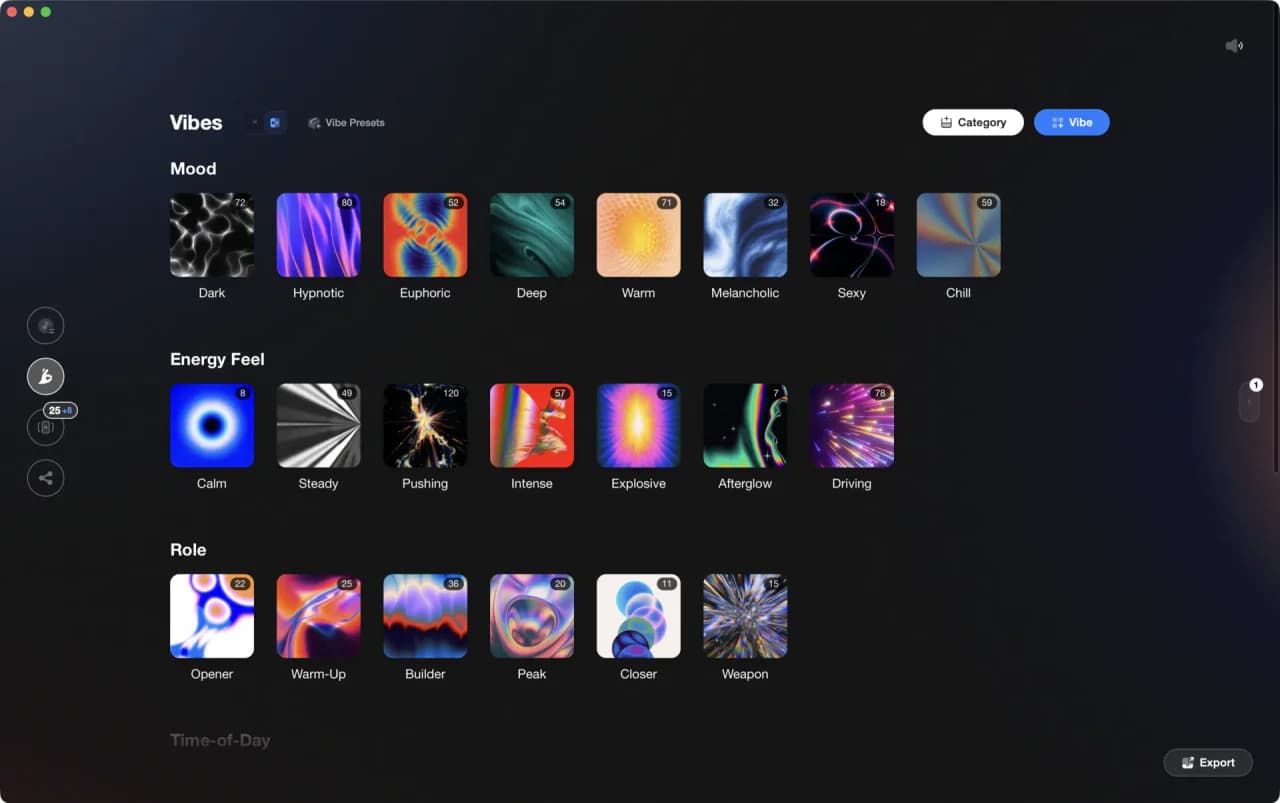
Frequently Asked Questions

Hey, it's Ben Modigell 👋
I DJ and produce as so I so: downtempo, minimal, dub house, tech house, and techno (releases on Spotify and SoundCloud, links above). Everything I write here comes from my own gigs, studio sessions, and library cleanups: the rules I follow, the failure modes I have actually hit, and the workflow I use when nobody is watching. If a technique did not earn its place in my own sets, it does not make it into a tutorial.