
How to Build a DJ Playlist
A DJ playlist is a short, ordered shortlist of tracks you own, analyzed and sequenced so each one can be mixed into the next. This guide builds one step by step in rekordbox, Serato, Traktor or Engine DJ, then orders it so it holds up in a real room.
Quick Answer
This page covers how to make a DJ playlist that survives a real room: getting the files in, analyzing them, creating the list in rekordbox, Serato, Traktor or Engine DJ, and ordering it so every track has a neighbor it can be mixed into. It also covers what changes when the tracks come from a streaming account instead of your own drive.
A playlist is not a set
A playlist is a container. A set is an order. Most first playlists fail because they stop at the container: fifty tracks nobody sequenced, dropped into one list called Gig.
Playlist
- A pool of candidate tracks.
- No fixed order.
- Can be as long as you like.
- Built while you dig for music.
Set list
- -A running order.
- -Short.
- -Every track has a neighbor it can be mixed into.
- -Built the day before you play.
A DJ set for beginners is usually 60 to 90 minutes. At four minutes a track that is 15 to 22 records, far fewer than most people prepare. So build the pool wide, then cut it to a list you have actually heard end to end. The arithmetic is in how many songs a DJ set needs.
The steps, inside your DJ app
Every DJ app does the same four things: import, analyze, group, order. The menu names differ, the sequence does not.
- 1
Get the files into the library
Drag your folder of tracks into the app's collection. Only files stored on your own machine can be exported to a USB stick later, so anything you plan to play on club gear starts here.
- 2
Let the app analyze BPM and key
Analysis is what makes every later step possible. Without a tempo and a key on each track you cannot sort by BPM, and you cannot tell whether two records sit next to each other harmonically.
- 3
Create the empty playlist first
In rekordbox, click the plus icon next to a playlist or folder in the tree view and name the new list. In Traktor, right-click the Playlists folder in the Browser Tree and choose Create Playlist. In Engine DJ, right-click Collection and choose Create Playlist. In Serato, click Add Crate.
- 4
Fill it wider than you need
Drag in two or three times the number of tracks you will play. You are collecting candidates here, not deciding anything. Name the list after the venue and the date, not after the genre, so it stays a set and not a dumping ground.
- 5
Cut it to the tracks you would defend
Play the first thirty seconds and the last thirty seconds of every candidate. Anything you skip is out. A short list of records you know beats a long list you are hearing for the first time in the booth.
- 6
Put them in energy order
Sort so the level climbs, holds, dips once on purpose, and climbs higher. Openers should be slower and sparser than feels comfortable. Keep two or three of your strongest records for the last twenty minutes instead of spending them early.
- 7
Check every join
Walk the list in pairs. Is the tempo gap small enough to ride, and are the two keys neighbors? Fix the pairs that fight rather than reshuffling the whole list.
- 8
Export to what you will actually play from
In rekordbox, SYNC MANAGER exports the selected playlist to a USB storage device or SD memory card. In Engine DJ, Sync Manager syncs playlists and smartlists to your drive. Do this the day before, not in the taxi.
Order the tracks: energy first, key second
Energy is the decision. Key is the tie-breaker. Rank your shortlist by how hard each record hits, and only when two tracks are equally right, pick the one whose key is a neighbor of what came before.
Score energy from 1 to 10 while you listen and write it somewhere the app keeps, such as the comment or grouping field. Energy analysis covers how to score consistently, and building a set by energy covers the shape the curve should take.
Key matters least in a quick cut and most in a long blend, which is why it belongs after energy rather than before it. If you organize your library by BPM and key once, this step takes minutes instead of an evening.
Where the tracks come from
Most weak playlists are copied off a chart, and that is exactly why they are weak. A room reacts to the records it recognizes and to the way you place them, not to a ranking.
Round-ups like top 10 dance songs of all time or best party songs of all time do one useful job: they remind you which records a crowd already knows. They cannot tell you what works at 11pm, in your room, on your gear, between the two tracks you already chose.
So treat a top 20 party songs list, a top 100 party songs of all time rundown, or a folder of best dance party songs as an audition pile, not a running order. Ready-made DJ playlists for parties are somebody else's night, recorded in a different room, for a crowd you have never met.
Ask ten DJs for the top 10 DJ songs in the world and you get ten different answers. The best DJ playlist is the plain one: tracks you own, have analyzed, and can mix into each other. Digging deeper into that is picking songs for a DJ set.
Where playlists live in each app
| App | Where a playlist lives | Rule-based version |
|---|---|---|
| rekordbox 7 | Playlists in the tree view. Click the plus icon next to a playlist or folder to add one. Steps | Intelligent Playlist: right-click Playlists, then Create New Intelligent Playlist |
| Serato DJ Pro 4 | Crates panel. Click Add Crate, and drag one crate onto another to make a subcrate. Steps | Smart Crate: click Add Smart Crate, then set matching rules |
| Traktor Pro 4 | Playlists folder in the Browser Tree. Right-click it and choose Create Playlist. Steps | Smartlist: right-click Playlists, then Create Smartlist |
| Engine DJ 5 | Right-click Collection and choose Create Playlist, or use the playlist plus icon. Up to 1,000 tracks per list. Steps | Smartlist: the gear plus icon next to the Collection header |
Menu paths taken from each vendor's current documentation, checked August 2026.
VirtualDJ, for laptop DJs who prefer it, keeps playlists in the SideView panel next to the Automix and Sidelist tabs, and uses filter folders for the rule-based case. Whichever app you use, the rule-based lists are worth setting up once: see smart playlists.
Playlists built from streaming tracks
Streaming tracks can live inside a DJ playlist, with conditions. Serato documents Spotify streaming from version 3.3.5 with an active Spotify Premium subscription, and rekordbox says that from version 7.2.16 Spotify tracks can be added to rekordbox playlists, even on the Free plan.
Both write changes back to the account, so the DJ Spotify playlist you build while prepping is the same playlist that shows up on your phone. Serato is blunt about the consequence: deleting a Spotify playlist inside Serato deletes it from your Spotify account as well.
The limits are where the planning happens. rekordbox lists them plainly: streaming tracks cannot go to a USB storage device or SD card, the recording function is unavailable, track information cannot be edited, and Spotify tracks are not analyzed by rekordbox. Serato adds that Spotify playback needs a live internet connection, runs on two decks at most, and cannot be recorded or split into stems.
There is no separate Spotify DJ mixer to install, and a Spotify DJ controller is just a controller running one of those apps. The AI DJ Spotify offers inside its own app is a listening feature rather than a DJ tool: Spotify lists DJ as a Premium feature that plays favorites and introduces new music based on your taste, which is the opposite of a set you decided in advance.
The faster way: prepare the list in Vibes
The manual version above is a couple of hours per gig, and most of that is dragging rather than listening. Vibes is a desktop app for the sorting half. It imports your library from rekordbox, Serato, Traktor, Engine DJ, an Apple Music or iTunes Library.xml, or plain folders, and the Import Wizard auto-detects which app it is looking at.
Analysis gives every track a BPM, a key in Camelot, musical or Open Key display, an energy curve and its sections. Set Designer then sorts a list by Energy Flow, ascending, descending or as an arc, or along a key path. Find Compatible shows the harmonic neighbors inside a BPM window, half and double time aware, so checking the joins stops being guesswork. Vibe Sort and Auto-Tagging build the pool in the first place, and the duplicate finder stops the same record appearing twice in one night.
Finished playlists export back into rekordbox, Serato, Traktor or Engine DJ as a folder tree, with optional Camelot key or BPM sub-folders. Be clear about what it is not: no decks, no mixing or recording, no streaming import or playback, and no mobile app. It works on files you own, the playing stays in your DJ app, and so does the USB export. What it does to a library has the fuller picture.
The visual way to organize your DJ library
Tag tracks by vibe. See everything at once. Export to rekordbox, Serato, Traktor or Engine DJ.
14-day free trial. Full access, no strings attached.
or see how it works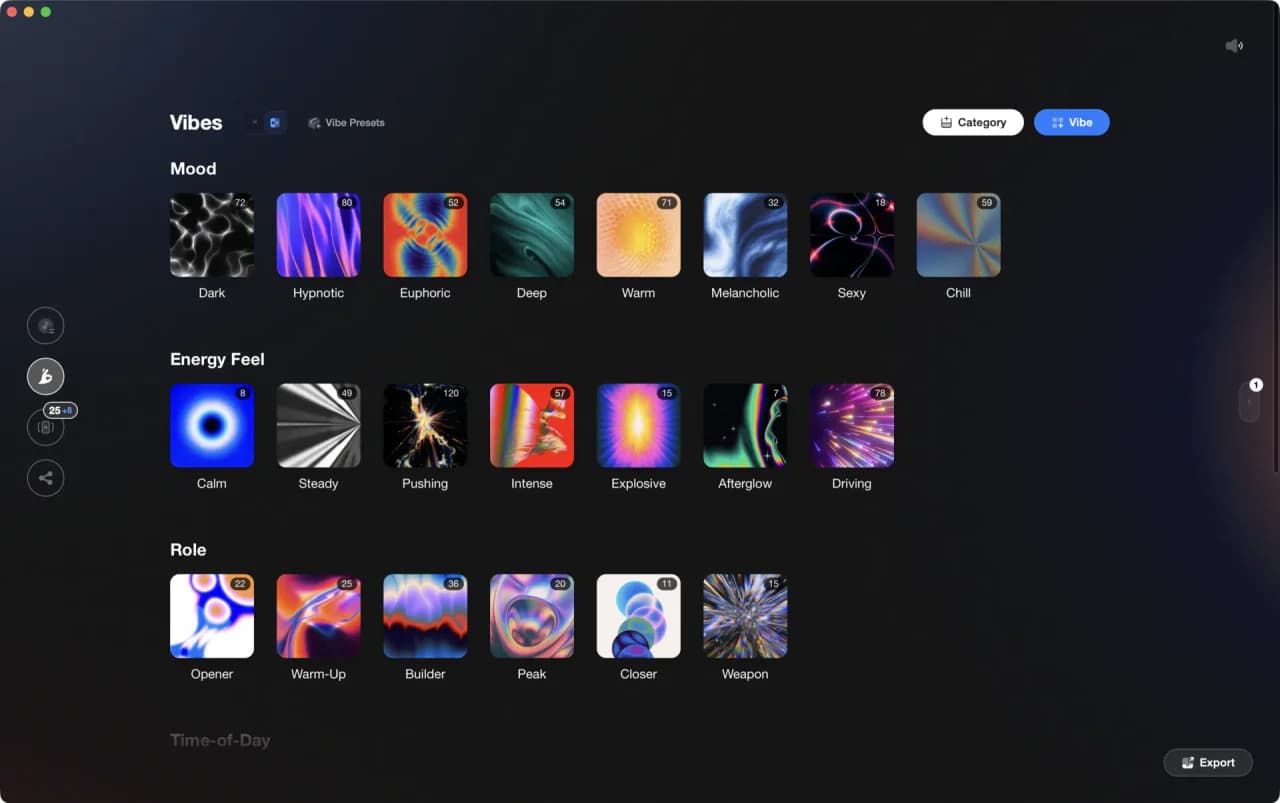
Frequently Asked Questions

Hey, it's Ben Modigell 👋
I DJ and produce as so I so: downtempo, minimal, dub house, tech house, and techno (releases on Spotify and SoundCloud, links above). Everything I write here comes from my own gigs, studio sessions, and library cleanups: the rules I follow, the failure modes I have actually hit, and the workflow I use when nobody is watching. If a technique did not earn its place in my own sets, it does not make it into a tutorial.