
Manage playlists and folders in Engine DJ.
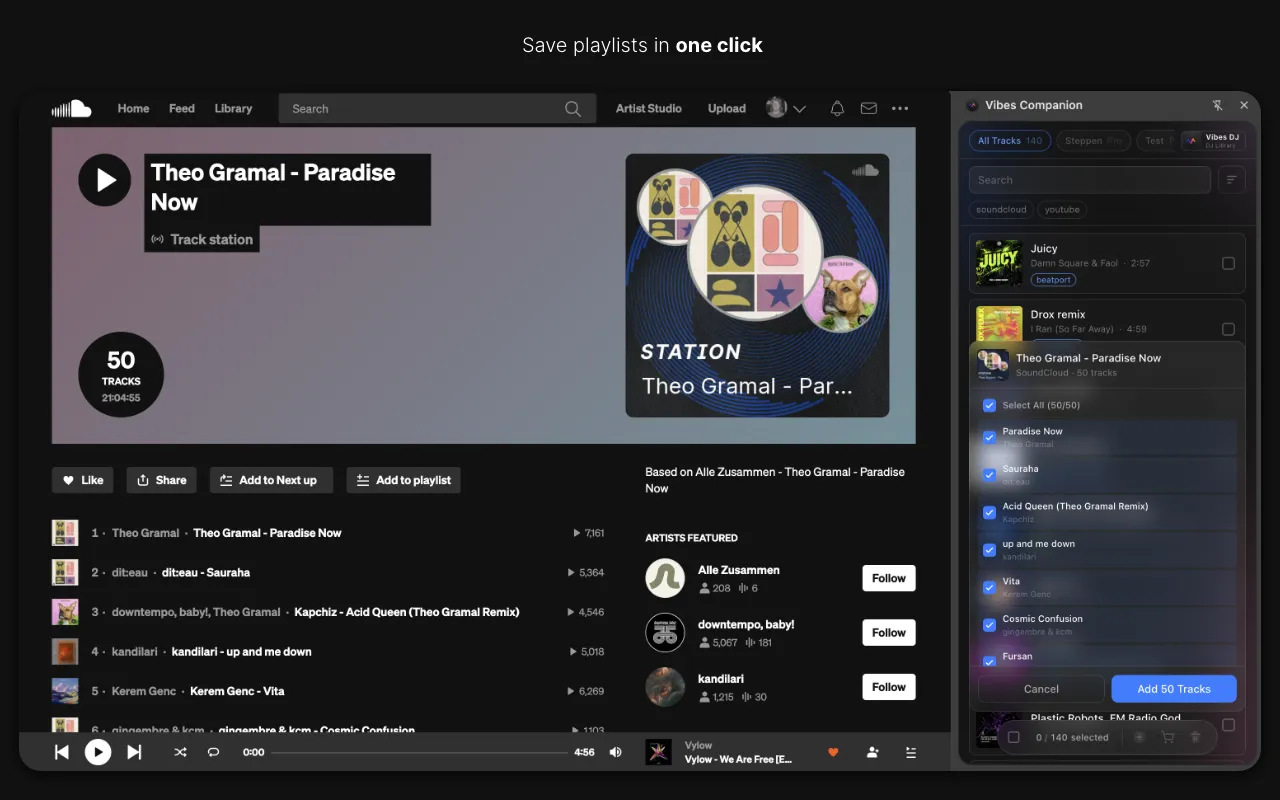
Engine DJ lets you build playlists and nest them inside folders by hand. Vibes takes the manual work out of it by exporting a ready-made playlist for every vibe, set, and combination directly into your Engine DJ library.
$49$79USD one-time purchase. First 250 licenses at this price. 14-day free trial.
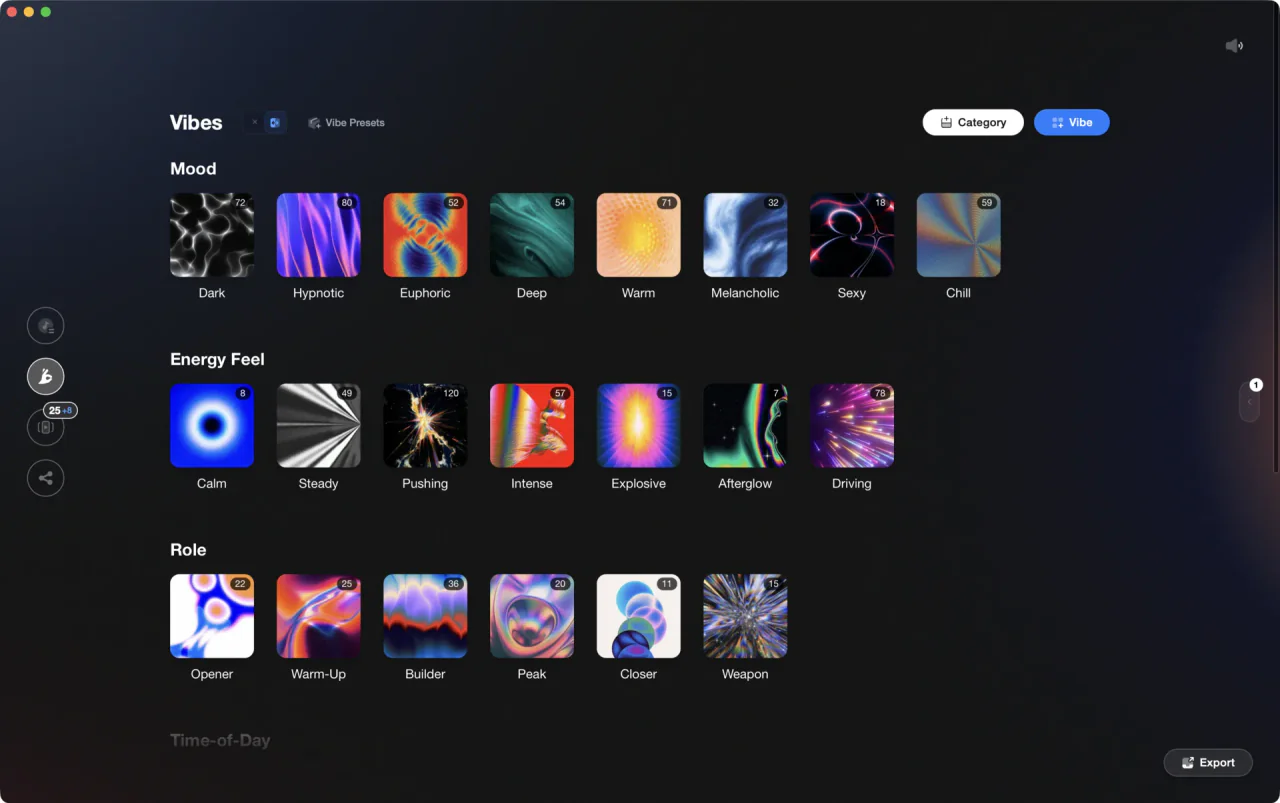
Tag your library in Vibes and export a full folder structure into Engine DJ with one click.
Manage playlists and folders in Engine DJ, step by step.
Engine DJ 4.x organizes music using playlists that can be nested inside each other to create a folder-like hierarchy in the sidebar of the desktop app. Here is how to build and maintain that structure natively.
Create a new playlist
Right-click on an existing playlist or on the Playlists section header in the sidebar and choose 'Create Playlist'. You can also hover over any playlist to reveal a plus icon and click that. Give the new playlist a name and press Enter. Drag tracks from your collection into the playlist to populate it.
Group playlists inside a folder-style parent playlist
Engine DJ does not have a separate 'Create Folder' command. To create a folder-like grouping, first create a playlist and name it as you want your group labeled. Then drag existing playlists onto that parent playlist to nest them inside it. The parent displays a dropdown arrow and acts as a collapsible group. Nested playlist structures do export to hardware and are visible on Engine OS devices.
Reorder and rename
Drag playlists up or down in the sidebar to reorder them. Right-click any playlist and choose 'Rename' to change its name. When reordering tracks inside a playlist, sort by the number (#) column first, then drag tracks to the desired position. Changes are written to connected drives the next time you sync to that device.
Export your library to a drive or standalone player
Connect a USB drive or SD card. In Engine DJ, open the Sync Manager (available from the main interface) to select playlists or folders you want to transfer to the connected device and initiate the sync. You can also drag playlists from your Engine collection directly onto the drive listed in the device panel. Engine DJ writes the tracks and the full playlist structure to the device.
The catch
Doing this by hand for a large library means you have to rebuild or maintain every playlist yourself each time your tagging evolves, with no way to auto-generate playlists from track feel or energy.
 Euphoric
 Melancholic
 Mysterious
 Aggressive
 Peaceful
 Rave
Rave Afterhours
 Club
Club Home
HomeThe faster way
Let your tags build the playlists for you.
Vibes exports a playlist for every vibe, every Set you design, and every auto-detected Combination directly into your Engine DJ database. Your folder structure reflects your actual tagging, not manual drag-and-drop.
See how it worksOrganize in Vibes, export to Engine DJ.
Your playlists, tags, ratings, and cue points travel back to the gear you play on, so nothing you do in Vibes is locked away.
Track 001
Artist A
AfterhoursMysterious Introspective
Track 002
Artist B
 Cozy FloorPeacefulHome
Track 003
Artist C
RaveAggressive Festival
 Build & Release
Frequently asked questions
The honest answers, including the trade-offs.
From a Vibes customer
The import worked perfectly. Have created several sets now and my life is so much easier
One-time purchase
Get Vibes with a single payment. No subscription.
Vibes is the step before you open your DJ software, not a replacement for it.
First 250 licenses at this price, then $79.
14 days • Full access
No strings attached
Secure checkout with Stripe
Already have Companion Pro? Upgrade instead

Methodology
How we keep this honest.

Verified against the app
Every step is checked against the current version of Engine DJ.
We own our bias
We make Vibes. We show the native way first and honestly, then where Vibes genuinely helps, and we say when it does not.
Live pricing
The Vibes price shown comes straight from our checkout, never a hardcoded marketing number.
Kept current
Last reviewed September 2026.
Keep exploring
DJ apps head to head
Works with your software
Vibes for DJs
How-to guides
Best DJ software
Move between apps
Learn to DJ