

Prepare a USB for DJ gigs.
Format the drive as FAT32, analyze and tag every track in your DJ app first, then export finished playlists from that app so it writes its own player database onto the stick. Dragging music folders across in Finder or File Explorer skips that database, which is where your playlists, cues, beat grids and waveforms live.
$49$79USD one-time purchase. First 250 licenses at this price. 14-day free trial.
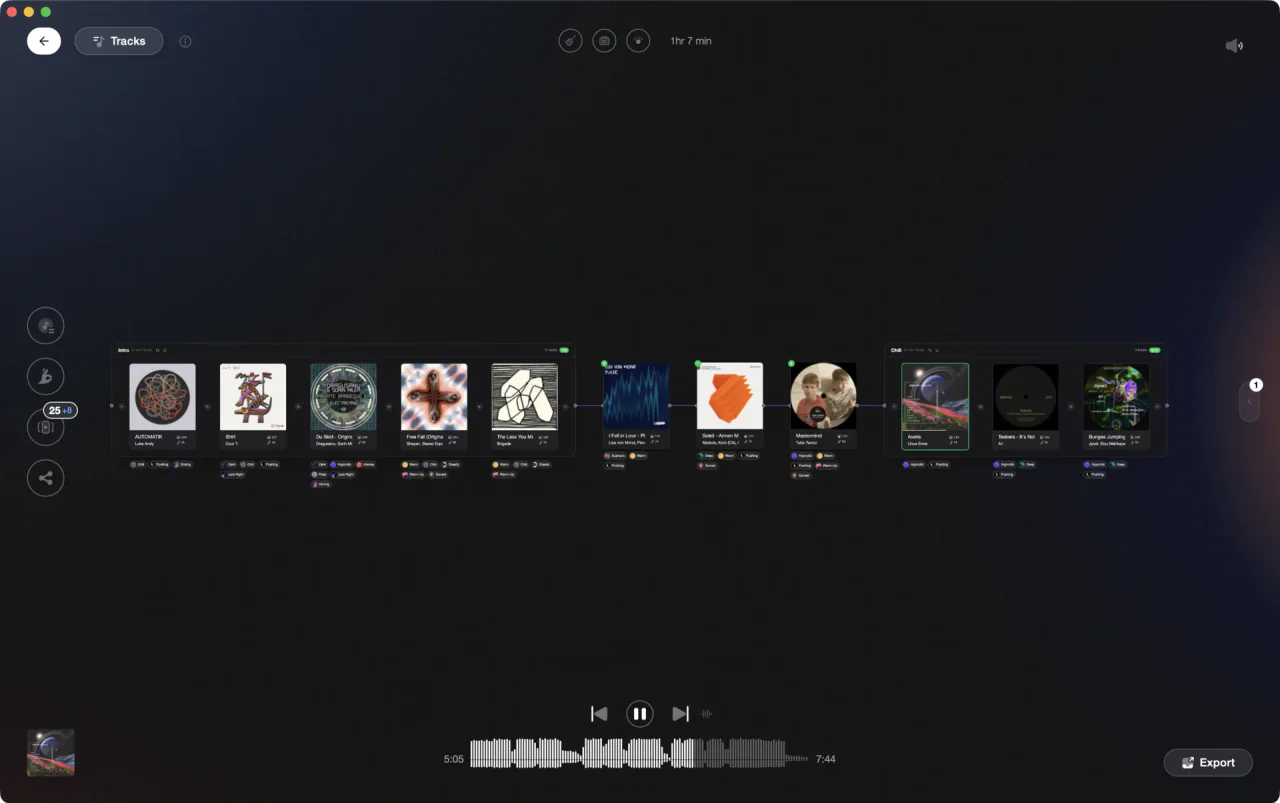
Decide the running order at home, so the drive is only the last five minutes of the job.
Prepare a USB for a gig in any DJ app, step by step.
A DJ USB is more than a copy of your music folder. The playlists, cues, beat grids and waveforms live in a database your DJ app writes onto the drive, so every step below happens inside Rekordbox, Serato DJ Pro, Traktor or Engine DJ.
Pick a plain flash drive, and buy two
Any standard mass-storage flash drive qualifies. Engine DJ lists SD cards and USB mass-storage drives, both flash memory and external HDD enclosures, as playable media, and the other apps set no special hardware requirement. Buy two of the same model, prepare both the same way, and keep the spare in your bag. Booth ports are worn and drives fail without warning.
Format it: FAT32 unless you know the gear
Formatting erases the drive, so copy anything you need off first. rekordbox supports FAT16, FAT32, exFAT and HFS+ on USB storage devices, but not NTFS. Engine DJ recommends exFAT and also accepts FAT32. On macOS, open Disk Utility, select the drive, click the Erase tab and choose MS-DOS (FAT32). On Windows, right-click the drive, click Format and pick FAT32 or exFAT.
Check who reads exFAT before you choose it
rekordbox documents exFAT playback on the CDJ-3000X, CDJ-1500X, CDJ-3000, OPUS-QUAD, OMNIS-DUO, XDJ-AZ, XDJ-AN, XDJ-XZ and XDJ-RX3 only, as of July 2026. Its own troubleshooting FAQ tells you to format to a file system other than exFAT if you intend to use other equipment. If you cannot see the booth in advance, FAT32 is the answer.
Analyze every track before it goes near the drive
In rekordbox, Auto Analysis under Preferences > Analysis > Track Analysis runs on import; otherwise select the tracks and choose Analyze Track from the Track menu or the right-click menu. In Serato DJ Pro, click Analyze Files with Set Auto BPM and Set Beat Grid ticked. Traktor's Consistency Check Report has an Analyze button. In Engine DJ, turn on Auto Analysis in the Library preferences.
Build the playlists you will actually play from
Booth screens are small and badly lit, so decide the shape at home: one playlist per phase of the night, plus a short opener and a short closer. Name them so they sort into the order you need them. One playlist holding your entire collection is the same as having no playlists at all once the room is full.
Export from the app, never from your file manager
rekordbox: switch to EXPORT, then right-click the playlist in the tree view and choose Export Playlist. Serato DJ Pro: open the Files panel, drag the crate onto the drive and select copy. Traktor: right-click the playlist in the Browser Tree, choose Export Playlist and set a destination path. Engine DJ: click Export in the toolbar, pick the drive in Sync Manager, tick the playlists and click Export to Drive.
Read the drive back, then eject it properly
Open the drive again in the app before you leave the house. rekordbox lists it under Devices in the tree view. Serato shows your crates whenever the drive is plugged into a laptop running it. Engine DJ shows a capacity bar in Sync Manager. Then eject cleanly: Remove USB Device in rekordbox, the Eject button in Sync Manager, or your system's eject. Never pull it out mid-copy.
The catch
A Serato or Traktor drive is a portable library for a laptop running that software. Pioneer DJ players read the Device Library that rekordbox writes, and Engine OS hardware reads Engine DJ's own data, so a Serato crate or a Traktor playlist file means nothing to either one. If the booth is CDJs, the drive has to be exported from rekordbox, whatever you prepare in at home.
Opening
Track 002
Artist B

Track 004
Artist D
Track 001
Artist A
Track 003
Artist C
The faster way
One prep pass at home, and the drive is a five-minute job.
Vibes analyzes your files for BPM, key, energy and sections, tags them into vibes with Auto-Tagging or Vibe Sort, and builds the gig playlist in Set Designer with Energy Flow sorting, so the running order is settled before you plug anything in. Then it exports those playlists back to rekordbox, Serato, Traktor or Engine DJ as a folder tree, with optional Camelot key or BPM sub-folders. The USB export itself still happens in your DJ app, which is where the player database gets written.
See how it worksOrganize in Vibes, export to any DJ app.
Your playlists, tags, ratings, and cue points travel back to the gear you play on, so nothing you do in Vibes is locked away.

Track 001
Artist A
Afterhours Mysterious
 Introspective
Track 002
Artist B
 Cozy FloorPeaceful
 Home
Home
Track 003
Artist C
Rave Aggressive
 Festival
 Build & Release
Frequently asked questions
The honest answers, including the trade-offs.
From a Vibes customer
The import worked perfectly. Have created several sets now and my life is so much easier
One-time purchase
Get Vibes with a single payment. No subscription.
Vibes is the step before you open your DJ software, not a replacement for it.
First 250 licenses at this price, then $79.
14 days • Full access
No strings attached
Secure checkout with Stripe
Already have Companion Pro? Upgrade instead


Methodology
How we keep this honest.

Verified against the app
Every step is checked against the current version of any DJ app.
We own our bias
We make Vibes. We show the native way first and honestly, then where Vibes genuinely helps, and we say when it does not.
Live pricing
The Vibes price shown comes straight from our checkout, never a hardcoded marketing number.
Kept current
Last reviewed September 2026.
Keep exploring
DJ apps head to head
Works with your software
Vibes for DJs
Vibes features
How-to guides
Best DJ software
Move between apps
Learn to DJ