
DJ Music Folder Structure
A simple, shallow folder tree for a DJ library: one home folder, an inbox for new downloads, a sorted library, an archive, and crates on top. Set it before you import, not after.
Quick Answer
Why the tree still matters when the app uses crates
During a set you never browse your hard drive. You browse crates, playlists and search inside the DJ app. So why bother with folders at all? Because the folders decide three things the app cannot fix for you: whether a backup is one drag instead of forty, whether you can move to a different DJ app later without losing tracks, and whether the app can find a file again after you touch it.
The same logic applies to a USB stick for club players. rekordbox writes its own library format to the device, carrying the playlists, cue points and beatgrids with it, so the player shows what you exported, not the names of the folders you dragged over. Neat folders are for you and for your backup, not for the CDJ screen.
The three folders every library needs
| Folder | What goes in it | Why it exists |
|---|---|---|
| Inbox | Every new download, untouched, until it is named, tagged and analyzed | Nothing enters the library half finished, so the library stays trustworthy |
| Library | Everything you might actually play, grouped one level down | This is the folder you back up and the folder your DJ app points at |
| Archive | Tracks you stopped playing but do not want to delete | Keeps the working library small without throwing music away |
A three folder core that survives an app change.
Inside Library, use one grouping level and pick it based on how you decide what to play next. Most DJs choose genre. If you play one genre all night, tempo bands or energy levels are a better split. Artist and album folders look tidy and are useless in a booth, because nobody thinks in albums at 1am.
- Genre split: house, techno, disco, hip hop, edits. Good for open format and for anyone who mixes across styles.
- Tempo split: slow, mid, fast, or explicit bands if you know your range. Good for one genre specialists.
- Energy split: warm up, main, peak, closing. Good if you already think about sets as a curve.
- One extra folder for the odd ones out: acappellas, loops, tools, intros. They break every other rule, so give them their own home.
Folders on disk versus crates in the app
Folders on disk
- One place per file.
- Slow to change, easy to back up, readable by any app and any operating system.
- Best used for broad, permanent grouping: inbox, library, archive, one grouping level below that.
Crates and playlists
- -A track can sit in twenty of them at once.
- -Instant to build, gig specific, and tied to the DJ app that holds the database.
- -Best used for everything narrow: a wedding, a warm up hour, a genre you are testing, a stack of new promos.
The rule that keeps both clean: a track lives in exactly one folder and in as many crates as you like. The moment you find yourself copying a file so it can be in two places, you wanted a crate.
- 1
Pick one home
Choose one drive and one top level folder for all your DJ music. An external SSD is the usual choice because it travels and it backs up as a unit. Nothing lives on the desktop, in Downloads, or scattered across two drives.
- 2
Create the three working folders
Inside the home folder, make Inbox, Library and Archive. Three folders is enough on day one. Resist adding more until a real problem asks for one.
- 3
Add one grouping level inside Library
Genre, tempo band or energy, whichever matches how you choose tracks. Keep the list short: eight to twelve folders you can read at a glance beats thirty micro genres you have to think about.
- 4
Fix names before anything moves
Rename files to one consistent pattern so the folder sorts usefully on its own. Do this while the tracks are still in the Inbox, because renaming after import breaks the link in the DJ app.
- 5
Move each track from Inbox to Library
Only once it is named, tagged with genre and key, and analyzed. The Inbox should be empty again within a week of a buying session, otherwise it is just a second mess.
- 6
Point the DJ app at Library and build crates
Import the folder, let the app analyze, then create crates and playlists for gigs and moods. From here on the folders stay still and the crates do all the moving.
- 7
Back up the folder and the database together
The audio files and the DJ app's library data are two halves of one thing. A backup that has only the music loses every cue point, and a backup that has only the database points at files that are gone.
Naming rules that keep the tree sortable
- One pattern for every file, usually artist then track title, with the remix or edit name kept in the title.
- No leading numbers unless you want the folder to sort by them, because the file browser sorts on the first character.
- Avoid characters that travel badly across drives and operating systems: slashes, colons, question marks and quotes.
- Keep key and tempo in the tags, not in the file name. Tags follow the track into every app; a file name has to be edited by hand and breaks the link when you change it.
- Lower case or title case, but the same one everywhere. Mixed case is the reason a list looks messy even when it is correct.
The faster way with Vibes
Everything above is doable by hand. The slow parts are the bulk ones: pulling an existing library in, tagging it, finding the duplicates, and writing the tree back out in the shape your DJ app wants. That is the part Vibes does for you.
- Import Wizard with Smart Import auto-detects rekordbox, Serato, Traktor, Engine DJ, an Apple Music or iTunes Library XML file, or a plain folder, so the library comes in as it stands.
- Auto-Tagging and Vibe Sort put tracks into vibes fast, with hotkeys or by combination, and it can pull existing tags from the Genre, Mood and Grouping fields.
- Track analysis fills in BPM, key in Camelot, musical or Open Key display, an energy curve and the track sections, so the grouping level has real data behind it.
- The duplicate finder works in layers, exact, metadata and audio similarity, which is the fastest way to shrink a library before you commit to a tree.
- Export writes playlists and vibes back to rekordbox, Serato, Traktor or Engine DJ, and it can write the folder tree with optional Camelot key or BPM subfolders.
- Watched folders keep the Inbox honest: new files get picked up instead of sitting in Downloads for a month.
What it is not: Vibes is a preparation tool, not a DJ app. There are no decks, no mixing and no recording, it works on files you own rather than streaming, and playback to your gear still happens through rekordbox, Serato, Traktor or Engine DJ after the export. See export to DJ software and import your library for what crosses over. Download Vibes and point it at your music folder to see the tree it would write.
The visual way to organize your DJ library
Tag tracks by vibe. See everything at once. Export to rekordbox, Serato, Traktor or Engine DJ.
14-day free trial. Full access, no strings attached.
or see how it works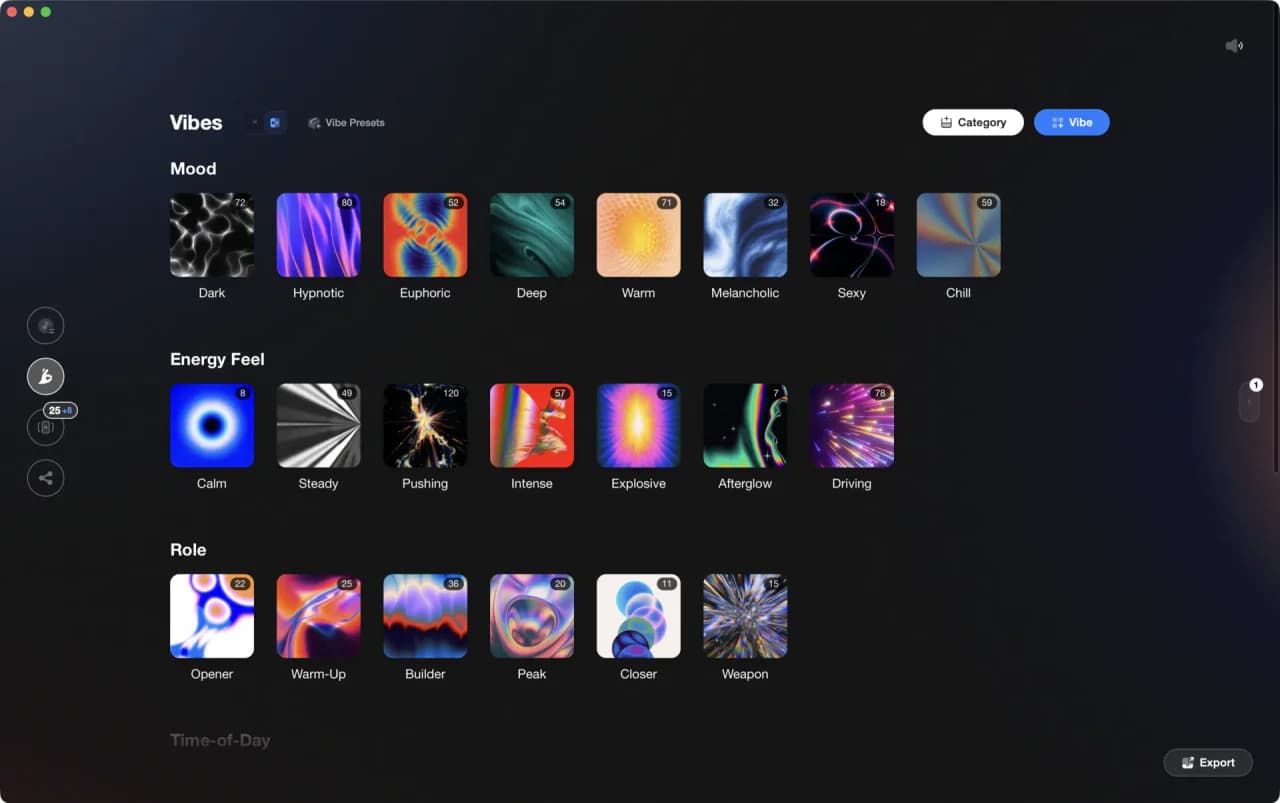
Frequently Asked Questions

Hey, it's Ben Modigell 👋
I DJ and produce as so I so: downtempo, minimal, dub house, tech house, and techno (releases on Spotify and SoundCloud, links above). Everything I write here comes from my own gigs, studio sessions, and library cleanups: the rules I follow, the failure modes I have actually hit, and the workflow I use when nobody is watching. If a technique did not earn its place in my own sets, it does not make it into a tutorial.