
How to Prepare for a DJ Gig
Gig prep is a routine, not a talent: confirm the details in writing, build and analyze more music than the slot needs, export it onto media the booth can read, and pack for the parts that fail. This is that routine, from the promoter's email to your first track.
Quick Answer
Start with the brief, not the music
Four facts drive every other decision: how long you play, when you play, what is in the booth, and who is on before and after you. Get them from the promoter or the venue in writing. A slot that moves by an hour changes the whole track list, and the exact player and mixer models decide what your drive has to look like.
- Set length, start time, and the names of the DJs either side of you
- The gear: player and mixer models, whether a laptop or controller is allowed, and which cable or adapter you have to bring yourself
- The room: volume limits, curfew, and whether there is a sound check window before doors
- The night: load-in time, dress code, guest list, and who to ask for at the door
- The paperwork: the booking confirmed in writing, the fee agreed before you travel, and who signs off on the night. A contract template settles it in one email
How much music to bring
Prepare two to three times your set length. For a 90 minute slot that means roughly three to four hours of playable, analyzed tracks in the folder you take with you. Working DJs writing about their own gigs land on the same margin, and it is not padding: it is the room to change direction when the crowd is older, drunker, emptier or twice as hot as you were told.
| Set length | Music to prepare | Rough track count |
|---|---|---|
| 60 minutes | 2 to 3 hours | 30 to 45 tracks |
| 90 minutes | 3 to 4 hours | 45 to 65 tracks |
| 2 hours | 4 to 6 hours | 60 to 90 tracks |
| 3 hours | 6 to 8 hours | 90 to 130 tracks |
Counts assume tracks average around four minutes and that you mix out before the end.
Split that folder into three: the opener block you could play cold, the middle you expect to use, and a reserve of records that always work. How many songs for a DJ set works through the arithmetic, and the DJ set time calculator turns a track count into minutes.
Prepare the tracks in your DJ software
This is the part that takes an evening and saves the night. Do it at home, on the laptop, with the offline player and no hardware attached.
- 1
Pull the shortlist
Drag the candidates into one new playlist or crate named for the gig and the date. Everything that follows happens inside that one list, so nothing you prepared gets left in another folder.
- 2
Analyze every file
In Serato DJ Pro, click the Analyze Files button, or drag the crate onto it, with Set Auto BPM and Set Beat Grid checked. Serato DJ 4.0 also analyzes new imports automatically by default. rekordbox, Traktor and Engine DJ all have their own analysis pass. See analyze tracks in rekordbox and analyze tracks in Serato.
- 3
Fix the fields you sort by
Anything you plan to search under pressure has to be right: title, artist, genre, BPM, key and rating. Ten minutes of metadata now is the difference between finding a record and scrolling past it while a track runs out.
- 4
Set cues on the tracks you will actually play
Mark the first downbeat, the point you mix in, and the point you get out. You will not read a waveform carefully in a dark booth. Hot cue vs memory cue explains which one survives the trip to the players.
- 5
Order the list
Sort the gig playlist into an opener block, a middle and a reserve, and check the joins between them by key and BPM rather than by mood alone. Building a DJ playlist covers the ordering itself.
- 6
Export it, do not copy it
Use your software's export path so the database travels with the audio. In rekordbox that is EXPORT mode writing a device library to the stick. In Engine DJ Desktop it is Sync Manager, then the Export to Drive button. In Serato it is a copy of your music and crates onto the drive, made from inside the app.
- 7
Test the media cold
Eject the drive, plug it back in, and load two or three tracks from it as if you had just walked into the booth. If you can borrow the same player model, do it there. A drive that mounts on your laptop can still be unreadable to a club player.
- 8
Make the second drive
Repeat the export onto a second stick and put it in a different pocket. Drives fail, get pulled out mid track, and get left in the last booth.
Get it onto media the booth can read
Most first-gig disasters are file system disasters. The players read the database your DJ software writes, not loose folders you dragged across in Finder, and not every player reads every drive format.
| App | How the music travels | Check before you leave |
|---|---|---|
| rekordbox 7 | EXPORT mode writes a device library to a USB stick or SD card | Which library format the club's player supports, Device Library or OneLibrary, and whether that model reads exFAT |
| Serato DJ Pro | Your laptop, or your music and crates copied to a USB drive as a portable library | That every track is analyzed and that the Serato library folder has a current backup |
| Engine DJ Desktop 5.0 | Sync Manager, then Export to Drive, copies the selected playlists and their Engine data | Free space on the drive, and that the player supports the drive's file system and capacity |
Checked against AlphaTheta, Serato and Engine DJ documentation, August 2026.
AlphaTheta publishes the list of units that read exFAT, and it is short: the CDJ-3000X, CDJ-1500X, CDJ-3000, OPUS-QUAD, OMNIS-DUO, XDJ-AZ, XDJ-AN, XDJ-XZ and XDJ-RX3 as of July 2026. Older CDJ and XDJ models are not on it. Engine DJ recommends exFAT for its own drives and also supports FAT32, and its guide tells you to confirm the player handles the drive's format and capacity. If you do not know the booth gear, carry one stick in each format.
Plan the shape, not the tracklist
A fully scripted set is a trap. Plan the shape instead: where you start, roughly where the room should be at the halfway mark, and how you hand over. Then pick each record from the reserve as the night tells you what it wants.
Know which job you were booked for. An opening slot is not a short peak time set, and a closing slot is not a victory lap. Building a set by energy covers the arc, how to play a warm-up set covers the opening slot, and the DJ set planning template gives you a page to write it on.
Pack for the failures, not the ideal night
- Two drives with identical exports, carried separately
- Your own headphones, plus the adapter for them
- A USB extension or hub, and whichever cable your laptop needs for the booth
- Laptop, charger, and a stand if you are bringing your own rig
- Phone charged, with the venue address, the promoter's number and the load-in time saved offline
- Water, a pen, and something to write the tracklist on
Playing from your own laptop
- You keep the full library, your cues and your effects.
- Setup takes longer and needs table space, power and cables.
- Changeovers mean unplugging a live rig, so agree how it will work in advance.
- Bring your own interface or controller plus a spare cable.
Playing from a USB on club players
- -Changeovers take seconds and the booth is already wired.
- -You only have what you exported, so the reserve matters.
- -Drive format and library format decide whether the stick even mounts.
- -Bring two identical sticks.
The last hour before you play
Arrive 45 to 60 minutes before your slot. That buys you a sound check if there is one, a look at the mixer channel layout, and time to find the person who pays you. Load your first track early, set your gain against the DJ playing, and listen to the room on the dancefloor rather than from the booth, because the booth lies about the bass.
Introduce yourself to the DJ you are following and agree how the handover happens. Then do nothing to their mix until they invite you to. That single habit will get you booked again more reliably than any track you own.
The faster way with Vibes
The slow part of all this is the middle: turning a big folder of files into a shortlist with trustworthy BPM, key and energy data, in a sensible order. Vibes is a desktop app that does that part and hands the result back to your DJ software.
Point the Import Wizard at your rekordbox, Serato, Traktor or Engine DJ library, at an Apple Music or iTunes Library.xml, or at plain folders, and Smart Import detects which app it is. Vibes analyzes BPM, key in Camelot, musical or Open Key display, an energy curve, and the sections of each track: intro, buildup, drop, breakdown and outro. Auto-Tagging sorts tracks into vibes for you, or you tag them by hand in Vibe Sort with hotkeys. Find Compatible pulls the harmonic Camelot neighbours inside a BPM window, half and double time aware, and Set Designer orders the shortlist with Energy Flow sorting, ascending, descending or an arc.
When the set is built, export the playlists and vibes back to rekordbox, Serato, Traktor or Engine DJ as a folder tree, with optional Camelot key or BPM sub-folders. From there you prepare the media in your DJ software exactly as above. The duplicate finder and watched folders keep the library from rotting between bookings, which is the other half of cleaning up a DJ library.
What it does not do: Vibes has no decks. It does not mix, record, or play to DJ hardware, and the USB export still goes through your DJ app. It works on files you own, not on streaming libraries. It is the prep, not the performance.
The visual way to organize your DJ library
Tag tracks by vibe. See everything at once. Export to rekordbox, Serato, Traktor or Engine DJ.
14-day free trial. Full access, no strings attached.
or see how it works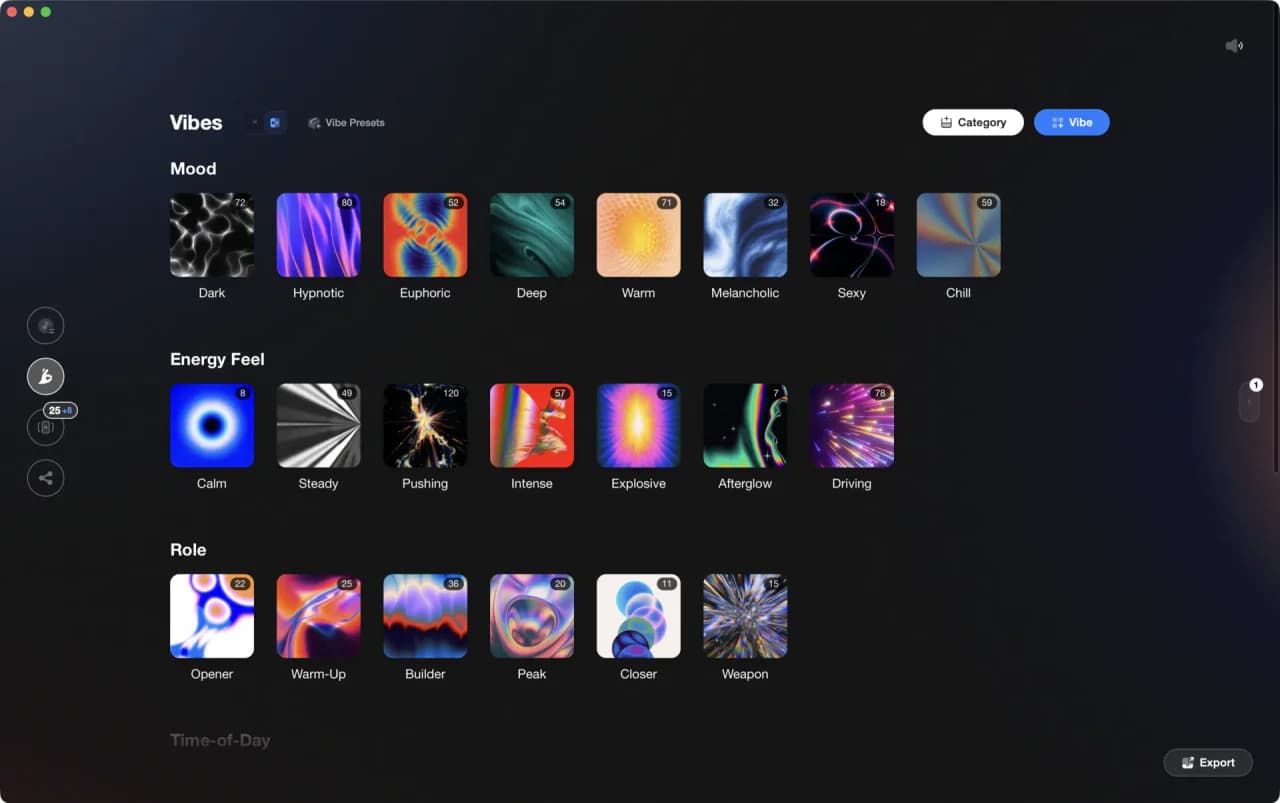
Frequently Asked Questions

Hey, it's Ben Modigell 👋
I DJ and produce as so I so: downtempo, minimal, dub house, tech house, and techno (releases on Spotify and SoundCloud, links above). Everything I write here comes from my own gigs, studio sessions, and library cleanups: the rules I follow, the failure modes I have actually hit, and the workflow I use when nobody is watching. If a technique did not earn its place in my own sets, it does not make it into a tutorial.