
Tag tracks by genre in Traktor.
Traktor already groups your music by genre: expand the Track Collection folder in the Browser Tree and it sorts into Artist, Release, Label and Genre, so every genre string in your tags is a browsable list. The work is upstream, in the tags themselves, so clean the Genre field first with inline editing or the Edit dialog, then turn the genres you actually play into Smartlists that keep filling themselves.
$49$79USD one-time purchase. First 250 licenses at this price. 14-day free trial.
Genre gets you to the shelf. A second tag gets you to the record.
Tag tracks by genre in Traktor, step by step.
Traktor stores genre as a plain metadata field on every track and builds a lot of its browsing around it. Here is how to organize Traktor by genre, from a clean Genre column to genre Smartlists that stay current on their own.
Show and sort the Genre column
Open the Browser and look at the column header row above the Track List. Right-click it to tick Genre on, and drag the column left so it sits near Title and Artist. Click the Genre header once to sort the list by genre, and a second time to invert the order. Clicking the # column header puts the list back into its original track order.
Turn on inline editing and fix the obvious mistakes
Open Preferences and go to the Browser Details page, then check Allow Inline Editing in List Window. Back in the Track List, select a track and click into its Genre field until a cursor appears, then type the genre you want. Press Enter to confirm your entry, or Esc to abort. Work down the column and clear out the stray spellings and the empty fields.
Retag a batch with the Edit dialog
Select every track that belongs to one genre, right-click, and choose Edit. The Track List turns into the Edit dialog. A checked box beside a field means the selected tracks share that value, and anything you write there is saved to their metadata tags on apply. Use the drop-down in the Genre field to pick a tag already stored in your Collection, then click Apply or OK.
Browse the Genre node under Track Collection
Expand the Track Collection folder in the Browser Tree. Everything you have imported is sorted automatically by Artist, Release, Label and Genre, so the Genre node is a live index of every genre string in your collection. Click one to see its tracks. Misspellings and near-duplicates show up here as separate entries, which makes this the fastest place to spot tags that still need work.
Build a genre Smartlist
Right-click the Playlists folder and choose Create Smartlist. In the Smartlist window, pick Genre from the filter list and set the value, then add BPM or Rating conditions if you want something tighter than the whole genre. The list fills itself as you import new music. A Smartlist cannot be ordered by hand, so right-click it and choose Save As Playlist when running order matters.
Nest the genre lists in folders and pin them to Favorites
Right-click the Playlists folder and select Create Folder, then nest your genre lists by night, room, or tempo band so the tree stays readable. Drag any folder or playlist from the Browser Tree onto a free slot in the Favorites area at the top of the Browser. One click then gets you to a genre mid-set instead of scrolling the tree.
The catch
Sorting a playlist by the Genre column is a view, not a saved order. After you restart Traktor, playlists reset to their original track order unless you right-click the playlist and choose Consolidate. And genre only ever groups tracks as coarsely as your tags do: a folder called House still holds the 11pm warm-up record and the 2am peak-time weapon side by side.
 Euphoric
 Melancholic
 Mysterious
 Aggressive
 Peaceful
 Rave
Rave Afterhours
 Club
Club Home
HomeThe faster way
Keep the genres you have, then tag for what you actually reach for.
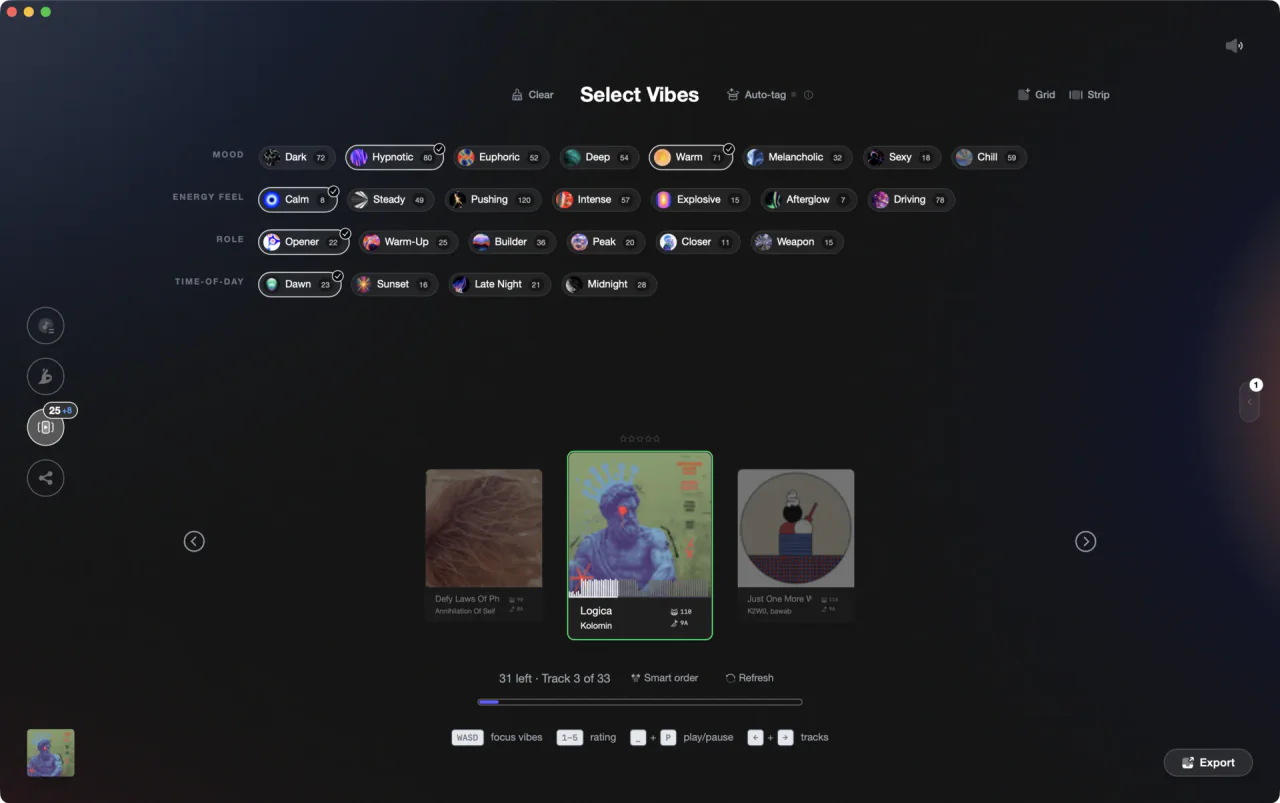
Vibes reads your Traktor collection with the Import Wizard, and Smart Import detects the app for you. Your existing tags come across from the Genre, Mood, and Grouping fields, so nothing gets retyped. From there you tag by feel in Vibe Sort with single key presses, or let Auto-Tagging suggest vibes from the audio, and Combinations turn tag overlaps into ready-made lists. Export writes the result back into Traktor as playlists.
See how it worksOrganize in Vibes, export to Traktor.
Your playlists, tags, ratings, and cue points travel back to the gear you play on, so nothing you do in Vibes is locked away.
Track 001
Artist A
AfterhoursMysterious Introspective
Track 002
Artist B
 Cozy FloorPeacefulHome
Track 003
Artist C
RaveAggressive Festival
 Build & Release
Frequently asked questions
The honest answers, including the trade-offs.
From a Vibes customer
The import worked perfectly. Have created several sets now and my life is so much easier
One-time purchase
Get Vibes with a single payment. No subscription.
Vibes is the step before you open your DJ software, not a replacement for it.
First 250 licenses at this price, then $79.
14 days • Full access
No strings attached
Secure checkout with Stripe
Already have Companion Pro? Upgrade instead


Methodology
How we keep this honest.

Verified against the app
Every step is checked against the current version of Traktor.
We own our bias
We make Vibes. We show the native way first and honestly, then where Vibes genuinely helps, and we say when it does not.
Live pricing
The Vibes price shown comes straight from our checkout, never a hardcoded marketing number.
Kept current
Last reviewed September 2026.
Keep exploring
Compare Vibes
DJ apps head to head
Works with your software
Vibes for DJs
Vibes features
How-to guides
Best DJ software
Move between apps
Learn to DJ