

Tag tracks by genre in Engine DJ.
Fix the Genre field on the tracks first, then let Engine DJ do the sorting: click a track's Genre cell to edit it, or Shift-select a batch and Shift-double-click the Genre field to change them all at once. Then switch on the filter boxes, click a genre to narrow the track list, and create a Smartlist with the rule Genre contains, so each genre list keeps filling itself as you add music.
$49$79USD one-time purchase. First 250 licenses at this price. 14-day free trial.
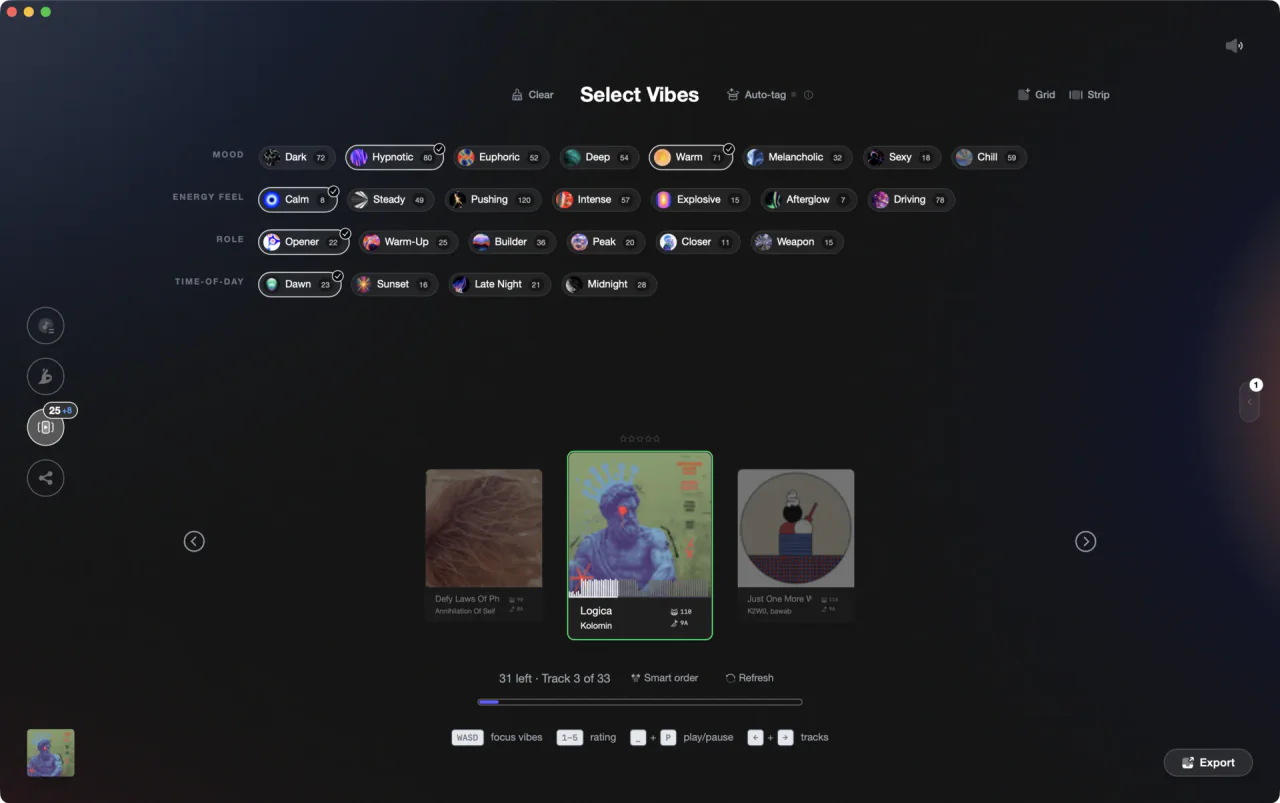
One track, several tags at once, instead of one genre line to fight over.
Tag tracks by genre in Engine DJ, step by step.
Engine DJ keeps one Genre value per track in the file's ID3 tags, and three parts of the app read it: the Genre column, the Genre filter box, and the Genre rule in Smartlists. Here is how to organize Engine DJ by genre so all three stay useful as the collection grows.
Show the Genre column
Right-click any column header in the track list and tick Genre so the field is on screen. Click the column header to sort the list by it, and hold Shift while clicking a second column, BPM for example, to sort by both at once. Seeing the field is what makes the gaps and the typos obvious.
Edit the Genre field on a single track
Click a track to select it, then click inside its Genre cell and type. Press Enter to save. Engine DJ writes the value into the track's ID3 tags, so the genre stays with the file. If you changed the tag in another program after importing, right-click the track and choose Re-import track information to pull the new value in.
Bulk edit a whole batch at once
Hold Shift and click to select a range of tracks, then, still holding Shift, double-click the Genre field. Press Enter and a window appears to confirm you want to change the metadata on every selected track. This is how you collapse Tech-House, Tech House, and TechHouse into one spelling instead of retyping them one by one.
Filter the collection by genre
Click the Filters button in the upper-right corner of the Collection pane to show the five filter boxes: Genre, Artist, Album, BPM, and Key. Click a genre and the track list shows only those tracks. Hold Ctrl on Windows or Command on macOS to pick several genres at once, and combine the filter with the word search field.
Build a Smartlist per genre
Click the gear+ icon next to the Collection header, or right-click in the Collection pane and choose Create Smartlist. Name it, set the rule field to Genre, pick contains, and type the genre. Click Add Rule to narrow it further, a BPM range for instance, tick match all rules so both must be true, then click Create.
Send the genre lists to your drive
Open Sync Manager from the bottom-left corner of Engine DJ, or click Export in the toolbar. Choose the drive, check the boxes next to the genre playlists and Smartlists you want, watch the capacity bar at the bottom, and export. Smartlists pack to drives like normal playlists, so the genre structure is waiting on the player.
The catch
Engine DJ gives each track one Genre field, and it is free text. A record that is honestly both disco and house has to be squeezed onto that single line, and nothing stops two spellings of the same genre living side by side as two separate categories in the filter box. Genre is also the only tag axis: there is no track color field and no energy field to organize by feel.
 Afterhours
 Mysterious
 Introspective
 Evolving
The faster way
Genre tags across the whole library, without typing them.
Vibes imports your Engine DJ collection and reads the Genre, Mood, and Grouping fields you already filled in, so nothing you typed is lost. Auto-Tagging listens to each track and suggests vibes from the sound itself, and Vibe Sort lets you confirm or change a tag with a hotkey. When the tagging is done, export the result back to Engine DJ as a playlist tree.
See how it worksOrganize in Vibes, export to Engine DJ.
Your playlists, tags, ratings, and cue points travel back to the gear you play on, so nothing you do in Vibes is locked away.
Track 001
Artist A
AfterhoursMysteriousIntrospective
Track 002
Artist B
 Cozy FloorPeaceful
 Home
Home
Track 003
Artist C
Rave Aggressive
 Festival
 Build & Release
Frequently asked questions
The honest answers, including the trade-offs.
From a Vibes customer
The import worked perfectly. Have created several sets now and my life is so much easier
One-time purchase
Get Vibes with a single payment. No subscription.
Vibes is the step before you open your DJ software, not a replacement for it.
First 250 licenses at this price, then $79.
14 days • Full access
No strings attached
Secure checkout with Stripe
Already have Companion Pro? Upgrade instead


Methodology
How we keep this honest.

Verified against the app
Every step is checked against the current version of Engine DJ.
We own our bias
We make Vibes. We show the native way first and honestly, then where Vibes genuinely helps, and we say when it does not.
Live pricing
The Vibes price shown comes straight from our checkout, never a hardcoded marketing number.
Kept current
Last reviewed September 2026.
Keep exploring
DJ apps head to head
Works with your software
Vibes for DJs
Vibes features
How-to guides
Best DJ software
Move between apps
Learn to DJ