
Spotify with DJ Software
Three DJ apps read a Spotify library directly, and all three come with the same limits: Premium only, online only, and nothing you play can be recorded or exported. Here is what each app supports, how to connect, and where the legal line sits.
Quick Answer
Which DJ software works with Spotify today
The relationship between DJ software and Spotify has been rewritten twice. Spotify cut off third party DJ apps in 2020, and most guides on how to DJ with Spotify still describe that dead world. In September 2025 Spotify reopened the door to a short list of named partners, and that list is what its support page documents now.
| App | Spotify support | What it needs | Documented limits |
|---|---|---|---|
| rekordbox 7 | Yes, on Mac, Windows, iOS and Android | Spotify Premium, a current version, a connection | No recording, no export to USB or SD card, tracks cannot be stored offline |
| Serato DJ Pro and Lite | Yes, on desktop | Spotify Premium, version 3.3.5 or later | Up to two decks, streams at up to 320 kbps, no recording, stems disabled |
| djay | Yes, on iOS, iPadOS, Android, macOS and Windows | Spotify Premium, djay version 5.6 or later | Neural Mix, recording, library analysis and Match are switched off, no offline mode, no lossless |
| VirtualDJ 2025 | No | Not applicable | Its manual lists Deezer, SoundCloud, Beatport and TIDAL as catalogs. Spotify is not one of them |
| Traktor Pro 4 | No | Not applicable | Documented streaming is Beatport and Beatsource LINK |
| Engine DJ Desktop 5 | No | Not applicable | Listed compatible services are Apple Music, Amazon Music Unlimited, Beatport LINK, Beatsource LINK, Dropbox, SoundCloud and TIDAL |
Spotify support as Spotify and each vendor document it. Streaming deals change, so check the current support page before a gig.
Anything else marketed as Spotify compatible DJ software is either describing the pre-2020 era or offering a workaround that breaks Spotify's terms, and usually your sound quality with them. There is no plugin, no converter and no hidden setting that turns a streamed track into a file on your drive.
What you need before you connect
- A Spotify Premium account. Spotify names Premium as the requirement, and a free account cannot log in.
- A current version of the DJ app. Serato asks for 3.3.5 or later, djay for version 5.6 or later.
- A stable internet connection for the whole set. Spotify content only plays while you are online.
- A plan for playlists. Spotify's help page says tracks can only be added to or removed from playlists in the Spotify app, while Serato documents building and refining Spotify playlists inside its own browser. Check which applies to your app.
Once that is in place, how to use Spotify to DJ is the same short routine in every app that supports it.
- 1
Update the app first
Install the current release. The integration only exists in recent versions: Serato lists 3.3.5 or later, djay lists version 5.6 or later. An older install will simply not show the option.
- 2
Find the streaming source in the browser
Open the library browser and look for Spotify among the online or streaming sources, sitting next to your local folders and crates.
- 3
Sign in with Spotify Premium
Log in with your Spotify account. Premium is required. Serato notes that new users can start a Spotify trial from that same login screen.
- 4
Load a track from a playlist
Your Spotify playlists and the Spotify catalog appear as browsable folders. Drag a track to a deck the way you would drag a local file, and let it analyze.
- 5
Respect the deck limit
Spotify allows up to four tracks playing at once, and Serato currently allows Spotify tracks on two decks. Plan transitions around that, not around what your controller can do.
- 6
Test the connection before you rely on it
Spotify content plays only while you are online. Check the venue network in advance, and carry a USB drive of your own files as a backup.
What Spotify tracks cannot do inside a DJ app
DJing from Spotify is playback, not ownership. The track never becomes a file you hold, so every feature that needs the audio itself is either missing or switched off. All three DJ programs that work with Spotify enforce the same rules, because the rules come from Spotify rather than from the apps.
- No export to a DJ drive. rekordbox states that streaming tracks cannot be exported to a USB storage device or SD memory card, so a standalone player will never see them.
- No recording. rekordbox says the recording function cannot be used and gives copyright restrictions set by the services as the reason. Serato and djay disable recording for Spotify tracks too.
- No offline use. rekordbox lists Spotify among the services whose tracks cannot be stored offline, and djay confirms that Spotify's offline mode is unavailable inside it.
- Fewer app features. Serato's stems do not run on Spotify tracks. djay switches off Neural Mix, offline library analysis and Match.
- A cap on simultaneous tracks. Spotify allows mixing up to four tracks at once from your playlists and its catalog.
- Missing content types. Spotify lists audiobooks, videos, albums, artist pages and DJ mixes as unavailable through DJ software.
Ask what any DJ software with Spotify integration can actually do with the audio, and the answer is short: play it, live, right now, through the app that is logged in. That is a real feature and a fair trade for practice, for parties at home and for open format requests. It is not a library.
Free DJ software, Spotify, and the free tiers
The free DJ apps that work with Spotify are not separate products. Serato DJ Lite is free, and the free version of djay accepts a Premium login and still gives you the mixer, filters, effects, cue points and looping. Paid tiers buy you app features, not access. So the DJ software integrated with Spotify is the same software you would pay for, running on a cheaper plan, and the cost you cannot remove is the Premium subscription itself.
Spotify DJ mode is a different product
Searches for how to DJ on Spotify land on two unrelated things. One is the integration above, where a DJ app reads your Spotify library. The other is DJ, Spotify's own AI listening feature: it builds a personalized run of music, talks between tracks, and now takes typed and spoken requests. It lives in the Spotify mobile app, needs Premium, and Spotify says it runs in a limited number of languages and markets. It plays for you. It does not hand you decks.
Spotify's own DJ feature
- Inside the Spotify app.
- Premium only, mobile, limited languages and markets.
- It picks the songs, speaks between them and takes requests.
- No decks, no beatmatching, no crossfader, nothing to export.
Spotify inside a DJ app
- -Inside rekordbox, Serato or djay.
- -Premium plus a current version and a connection.
- -Real decks, cue points, loops, effects and hardware control.
- -Still no recording, no offline use and no export to a drive.
Where Vibes fits
Vibes does not touch Spotify. It has no streaming import and no streaming playback, because it works on files you own. Spotify for DJs is a discovery and rehearsal tool: it is where you find a record and try an idea at home. The set you carry into a booth still comes from files, and that is the part Vibes is built for.
Import your library pulls in an existing rekordbox, Serato, Traktor or Engine DJ collection, or plain folders on a drive. Track analysis reads BPM, key, an energy curve and the sections of each track. Vibe Sort and Auto-Tagging group them into vibes, Set Designer orders a set by energy flow or key path, and the result exports back to your DJ app as a folder tree. All of that on music that is actually yours, which is exactly what a streaming integration cannot give you.
The visual way to organize your DJ library
Tag tracks by vibe. See everything at once. Export to rekordbox, Serato, Traktor or Engine DJ.
14-day free trial. Full access, no strings attached.
or see how it works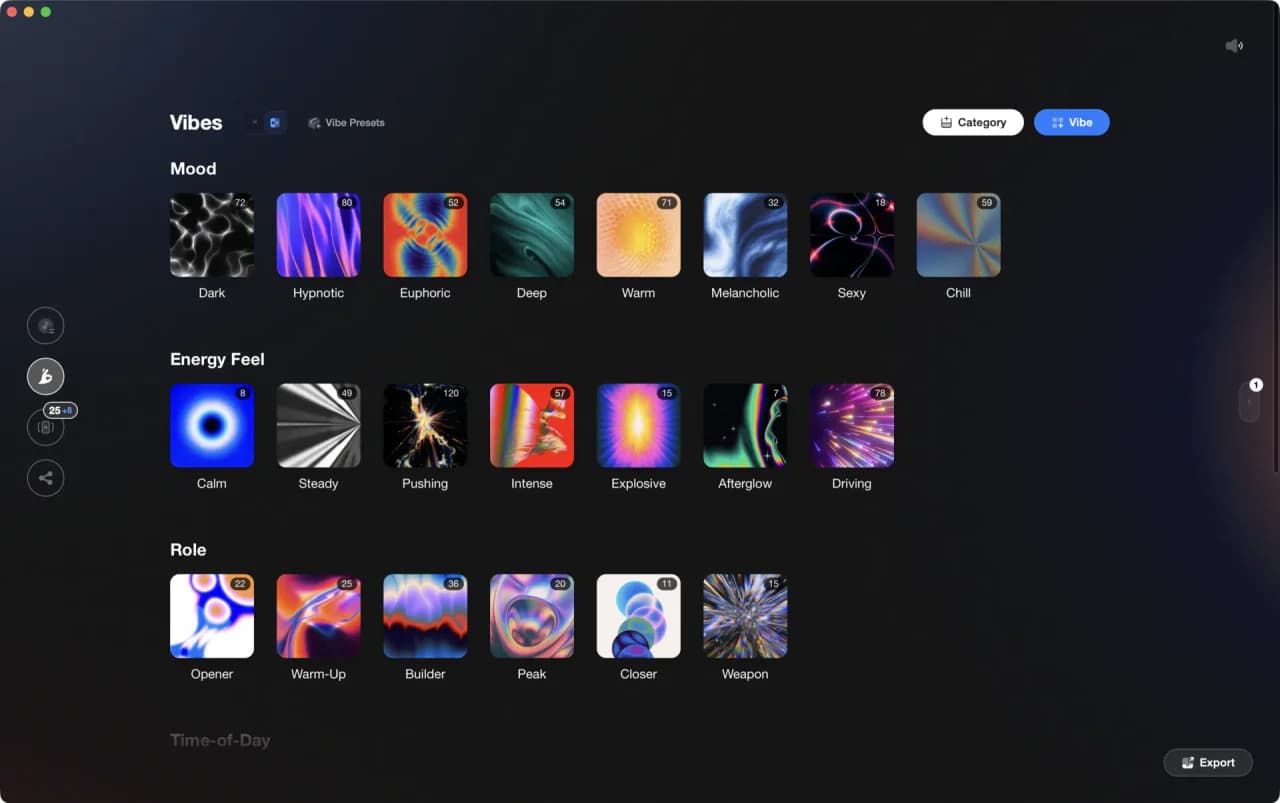
Frequently Asked Questions

Hey, it's Ben Modigell 👋
I DJ and produce as so I so: downtempo, minimal, dub house, tech house, and techno (releases on Spotify and SoundCloud, links above). Everything I write here comes from my own gigs, studio sessions, and library cleanups: the rules I follow, the failure modes I have actually hit, and the workflow I use when nobody is watching. If a technique did not earn its place in my own sets, it does not make it into a tutorial.