

Record your set in Serato DJ.
To record in Serato DJ Pro, open the REC panel, set the source to MIX, and press the red record button. Serato writes your master output straight to your drive as a WAV or AIFF file. Plan your tracklist first and you will know exactly where the set is going before you press record.
$49$79USD one-time purchase. First 250 licenses at this price. 14-day free trial.
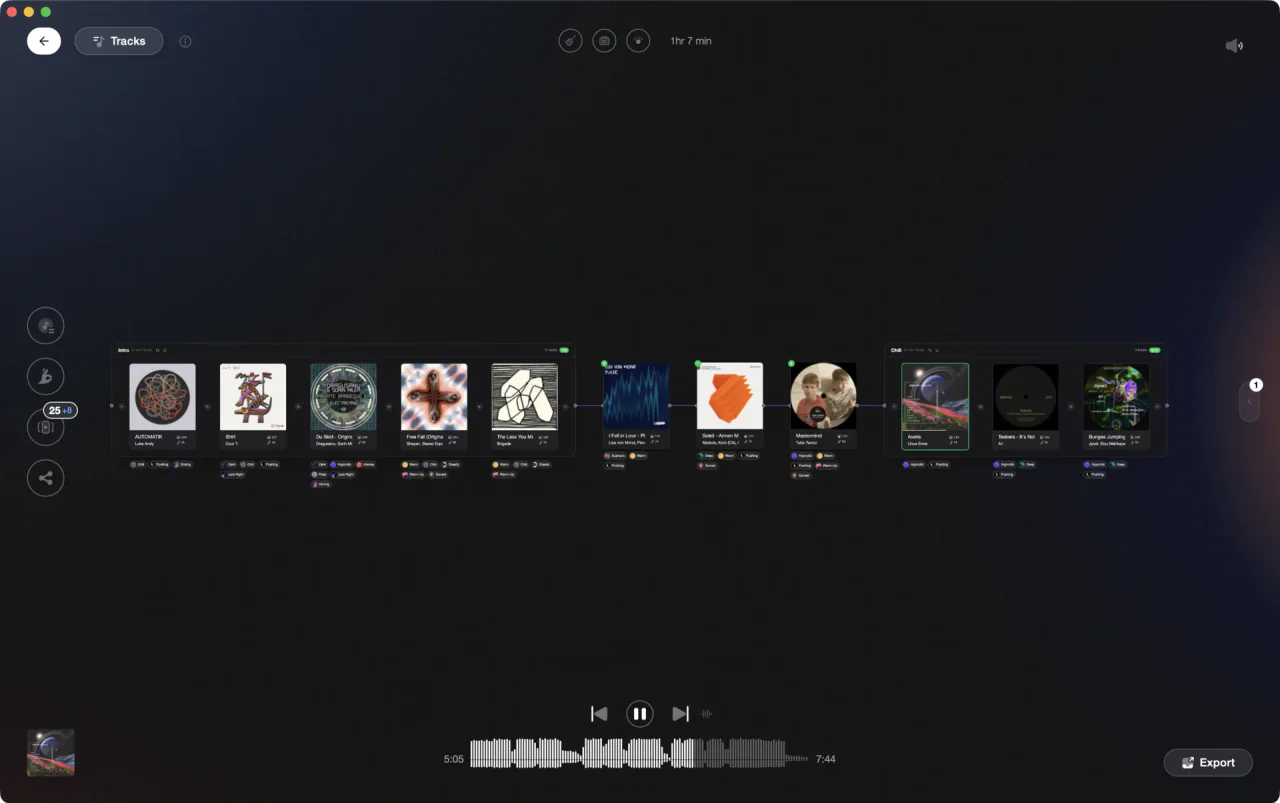
Build and review your set arc in Vibes, then open Serato and hit record.
Record your set in Serato DJ, step by step.
Serato DJ Pro includes a recording panel that captures your master output as a WAV or AIFF file. Here is how to set it up and record a clean take.
Open the recording panel
In Serato DJ Pro, click the REC button in the top-left area of the main screen to expand the recording panel. You will see controls for the recording source, gain level, recording timer, filename field, and Rec Location. Set the Record input dropdown to MIX to capture the master mix output post-faders and EQ, pre-master gain.
Set your format and level
Before recording, open Setup (the gear icon) and go to the Playback tab. There you can choose your file format (WAV or AIFF) and bit depth (16-bit or 24-bit; 24-bit is the default and recommended for best quality). MP3 is not a native recording format in Serato; convert the file afterward with another tool if you need a smaller file. Back in the recording panel, use the recording gain knob to bring peaks to around -6 dB without clipping. Monitor the meter while playing a loud section before committing to a take.
Hit record and play your set
Press the red REC button to start capturing. Serato begins writing the file immediately, so cue up your first track and mix through your set as planned. The timer in the panel shows elapsed recording time.
Stop, name, and save your file
Press the REC button again to stop capturing. Type a filename into the text field that appears in the panel and click the Save button (or press Enter). If you start a new recording or close Serato without saving, the file lands in a Recording Temp folder rather than your recordings folder. Your saved recording goes to Music/_Serato_/Recording by default on both Mac and Windows. To change the destination, click the Rec Location button in the recording panel.
The catch
Serato records the master output only, so there is no way to punch in or edit individual transitions after the fact: what you play is what you get.
Opening

Track 002
Artist B

Track 004
Artist D
Track 001
Artist A
Track 003
Artist C
Where Vibes fits
Know your set before you press record.
Vibes does not record audio, but it handles the prep work that makes a recorded set worth keeping. Use Set Designer to map out your tracklist, check transitions, and lock in the arc before you open Serato.
See how it worksOrganize in Vibes, export to Serato DJ.
Your playlists, tags, ratings, and cue points travel back to the gear you play on, so nothing you do in Vibes is locked away.

Track 001
Artist A
Afterhours Mysterious
 Introspective
Track 002
Artist B
 Cozy FloorPeaceful
 Home
Home
Track 003
Artist C
Rave Aggressive
 Festival
 Build & Release
Frequently asked questions
The honest answers, including the trade-offs.
From a Vibes customer
The import worked perfectly. Have created several sets now and my life is so much easier
One-time purchase
Get Vibes with a single payment. No subscription.
Vibes is the step before you open your DJ software, not a replacement for it.
First 250 licenses at this price, then $79.
14 days • Full access
No strings attached
Secure checkout with Stripe
Already have Companion Pro? Upgrade instead

Methodology
How we keep this honest.

Verified against the app
Every step is checked against the current version of Serato DJ.
We own our bias
We make Vibes. We show the native way first and honestly, then where Vibes genuinely helps, and we say when it does not.
Live pricing
The Vibes price shown comes straight from our checkout, never a hardcoded marketing number.
Kept current
Last reviewed September 2026.
Keep exploring
Compare Vibes
DJ apps head to head
Works with your software
Vibes for DJs
Vibes features
How-to guides
Best DJ software
Move between apps
Learn to DJ