
Mix in key with Traktor.
Traktor detects a track's key during analysis and shows it in the Key column, so harmonic mixing comes down to three things: set Preferences > Analyze Options > Musical Key > Displayed in Traktor to Open Key, analyze your tracks, then click the Key Lock button in the Stripe on the deck that is playing. The Browser then colors every track whose key matches, and the semitone buttons beside Key Lock pull a near miss into line, though Native Instruments recommends staying inside two semitones because more than that can hurt the sound. If you would rather trust Mixed In Key's codes, Traktor has to leave key out of its own analysis first.
$49$79USD one-time purchase. First 250 licenses at this price. 14-day free trial.
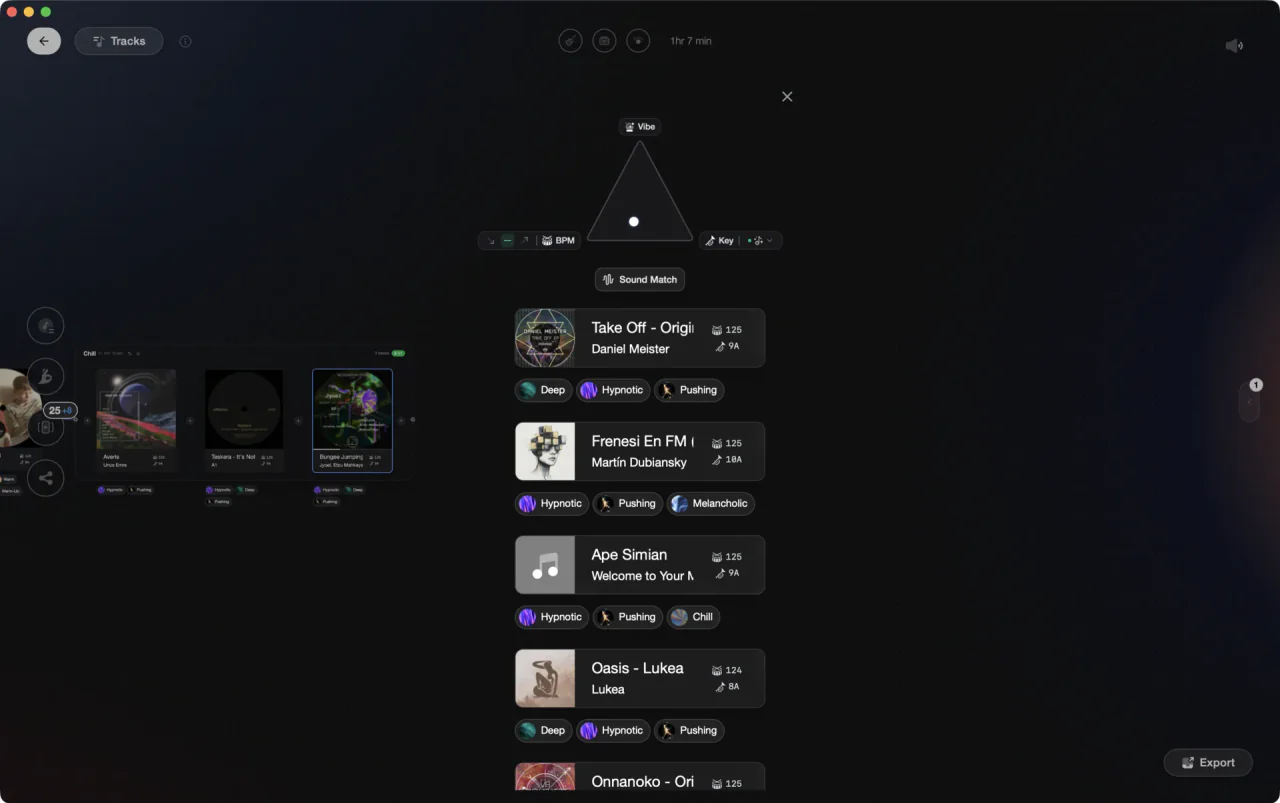
The harmonic shortlist picked during prep, before the tracks reach Traktor.
Use Mixed In Key in Traktor, step by step.
Traktor's own key detection runs on every analyzed track, so the steps below start there and then cover the handoff. Mixed In Key and Traktor have no live link: Mixed In Key writes into your collection.nml file while Traktor is closed.
Analyze your tracks so every one has a key
Traktor detects key during analysis, so an unanalyzed track has nothing to mix on. Right-click a track, a selection in the Track List, or a Playlist in the Browser Tree and select Analyze (Async). Choose Special and tick Key, or choose All to use the defaults from the Analyze Options page. Locked tracks keep their old values unless you also tick Replace Locked Values.
Switch the Key column to Open Key notation
Open Preferences and go to the Analyze Options page. Under Musical Key, the Displayed in Traktor drop-down offers Musical, Musical (all sharps), and Open Key. Open Key labels each key with a number plus a d for major or an m for minor, which is what makes the next options obvious at a glance. Written to File Tags is a separate setting and also offers Key Text.
Lock the key on the deck that is playing
Load a track into any deck and click the Key Lock button in the Stripe. That button now shows the original key and highlights it in the color defined for that key. With the key locked on the Master deck, the Browser highlights tracks with matching keys in the Key column using the same color code, which turns the whole browser into a shortlist.
Decide how far the color-coding reaches
Preferences > Browser Details holds a Key Highlighting setting with four choices: Do not color any keys, Only color matching keys, which is the default, Also color adjacent keys, and Color all keys. Adjacent colors the immediate upper and lower semitone. The reference can also follow the deck you have in Focus rather than the one playing, so you can line up the mix after next.
Pick the next track by the Open Key rules
Same code is the safest move, 11d into 11d. From there, keep the letter and step one number: a track at 1m works with 2m or 12m, and the manual is blunt that 3m and 11m sit near 1m but do not work so well. Swapping the letter at the same number, 5d into 5m, changes the mood instead of clashing.
Transpose a near miss in semitones
Lock the key on both decks and the gap becomes visible. Use the semitone up and down buttons next to the Key Lock button in the Stripe to shift the incoming track until its key information and color match the Master deck. The offset appears in the button. Native Instruments recommends not transposing more than two semitones either way, because a bigger offset can degrade the sound.
Hand key detection to Mixed In Key instead
Mixed In Key's own instructions start in Traktor: add the files, right-click, run Analyze (Async) with Special, and tick BPM and Set Beatgrid, so Traktor builds the grid but not the key. Close Traktor completely. In Mixed In Key open Settings, then Export Cue Points, tick the Traktor and Overwrite Cue Points boxes, and confirm the path to your collection.nml file.
Reopen Traktor and run Check Consistency
Analyze the files in Mixed In Key and the results export on their own. Reopen Traktor, select the files, right-click, choose Check Consistency, and click OK. The Comments column should now carry the Mixed In Key results. If cue points are missing, use Export Cue Points for Existing Files in Mixed In Key, then right-click Track Collection in Traktor and select Import another Collection.
The catch
Mixed In Key writes straight into collection.nml, which is why Traktor has to be closed: Traktor saves the Track Collection every time it quits and would write over the export. And the handoff ends with the results in the Comments column, while Traktor's color-coded highlighting reads the Key column, so the two views of the same track can disagree unless you keep Traktor's own key detection switched off.


Where Vibes fits
The harmonic shortlist, built before the gig.
Vibes does none of this live. It has no decks, it does not mix, and it does not write anyone else's cue points into Traktor: Key Lock, the color-coding, and the semitone nudge all stay where they are. What it does is the prep. Every file gets BPM, key shown as Camelot, musical, or Open Key, an energy curve and sections, Find Compatible pulls the harmonic Camelot neighbours inside a BPM window, and finished playlists and vibes export back to Traktor as a folder tree with optional Camelot key sub-folders.
See how it worksOrganize in Vibes, export to Traktor.
Your playlists, tags, ratings, and cue points travel back to the gear you play on, so nothing you do in Vibes is locked away.

Track 001
Artist A
AfterhoursMysterious Introspective
Track 002
Artist B
 Cozy FloorPeaceful
 Home
Home
Track 003
Artist C
Rave Aggressive
 Festival
 Build & Release
Frequently asked questions
The honest answers, including the trade-offs.
From a Vibes customer
The import worked perfectly. Have created several sets now and my life is so much easier
One-time purchase
Get Vibes with a single payment. No subscription.
Vibes is the step before you open your DJ software, not a replacement for it.
First 250 licenses at this price, then $79.
14 days • Full access
No strings attached
Secure checkout with Stripe
Already have Companion Pro? Upgrade instead


Methodology
How we keep this honest.

Verified against the app
Every step is checked against the current version of Traktor.
We own our bias
We make Vibes. We show the native way first and honestly, then where Vibes genuinely helps, and we say when it does not.
Live pricing
The Vibes price shown comes straight from our checkout, never a hardcoded marketing number.
Kept current
Last reviewed September 2026.
Keep exploring
DJ apps head to head
Works with your software
Vibes for DJs
Vibes features
How-to guides
Best DJ software
Move between apps
Learn to DJ