

Record your set in VirtualDJ.
To capture your mix in VirtualDJ, switch the mixer's center panel to MASTER, click FILE to choose the format and file name, then press REC to start and press REC again to stop. The REC button beside the master VU meter is a different control: it records a sample, not your set, which is the usual reason a take comes out empty. VirtualDJ writes an MP3 at 192 kbps unless you change it, and only the Pro and Business licenses give a clean output with no VirtualDJ audio sample in the file.
$49$79USD one-time purchase. First 250 licenses at this price. 14-day free trial.
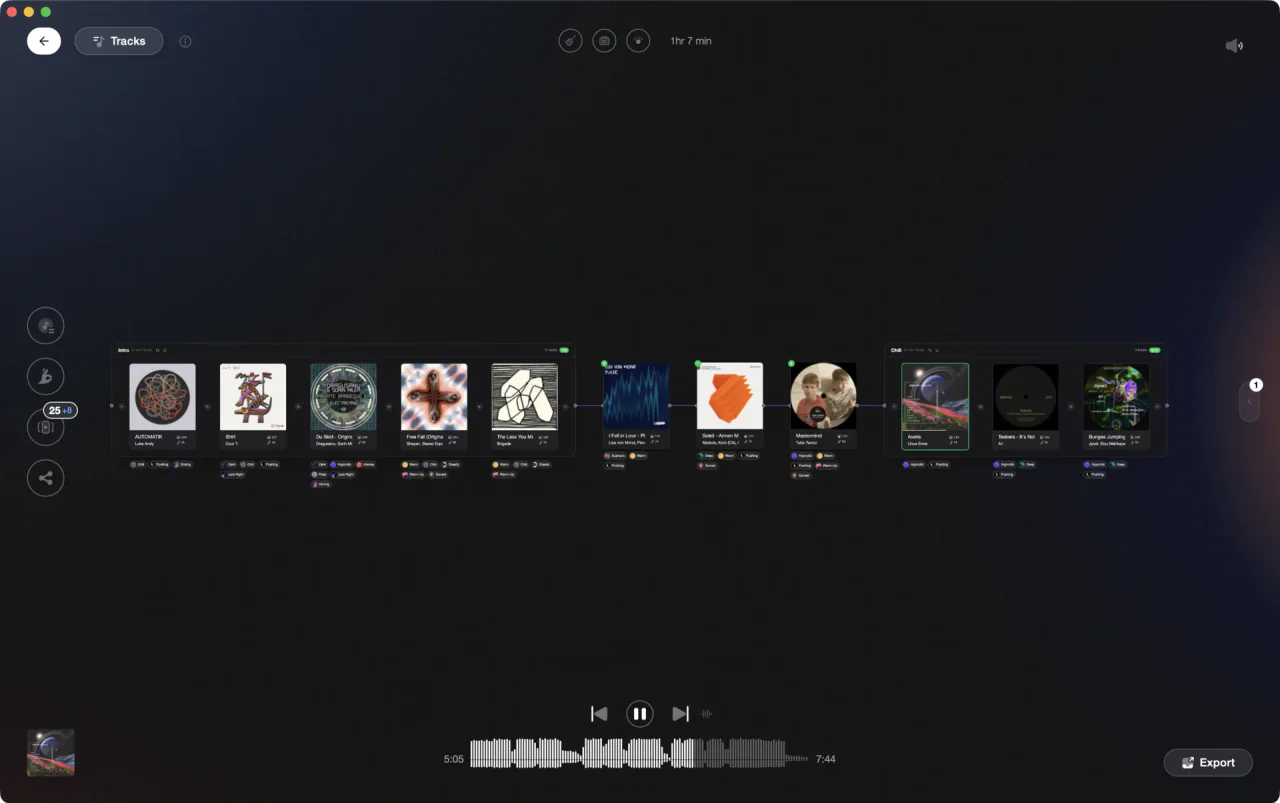
Settle the running order first, then open VirtualDJ and press REC.
Record your set in VirtualDJ, step by step.
Here is how to record in VirtualDJ, from the audio setup that decides what gets captured to the file that lands on your drive. Most of it lives in two places: the MASTER panel in the middle of the mixer, and the Record section in Settings.
Check what VirtualDJ will actually capture
By default VirtualDJ records the Master output, so a laptop-only setup needs no extra wiring at all. With an external mixer it is different: the software cannot capture a mixer it does not control, so you need a Record Loopback line. That means running the mixer's Record Out or Booth Out back into a line input and adding it in the Audio Setup, which the FAQ below walks through.
Set the format before you press anything
Open Settings and go to the Record section, or click FILE on the MASTER panel to jump straight there. Pick a format from the drop down. MP3 is the default and its quality is set to MID, 192 kbps. OGG is the smaller alternative, FLAC is lossless, WAV is uncompressed and takes the most disk space, and WEBM or MP4 record video.
Choose the file name and the path
Click the button to the right of the Filename field and decide where the recording goes and what it is called. VirtualDJ reuses the last configuration, so if you never change the name, the recordOverwrite option decides what happens to the previous take. Name the file per gig and that whole problem goes away.
Tune the Record options once
The Options tab has a Record group worth ten minutes of your time. recordAutoStart begins the capture the moment you press play on a deck. recordWaitForSound holds off until audio is actually playing. recordPauseOnSilence drops long gaps. recordAutoSplit starts a new file each time the crossfader crosses over, and recordWriteCueFile saves a .cue alongside the mp3 with the times and titles of each track you played.
Press REC and watch the meter
On the MASTER panel, the Record and Broadcast area holds BCAST, REC and FILE. REC starts and stops the capture using the last saved configuration, and in Settings the same job belongs to the START/STOP RECORD button. The master VU meter above shows the level going in. You can also assign a custom button beside a deck to the record action so you never switch panels mid-set.
Stop, then go and find the file
Press REC again to stop. A Recorded File button then appears with three choices: File Info opens the take in the Tag Editor so you can fill in artist and title, Show in explorer opens the folder on your computer, and Show in Browser points the VirtualDJ browser at it. Listen back before you upload anything anywhere.
The catch
VirtualDJ captures the master output as it happens. There is no punch in, and the file has no separate deck or stem tracks inside it, so a rough transition is baked in. Your only fixes are another take or an audio editor afterwards.
Opening

Track 002
Artist B

Track 004
Artist D

Track 001
Artist A
Track 003
Artist C
Where Vibes fits
Settle the running order before you press REC.
Vibes does not record. It has no decks and no mixer, and it does not export to VirtualDJ: its direct exports cover Rekordbox, Serato, Traktor and Engine DJ. What it does is the part that decides whether a take is worth keeping. Analyze BPM, key, the energy curve and the sections of every file you own, then build the order on the Set Designer canvas and check the transitions before anything is being recorded.
See how it worksOrganize in Vibes, export to VirtualDJ.
Your playlists, tags, ratings, and cue points travel back to the gear you play on, so nothing you do in Vibes is locked away.

Track 001
Artist A
Afterhours Mysterious
 Introspective
Track 002
Artist B
 Cozy FloorPeaceful
 Home
Home
Track 003
Artist C
Rave Aggressive
 Festival
 Build & Release
Frequently asked questions
The honest answers, including the trade-offs.
From a Vibes customer
The import worked perfectly. Have created several sets now and my life is so much easier
One-time purchase
Get Vibes with a single payment. No subscription.
Vibes is the step before you open your DJ software, not a replacement for it.
First 250 licenses at this price, then $79.
14 days • Full access
No strings attached
Secure checkout with Stripe
Already have Companion Pro? Upgrade instead


Methodology
How we keep this honest.

Verified against the app
Every step is checked against the current version of VirtualDJ.
We own our bias
We make Vibes. We show the native way first and honestly, then where Vibes genuinely helps, and we say when it does not.
Live pricing
The Vibes price shown comes straight from our checkout, never a hardcoded marketing number.
Kept current
Last reviewed September 2026.
Keep exploring
DJ apps head to head
Works with your software
Vibes for DJs
Vibes features
How-to guides
Best DJ software
Move between apps
DJ tools
Learn to DJ