
Color code tracks in Traktor.
To color a track in Traktor, right or option-click it in a playlist, choose the Color option from the popup menu, and pick a color; choose None to clear it. Click the Color column header to sort a list by color, or click the magnifying glass on a color tag to filter the browser to that one color. The colors in the Key column are a separate system, set under Preferences, Browser Details, Key Highlighting.
$49$79USD one-time purchase. First 250 licenses at this price. 14-day free trial.
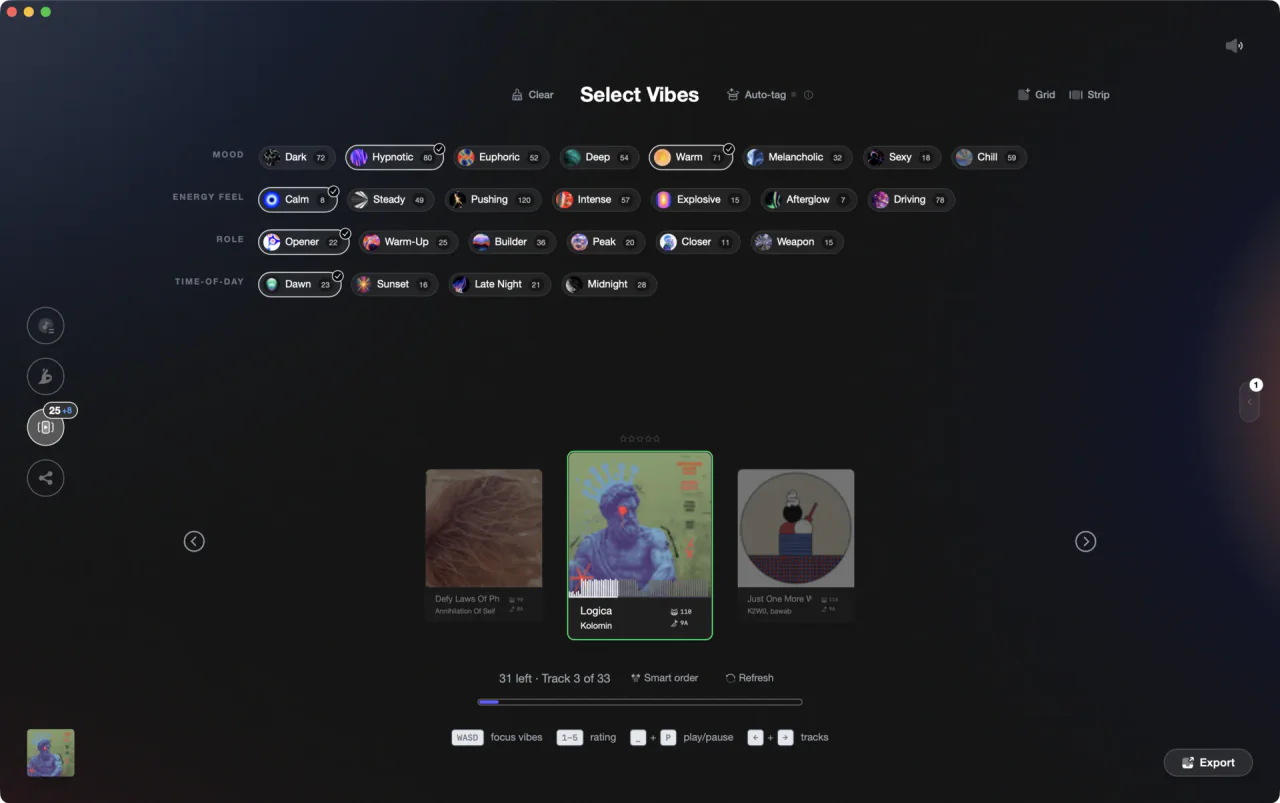
Named tags in Vibes, instead of a swatch whose meaning lives in your head.
Color code tracks in Traktor, step by step.
Traktor track color coding runs through two places: the Color column in the browser and the Color entry in a track's right-click menu. Here is the whole workflow, including how to search by a color and how to keep it apart from key highlighting.
Show the Color column in the browser
The browser list only shows the columns you ask it for. Right-click any column header in the Track List and a menu of the available columns appears, then switch Color on. Drag a header left or right to move a column, so the swatch sits next to the title instead of off the far edge of the list where you will never look at it.
Assign a color with the Color Picker
Right or option-click on any track in a playlist. From the popup menu, choose the Color option, then select a color to assign to the track. The swatch appears in the Color column straight away. To remove a color assignment, use the None option from the same popup menu, and to change one, pick a different color from that menu.
Sort a playlist by color
Click on the Color column header to sort a Track List by color, which brings every track carrying the same swatch together. A second click inverts the order. That sorting is temporary: after restarting Traktor all playlists reset to their original track order. To make it permanent, right-click the playlist in the Browser Tree and select Consolidate.
Search your library by color tag
Mouse over a track's color assignment in the Color column and a small magnifying glass icon appears. Click it and Traktor switches the browser's search field to display only tracks that match the same color tag. That turns one swatch into a one-click filter across your collection, which is how a color earns its place during a set rather than only during prep.
Turn a color into a Smartlist
For a list that keeps itself up to date, right-click the Playlists folder in the Browser Tree and select Create Smartlist. Color is one of the filters in the Smartlist window, next to BPM, Key, Rating, Comment, Import Date, and Played This Session. Smartlists cannot be ordered by hand, so right-click and choose Save As Playlist first if you need a fixed running order.
Keep key highlighting separate from your swatches
The colors in the Key column come from a different setting and your swatches do not touch them. Open Preferences, go to Browser Details, and find Key Highlighting. Do not color any keys switches it off, Only color matching keys is the default, Also color adjacent keys adds the semitone above and below, and Color all keys paints every key in its own color.
The catch
The Color Picker hands you a swatch and nothing else. There is no place in it to write down what green means, so the scheme lives in your head, and it has to survive every gig, every laptop handover, and the six months between the day you invented it and the day you next need it.
 Euphoric
 Melancholic
 Mysterious
 Aggressive
 Peaceful
 Rave
Rave Afterhours
 Club
Club Home
HomeThe faster way
Tags you can read, instead of a color you have to remember.
Vibes imports your Traktor collection and lets you tag tracks into vibes you name yourself, by hand with Vibe Sort hotkeys, by combination, or with Auto-Tagging AI. Your existing Genre, Mood and Grouping fields come in as tags, so the library is not blank on day one. When the pass is done, export the playlists and vibes back to Traktor as a folder tree.
See how it worksOrganize in Vibes, export to Traktor.
Your playlists, tags, ratings, and cue points travel back to the gear you play on, so nothing you do in Vibes is locked away.
Track 001
Artist A
AfterhoursMysterious Introspective
Track 002
Artist B
 Cozy FloorPeacefulHome
Track 003
Artist C
RaveAggressive Festival
 Build & Release
Frequently asked questions
The honest answers, including the trade-offs.
From a Vibes customer
The import worked perfectly. Have created several sets now and my life is so much easier
One-time purchase
Get Vibes with a single payment. No subscription.
Vibes is the step before you open your DJ software, not a replacement for it.
First 250 licenses at this price, then $79.
14 days • Full access
No strings attached
Secure checkout with Stripe
Already have Companion Pro? Upgrade instead


Methodology
How we keep this honest.

Verified against the app
Every step is checked against the current version of Traktor.
We own our bias
We make Vibes. We show the native way first and honestly, then where Vibes genuinely helps, and we say when it does not.
Live pricing
The Vibes price shown comes straight from our checkout, never a hardcoded marketing number.
Kept current
Last reviewed September 2026.
Keep exploring
Compare Vibes
DJ apps head to head
Works with your software
Vibes for DJs
Vibes features
How-to guides
Best DJ software
Move between apps
Learn to DJ