

Choose normal or dynamic analysis in Rekordbox.
Pick Normal for tracks with a relatively consistent tempo, which covers almost all produced club music, and Dynamic only for tracks with significant tempo changes: live drummers, older funk and soul, and vinyl rips. The mode is a single Preferences setting that applies to the next analysis pass, not a property of a track, so changing your mind means analyzing those tracks again in the other mode.
$49$79USD one-time purchase. First 250 licenses at this price. 14-day free trial.
The beat grid is only as good as the analysis pass that produced it.
Choose normal or dynamic analysis in Rekordbox, step by step.
Rekordbox analysis mode, normal vs dynamic, is one switch in Preferences that decides how the next pass reads tempo. Set it before you start a batch, then re-run the handful of tracks that need the other mode on their own.
Open the Track Analysis preferences
Click the settings icon in the upper-right of rekordbox, or open the [Preferences] window from the menu. In the left-hand list choose the [Analysis] category, then open the [Track Analysis] tab. Everything that decides how the next pass runs sits here: the mode, the BPM range, the items to detect, and auto analysis.
Set Track Analysis Mode to Normal or Dynamic
Under [Track Analysis Mode], choose [Normal], which rekordbox describes as suitable for tracks with a relatively consistent tempo, or [Dynamic], suitable for tracks which contain significant tempo changes. Normal is the right default for programmed club music. Dynamic is for live drummers, band recordings, older soul and funk pressings, and rips whose tempo drifts across the track.
Set the BPM Range when you use Normal
[BPM Range] sets the BPM range obtained by normal analysis, so it only matters in Normal mode. Match it to the music you actually play. A track whose real tempo falls outside the range is the usual reason a BPM comes back at half or double speed, with a grid that looks plausible but counts wrong.
Choose what the pass detects
In [Track Analysis Setting], tick the items you want analyzed: BPM / Grid, key, phrase, and vocal. The mode you picked only affects the BPM and beat grid part. Anything you leave unticked stays empty in the track list until you run another pass with it switched on.
Decide whether Auto Analysis runs on import
[Auto Analysis] enables or disables the auto analysis of imported tracks. Set to Enable, files are analyzed as soon as you add them, using whatever mode is selected at that moment. Set it to Disable when you would rather look at your imports first and analyze them in deliberate batches.
Run the pass on the tracks you chose
Close the [Preferences] window. Select the tracks in a track list, right-click, and choose [Analyze Track], or use [Analyze Track] in the [Track] menu at the top of the screen. Re-analyzing overwrites a beat grid you adjusted by hand, so keep hand-corrected tracks out of a batch.
Check the grid, then lock what you fixed
Load the track in EXPORT mode with the [1 PLAYER] layout and open the [GRID] panel, or use the [GRID EDIT] panel in PERFORMANCE mode, and confirm the beat markers sit on the transients. Then switch on [Analysis Lock] for tracks you corrected: locked tracks are skipped during analysis and their grid editing is disabled.
The catch
The Preferences setting tells you what the next pass will use, not what an already analyzed track was done with. On a library built up over years the safest habit is to run everything in Normal, then re-analyze the few tracks whose grid drifts in Dynamic, one at a time.

Track 001
Artist A
Afterhours Mysterious
 Introspective
Track 001
Artist A
AfterhoursMysteriousIntrospective
Track 002
Artist B
 Cozy FloorPeaceful
 Home
HomeTrack 002
Artist B
Cozy FloorPeacefulHome
Track 003
Artist C
Rave Aggressive
 Festival
 Build & Release
Track 003
Artist C
RaveAggressiveFestivalBuild & ReleaseWhere Vibes fits
Spot the tracks that need a second look before you re-run anything.
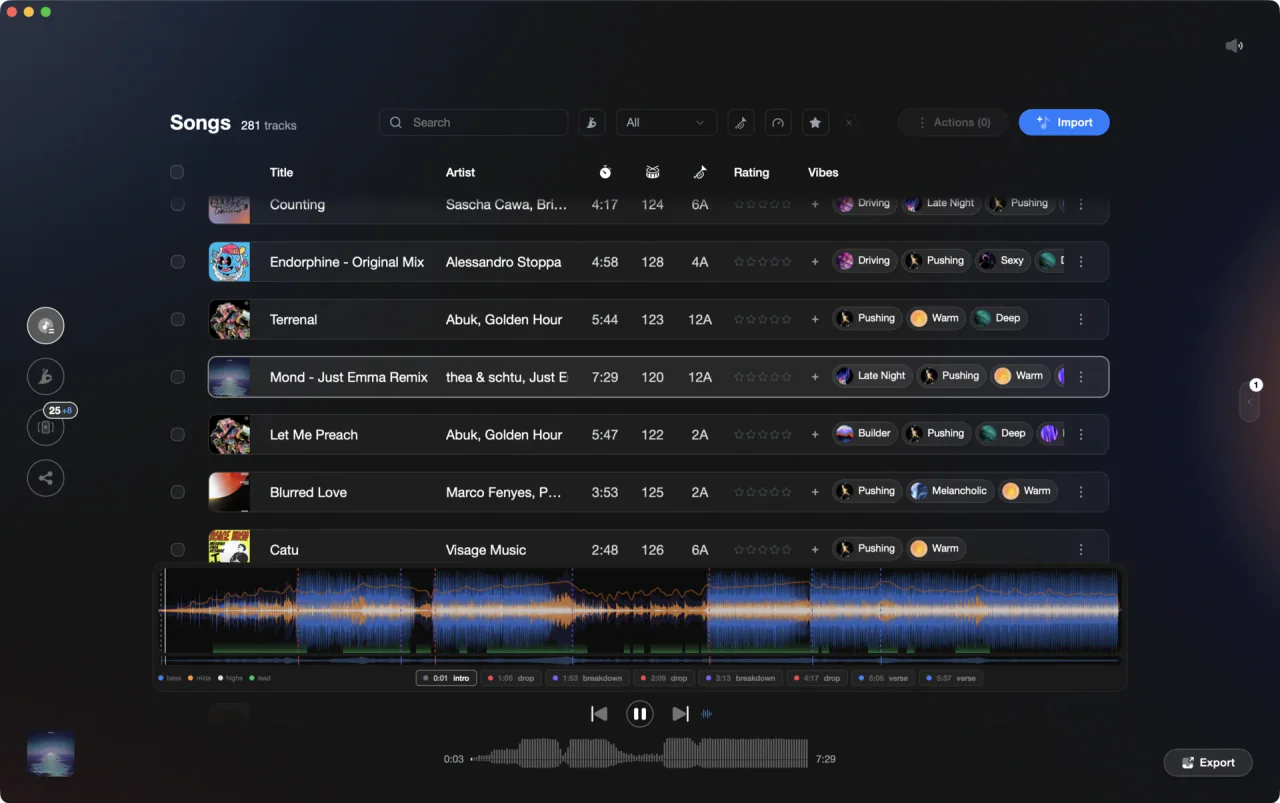
Vibes runs its own analysis on the files you own: BPM, key in Camelot, musical or Open Key display, an energy curve, and sections such as intro, buildup, drop, breakdown and outro. Bulk re-analyze re-runs it across a selection, and Track Inspector lets you correct a value by hand. Vibes does not change rekordbox's analysis mode and does not touch streaming tracks; your playlists and vibes go back to rekordbox on export.
See how it worksOrganize in Vibes, export to Rekordbox.
Your playlists, tags, ratings, and cue points travel back to the gear you play on, so nothing you do in Vibes is locked away.
Track 001
Artist A
AfterhoursMysteriousIntrospectiveTrack 002
Artist B
Cozy FloorPeacefulHomeTrack 003
Artist C
RaveAggressiveFestivalBuild & Release
Frequently asked questions
The honest answers, including the trade-offs.
From a Vibes customer
The import worked perfectly. Have created several sets now and my life is so much easier
One-time purchase
Get Vibes with a single payment. No subscription.
Vibes is the step before you open your DJ software, not a replacement for it.
First 250 licenses at this price, then $79.
14 days • Full access
No strings attached
Secure checkout with Stripe
Already have Companion Pro? Upgrade instead


Methodology
How we keep this honest.

Verified against the app
Every step is checked against the current version of Rekordbox.
We own our bias
We make Vibes. We show the native way first and honestly, then where Vibes genuinely helps, and we say when it does not.
Live pricing
The Vibes price shown comes straight from our checkout, never a hardcoded marketing number.
Kept current
Last reviewed September 2026.
Keep exploring
Compare Vibes
DJ apps head to head
Works with your software
Vibes for DJs
Vibes features
How-to guides
Best DJ software
Move between apps
Learn to DJ