

Manage hot cue colors in Rekordbox.
Rekordbox lets you assign a distinct color to each hot cue slot, making drops, breakdowns, and phrase markers instantly readable on CDJs and in your prep view. Set them once and they travel to your players.
$49$79USD one-time purchase. First 250 licenses at this price. 14-day free trial.
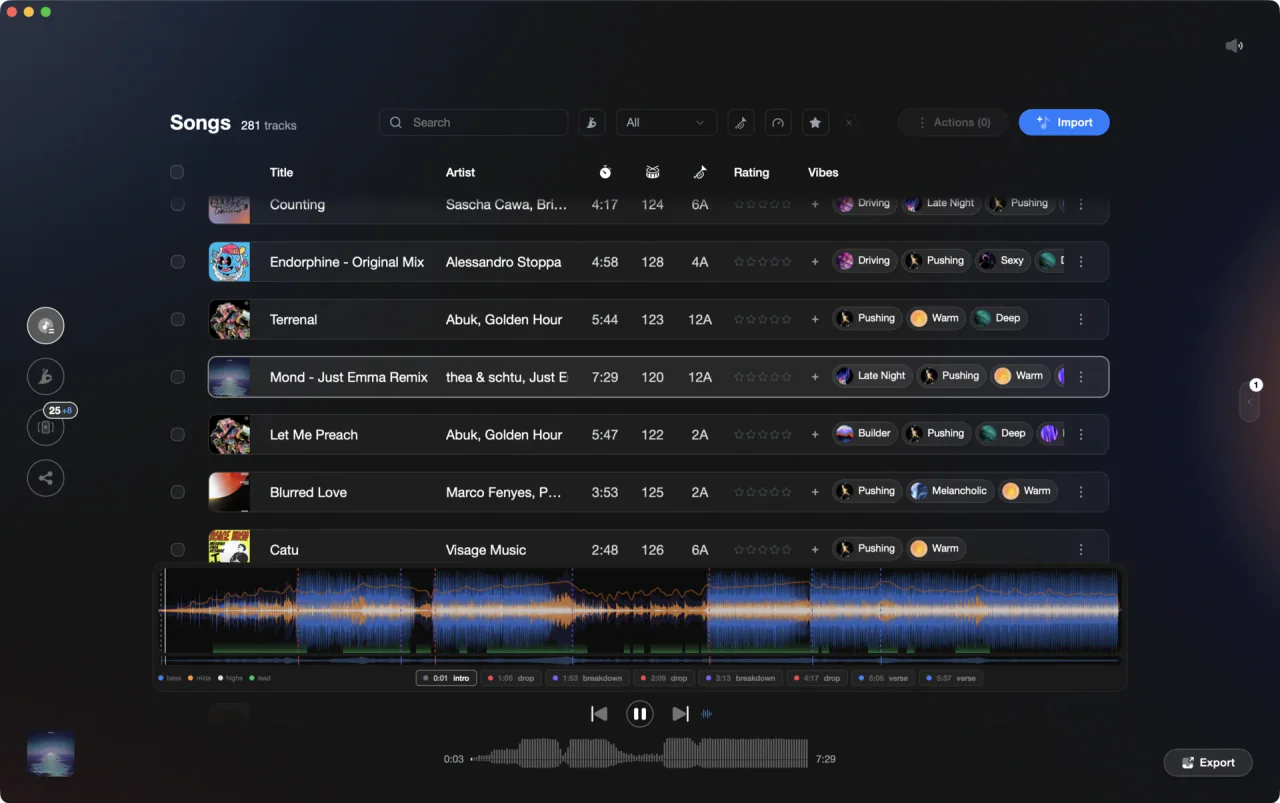
Color-coded hot cues let you read track structure at a glance on any CDJ or XDJ.
Manage hot cue colors in Rekordbox, step by step.
Rekordbox 7.x lets you color each of the eight hot cue slots independently from within Export mode or Performance mode. Changes save to your library and export to USB for CDJs automatically.
Open a track in the waveform editor
In Export mode, click a track in your collection to select it, then double-click it (or use the Edit mode browser) to load it into the waveform editor. Make sure the Hot Cue panel is visible on the upper right side of the screen. Hot cue controls appear in two places: the horizontal Cue/Loop bar in the middle of the screen, and the Hot Cue list on the upper right panel. Export mode is the primary view for setting and coloring cue points.
Set or select a hot cue point
Navigate to the position in the track where you want to place or edit a cue. Click an empty Hot Cue pad in the Cue/Loop bar to set a new point at the current playhead position, or click an existing colored pad to select it. The cue point entry highlights in the Hot Cue list on the right panel.
Change the cue color
Right-click the hot cue pad (the colored square with the cue number) or right-click its entry in the Hot Cue list and choose the color swatch you want from the color picker that appears. Rekordbox offers a palette of 16 preset colors. You can also reset to the default color scheme. The pad and the waveform marker update immediately to reflect your choice.
Export to USB or sync your library via Pro DJ Link
In Export mode, drag your playlist or collection to a connected USB drive and Rekordbox writes the cue colors alongside positions and names. To sync to connected CDJs and XDJs over a network, use Pro DJ Link - connect your players and laptop to the same network switch via Ethernet. Link Export is a separate USB cable method for specific units (XDJ-RX/RX2) that lets you access your library directly without a USB drive, but it is not a real-time network color sync feature. Either path preserves every color assignment exactly as you set it.
The catch
Coloring cues track by track is accurate but slow for large libraries. If you re-analyze or reimport tracks, cue data can be overwritten, requiring manual re-entry.
The faster way
Let Vibes push your cue points in bulk, colors included.
Vibes analyzes your tracks and auto-generates cue points tied to detected sections like intros, drops, breakdowns, and outros, then writes them directly into your Rekordbox database via SQLCipher. Colors and positions land in Rekordbox without you touching a single pad.
See how it worksOrganize in Vibes, export to Rekordbox.
Your playlists, tags, ratings, and cue points travel back to the gear you play on, so nothing you do in Vibes is locked away.

Track 001
Artist A
Afterhours Mysterious
 Introspective
Track 002
Artist B
 Cozy FloorPeaceful
 Home
Home
Track 003
Artist C
Rave Aggressive
 Festival
 Build & Release
Frequently asked questions
The honest answers, including the trade-offs.
From a Vibes customer
The import worked perfectly. Have created several sets now and my life is so much easier
One-time purchase
Get Vibes with a single payment. No subscription.
Vibes is the step before you open your DJ software, not a replacement for it.
First 250 licenses at this price, then $79.
14 days • Full access
No strings attached
Secure checkout with Stripe
Already have Companion Pro? Upgrade instead

Methodology
How we keep this honest.

Verified against the app
Every step is checked against the current version of Rekordbox.
We own our bias
We make Vibes. We show the native way first and honestly, then where Vibes genuinely helps, and we say when it does not.
Live pricing
The Vibes price shown comes straight from our checkout, never a hardcoded marketing number.
Kept current
Last reviewed September 2026.
Keep exploring
DJ apps head to head
Works with your software
Vibes for DJs
Vibes features
How-to guides
Best DJ software
Move between apps
Learn to DJ