
Color code tracks in Engine DJ.
Engine DJ has no color field on a track: the collection has columns for Comment, Genre, Label and Rating, but none for color, so you cannot paint a row red or green. What you can color are hot cues, saved loops, deck colors and the waveform, so the working method is a short code typed into the Comment column, sorted and turned into a Smartlist that fills itself.
$49$79USD one-time purchase. First 250 licenses at this price. 14-day free trial.
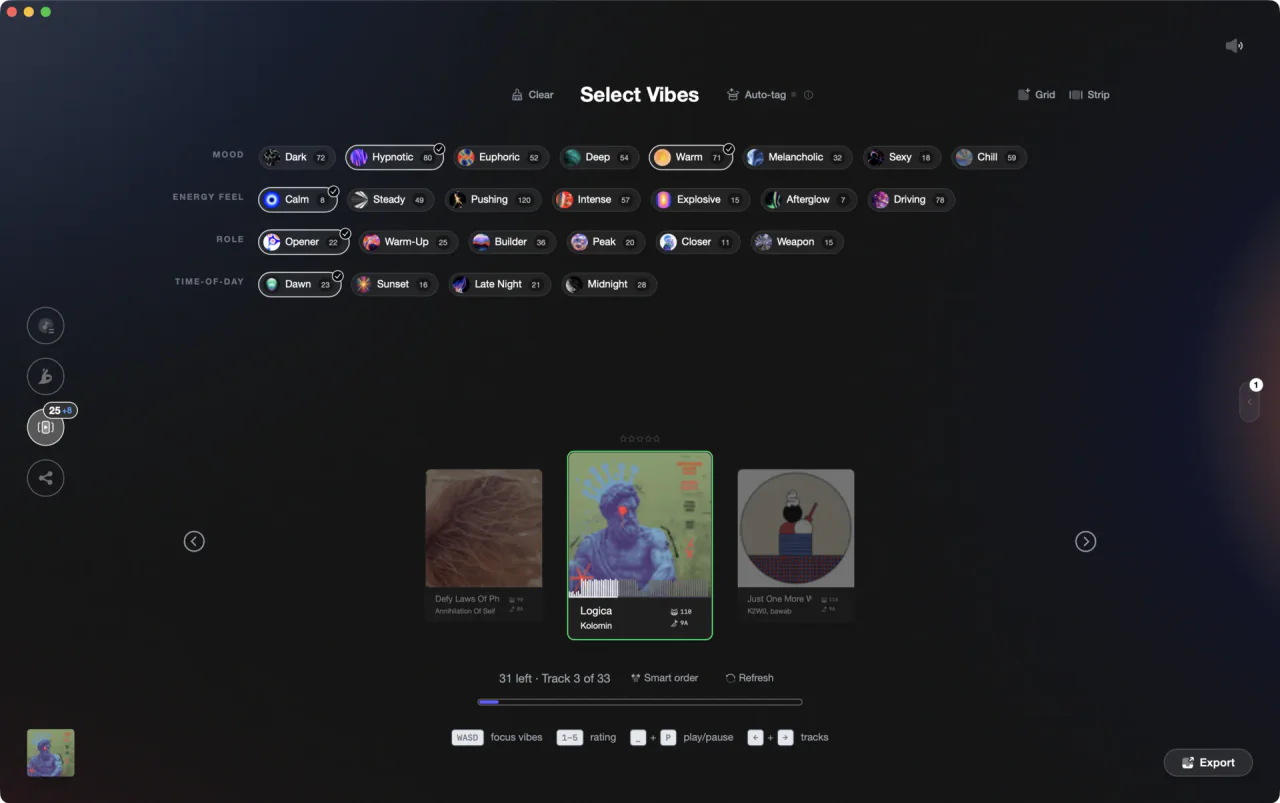
Colored vibes in Vibes, exported to Engine DJ as playlist folders.
Color code tracks in Engine DJ, step by step.
Every Engine DJ track color you can actually set lives on a hot cue, a saved loop, a deck or the waveform, never on the row in your collection. So this workflow builds a text code you can sort and automate, then puts real color where Engine DJ allows it.
See which colors Engine DJ really has
Click the Preferences icon in the Toolbar. On the Performance tab, Waveform Style switches between Tri-Band, where blue is bass, green is mid and white is treble, and RGB, where red is bass, green is mid and blue is treble. Those colors describe frequency, not your categories, which is why the code below goes in a text field.
Turn on the Comment column
In the Track List, right-click any column header and tick Comment from the list of available columns. Drag it next to Title so you can read it at a glance. Comment is one of the fields Engine DJ lets you edit and sort, which makes it the closest thing the app has to a color tag.
Write your code into Comment
Click a track to select it, then click the Comment field and type a short code such as RED PEAK or GREEN WARMUP. Press Enter to save. For a batch, hold Shift and select the tracks, then double-click the field while still holding Shift. A confirmation window appears before the metadata is written to all of them.
Sort and search on the code
Click the top of the Comment column to sort the list by your code, and hold Shift while clicking a second column to sort by both at once, for example code first and BPM second. The five filter boxes cover Genre, Artist, Album, BPM and Key only, so a Comment code is reached by sorting or by the search box.
Turn each code into a Smartlist
Click the gear plus icon next to the Collection header, or right-click in the Collection pane and choose Create Smartlist. Name it, set the rule to Comment, choose contains, and type RED. Click Create. The Smartlist keeps updating itself as you code more tracks, and Convert to Playlist turns it into a fixed list when you want one.
Put real color on the cues
Open a track and right-click a populated hot cue performance pad, numbered 1 to 8, to rename it, clear it or change its color. Saved loops work the same way from the loop pads. Match the cue color to your code and the classification becomes visible on the waveform while you play, not just in the browser.
Sync the code to your hardware
Click the Sync Manager icon in the Toolbar to push tracks and data to a USB drive or a connected Engine OS player. Playlists, Smartlists and performance data go across together, so your coded Smartlists and your recolored hot cues are both waiting on the player when you plug in.
The catch
None of this is a real color. A Comment code is text: it sorts, searches and drives Smartlists, but the row stays the same color as every other row, and there is no color entry in the column list to enable. Codes you built in another app do not help either, since Engine DJ's third party import carries music, playlists, hot cues, loops and ratings, and nothing that holds a track color.
 Euphoric
 Melancholic
 Mysterious
 Aggressive
 Peaceful
 Rave
Rave Afterhours
 Club
Club Home
HomeThe faster way
Build the color code somewhere that has colors, then send it over.
Vibes imports your Engine DJ collection, then lets you tag every track into colored vibes with Vibe Sort and one-key hotkeys, or with Auto-Tagging when you would rather not do it by hand. Each vibe is a color you can see and filter on, next to BPM, Camelot key, energy 1 to 10 and star ratings. Export back to Engine DJ and your vibes arrive as a playlist folder tree, so the code is sitting in the Collection pane instead of hidden in a text field.
See how it worksOrganize in Vibes, export to Engine DJ.
Your playlists, tags, ratings, and cue points travel back to the gear you play on, so nothing you do in Vibes is locked away.
Track 001
Artist A
AfterhoursMysterious Introspective
Track 002
Artist B
 Cozy FloorPeacefulHome
Track 003
Artist C
RaveAggressive Festival
 Build & Release
Frequently asked questions
The honest answers, including the trade-offs.
From a Vibes customer
The import worked perfectly. Have created several sets now and my life is so much easier
One-time purchase
Get Vibes with a single payment. No subscription.
Vibes is the step before you open your DJ software, not a replacement for it.
First 250 licenses at this price, then $79.
14 days • Full access
No strings attached
Secure checkout with Stripe
Already have Companion Pro? Upgrade instead


Methodology
How we keep this honest.

Verified against the app
Every step is checked against the current version of Engine DJ.
We own our bias
We make Vibes. We show the native way first and honestly, then where Vibes genuinely helps, and we say when it does not.
Live pricing
The Vibes price shown comes straight from our checkout, never a hardcoded marketing number.
Kept current
Last reviewed September 2026.
Keep exploring
Compare Vibes
DJ apps head to head
Works with your software
Vibes for DJs
Vibes features
How-to guides
Best DJ software
Move between apps
Learn to DJ