
Relocate missing files in Serato DJ.
When Serato DJ Pro loses track of moved or renamed files, it flags them as missing. To relocate lost files in Serato DJ Pro, drag their new folder onto the Relocate Lost Files button in the Files panel, and your cue points and loops stay intact.
$49$79USD one-time purchase. First 250 licenses at this price. 14-day free trial.
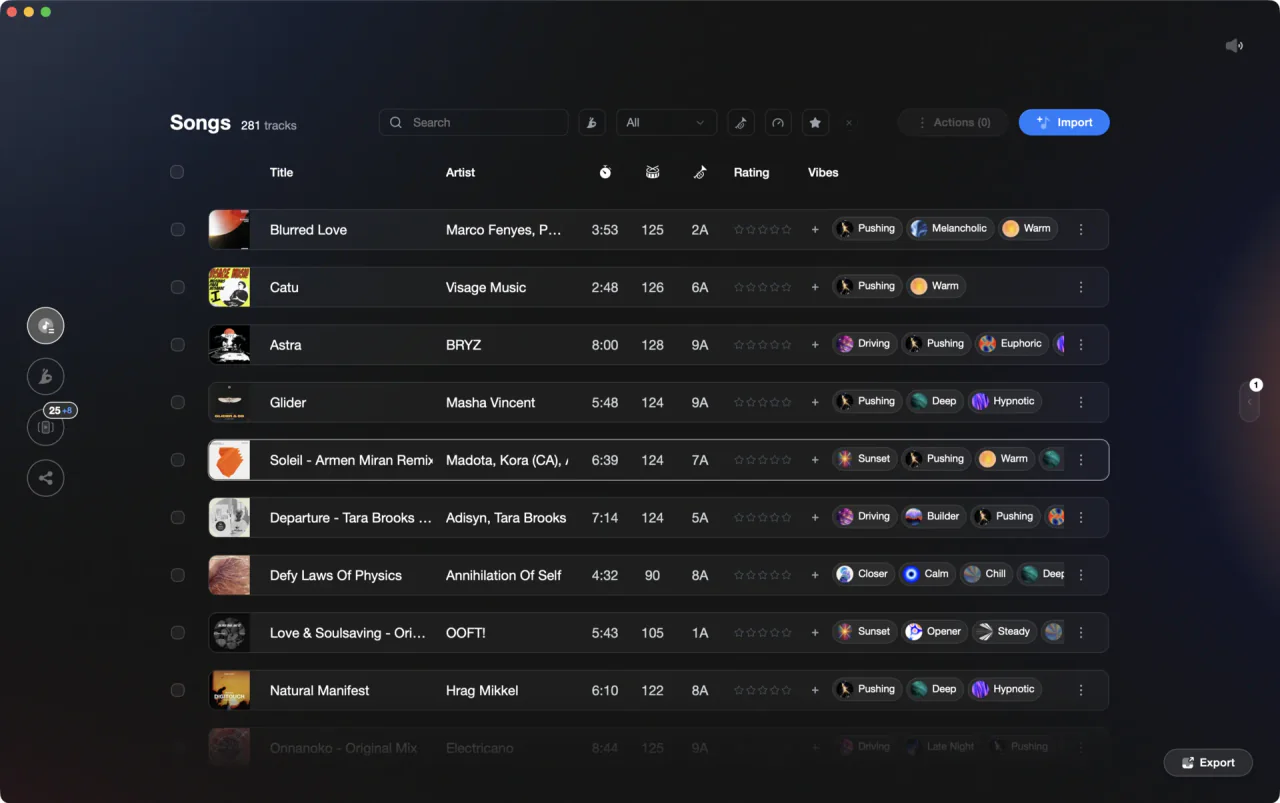
Organize and prep your library in Vibes before moving files around.
Relocate missing files in Serato DJ, step by step.
Serato DJ stores file paths at the time you add tracks. If you move, rename, or reorganize files outside of Serato, those tracks show a missing file indicator. The built-in relocate tool lets you relink them individually or in bulk.
Identify missing files
Open Serato DJ and look for tracks displayed in orange with a question mark icon in the status column of your crates and library. These are tracks whose file path no longer matches what Serato recorded. You can also open the Files panel to browse your folder structure and confirm where your tracks currently live.
Open the Files panel and check iTunes settings
Before using the relocate feature, go to Setup > Library + Display and confirm that 'Show iTunes Library' is turned off. If you skip this step and have an iTunes/Apple Music library loaded, Serato can create duplicate entries after relocation. Then click the Files button in the left panel to open the file browser. At the bottom of the Files panel you will see the Relocate Lost Files button. Do not click it yet: clicking the button alone causes Serato to scan all attached drives, which can take a very long time.
Drag your folder onto the Relocate Lost Files button
In the Files panel (or in Finder on Mac / Explorer on Windows), navigate to the folder where your tracks now live. Drag and drop that folder directly onto the Relocate Lost Files button. Serato will scan the folder and any sub-folders for files currently marked as missing, matching them by filename, and update the database with their new location. Cue points, loops, and beat grids are preserved in the Serato database and should survive the relink.
Confirm your crates and relink any remaining files
After the scan completes, review your crates to confirm the orange missing indicators are gone. For any tracks that could not be matched automatically because they were renamed, right-click the track in your library and choose 'Locate Missing File,' then browse to the file and relink it individually. This preserves crate and playlist membership. Avoid re-adding missing tracks by dragging them in fresh from the Files panel, as that creates a new unlinked entry. Check a few cue points on relocated tracks to verify the metadata survived.
The catch
The relocate tool matches by filename, so tracks that were both moved and renamed at the same time may not be found automatically. Use the right-click 'Locate Missing File' option to relink those one by one without losing their crate or playlist membership.
 Euphoric
 Melancholic
 Mysterious
 Aggressive
 Peaceful
 Rave
Rave Afterhours
 Club
Club Home
HomeWhere Vibes fits
Import your Serato library before you reorganize, not after.
Vibes imports your full Serato library, including crates and metadata, so your organizational work is captured before you touch your folder structure. If you plan to reorganize your files, importing into Vibes first means your tags, vibes, and categories travel with you through the process.
See how it worksOrganize in Vibes, export to Serato DJ.
Your playlists, tags, ratings, and cue points travel back to the gear you play on, so nothing you do in Vibes is locked away.
Track 001
Artist A
AfterhoursMysterious Introspective
Track 002
Artist B
 Cozy FloorPeacefulHome
Track 003
Artist C
RaveAggressive Festival
 Build & Release
Frequently asked questions
The honest answers, including the trade-offs.
From a Vibes customer
The import worked perfectly. Have created several sets now and my life is so much easier
One-time purchase
Get Vibes with a single payment. No subscription.
Vibes is the step before you open your DJ software, not a replacement for it.
First 250 licenses at this price, then $79.
14 days • Full access
No strings attached
Secure checkout with Stripe
Already have Companion Pro? Upgrade instead

Methodology
How we keep this honest.

Verified against the app
Every step is checked against the current version of Serato DJ.
We own our bias
We make Vibes. We show the native way first and honestly, then where Vibes genuinely helps, and we say when it does not.
Live pricing
The Vibes price shown comes straight from our checkout, never a hardcoded marketing number.
Kept current
Last reviewed September 2026.
Keep exploring
Compare Vibes
DJ apps head to head
Works with your software
Vibes for DJs
Vibes features
How-to guides
Best DJ software
Move between apps
Learn to DJ