
Back up your library in Serato DJ.
Your crates, playlists, and track data live in a single folder on your machine. Knowing where it is and how to copy it is the fastest way to protect months of prep work.
$49$79USD one-time purchase. First 250 licenses at this price. 14-day free trial.
A well-organized library is worth protecting. Here is how to back it up.
Back up your library in Serato DJ, step by step.
Serato stores your entire library, crates, and settings in a folder called _Serato_ that lives in your Music directory. Copying that folder is all it takes to create a full backup.
Locate the _Serato_ folder
Open Finder (Mac) or File Explorer (Windows) and navigate to your Music folder. Inside you will find a folder named _Serato_ that contains your library database, crates, smartcrates, and preferences. This is the single folder you need to protect.
Copy the folder to an external drive or cloud storage
Drag the entire _Serato_ folder to an external hard drive, USB drive, or a cloud-synced location such as Dropbox or Google Drive. Keep the folder structure intact so Serato can read it on restore. A full copy typically takes only a few seconds to a few minutes depending on your library size.
Back up your audio files separately
The _Serato_ folder contains metadata and crate references, but not your actual audio files. Make sure your music collection is also backed up to the same external drive or a separate backup service. If your audio files move or are deleted, Serato will show missing tracks even with a perfect database restore.
Restore by replacing the _Serato_ folder
If you ever need to rebuild your library on a new machine or after data loss, copy your backed-up _Serato_ folder into the Music directory on the new machine before opening Serato DJ. Serato will read the existing database and your crates, playlists, and settings will reappear. Relink any tracks if file paths have changed.
The catch
Serato DJ includes an automatic Library Auto-Backup that runs 15 minutes after launch and every 24 hours while the app is open. On exit, Serato may prompt you to run a backup; if you confirm, it creates a folder called _Serato_Backup in your Music directory, sitting alongside (not inside) the _Serato_ folder, duplicating its contents. Only one backup snapshot is kept: each new backup overwrites the previous one. This means the auto-backup does not protect against drive failure, accidental deletion, or theft. The manual copy-to-external-drive workflow described above remains your only offsite protection, and it is only as current as the last time you performed it.
 Euphoric
 Melancholic
 Mysterious
 Aggressive
 Peaceful
 Rave
Rave Afterhours
 Club
Club Home
HomeWhere Vibes fits
A second layer of prep data that survives a Serato rebuild.
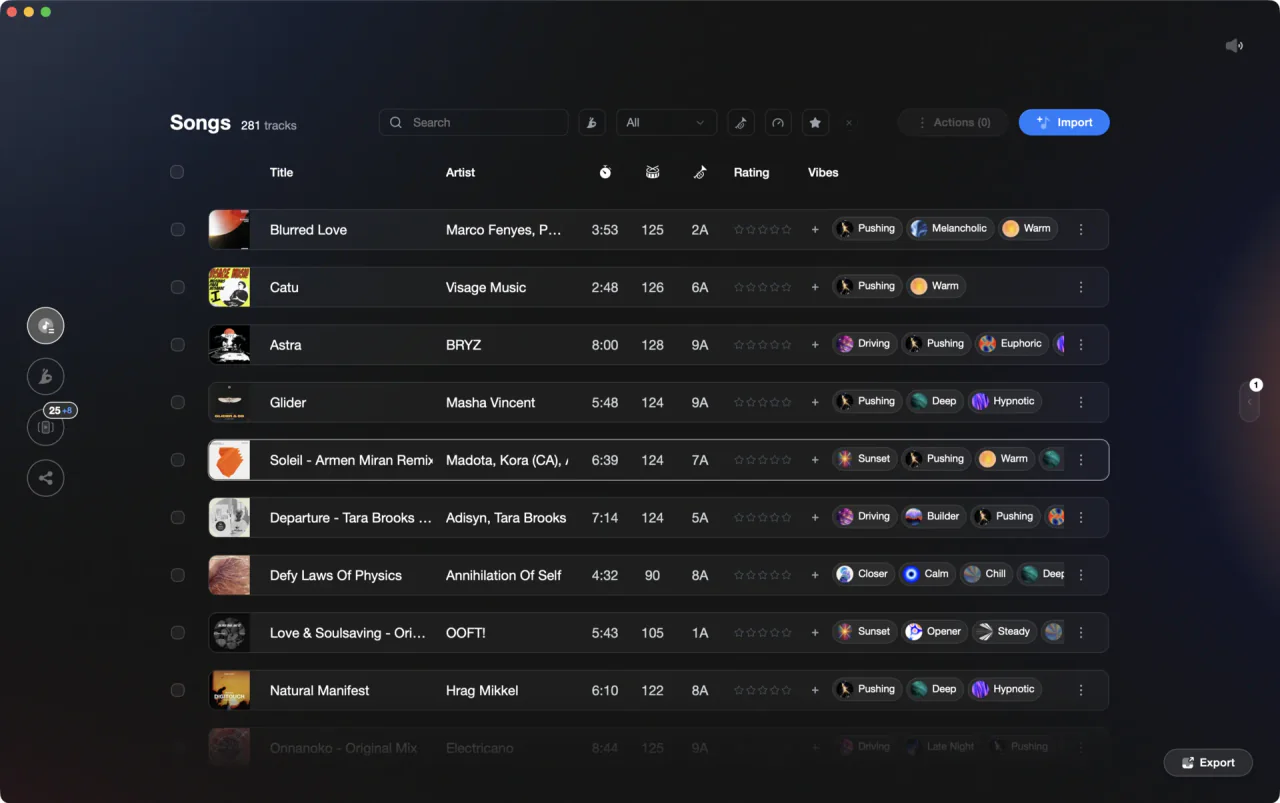
Vibes stores your vibe tags, energy ratings, and set prep work in its own database, separate from Serato's files. If you ever have to rebuild your Serato library from scratch, your organizational layer in Vibes stays intact and can be exported back into Serato as fresh .crate files.
See how it worksOrganize in Vibes, export to Serato DJ.
Your playlists, tags, ratings, and cue points travel back to the gear you play on, so nothing you do in Vibes is locked away.
Track 001
Artist A
AfterhoursMysterious Introspective
Track 002
Artist B
 Cozy FloorPeacefulHome
Track 003
Artist C
RaveAggressive Festival
 Build & Release
Frequently asked questions
The honest answers, including the trade-offs.
From a Vibes customer
The import worked perfectly. Have created several sets now and my life is so much easier
One-time purchase
Get Vibes with a single payment. No subscription.
Vibes is the step before you open your DJ software, not a replacement for it.
First 250 licenses at this price, then $79.
14 days • Full access
No strings attached
Secure checkout with Stripe
Already have Companion Pro? Upgrade instead

Methodology
How we keep this honest.

Verified against the app
Every step is checked against the current version of Serato DJ.
We own our bias
We make Vibes. We show the native way first and honestly, then where Vibes genuinely helps, and we say when it does not.
Live pricing
The Vibes price shown comes straight from our checkout, never a hardcoded marketing number.
Kept current
Last reviewed September 2026.
Keep exploring
DJ apps head to head
Works with your software
Vibes for DJs
Vibes features
How-to guides
Best DJ software
Move between apps
Learn to DJ