

Manage hot cue colors in Serato DJ Pro.
Hot cue colors in Serato are assigned at the deck, one cue at a time. Knowing where to place them is the harder problem. Vibes solves that by marking your track sections during analysis before you ever load the file.
$49$79USD one-time purchase. First 250 licenses at this price. 14-day free trial.
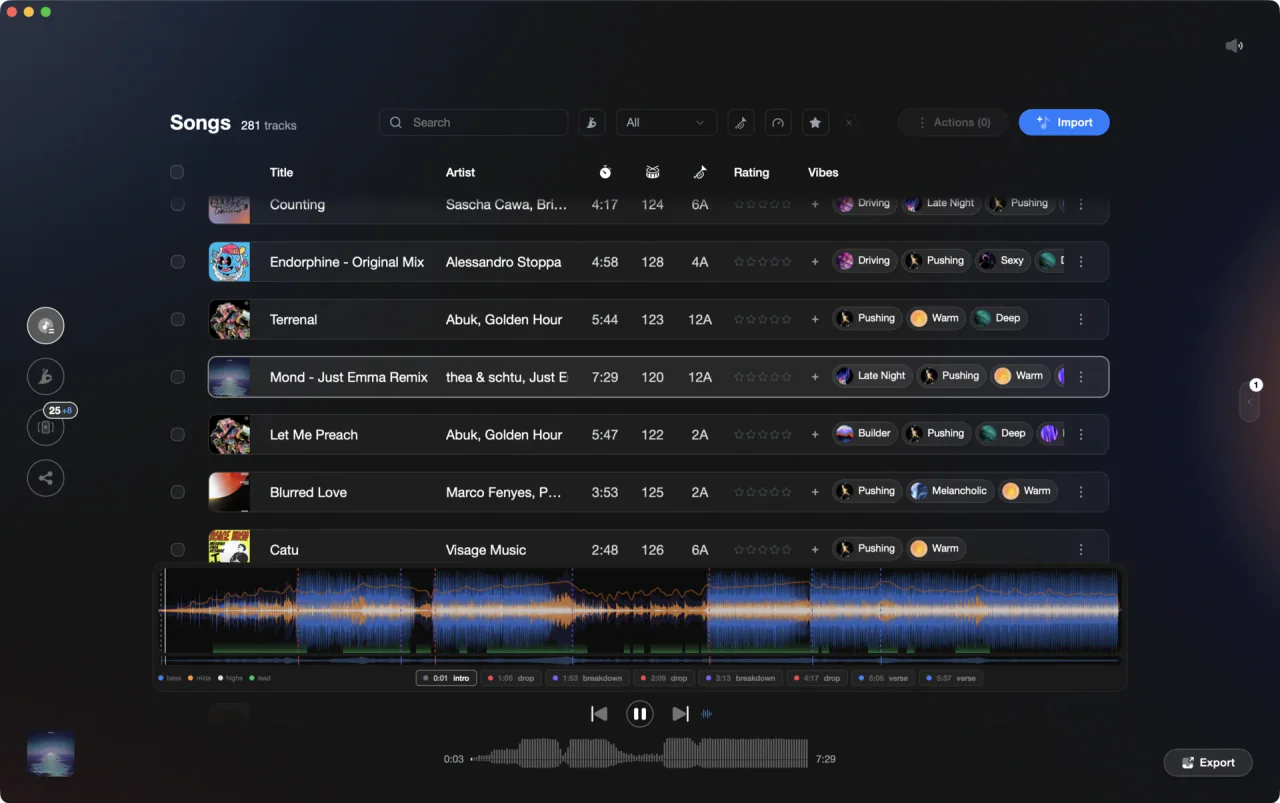
Section markers from Vibes analysis tell you exactly where each hot cue should land.
Manage hot cue colors in Serato DJ Pro, step by step.
Serato DJ Pro 3.x lets you set a color for each of the eight hot cue slots directly on the deck. Colors are embedded into the audio file itself as metadata, so they persist across sessions and transfer with the file to any machine running Serato.
Load a track and open a hot cue slot
Load your track onto a deck in Serato DJ Pro. In the Cue Point Tab, click the + symbol in an empty cue slot at the point in the track where you want to place the cue. Serato sets the cue and assigns it a default color (the first slot defaults to red).
Change the cue color
Right-click the colored cue slot button (or Ctrl/Cmd+click on it) to open the color picker. Select one of the 18 available colors. Serato immediately updates the cue marker on the waveform to reflect your chosen color.
Build a consistent color system across your library
Assign the same color meaning across all tracks, for example green for intro, orange for drop, red for outro. Repeat the right-click color assignment for each cue slot on every track you prepare. Consistency lets you read any track at a glance during a live set.
Confirm colors are saved
Eject and reload the track to confirm the colors persisted. Serato writes cue point data (including colors) directly into the audio file as embedded metadata, so colors travel with the file. To use your cues on a different machine, copy the audio files to that machine and add them to Serato. For your crates and library structure, also copy the _Serato_ folder from your Music directory to the new computer.
The catch
Serato assigns and edits hot cue colors per-track in the deck, so you need to load each track individually to set or adjust colors. There is no batch color-change feature across your library, which makes large-scale prep time-consuming. There is also no option to permanently change the default color assigned to new cues.
Where Vibes fits
Know where your cues belong before you touch the deck.
Vibes analyzes every track and detects sections automatically, intro, buildup, drop, breakdown, outro, so you arrive at Serato already knowing which moments deserve a hot cue and which color they should carry.
See how it worksOrganize in Vibes, export to Serato DJ Pro.
Your playlists, tags, ratings, and cue points travel back to the gear you play on, so nothing you do in Vibes is locked away.

Track 001
Artist A
Afterhours Mysterious
 Introspective
Track 002
Artist B
 Cozy FloorPeaceful
 Home
Home
Track 003
Artist C
Rave Aggressive
 Festival
 Build & Release
Frequently asked questions
The honest answers, including the trade-offs.
From a Vibes customer
The import worked perfectly. Have created several sets now and my life is so much easier
One-time purchase
Get Vibes with a single payment. No subscription.
Vibes is the step before you open your DJ software, not a replacement for it.
First 250 licenses at this price, then $79.
14 days • Full access
No strings attached
Secure checkout with Stripe
Already have Companion Pro? Upgrade instead

Methodology
How we keep this honest.

Verified against the app
Every step is checked against the current version of Serato DJ Pro.
We own our bias
We make Vibes. We show the native way first and honestly, then where Vibes genuinely helps, and we say when it does not.
Live pricing
The Vibes price shown comes straight from our checkout, never a hardcoded marketing number.
Kept current
Last reviewed September 2026.
Keep exploring
Compare Vibes
DJ apps head to head
Works with your software
Vibes for DJs
Vibes features
How-to guides
Best DJ software
Move between apps
DJ tools
Learn to DJ