
Watch Spencer Tuttrup’s tutorial above (27K views on YouTube).
This guide is for DJs who want a Rekordbox library that survives crashes, laptop swaps, and messy file moves. If your music lives in random folders or only on your main computer, you are setting yourself up for broken paths and painful relinking. After reading, you will be able to build a clean Rekordbox library on an external drive, move the database safely, and keep your music files in a structure that is easy to maintain.
A Rekordbox library is the combination of your database, playlists, metadata, and linked track files. The safest setup is simple. Put the Rekordbox database on a dedicated external SSD, store your music in one clearly named folder on that same drive, and avoid moving files around outside your system once imports begin.
If you are still building your DJ workflow, it helps to pair this setup with a consistent music library organization system, a practical DJ backup drive workflow, and a clear Rekordbox export mode guide.
Rekordbox Library: Definition and Core Parts
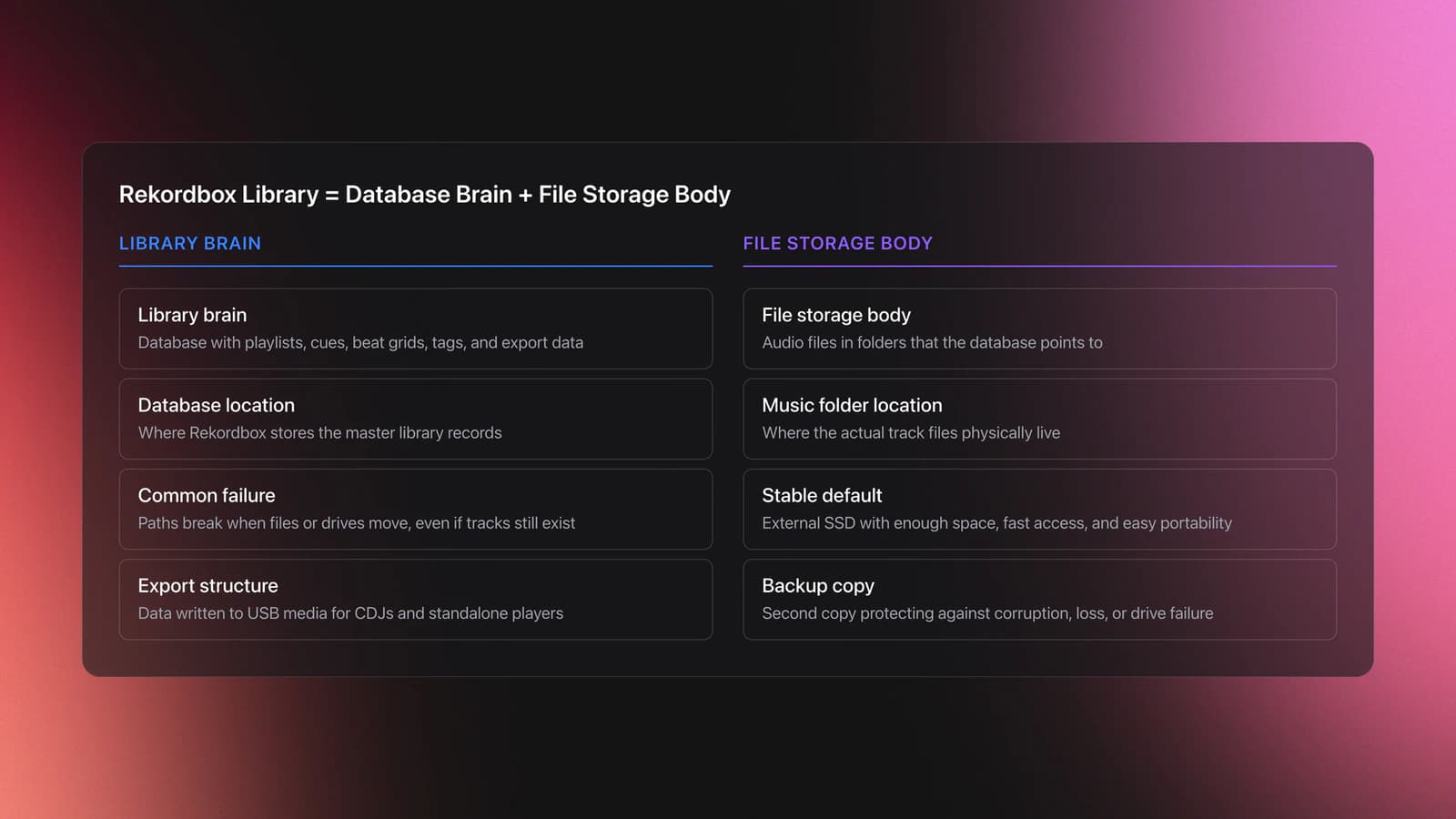
A Rekordbox library is not just a folder of MP3s. It is a database that stores track references, cue points, beat grids, playlists, tags, and device export data, alongside the music files those records point to.
That distinction matters because most Rekordbox problems are not music problems. They are path problems. The file still exists, but Rekordbox cannot find it because the location changed.
I use a simple mental model here. Think in terms of library brain and file storage body. The brain is the database. The body is the folder that holds the audio files. When the brain and body live in unstable locations, your Rekordbox library becomes fragile.
The transcript makes the pain point clear. Keeping everything on a home computer works until you reset the machine, replace the laptop, or suffer a crash. Then relinking becomes the job.
This is also why an external SSD is usually the better default. SSDs are faster than spinning hard drives, more reliable in mobile workflows, and better suited to repeated library access. For DJs playing underground gigs, the spec that matters most is not raw capacity. It is practical stability. You want enough space, fast load times, and a form factor that is easy to carry and easy to read in a dim booth.
- Database location. Where Rekordbox stores library data.
- Music folder location. Where your actual track files live.
- Export structure. What gets written to USB media for CDJs or standalone players.
- Backup copy. A second copy that protects you from corruption or device failure.
In current official release notes, Rekordbox has continued to change library-related features and export behavior across version 7 updates. As of April 14, 2026, the latest listed release is Rekordbox 7.2.14, and AlphaTheta also issued a March 2026 notice about a USB export issue in version 7.2.12 that was later resolved. That is a good reminder to keep your software current before you change a core Rekordbox library workflow.
Set Up Rekordbox Library Storage
If you want a stable Rekordbox library, start with storage before you import a single track. This is the part most people skip. It is also the part that prevents the worst cleanup work later.
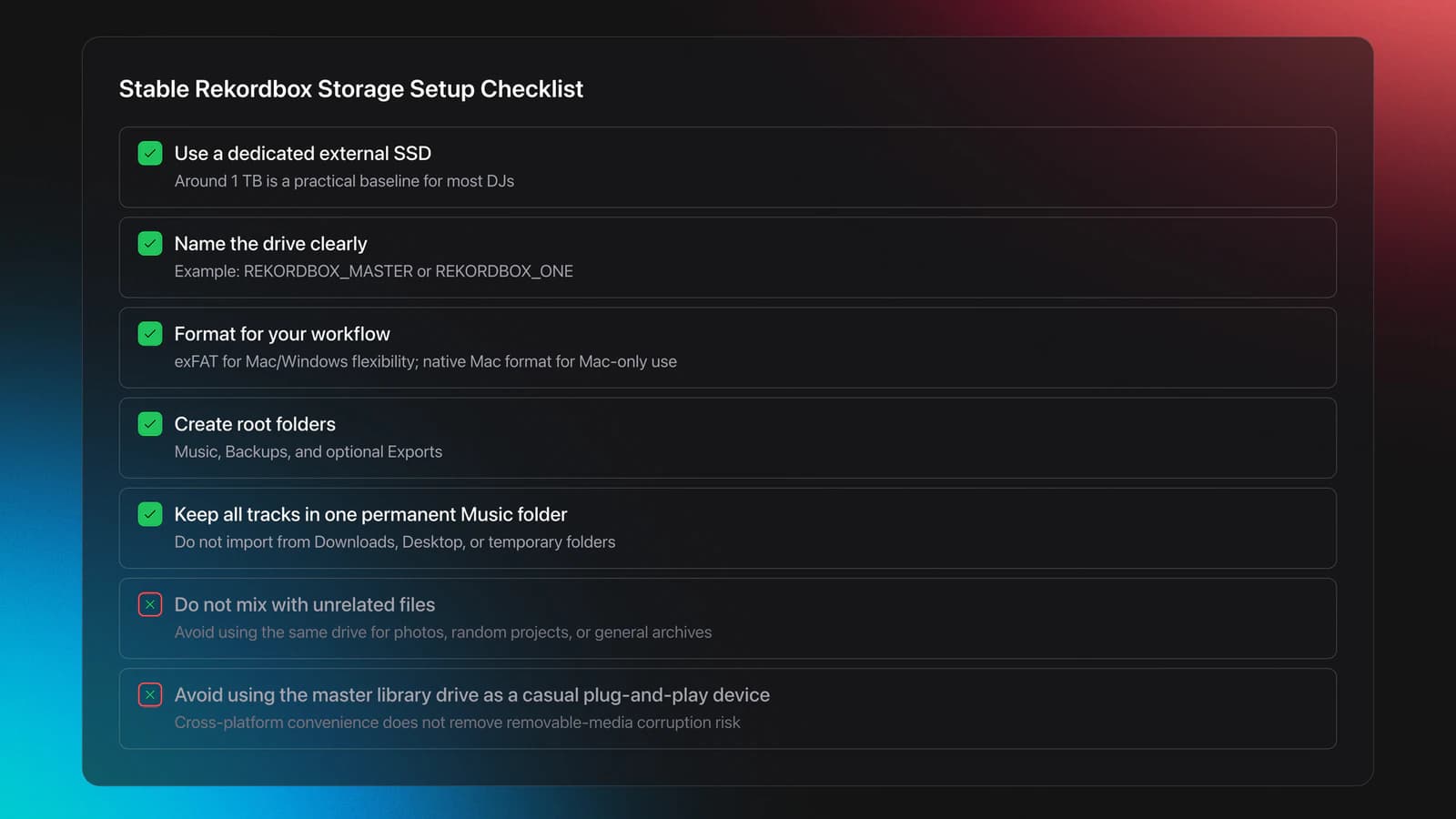
The transcript recommends a dedicated external SSD, around 1 TB, used only for Rekordbox. That is a sensible baseline for most DJs. You do not need extreme capacity at the start. You need one clear home for the database and the music files.
Use one drive for the library system. Do not mix it with general backups, photo archives, or random projects. The more unrelated files and workflows you attach to the same drive, the easier it becomes to move, rename, or erase the wrong thing.
On macOS, the transcript walks through Disk Utility. The goal is to format the drive deliberately, name it clearly, and confirm you are editing the correct external disk before erasing anything.
For cross-platform use, exFAT is the practical choice because both macOS and Windows support it. If you are staying Mac-only, a native Mac format can also work. The transcript favors exFAT when you want flexibility between Mac and PC.
One caution matters here. Cross-platform convenience is not the same as performance perfection. exFAT is useful, but removable media always carries some corruption risk when it is unplugged carelessly or used constantly in different contexts. The transcript explicitly advises against using the same drive as a general plug-and-play performance device if your main goal is database safety.
Official AlphaTheta documentation also shows that newer export workflows and library formats now matter more than they used to. The company’s OneLibrary export guide tells users to update to the latest Rekordbox version before export and outlines synchronization between library formats and USB devices. That means your storage setup is no longer just a folder question. It affects export compatibility too.
Here is a clean starting structure:
- External SSD name: something obvious, like REKORDBOX_MASTER
- Root folders: Music, Backups, optional Exports
- Inside Music: all downloaded and purchased tracks
- No loose files on desktop, downloads folder, or temporary folders
Example one. A DJ keeps 2,500 tracks in the laptop Downloads folder, imports them into Rekordbox, then later moves half into Artist folders on another drive. The files still exist, but Rekordbox points to the old paths. Result: missing files, relinking, wasted time.
Example two. A DJ formats a new 1 TB SSD, names it REKORDBOX_ONE, creates a Music folder, moves the Rekordbox database there first, and imports every new track into that same Music folder from day one. Result: every path begins from one known volume, and migration is much easier.
Failure mode: the external drive never finishes formatting, or Disk Utility hangs on a spinning loader. The transcript’s fix is practical. Restart the computer and try again. It is basic, but it often resolves the issue on macOS.
You will know this step is correct when the drive mounts cleanly, the volume name is clear, and you can see a Rekordbox-related content folder appear after moving the database.
How To Set Up Rekordbox Library Database
This is the core move. You are telling Rekordbox where the master database should live. In the transcript, that means moving it from the computer to the new external SSD.
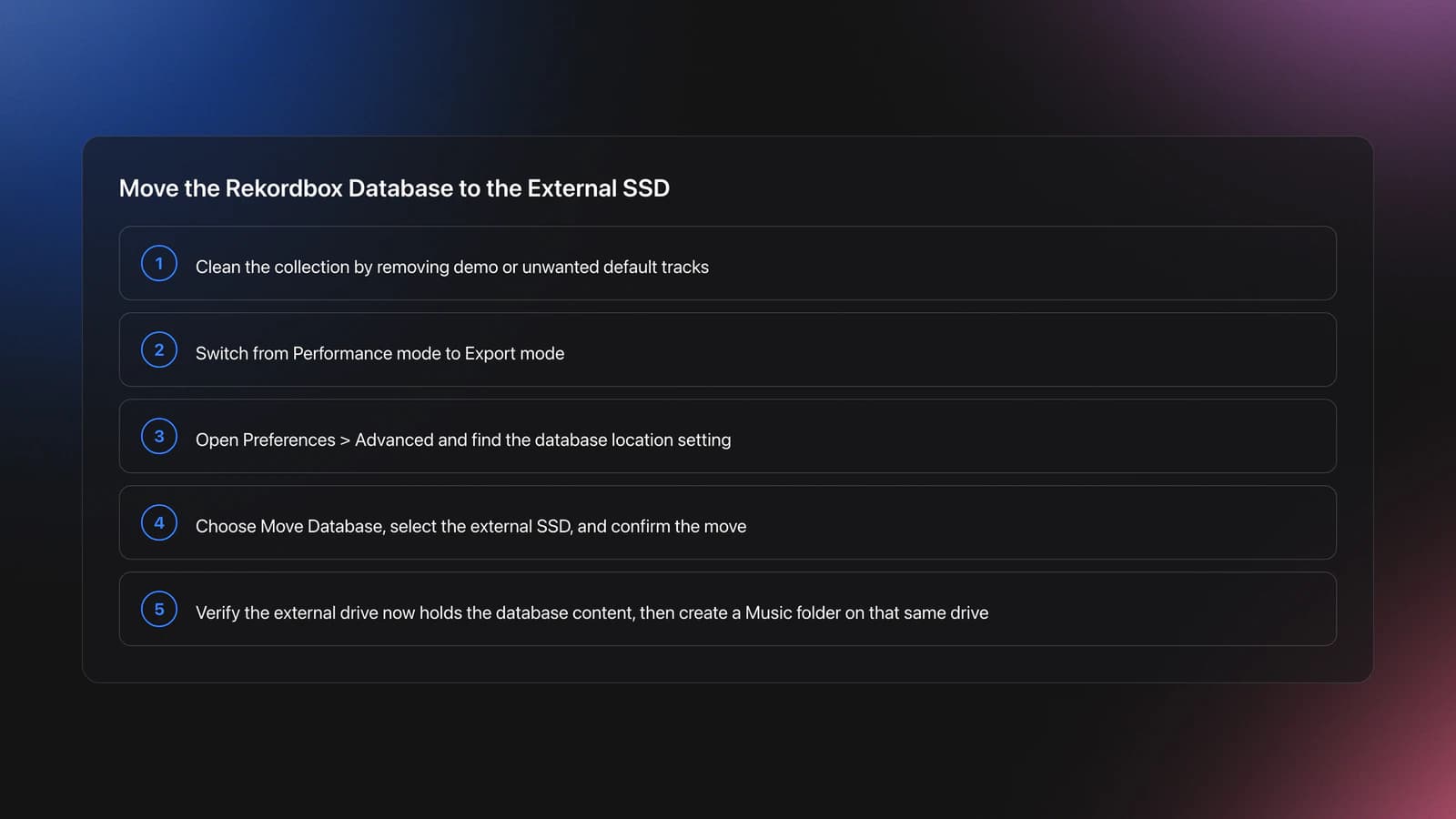
Before you do that, clean up the starting point. If Rekordbox contains demo tracks or default content you do not need, remove it so you are not migrating clutter.
Then switch to Export mode. That is the working view used throughout the transcript for library setup and device preparation.
- Open Rekordbox.
- Delete unwanted default tracks from the collection.
- Switch from Performance mode to Export mode.
- Open Preferences or Settings.
- Go to Advanced.
- Find the library or database location setting.
- Choose Move Database.
- Select the new external drive.
- Confirm the move.
Once that finishes, Rekordbox should write its database content to the external drive. In the transcript, a Pioneer content folder appears on the disk. That is the signal you were aiming for.
From there, create a folder called Music on the same drive. This is where your actual track files should live. Keep the rule simple. The Rekordbox database and the audio files should share the same stable home.
Example one. Your old database is on the laptop, but your music is already on an SSD. Move the database to that same SSD first. Then verify that Rekordbox reads the collection from the external drive, not from the laptop system drive.
Example two. You start fresh with zero tracks in the collection. Move the database first, create Music on the external SSD second, then import new downloads only into that folder. You avoid a whole class of relinking problems because there is never a split location.
Failure mode: you move the database, but later open Rekordbox and it points back to the internal drive. This usually means the external disk is disconnected, mounted under a different name, or the move was never completed cleanly.
You will know this step is correct when Rekordbox reports the external location as the active library path, the drive contains the database content, and opening the software with the drive connected shows your normal collection.
If you want to go deeper on this part of the workflow, pair it with a DJ file naming standard and a USB export checklist for CDJs.
How Do You Set Up Rekordbox Library Files?
Set up Rekordbox library files by choosing one permanent music folder, importing tracks from that location, and letting Rekordbox handle organization through playlists, metadata, and tags. Do not use Finder or File Explorer as your main library logic. Use folders for storage stability and Rekordbox for collection structure.
This is where many DJs overcomplicate things. They build deep folder trees by genre, year, label, and mood before they even know how they actually search during prep or performance.
The transcript argues for the opposite. Keep the file folder simple. Let Rekordbox handle artist, genre, and other organizational views inside the software.
That is usually the better long-term move because folder structures are rigid, while library metadata is flexible. You can change playlists, tags, comments, ratings, or My Tags without physically moving files.
A good baseline file system looks like this:
| Layer | Purpose | Recommendation |
|---|---|---|
| External drive root | Holds your DJ ecosystem | Use one clearly named SSD |
| Music folder | Stores all track files | Keep one master folder |
| Rekordbox database | Stores playlists and metadata | Keep on same drive as music |
| Playlists and tags | Drive actual workflow | Build inside Rekordbox |
A stable Rekordbox library separates storage from organization.
Example one. You download 30 new promos this week. Put all 30 into the same Music folder, then import them into Rekordbox. Inside Rekordbox, sort by genre, energy, or set relevance. Do not create a new finder folder called New Stuff Tuesday and forget it exists.
Example two. You have house, techno, and breaks in the same storage folder. That is fine. Inside Rekordbox, the same tracks can live in multiple playlists or smart systems without duplicating files.
If your workflow includes pre-gig sorting by mood, function, or energy, that is exactly where a dedicated preparation layer becomes useful. Some DJs do this with comments and color codes. Others use Vibes to create hierarchical categories, prep set structures on a visual canvas, and then export that structure into DJ software. Either way, the important idea is to separate raw file storage from performance-ready organization.
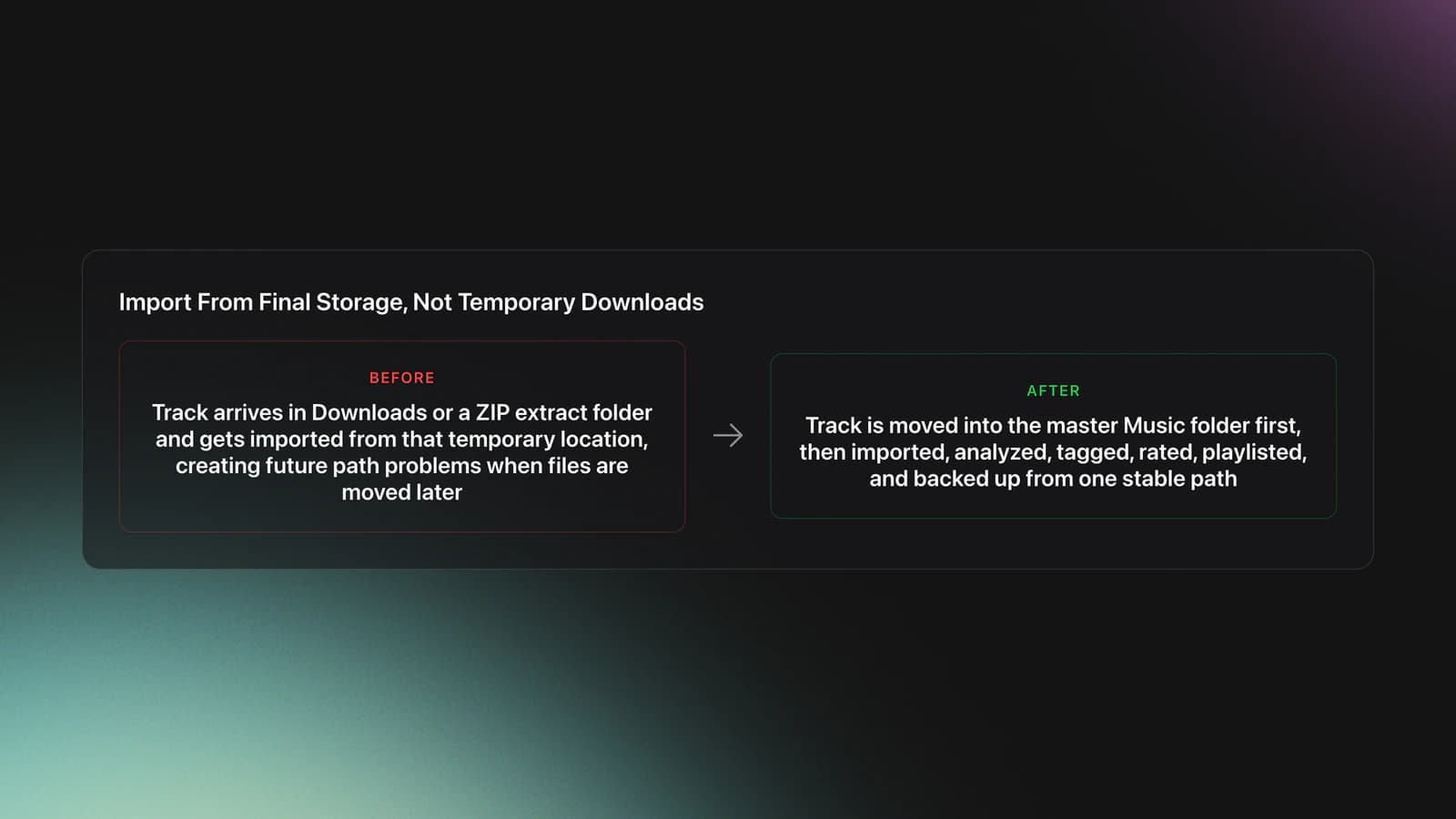
Failure mode: you import tracks from temporary folders such as Downloads, then later tidy your laptop and move everything. Rekordbox does not lose the track metadata, but it loses the file path. Now every missing file becomes manual cleanup.
Validation Check
Import Music Into Rekordbox Library Cleanly
Importing is easy. Importing without creating future mess is the actual skill.
The transcript suggests using reliable music sources and then placing the files into the master folder before working with them in Rekordbox. That order matters because it fixes the file path first and the metadata second.
If you are learning without formal training, this simple approach is often the one that lasts. The transcript’s broader DIY spirit is familiar to many DJs. A lot of people start with a friend, a basic controller, a makeshift setup, and a pile of downloaded tracks. The early progress can happen fast. The part that usually lags behind is library discipline. That is normal. It is also fixable.
Use this import sequence every time:
- Download or purchase the track.
- Move it into your master Music folder.
- Import it into Rekordbox from that final location.
- Analyze, tag, rate, and place it in playlists.
- Back up the drive on a schedule.
Example one. A free download arrives as a ZIP file in Downloads. Extract it there if needed, but do not import from Downloads. Move the finished audio file into your master Music folder first. Then import.
Example two. You buy a compilation with 40 tracks. Move the whole batch into the master Music folder, then bulk import. Now every track shares a stable base path from the first day.
This is also where internal consistency beats perfection. A mediocre system used every week will outperform a sophisticated system you only half maintain.
The result is simple. Your Rekordbox music library becomes easier to search, easier to back up, and easier to migrate.
Rekordbox Library Management Mistakes
Most Rekordbox library management problems come from a few repeatable mistakes. None are dramatic on day one. All become expensive later.
| Mistake | Why It Happens | How to Avoid |
|---|---|---|
| Importing from Downloads | It is the fastest path in the moment | Move files into the master Music folder before import |
| Keeping database only on internal drive | It feels simpler at first | Move the database to a dedicated external SSD early |
| Using one drive for everything | People reuse spare backup disks | Reserve one drive for Rekordbox library duties only |
| Renaming or moving folders later | Manual cleanup seems harmless | Treat imported file paths as fixed once in use |
| Ignoring software updates | Updates feel optional | Check release notes before major exports or migrations |
Common mistakes that break an otherwise healthy Rekordbox library.
If you are trying to fix a damaged setup, resist the urge to patch random symptoms. First identify the actual architecture. Where is the database? Where are the files? Which drive name does Rekordbox expect? Which folder did you move after import?
Rekordbox iTunes Library and Other Source Folders
A Rekordbox iTunes library setup can still work if your music source folders are stable, but the same path rules apply. If the Apple Music or legacy iTunes-managed file location changes, Rekordbox can lose track references just like it would with any other moved folder.
That means the real question is not whether the source is iTunes, Apple Music, Bandcamp downloads, or direct files. The real question is whether those files live in a predictable location that you control.
For DJs, direct control is usually safer than relying on consumer library defaults. A dedicated DJ music folder is easier to back up and easier to migrate than a broader media ecosystem that may reorganize itself.
If you do use an Apple-managed source, document the file location and test imports before depending on it for performance prep.
Quick Practice Routine for Rekordbox Library Setup
Use this as a 30-minute reset if your Rekordbox library feels scattered.
- Minutes 0-10: Find your current database location, your main music folders, and any tracks still living in Downloads or Desktop.
- Minutes 10-20: Format and name a dedicated external SSD, then move the Rekordbox database to that drive.
- Minutes 20-30: Create one Music folder on that drive, move a small test batch there, import it, and confirm everything loads correctly.
Do not migrate your entire collection on the first pass if you are unsure. Test with 20 to 50 tracks. Confirm the workflow. Then scale.
Measure Rekordbox Library Health
A healthy Rekordbox library is not judged by how pretty the folders look. It is judged by stability.
- Can you unplug and reconnect the library drive without breaking the collection?
- Do all new imports come from one master Music folder?
- Can you identify the database location in under 30 seconds?
- Do your exports complete without path or missing-file errors?
- Do you have a second backup of the external SSD?
If you answer no to two or more of those, your Rekordbox library setup needs work.
Conclusion: Build a Rekordbox Library That Stays Put
The core idea is simple. A good Rekordbox library is less about fancy folder design and more about stable locations. Put the database on a dedicated external SSD. Put all music files in one master folder. Import from final locations, not temporary ones.
Keep these takeaways in mind:
- Separate storage from organization. Folders hold files. Rekordbox handles library logic.
- Move the database early. It is harder to fix after years of messy imports.
- Treat path stability as part of performance prep, not just admin work.
Once your Rekordbox library is stable, the rest of your DJ workflow gets easier. Searching is faster. Backups are cleaner. Exports are less stressful. That is the point.
The visual way to organize your DJ library
Tag tracks by vibe. See everything at once. Export to rekordbox, Serato, Traktor or Engine DJ.
14-day free trial. Full access, no strings attached.
or see how it works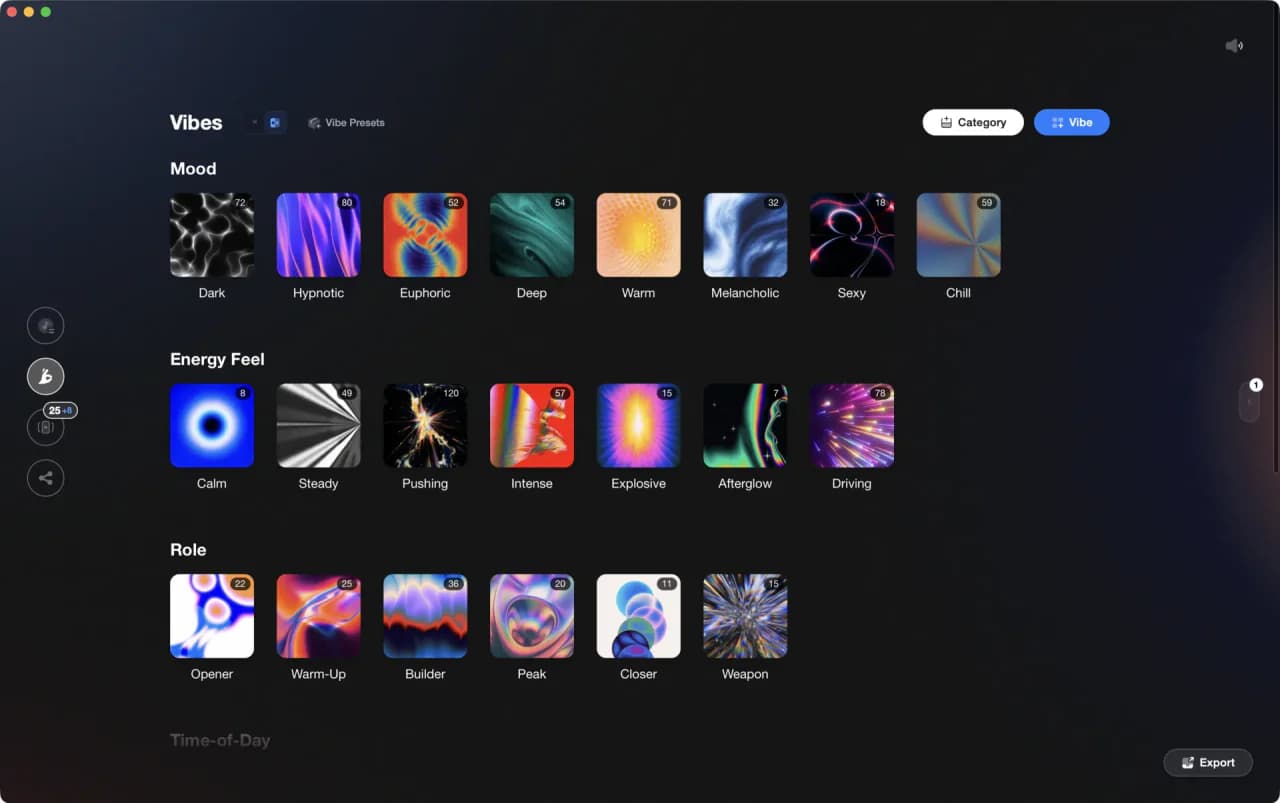
Techniques Covered
Equipment & Software
Official Manuals
Continue Your Learning Journey
Start Here First

Related Content

DJ Playlist Spotify: Mixing With Streaming Inside Rekordbox
intermediate
DJ Library Organization System: Tags, Crates, Keys
intermediate
DJ Record Pool Guide for Working DJs
intermediate
How to DJ With Just a Laptop (No Controller Needed)
intermediate
Mixed In Key Database Guide
intermediate
Mixed In Key Manual for DJs
intermediate
Transition DJ Online: Browser Mixer Workflow
intermediate
Organize Spotify Library: Folders, Intake, Sub-Playlists
intermediateFrequently Asked Questions

Hey, it's Ben Modigell 👋
I DJ and produce as so I so: downtempo, minimal, dub house, tech house, and techno (releases on Spotify and SoundCloud, links above). Everything I write here comes from my own gigs, studio sessions, and library cleanups: the rules I follow, the failure modes I have actually hit, and the workflow I use when nobody is watching. If a technique did not earn its place in my own sets, it does not make it into a tutorial.