
Move Rekordbox to a New Computer: Keep Cues and Playlists
Move a Rekordbox library to a new computer, drive, or database location without losing playlists, cues, and track references.
Move Rekordbox to a New Computer: Keep Cues and Playlists Tutorials

Quick Answer
Database Migration for Rekordbox is the process of moving your Rekordbox library, playlists, cues, and track references to a new computer, drive, or database location without breaking your working setup. Done well, Database Migration for Rekordbox preserves the parts that matter most: playlist structure, cue points, analysis data, and reliable file paths.
This matters any time you replace a laptop, move music to an SSD, clean up an old folder structure, or rebuild after storage trouble. A solid Rekordbox migration saves hours of reimporting and helps you avoid the worst-case scenario: arriving at a set with playlists intact but tracks missing.
The goal is simple. Keep one verified source library, copy or back it up correctly, restore it in the right order, then check every weak point before you export again.
What Is Database Migration for Rekordbox?
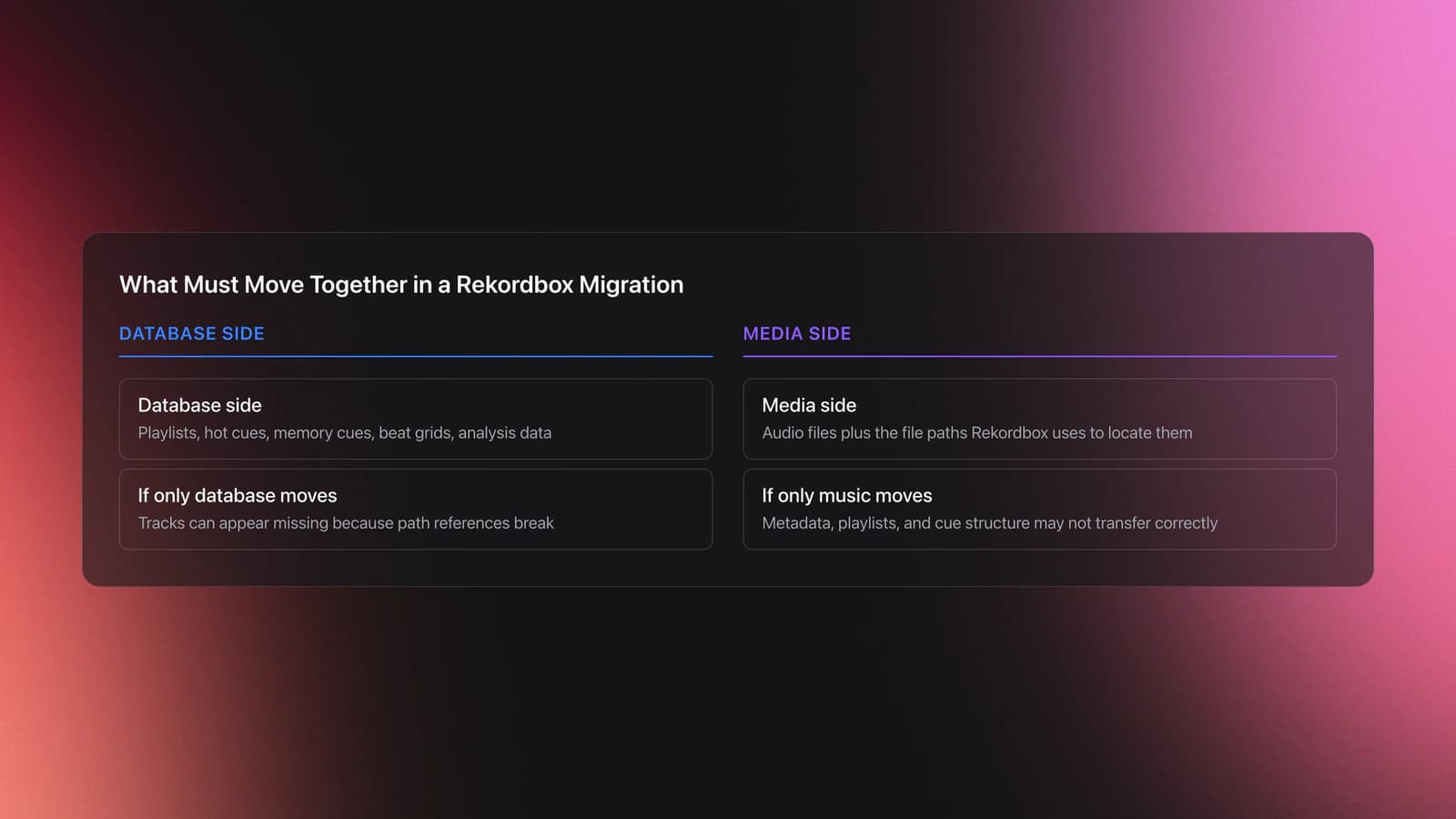
Database Migration for Rekordbox means transferring the Rekordbox library database and its linked music files so the new system keeps your collection metadata intact. In practice, that includes playlists, hot cues, memory cues, beat grids, analysis data, and the file paths Rekordbox uses to find each track.
The key detail is that Rekordbox stores both metadata and file-location references. If you move only the database, tracks can show as missing. If you move only the music, your playlists and cue data may not come across correctly.
Official Rekordbox documentation supports several related methods: backing up and restoring the library, moving the database to external storage, using Auto Relocate for broken paths, and using Library Sync for supported multi-device workflows. Device Library Backup is separate and applies to exported USB device libraries, not your whole local music archive. If you are moving to a different DJ app instead, see the Rekordbox to Serato migration guide for what transfers and what does not.
When You Should Use This Technique
Use this technique when the structure of your DJ library needs to survive a system change. Typical cases include a new laptop, an internal drive upgrade, a move from an internal disk to an external SSD, or a cleanup of old folders with inconsistent paths.
It also applies when you want a safer long-term setup. Many DJs reach a point where the collection works, but only on one machine with one fragile folder layout. Migration is the moment to fix that.
If you only need your USB export history restored after a device failure, look at Device Library Backup instead. If you need the same library available on multiple logged-in devices, setting up Rekordbox Cloud Sync may be a better fit than a one-time migration.
Gear and Prep for Rekordbox Migration
You need three essentials: the original Rekordbox library, the original music files, and a second storage location for backup or transfer. If any one of those is incomplete, migration becomes recovery work instead of routine maintenance.
Before you touch anything, confirm where your music actually lives. Some libraries pull from several folders, old downloads folders, and disconnected external drives. Rekordbox can repair many broken paths later, but the cleanest migration starts with knowing the file layout first.
This is also the point to build a safe Rekordbox backup routine. The official manual includes File > Library > Backup Library and Restore Library, and official guidance also covers moving the database itself to external storage.
How to Migrate a Rekordbox Database
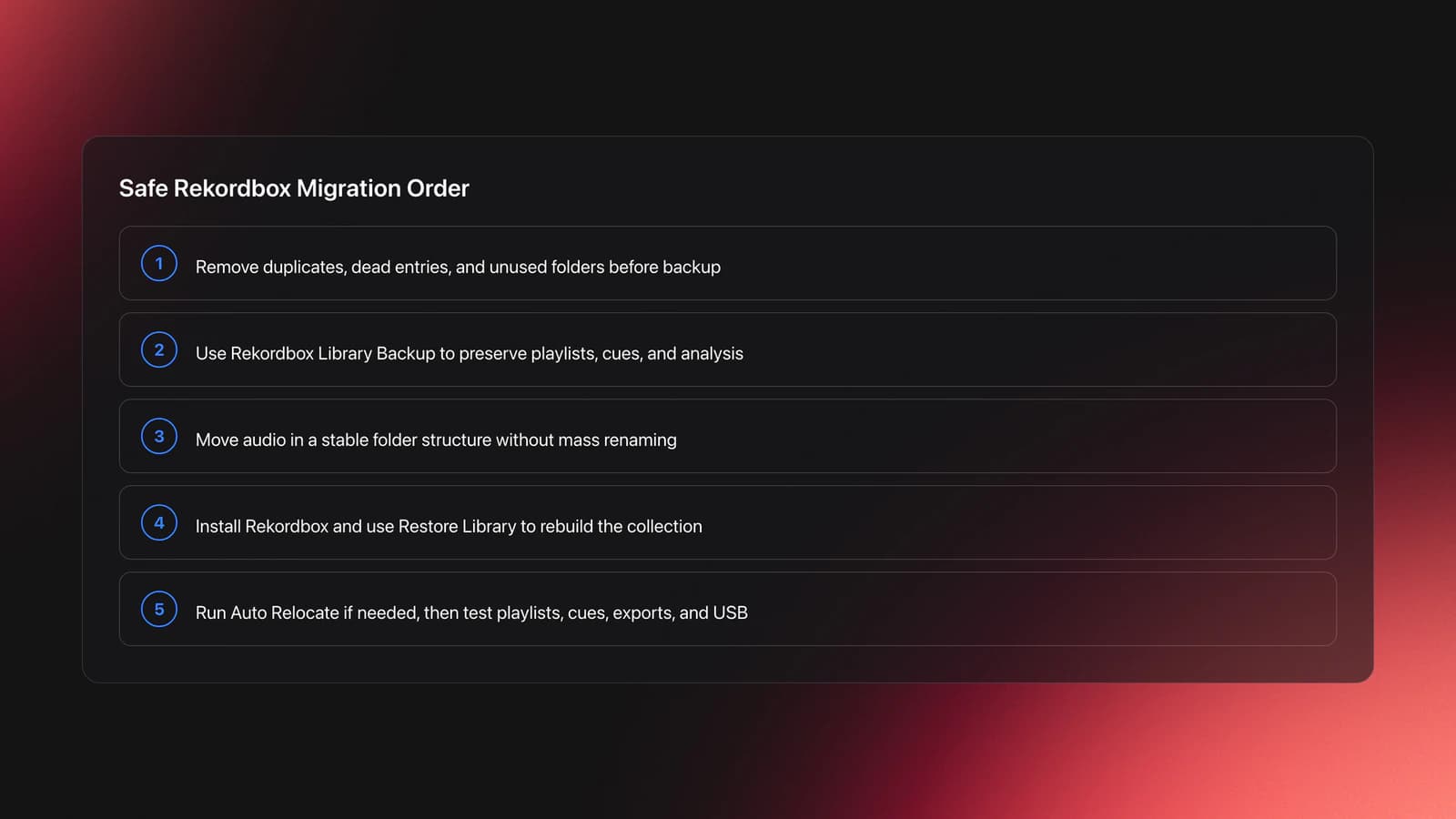
The safest Database Migration for Rekordbox follows a clear order: freeze the old library, back it up, copy music in a stable folder structure, restore on the new system, then repair paths only if needed.
- Clean obvious duplicates and remove dead entries.
- Run Rekordbox Library Backup on the source computer.
- Copy the actual music files to the destination drive.
- Install and open Rekordbox on the destination system.
- Use Restore Library to load the backup.
- Run Auto Relocate if any tracks show missing.
- Test playlists, cues, exports, and a USB device.
Start by reducing chaos. Remove folders you no longer use, empty trash-style playlists, and identify tracks already marked missing. Migration copies problems too, so clean-up before the move usually saves more time than fixing everything after.
Next, create a library backup from Rekordbox itself. The current instruction manual documents Backup Library and Restore Library, including the requirement that the backup music folder be available when restoring music files.
Then copy your music to the destination in a stable structure. Do not rename hundreds of files during the move unless you are ready to relocate them later. The fewer variables you change at once, the safer the migration.
On the destination machine, restore the library first, then inspect the Collection and playlists. If paths changed, use Rekordbox's Missing File Manager. Official FAQ guidance says Auto Relocate searches folders you define in Preferences > Advanced > Database > Auto Relocate Search Folders, while Relocate lets you point to files manually.
| Stage | Action | Why It Matters |
|---|---|---|
| Backup | Create a Rekordbox library backup | Preserves playlists, cues, and analysis data |
| Copy Media | Move the actual audio files | Prevents empty playlists with broken paths |
| Restore | Load backup on new system | Rebuilds the library structure quickly |
| Relink | Use Auto Relocate or manual Relocate | Repairs changed file paths |
| Verify | Test exports and key playlists | Confirms the migration is performance-safe |
Best Migration Paths
There is no single best method for every DJ. The right path depends on whether you are moving computers, moving storage, or rebuilding exported USB libraries.
For a new computer, the backup-and-restore workflow is usually the safest. It is the most direct way to preserve collection metadata and playlists while keeping official support on your side.
For a large library that should live on portable external storage, moving the Rekordbox database to that drive can make sense. Pioneer DJ's database moving guide explains how external database storage allows the database to travel with the music.
For USB performance media, Device Library Backup is different from full library migration. Rekordbox states that Device Library Backup can restore a lost or corrupted device library, but it does not back up the music files themselves. It restores by copying the same music files from your computer or cloud source, so those source files still need to exist.
For mixed-device workflows, Library Sync may reduce the need for repeated manual migration. It is designed for using the same library across devices logged into the same AlphaTheta account, but it is a sync workflow, not a substitute for a tested local backup.
Common Mistakes in Rekordbox Migration
Most failed migrations come from changing too many variables at once. New computer, new folder names, new drive letter, deleted source files, and no verified backup is the classic chain reaction.
| Mistake | Why It Happens | Fix |
|---|---|---|
| Backing up metadata but not audio files | The library backup is assumed to include everything | Verify whether music files are included and keep source media accessible |
| Renaming folders during the move | DJs try to reorganize while migrating | Migrate first, reorganize second, then use relocation tools if needed |
| Testing only the Collection view | Tracks look present until export time | Open major playlists, preview tracks, and run one real USB export |
| Confusing device backup with full library backup | The names sound similar | Use Device Library Backup only for exported USB device-library recovery |
Another common error is changing file extensions. Rekordbox documentation states that if you change a music file's extension, you need to reimport it to the Collection because earlier waveform and cue data cannot simply be reused through Relocate or Auto Relocate.
Troubleshooting Missing Files
If tracks show the missing-file indicator after migration, do not panic. In most cases, the metadata is still there and only the path has broken.
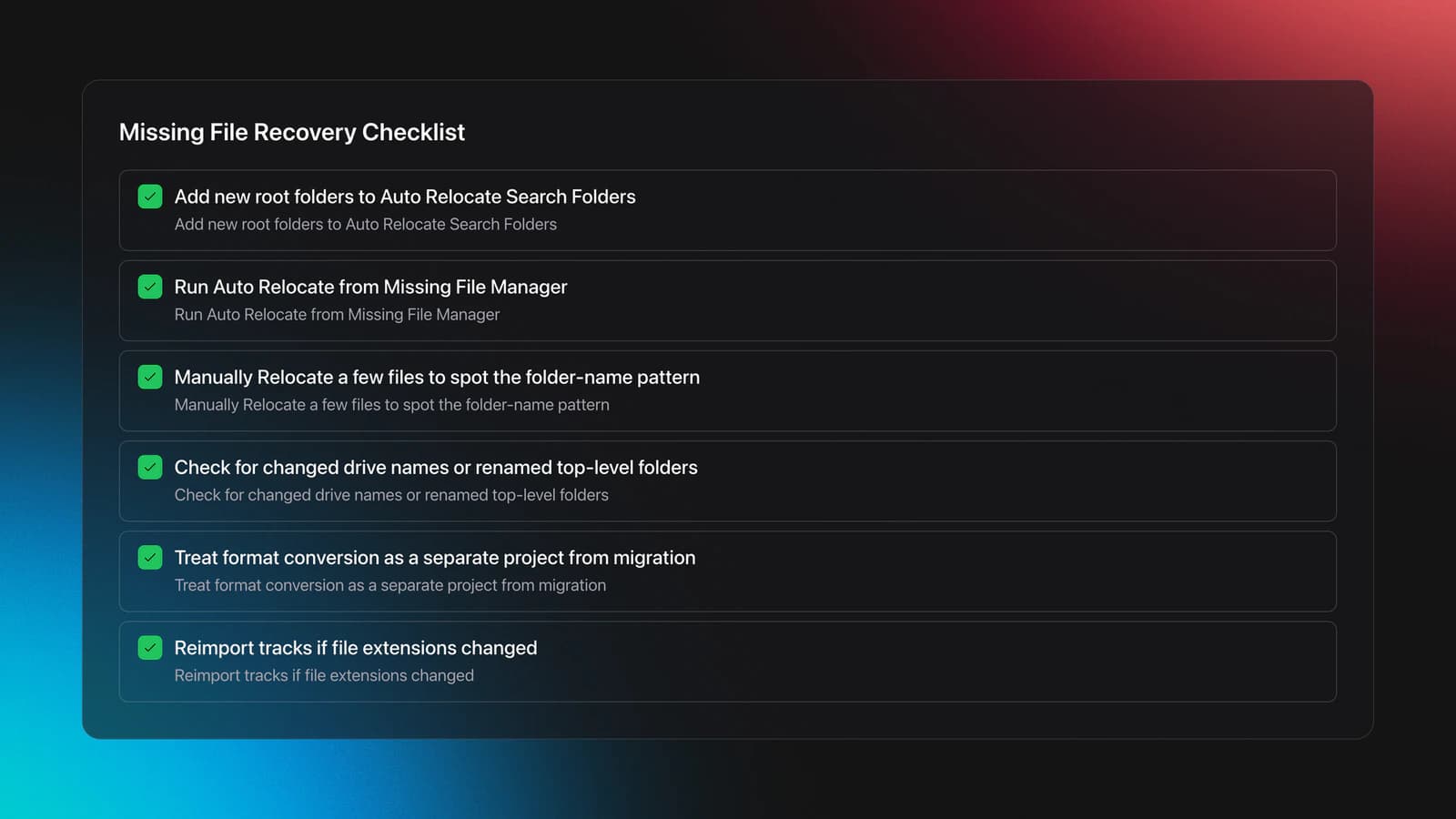
First, add your new music root folders to Auto Relocate Search Folders. Then run Auto Relocate from Missing File Manager. This is fastest when you preserved most filenames and folder names.
If Auto Relocate misses tracks, use manual Relocate on the first few files and look for the pattern. Usually the issue is one renamed top-level folder, one changed drive name, or media copied into a slightly different structure.
If you changed formats, not just locations, the fix is different. Rekordbox's FAQ says changed file extensions require reimporting the tracks. That is why migration and media conversion should be treated as separate projects.
When the cleanup gets repetitive, relocate missing files in Rekordbox with confidence before you start playlist polishing. Path integrity comes first.
Practice and Preparation Workflow
Database Migration for Rekordbox is not a performance technique, but it still benefits from a practice mindset. Through daily 15-minute sessions over several years, I found that short verification rounds beat one long migration marathon. Check one playlist family, one cue-heavy crate, one export drive, then move to the next.
Create a small migration test set before touching your full archive. Pick 20 to 50 tracks with playlists, hot cues, loops, and varied file locations. If that set restores cleanly, your full move is far less risky.
This is one of the few places where organized preparation tools help. If you keep practice crates, warm-up folders, and gig-specific selections neatly grouped in Vibes, it becomes easier to verify whether the migrated library still reflects your real performance logic rather than just a pile of files.
Use a three-pass check. Pass one: Collection loads and tracks preview. Pass two: playlists, tags, and cue points look correct. Pass three: prepare export drives for CDJs and test on actual media.
Success Metrics
A migration is successful when it is boring. The new library should feel identical in use, with no surprise missing files, broken playlists, or missing cue data.
Use measurable checks. Can you open five important playlists without warning icons? Can you preview tracks instantly? Can you export one USB without errors? Can you reconnect the drive and reopen Rekordbox without path drift?
If any answer is no, the migration is not finished. It may be mostly done, but not performance-ready.
Final Takeaways
Database Migration for Rekordbox is really about preserving trust in your library. The software can move a lot of data, but your job is to keep database, music files, and file paths aligned in the right order.
Focus on three things:
- Back up before you move anything.
- Change as few variables as possible during the move.
- Verify playlists, cues, and one real export before deleting the original.
Start with a small test library, lock in a reliable workflow, then scale it to the full collection. Once that is stable, related skills like Rekordbox Cloud Sync or device-library conversion become much easier to manage.
The visual way to organize your DJ library
Tag tracks by vibe. See everything at once. Export to rekordbox, Serato, Traktor or Engine DJ.
14-day free trial. Full access, no strings attached.
or see how it works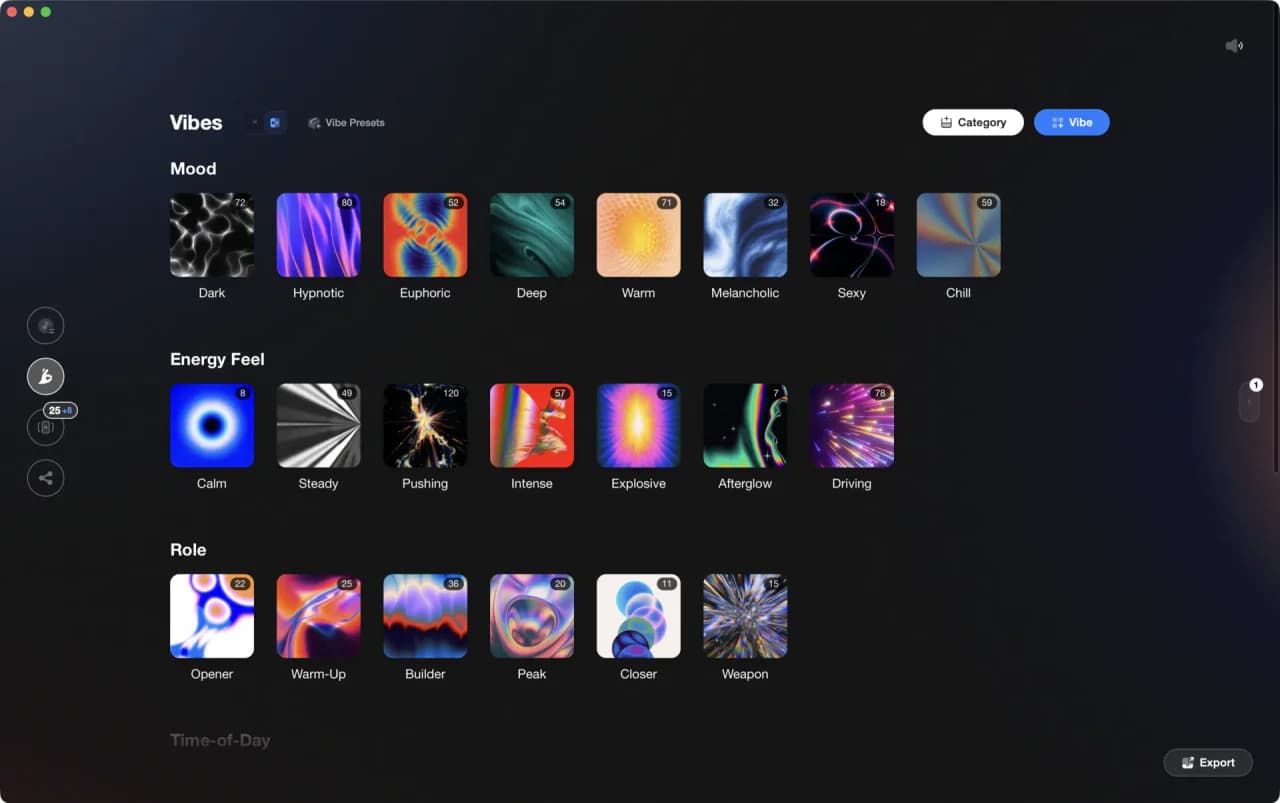
Equipment You'll Need
VirtualDJ
optionalDJ software for Windows and macOS that handles audio mixing, video mixing, karaoke, stems, and broad hardware support.
Serato DJ Pro
optionalProfessional DJ software for mixing, performance, library management, recording, and hardware-integrated club workflows.
Mixed In Key 11
optionalStandalone harmonic-mixing and library-prep software that detects keys, energy levels, cue points, and tags for DJ sets.
rekordbox
optionalCloud-connected DJ software for music management, performance, export prep, and club-standard hardware integration.
VirtualDJ 7
optionalA legacy DJ software platform for audio and video mixing, controller mapping, and DVS playback on Windows and Mac.
Pioneer DJ DDJ-1000
optionalA 4-channel rekordbox DJ controller with full-size jog wheels, onboard displays, and club-style mixer controls.
Platinum Notes 10
optionalPlatinum Notes 10 evens loudness, repairs clipped peaks, and prepares DJ files for more consistent playback in Serato, rekordbox, and Traktor.
Pioneer DJ DDJ-400
optionalA compact 2-channel USB DJ controller built for rekordbox with a club-style layout aimed at new and progressing DJs.
Frequently Asked Questions

Hey, it's Ben Modigell 👋
I DJ and produce as so I so: downtempo, minimal, dub house, tech house, and techno (releases on Spotify and SoundCloud, links above). Everything I write here comes from my own gigs, studio sessions, and library cleanups: the rules I follow, the failure modes I have actually hit, and the workflow I use when nobody is watching. If a technique did not earn its place in my own sets, it does not make it into a tutorial.