
exFAT File System Configuration
Configure exFAT correctly to share large files across Windows, macOS, and many devices without FAT32 size limits.
exFAT File System Configuration Tutorials
Rekordbox Library Setup and Backup
exFAT File System Configuration is the process of formatting and setting up a drive so it works across Windows, macOS, and many devices while supporting files larger than 4 GB. In practice, exFAT file system configuration matters when you need portability, simple setup, and fewer compatibility issues than NTFS or APFS on shared media.
This technique is most useful for removable storage. Think USB flash drives, SDXC cards, camera media, and portable SSDs that move between systems. It is less useful for system drives, backup volumes, or workflows that depend on advanced recovery features.
The main appeal is simple. exFAT removes FAT32's 4 GB file limit and stays broadly compatible across current Windows and macOS versions. Apple lists ExFAT as a Windows-compatible format in Disk Utility, and Microsoft documents exFAT as a modern file system designed to scale with newer storage needs.
What Is exFAT Configuration?
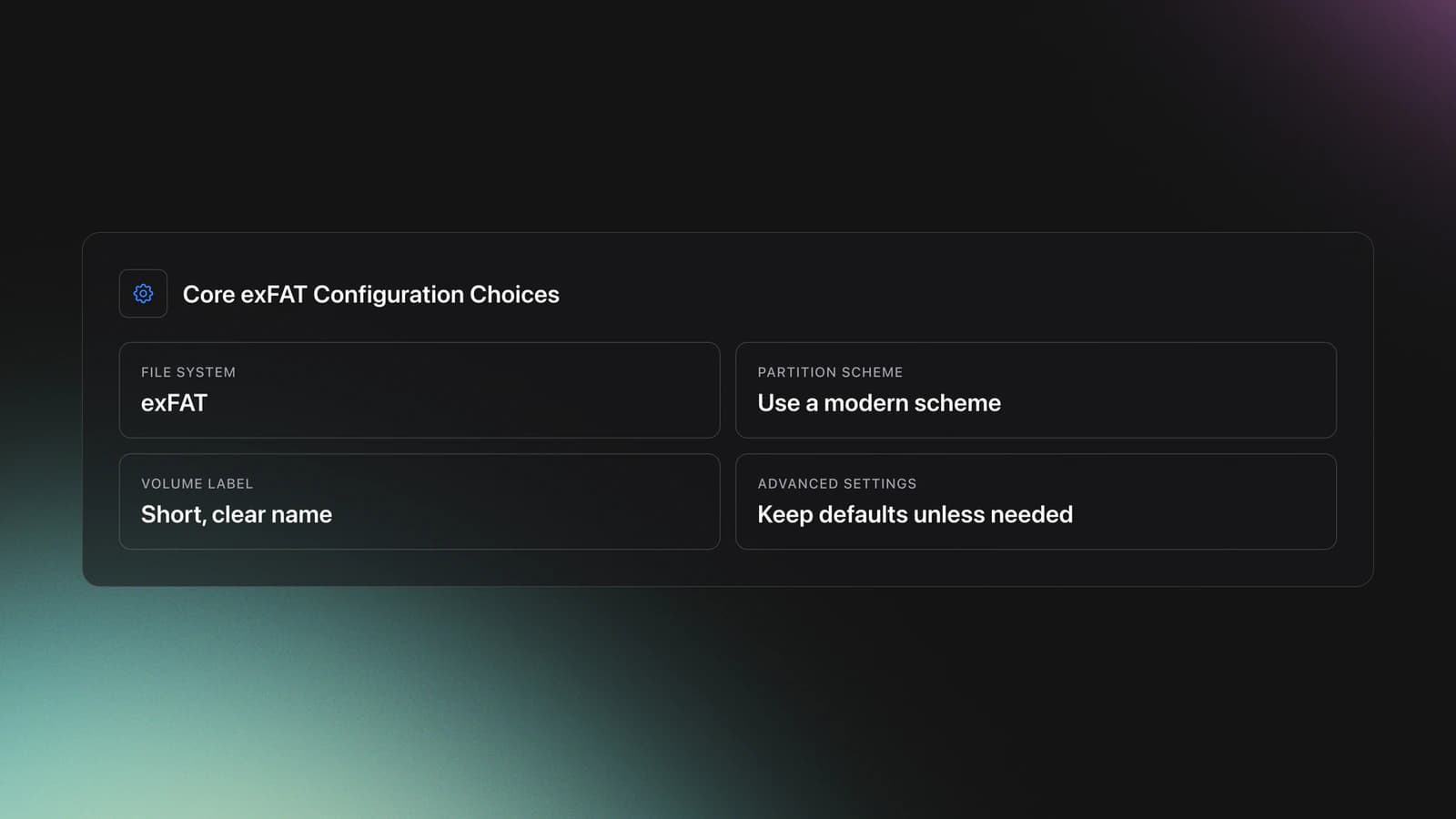
exFAT configuration means choosing exFAT as the file system, selecting the right partition scheme, setting a volume label, and using defaults unless you have a clear reason to change them. Good configuration is less about tweaking many options and more about making correct compatibility decisions.
Microsoft's exFAT specification describes a file system built for extensibility and modern storage sizes. That makes it a good fit for portable media and file exchange, especially when FAT32 is too limited and NTFS adds Windows-specific behavior you may not want.
On Mac, Apple recommends ExFAT for Windows-compatible volumes over 32 GB. On SD cards, the SD Association strongly recommends using its own formatter rather than generic formatting tools because it aligns with SD specifications and card characteristics.
When exFAT Is the Right Choice
Use exFAT when you need one drive to move between Windows and Mac with full read and write access. It is a practical choice for media transfer, project exchange, camera offload, and large portable files.
It is also useful when file size matters. FAT32 cannot store a single file larger than 4 GB, while exFAT supports much larger files and volumes. That is why exFAT is common on modern flash drives and SDXC media.
Do not treat exFAT as the default best format for every job. Seagate notes that exFAT is not journaled and is not recommended for built-in backup utilities like File History or Time Machine. Apple also recommends APFS for Mac-first pro apps and storage workflows instead of ExFAT.
If the drive stays on Windows, compare exFAT with Windows-only NTFS setups. If the drive stays on Apple hardware, use a Mac-native APFS workflow for Apple-only media. exFAT wins when portability matters more than platform-specific features.
Equipment and Decisions Before You Format
Before you start, confirm the exact drive you want to erase. Formatting the wrong disk is the most common and most expensive mistake. Back up anything you want to keep first.
Then decide three things. First, whether the drive is removable media for sharing. Second, whether every target device supports exFAT. Third, whether you also need a specific partition layout.
For most users, choose the right partition scheme first. GPT is usually the cleaner modern choice for large external drives, while SD cards and many removable devices are often handled by the device or formatting tool without much manual tuning.
Keep your configuration simple. Use a clear volume name, the default allocation unit size unless a vendor or workload says otherwise, and a full backup plan if the files matter.
How to Configure exFAT
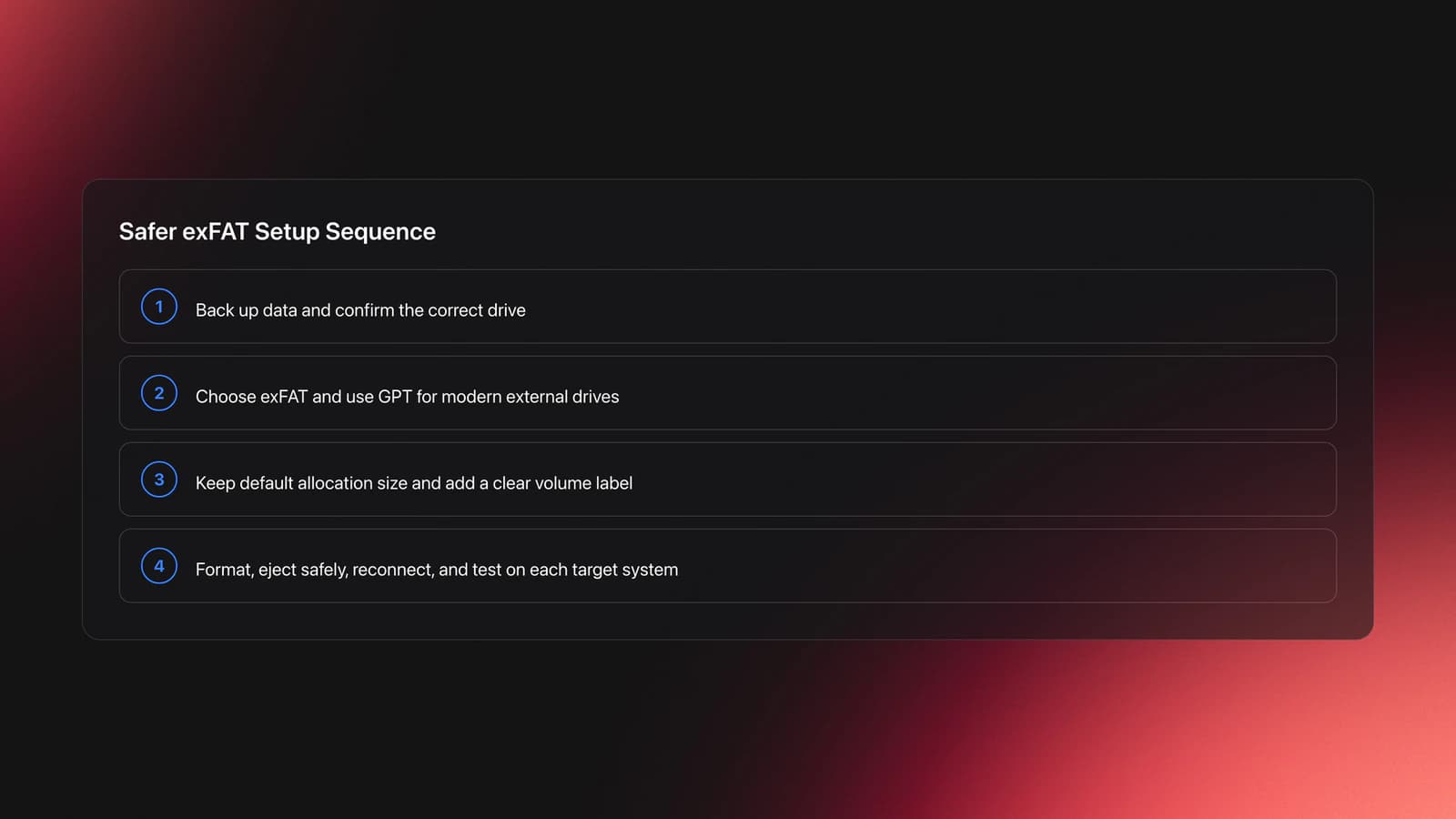
To configure exFAT well, format the correct drive, use a modern partition scheme, keep default cluster settings unless you have a proven need, and verify the drive on every system you plan to use. That covers most successful setups.
- Back up the drive and confirm the correct device.
- Pick exFAT as the file system.
- Choose GPT when using a modern external drive.
- Keep default allocation size unless required otherwise.
- Assign a short, clear volume label.
- Format, eject safely, and reconnect.
- Test read and write on each target system.
On Windows, you can format a removable drive in File Explorer or Disk Management and select exFAT. On macOS, Disk Utility offers ExFAT for Windows-compatible volumes and lets you erase the selected device with the format you want.
If you are formatting an SD, SDHC, SDXC, or SDUC card, use the SD Card Formatter user manual guidance rather than a generic quick format. The SD Association says this is strongly recommended because the tool is designed around SD card standards and expected layout behavior.
Linux users should know that modern support is better than it used to be. The exfatprogs project documentation describes exfatprogs as the official userspace utilities for creating and checking exFAT on Linux systems.
Allocation Size and Labels
Allocation size, also called cluster size or allocation unit size, is the setting most people overthink. For general use, the default value is usually the right choice because the operating system selects a sensible balance for the drive size and intended use.
Larger allocation units can help very large files by reducing overhead, but they also waste more space with many small files. Smaller units can improve space efficiency, but they are not always ideal for large media-heavy workloads. If you do not have benchmark data or vendor guidance, leave it on default.
Volume labels matter more than many users expect. Apple notes that MS-DOS and ExFAT volume names in Disk Utility have an 11-character maximum. A short label like MEDIA01 or SHAREDSSD is easier to recognize across systems and reduces confusion.
Common Mistakes in exFAT Setup
Most exFAT problems come from wrong use cases, not from the format menu itself. The pattern is usually simple: users choose exFAT for convenience, then expect backup-grade resilience or OS-specific features it does not provide.
| Mistake | Why It Happens | Better Approach |
|---|---|---|
| Using exFAT for system or app drives | Users want one format for everything | Use OS-native formats for boot, apps, and intensive local work |
| Changing allocation size without need | Bigger numbers seem faster | Keep the default unless a vendor or tested workload says otherwise |
| Quick unplugging after transfers | exFAT is often used on removable media | Always eject safely and wait for write activity to finish |
| Formatting SD cards with generic tools | Built-in tools are convenient | Use SD Card Formatter for SD-family cards |
| Relying on exFAT as a backup format | Cross-platform access feels safe | Use APFS, NTFS, or another native backup-friendly format when appropriate |
Troubleshooting exFAT Problems
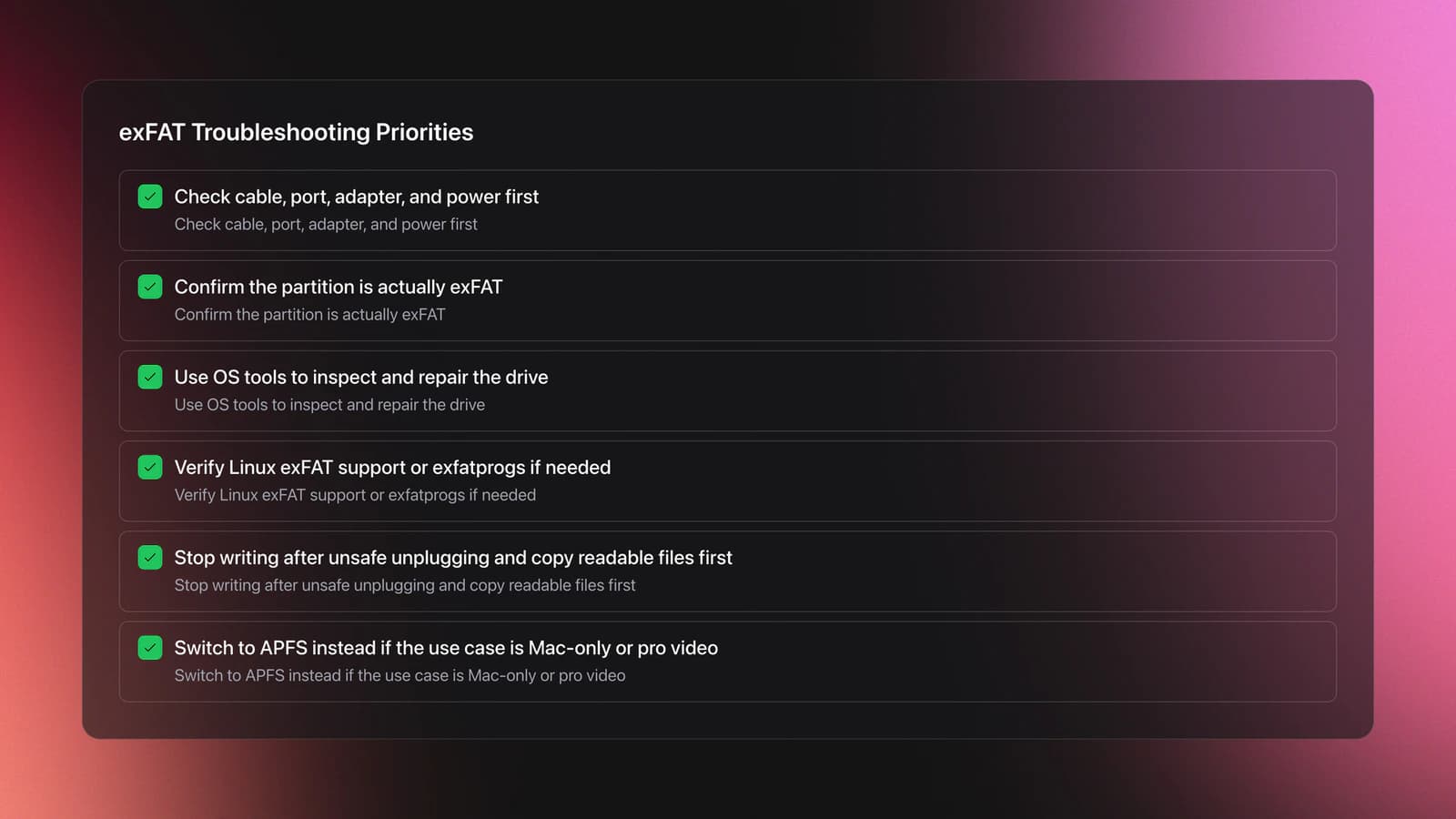
If an exFAT drive fails to mount or behaves inconsistently, start with the basics. Check the cable, USB port, adapter, and power first. Then confirm the file system actually is exFAT and not a damaged or misidentified partition.
On Windows, inspect the drive properties and run the system's disk checking tools. Microsoft also notes that Windows File Recovery handles FAT and exFAT differently from NTFS, which is a reminder that exFAT recovery behavior is not the same as a journaled Windows volume.
On macOS, reopen Disk Utility and verify both the device and the volume format. If the drive was meant for pro video or Mac-only storage, Apple explicitly recommends APFS instead of ExFAT for better expected behavior in those workflows.
On Linux, make sure exFAT support and utilities are present. Current distributions generally support exFAT natively or through standard packages, and tools from exfatprogs handle creation, checking, labels, and repairs.
If the problem started after unplugging without ejecting, assume the file system may be inconsistent. Stop writing to the drive, copy any readable files off first, then repair or reformat after backup.
Practice Routine for Reliable Configuration
The fastest way to learn exFAT file system configuration is to repeat a small, safe workflow on test media. In practice, short repeatable drills build better judgment than one long troubleshooting session after something breaks.
Start with one spare USB drive. Format it as exFAT on Windows, copy a folder with both small files and a file over 4 GB, eject it safely, then test the same drive on a Mac or Linux machine.
Next, repeat the drill with a second format choice. Compare exFAT against compare exFAT with Windows-only NTFS setups or a native Apple setup. This teaches the tradeoff, not just the menu path.
Track results over 2-week cycles. Note mount speed, cross-platform write access, error messages, and whether every device sees the same label and folder structure. That is more useful than memorizing definitions.
Most users reach confidence quickly once they can format, label, test, and verify a drive without hesitation. The key skill is judgment: knowing when exFAT is appropriate and when it is the wrong tool.
Measurable Success Checks
You know your exFAT setup is working when the same drive behaves predictably across systems. The check is operational, not theoretical.
When Not to Use exFAT
Do not use exFAT just because it is convenient. Use it when compatibility is the goal. Skip it when you need journaling, permissions, snapshots, system-level reliability features, or native backup support.
For Windows-only drives, NTFS is usually stronger. For Mac-only drives, APFS is the better native format. For legacy devices with strict compatibility limits, FAT32 may still be necessary despite its file-size ceiling.
In other words, exFAT is a shared-media format first. It is not the best universal answer.
Final Takeaways
exFAT file system configuration is straightforward once you stop treating it like a power-user tuning exercise. The real skill is choosing it for the right job, formatting carefully, and verifying the result on every system that matters.
Key takeaways:
- Use exFAT for shared removable media and large files.
- Keep default allocation settings unless you have tested reasons to change them.
- Avoid exFAT for backup-critical, OS-native, or recovery-heavy workflows.
Start with one spare drive, run the cross-platform test drill, and then document the exact setup you trust. From there, the next useful skill is learning use a Mac-native APFS workflow for Apple-only media or choose the right partition scheme first.
The visual way to organize your DJ library
Tag tracks by vibe. See everything at once. Export to rekordbox, Serato, Traktor or Engine DJ.
14-day free trial. Full access, no strings attached.
or see how it works
Equipment You'll Need
Pioneer DJ DDJ-1000
optionalA 4-channel rekordbox DJ controller with full-size jog wheels, onboard displays, and club-style mixer controls.
rekordbox
optionalCloud-connected DJ software for music management, performance, export prep, and club-standard hardware integration.
Pioneer DJ DDJ-400
optionalA compact 2-channel USB DJ controller built for rekordbox with a club-style layout aimed at new and progressing DJs.
Frequently Asked Questions

Hey, it's Ben Modigell 👋
I DJ and produce as so I so: downtempo, minimal, dub house, tech house, and techno (releases on Spotify and SoundCloud, links above). Everything I write here comes from my own gigs, studio sessions, and library cleanups: the rules I follow, the failure modes I have actually hit, and the workflow I use when nobody is watching. If a technique did not earn its place in my own sets, it does not make it into a tutorial.