Organize Spotify Library: Folders, Intake, Sub-Playlists
Watch Systematic Mastery’s tutorial above (92K views on YouTube).
If you use Spotify heavily and your saved music feels chaotic, this is for you. The goal is simple: organize Spotify library structure so you can collect tracks faster, sort them with less friction, and find the right music without scrolling through a mess.
The fastest way to organize Spotify library workflows is to use playlist folders, broad parent playlists, and narrower sub-playlists for specific use cases. In practice, that means one top-level system, one intake layer, and one sorting rule you can repeat every day.
After reading, you will be able to build a folder structure, collect new music into the right playlists, track what you already reviewed, and keep the system usable on both desktop and mobile.
If your library work extends beyond Spotify and into DJ prep, it also helps to separate discovery from performance-ready organization. Many DJs keep Spotify for finding music, then move confirmed local tracks into a dedicated system such as DJ library organization workflows.
Spotify Library: What Actually Needs Organizing
Most Spotify libraries break down for one reason. People save too much music into a flat list, then expect memory to do the sorting later.
That works for a few playlists. It fails once you are collecting across genres, moods, podcasts, references, and tracks you only half remember.
To organize music on Spotify well, treat your library as a retrieval system, not a scrapbook. Every playlist should answer one clear question.
- What broad category does this belong to?
- What narrower use case does it serve?
- Where do new finds go before final sorting?
- How do I know what I already reviewed?
That is the core framework in this article. I call it the three-layer library.
Layer one is the folder. Layer two is the broad catch-all playlist. Layer three is the specific sub-playlist. Once you have those three layers, your library stops expanding randomly.
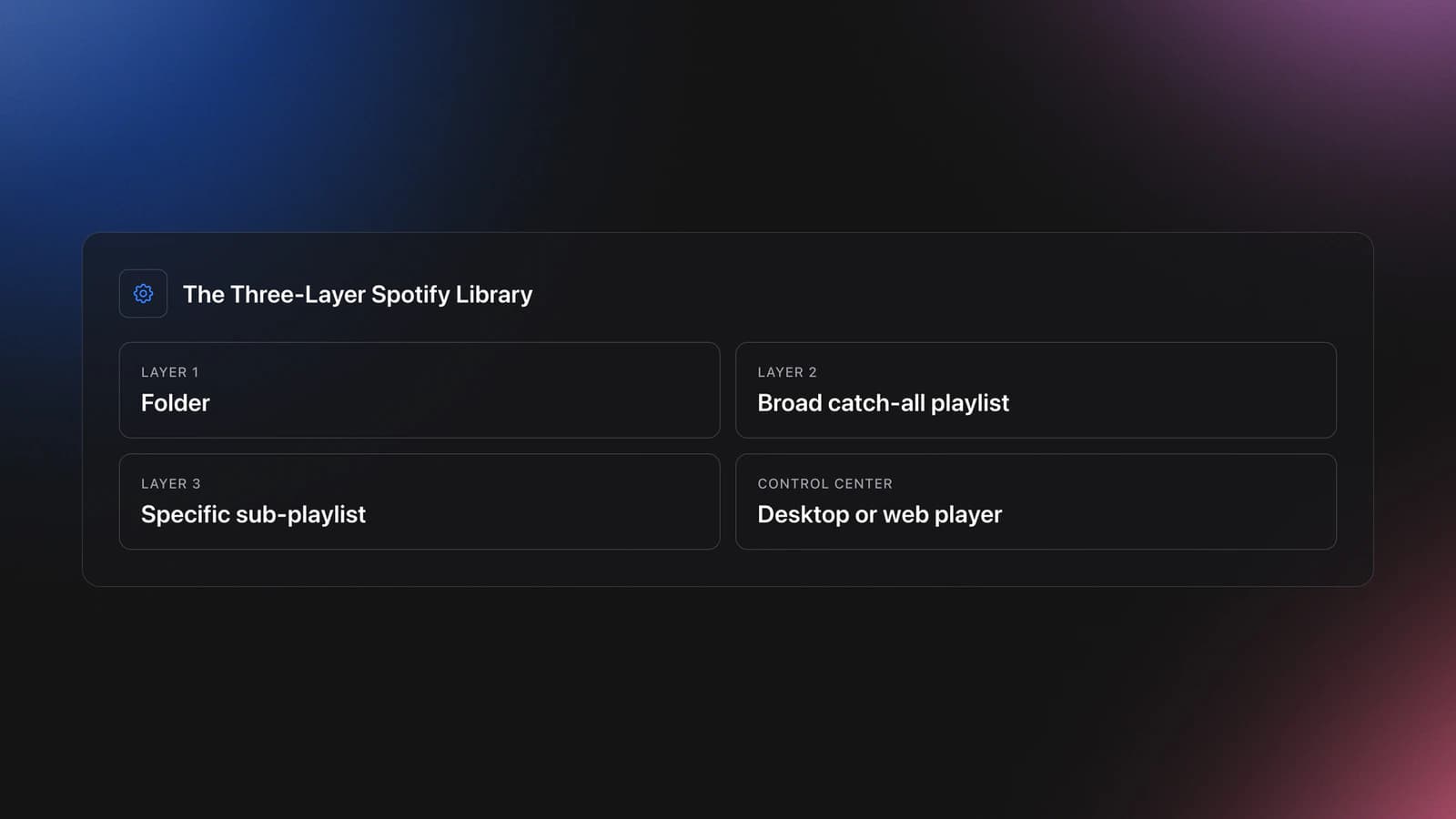
This model also fits how Spotify actually works. Spotify officially supports playlist folders, and those folders can be created in the desktop app or web player, then viewed across devices. Spotify also lets you set a custom playlist order in Your Library from desktop, with that order showing on other devices when the right view is selected. According to Spotify's playlist folder guide and Spotify's sort and filter documentation, desktop is still the control center for serious organization.
Create Spotify Folders First
Start on desktop. That is where Spotify gives you the most control over folder creation, custom ordering, and track reordering.
The transcript's system starts with two top-level folders: music and podcasts. That works because the split is functional, not decorative.
Your own top level can be different, but keep it broad. If you start with ten top folders, you are already overfitting the system.
- Open Spotify desktop.
- Go to Your Library.
- Right-click and create a playlist folder.
- Make 2 to 4 top-level folders only.
- Name them by function, not by temporary mood.
Good top-level examples include Music, Podcasts, Research, Mix Ideas, or Workout. Bad examples include random inside jokes, years, and overlapping labels that mean the same thing.
This is where many users get stuck. They try to solve future detail too early.
Do the opposite. Build the few broad buckets you know you will still understand six months from now.
If you want to go deeper, Spotify confirms that folder creation itself is limited to desktop and web player. The resulting structure still shows on other devices, which is the useful part for everyday listening. See Spotify's folder instructions for the current behavior.
Build a Genre or Mood System
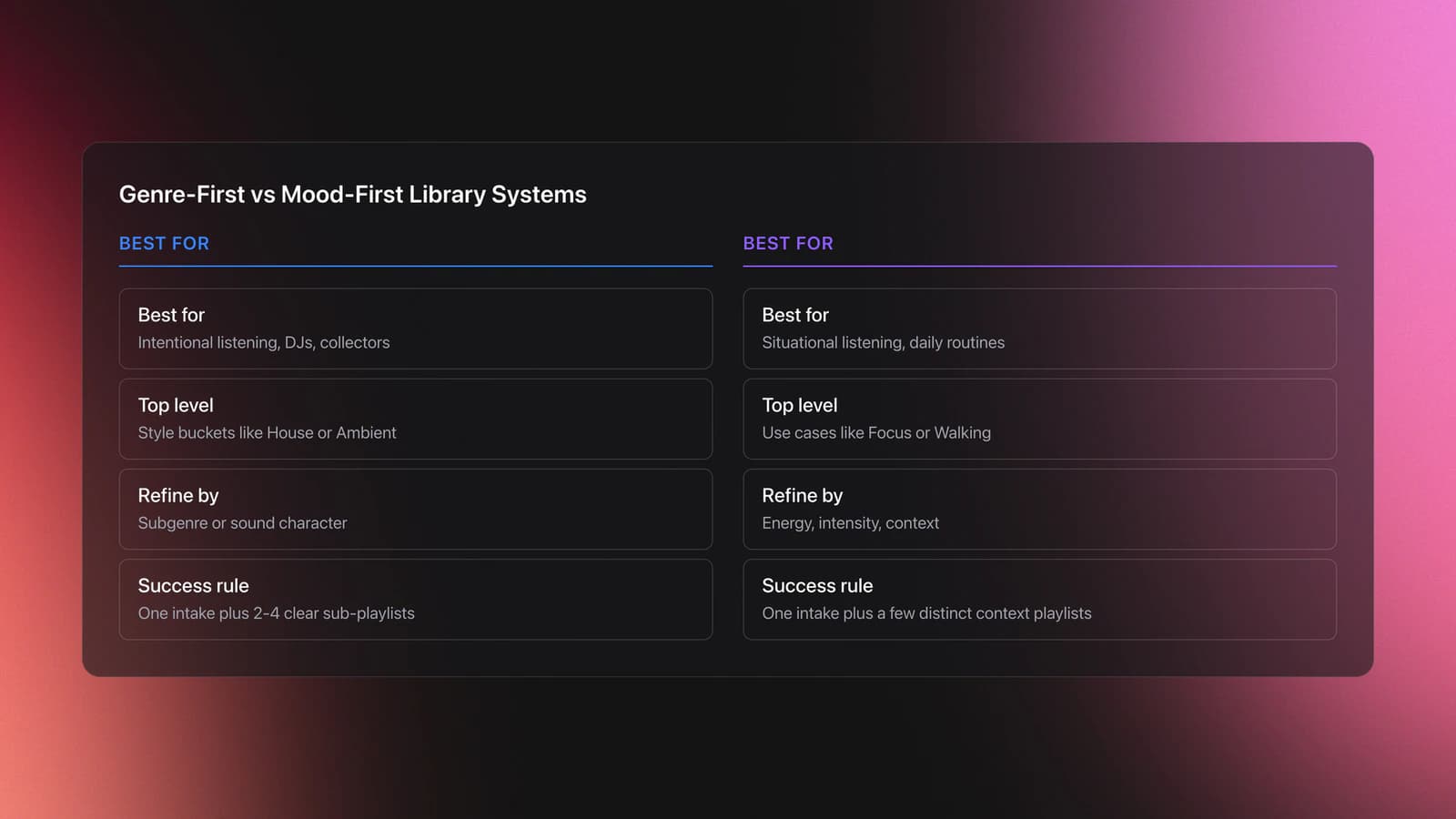
This is the first pillar section because it determines whether your library stays usable. Most people do not need more playlists. They need a consistent rule for creating playlists.
The transcript uses a genre-first model. That means one broad folder for a main genre, then narrower folders and playlists for subgenres.
That is a strong choice when you listen with intent. DJs, collectors, and people who care about style boundaries usually find genre easier to trust than vague mood labels.
A mood-first system can work too. It is better when the listening question is situational, like deep work, gym, dinner, or commuting.
The important part is not which model you choose. The important part is choosing one primary axis.
If you mix genre, mood, activity, decade, and personal memories at the same level, your structure collapses. You will not know where to save the next track.
Here is a clean genre-first example:
- Music
- Electronic
- Techno
- Deep Techno playlist
- Hypnotic Techno playlist
- Techno intake playlist
And here is a clean mood-first example:
- Music
- Focus
- Quiet Focus playlist
- Driving Focus playlist
- High Energy Focus playlist
- Focus intake playlist
Worked example one. Suppose you listen mostly to house, ambient, and broken beat. A useful genre-first setup would be three broad folders, then one intake playlist and two to four narrower playlists per folder. That gives you maybe 12 well-defined playlists instead of 60 vague ones.
Input: 300 saved tracks across three styles. Process: split by broad style first, then by actual listening use. Output: one place for discovery, one place for sorting, one place for playback.
Worked example two. Suppose you do not care about genre names but do care about context. Build folders like Focus, Walking, Social, and Heavy Rotation. Under each, keep one intake playlist and a few refined playlists. That works well when your listening is utility-driven.
Input: playlists built around your day, not scenes. Process: separate by use case, then refine by energy or intensity. Output: faster retrieval when you know the situation but not the artist.
The failure mode is easy to spot. You keep asking, 'Should this go under Chill, Late Night, Soft House, or Deep Mood?' That symptom means your categories overlap.
Fix it by rewriting the category names until each playlist has a distinct job. If two playlists can accept the same track for the same reason, merge them.
You will know your system works when you can place a new track in under ten seconds. You should also be able to explain your full structure out loud without opening Spotify.
If your end goal is performance, this is also the point where Spotify and DJ prep should separate. Discovery often starts in streaming. Performance-ready curation needs stricter structure, local files, and export-friendly categories. Some DJs handle that second stage with spreadsheets. Others use tools like Vibes to build custom category systems, sort tracks into hierarchical structures, and prepare sets before exporting to DJ software. The method matters more than the tool. The key is not leaving gig-critical organization inside a discovery app.
Use Intake Playlists to Gather New Music
This is the second pillar section because collection is where most systems fail. If every new track goes straight into its final home, you create friction and stop curating.
The transcript solves this with an intake playlist. Each broad genre gets one main gather playlist where all related finds go first.
That is smart because discovery is messy. Classification should happen after exposure, not during it.
Think of the intake playlist as your inbox. It is temporary, broad, and allowed to be imperfect.
Then think of the specific playlists as your archive. They should be tighter, smaller, and more dependable.
This gives you a repeatable flow:
- Find a track in another playlist, album, radio feed, or recommendation.
- Save it to the broad intake playlist first.
- Review it later in batches.
- Move or copy strong fits into narrower playlists.
- Remove weak fits from intake if needed.
Worked example one. You are exploring house music and find 25 new tracks in a week. Save all 25 into House Intake. On Sunday, review them and move 8 into Deep House, 6 into Vocal House, 4 into Warm-Up House, and leave 7 in intake until you hear them again.
Input: 25 unsorted finds. Process: batch review after the fact. Output: curated sub-playlists without slowing discovery.
Worked example two. You are listening to someone else's playlist while working. Every time a track stands out, add it to both the parent intake playlist and one narrower playlist if the fit is obvious. That preserves broad access while still building the refined list.
Input: passive listening from an external source. Process: duplicate into broad and specific homes. Output: faster later retrieval, with less second-guessing.
The common failure mode is intake bloat. Your intake playlist grows to 500 tracks and becomes another landfill.
The symptom is simple. You stop trusting the playlist because you know too much random material is sitting there.
Fix it with a review cadence. Weekly is enough for most people. Heavy collectors may need twice a week.
You will know this part works when your intake playlist still feels browsable. If you can scan the last 30 to 50 tracks and remember why most were added, the inbox is healthy.
Spotify also supports sorting and filtering in library and playlist views, which makes review sessions easier. On supported views, you can sort by recents, recently added, alphabetically, and creator, depending on the context. See Spotify's sort and filter reference for the current options.
Can You Create Folders in a Spotify Library?
Yes. You can create playlist folders in Spotify, but you need the desktop app or web player to make them.
Once created, those folders show on other devices. That makes desktop the setup environment and mobile the access environment.
This matters because many users try to fix library chaos from their phone alone. That is usually the wrong place to build the system.
Use your phone for playback and quick saves. Use desktop for structural work like folder creation, naming, reordering, and larger cleanup sessions.
Spotify's own help pages and community guidance both point in the same direction. Folder creation happens on desktop or web player, while custom playlist order is also easiest to manage from desktop. See Spotify's official folder article and Spotify's library sorting article.
Track What You Already Reviewed
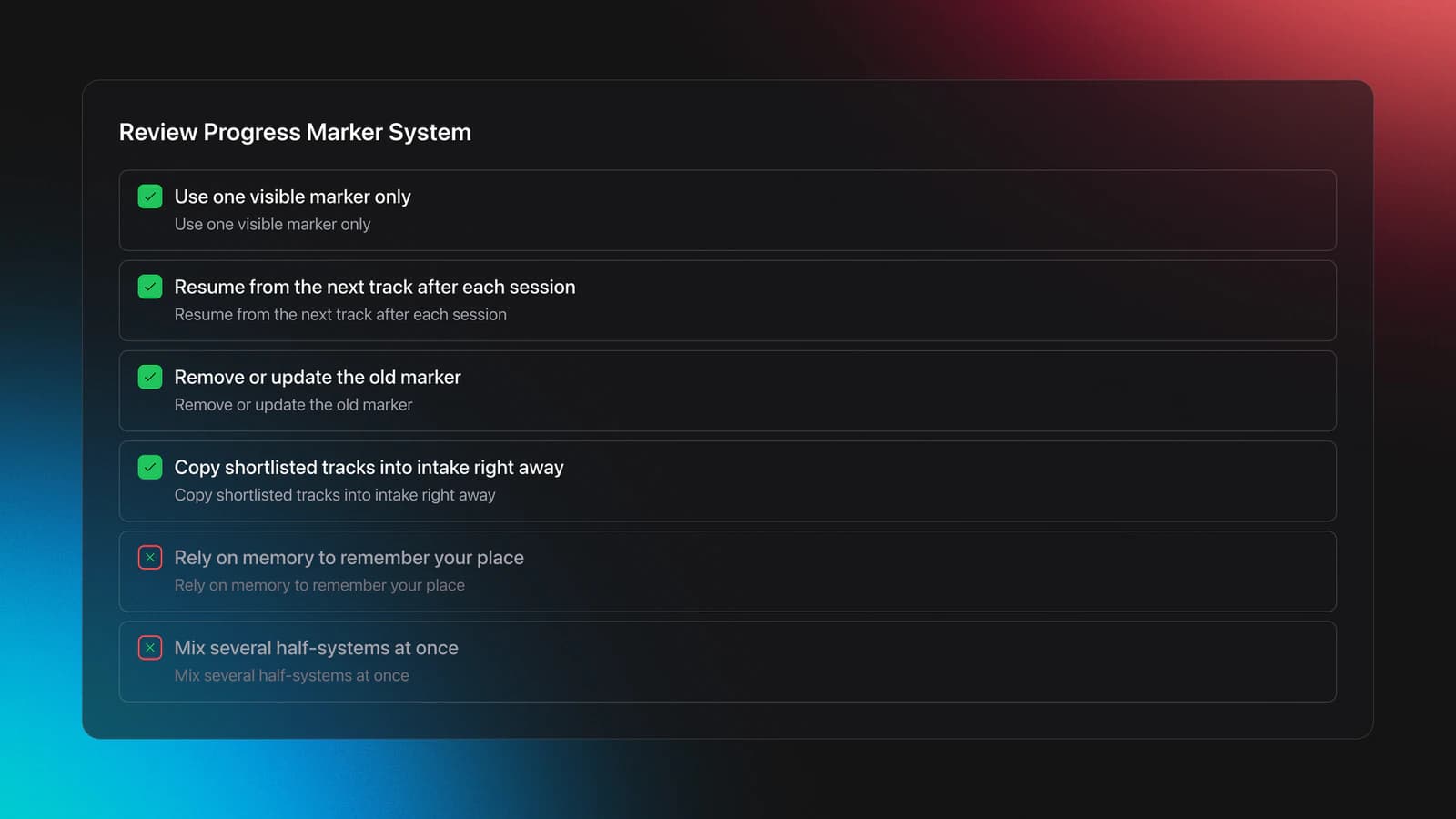
The transcript uses a simple but effective trick. Like one track to mark your current stopping point, then unlike the previous marker.
That is not elegant, but it solves a real workflow problem. When you revisit a long source playlist, you need a clear re-entry point.
This is the third pillar section because it turns casual collecting into a repeatable process. Without a progress marker, every discovery session starts from confusion.
You have several options here:
- Like one track as a visual bookmark.
- Keep a temporary 'reviewed through here' note in the playlist title.
- Review source playlists from top to bottom on a fixed schedule.
- Copy shortlisted tracks immediately so the source list matters less.
Worked example one. You follow a 200-track playlist from another curator. On Monday, you review tracks 1 through 35 and like track 35 as your marker. On Wednesday, you start at 36, remove the old marker, and set a new one at 62.
Input: long source playlist. Process: one visible progress marker per session. Output: no wasted rehearing and no uncertainty about your last checkpoint.
Worked example two. You review by batches of 20. After each batch, copy strong tracks into your intake playlist and write the last reviewed track name in a quick note outside Spotify. This is better if you do not want likes to double as bookmarks.
Input: larger weekly review sessions. Process: external progress tracking plus direct copying. Output: cleaner Spotify likes, more explicit review records.
The failure mode is false confidence. You think you remember your place, then replay 40 tracks and save duplicates.
The symptom is repeated uncertainty at the start of every session. If opening a source playlist makes you guess where you left off, your marker method is too weak.
Fix it by making the marker visible and singular. Do not use several half-systems at once.
You will know this works when you can stop mid-session and resume later in under five seconds. That is the standard.
If your music discovery eventually feeds live sets, this same principle applies after Spotify too. A good preparation workflow needs both category structure and visible progress. That is one reason some DJs move shortlisted local tracks into tools built for manual curation and set prep. Vibes, for example, was built from years of scattered-library frustration and shaped with feedback from working DJs testing faster import and sorting workflows. Whether you use a spreadsheet or a dedicated app, the principle is the same: separate discovery progress from performance decisions.
Organize Spotify Playlists for Podcasts Too
The same system works for podcasts. You do not need a new philosophy just because the content type changed.
In the transcript, podcast playlists are grouped by topic. That is a strong choice because the retrieval question for podcasts is usually subject-based, not artist-based.
For example, a Bitcoin podcast playlist groups relevant episodes from different shows in one place. You are organizing around the listening goal.
A good podcast structure often looks like this:
- Podcasts
- Business
- Economics
- Tech
- Long-form interviews
You can also keep a short list of all-time references at the top of a playlist by manual ordering. That works well for episodes you revisit every year or two.
What Spotify still does not handle especially well is explicit rating. If you want ranked curation, manual ordering is the practical workaround.
That makes the rule simple. Use folders for topic, playlists for collections, and manual position for priority.
Custom Order and Manual Sorting Limits
Spotify gives you some manual control, but not complete control everywhere. You need to understand those limits so you do not build a system around features that are inconsistent.
Spotify's official documentation says custom playlist order in Your Library must be set from the desktop app. That custom order can then show on other devices. Spotify's support and community materials also indicate that song reordering inside playlists is primarily a desktop workflow, with mobile viewing depending on sort state. See Spotify's sort and filter article and Spotify Community guidance on playlist sorting.
This means you should keep your system robust even when mobile views change. Do not depend on perfect drag-and-drop maintenance from your phone.
Use manual order for high-value lists only. Good examples are top reference podcasts, current rotation lists, and short priority crates.
Use folder structure and naming rules for everything else. Those hold up better.
Settings That Help Daily Listening
The transcript recommends changing audio quality and volume behavior before doing anything else. That makes sense if Spotify is one of your main listening tools.
As of April 2026, Spotify says Very High quality on desktop, mobile, and tablet is available for Premium and is approximately 320 kbit/s. Spotify Free on those devices tops out at High, approximately 160 kbit/s. According to Spotify's audio quality documentation, podcast quality behaves differently and some settings cannot be changed when using Spotify Connect.
- Set music quality as high as your plan and connection allow.
- Check download quality if you listen offline often.
- Adjust volume normalization only after listening tests.
- Turn off social clutter if you never use it.
These are not organization features in the strict sense. They matter because a tool you use for five or six hours a day should be optimized for your real workflow, not the default setup.
Common Mistakes When You Organize Spotify Library
| Mistake | Why It Happens | How to Avoid |
|---|---|---|
| Making too many folders too early | You try to predict every future category | Start with 2 to 4 top-level folders and expand only after repetition appears |
| Using overlapping playlist names | Genre, mood, and activity labels mix together | Choose one primary organizing axis first |
| Skipping an intake playlist | You want every track perfectly sorted immediately | Use one broad gather playlist before final classification |
| No progress marker for source playlists | Spotify has limited built-in review tracking | Use one visible checkpoint method and keep it consistent |
| Doing all structural work on mobile | Mobile is convenient but limited for setup | Build folders and custom order from desktop first |
Specific failure points that make Spotify organization feel harder than it needs to be
Practice Routine for Weekly Spotify Cleanup
A good system needs maintenance. The right routine is short, boring, and repeatable.
- Twice a week, spend 10 minutes adding new finds to intake playlists.
- Once a week, spend 20 minutes moving the best tracks into specific playlists.
- Once a month, spend 15 minutes merging redundant playlists and renaming unclear ones.
If you miss a week, do not rebuild from scratch. Just restart the cadence from the intake layer.
Measure Progress in Your Spotify Library
A library feels organized when retrieval is fast and decisions are easy. That is better than counting how many playlists you made.
Use these signals instead:
- You can place a new track in under ten seconds.
- Your intake playlists stay under a manageable size.
- You can explain your folder system without opening the app.
- You stop creating duplicate playlists with nearly identical purposes.
- You can resume a review session without guessing where you left off.
Those are real signals. Playlist count alone is not.
What Is the 30 Second Rule on Spotify?
The 30 second rule refers to how Spotify counts a stream for music and some video-related stats. Spotify says a stream is counted when a listener plays a song or video for at least 30 seconds.
For library organization, this rule usually does not matter. It matters for artists tracking stream counts, not for how you structure folders and playlists.
That said, it causes confusion because people sometimes assume it affects playlist sorting, recommendations, or whether a song is worth saving. It does not give you an organization shortcut.
Spotify explains this in Spotify for Artists stream counting documentation. Treat it as an analytics rule, not a library rule.
Conclusion: Keep the System Small and Repeatable
To organize Spotify library structure well, you do not need a complex taxonomy. You need a simple system you can trust every time you save, review, and revisit music.
The practical model is straightforward. Build broad folders. Use intake playlists. Split strong tracks into narrower playlists. Keep one visible progress marker when reviewing outside sources.
- Use one primary organizing axis, usually genre or mood.
- Treat intake playlists as temporary inboxes, not permanent archives.
- Do structural work on desktop and playback work on mobile.
Once that system holds for a month, improve it slowly. Do not redesign it every weekend.
The visual way to organize your DJ library
Tag tracks by vibe. See everything at once. Export to rekordbox, Serato, Traktor or Engine DJ.
14-day free trial. Full access, no strings attached.
or see how it works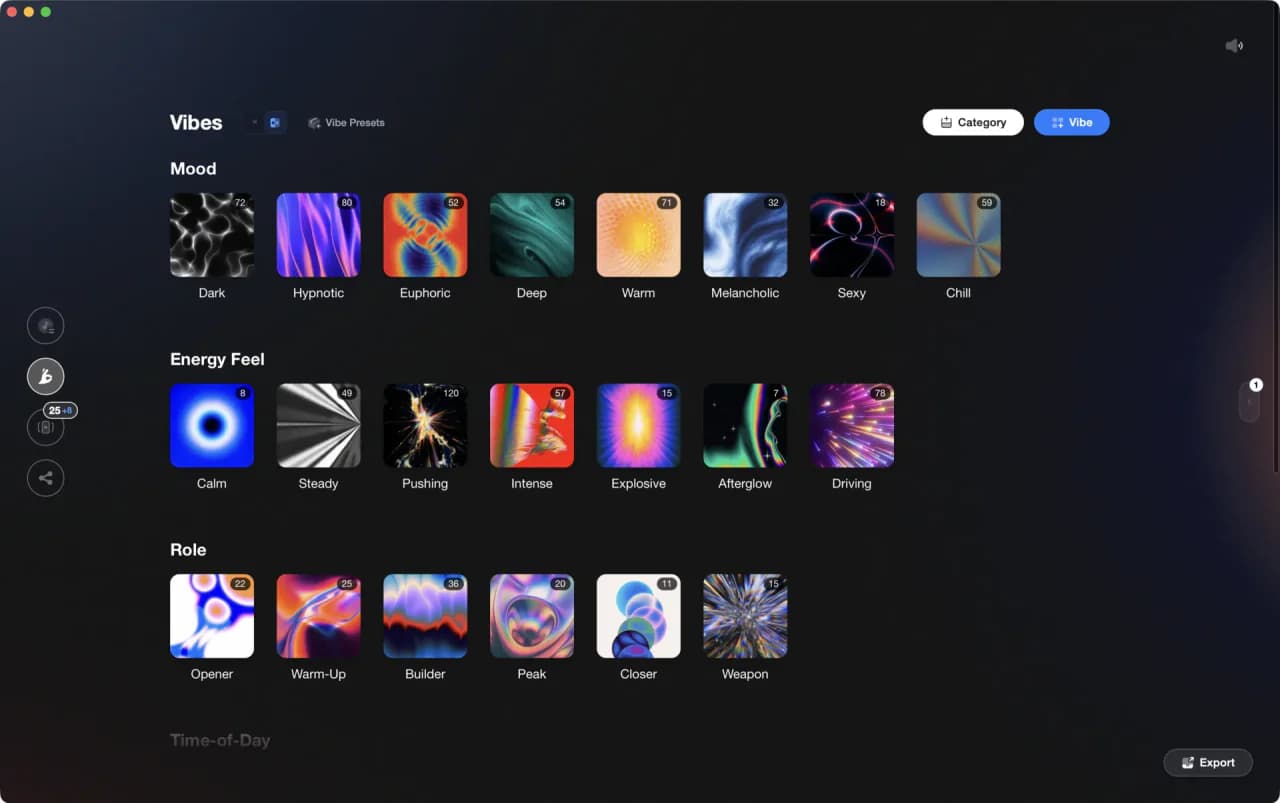
Techniques Covered

Equipment & Software
Continue Your Learning Journey
Frequently Asked Questions

Hey, it's Ben Modigell 👋
I DJ and produce as so I so: downtempo, minimal, dub house, tech house, and techno (releases on Spotify and SoundCloud, links above). Everything I write here comes from my own gigs, studio sessions, and library cleanups: the rules I follow, the failure modes I have actually hit, and the workflow I use when nobody is watching. If a technique did not earn its place in my own sets, it does not make it into a tutorial.