

Show Camelot-style keys in djay Pro.
Camelot notation turns harmonic mixing into simple number matching. Here is how key display works in djay Pro and how to switch the key format to Camelot-style numbers in the library settings.
$49$79USD one-time purchase. First 250 licenses at this price. 14-day free trial.
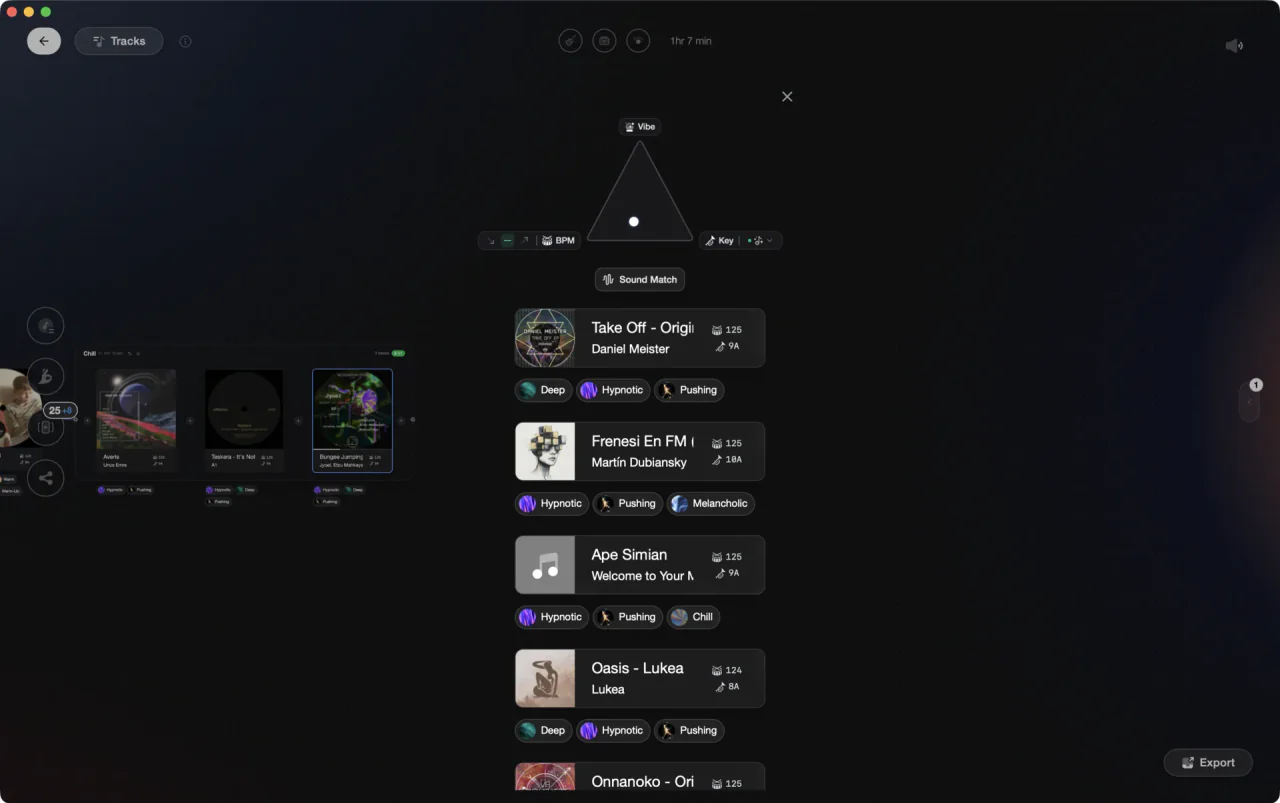
Adjacent Camelot numbers mix cleanly; the notation exists to make that visible at a glance.
Show Camelot-style keys in djay Pro, step by step.
djay Pro detects and displays musical key for every analyzed track, shown by default in standard notation like Am or F#m. Current versions let you switch that to Camelot-style numbers with the Numerical Key format in the library settings, and the conversion logic is worth knowing either way.
Make the key column visible
In the library browser, ensure the key column is shown in your track list; if it is not, add it through the column options. On the decks, the detected key of a loaded track appears alongside BPM. If keys are blank, the tracks have not been analyzed yet, so run analysis on your playlists first.
Check settings for a key notation option
Open djay Pro's settings and go to the Library section. Under Key, the Format option offers Musical Key, Musical Key with Major/Minor, Numerical Key, and OpenKey. Choose Numerical Key for Camelot-style numbers like 8A, and the library and decks update accordingly. The same setting exists on Mac, iPhone, iPad, and Windows.
Learn the conversion for cross-checking
If you keep standard notation, the Camelot system maps directly onto it: Am is 8A, C is 8B, and each move of a fifth shifts the number by one, so Em is 9A, G is 9B, Dm is 7A, and F is 7B. Minor keys are the A ring, their relative majors the B ring with the same number. Keep a conversion chart nearby until the common keys stick.
Mix by the Camelot rules regardless of display
Whatever the display shows, the harmonic rules are the same: matching numbers blend perfectly, adjacent numbers on the same ring blend smoothly, and swapping ring letter at the same number moves between relative major and minor. With the mapping internalized, djay Pro's standard notation reads just as fast as Camelot numbers.
The catch
Key format in djay Pro is a display setting only, so a wrongly detected key stays wrong in whichever notation you show it, though you can edit a track's key manually from the library. Verify keys on your most-played tracks by ear or with a second analyzer.
Where Vibes fits
Camelot-native analysis for your local files
Vibes does not integrate with djay Pro and cannot change how djay Pro displays keys; its exports go to Rekordbox, Serato, Traktor, and Engine DJ only. What it does is show every analyzed local file in Camelot notation natively, detected by the Skey neural network, so you can prep harmonically in Camelot terms and carry that plan into djay Pro even if djay Pro itself shows standard notation.
See how it worksOrganize in Vibes, export to djay Pro.
Your playlists, tags, ratings, and cue points travel back to the gear you play on, so nothing you do in Vibes is locked away.

Track 001
Artist A
Afterhours Mysterious
 Introspective
Track 002
Artist B
 Cozy FloorPeaceful
 Home
Home
Track 003
Artist C
Rave Aggressive
 Festival
 Build & Release
Frequently asked questions
The honest answers, including the trade-offs.
From a Vibes customer
The import worked perfectly. Have created several sets now and my life is so much easier
One-time purchase
Get Vibes with a single payment. No subscription.
Vibes is the step before you open your DJ software, not a replacement for it.
First 250 licenses at this price, then $79.
14 days • Full access
No strings attached
Secure checkout with Stripe
Already have Companion Pro? Upgrade instead

Methodology
How we keep this honest.

Verified against the app
Every step is checked against the current version of djay Pro.
We own our bias
We make Vibes. We show the native way first and honestly, then where Vibes genuinely helps, and we say when it does not.
Live pricing
The Vibes price shown comes straight from our checkout, never a hardcoded marketing number.
Kept current
Last reviewed September 2026.
Keep exploring
Compare Vibes
DJ apps head to head
Works with your software
Vibes for DJs
Vibes features
How-to guides
Best DJ software
Move between apps
Learn to DJ