
Set up Engine Cloud sync in Engine DJ.
Engine Cloud keeps your playlists, crates, cue points, and track data in sync across every device running Engine DJ. Get it configured once and your library travels with you.
$49$79USD one-time purchase. First 250 licenses at this price. 14-day free trial.
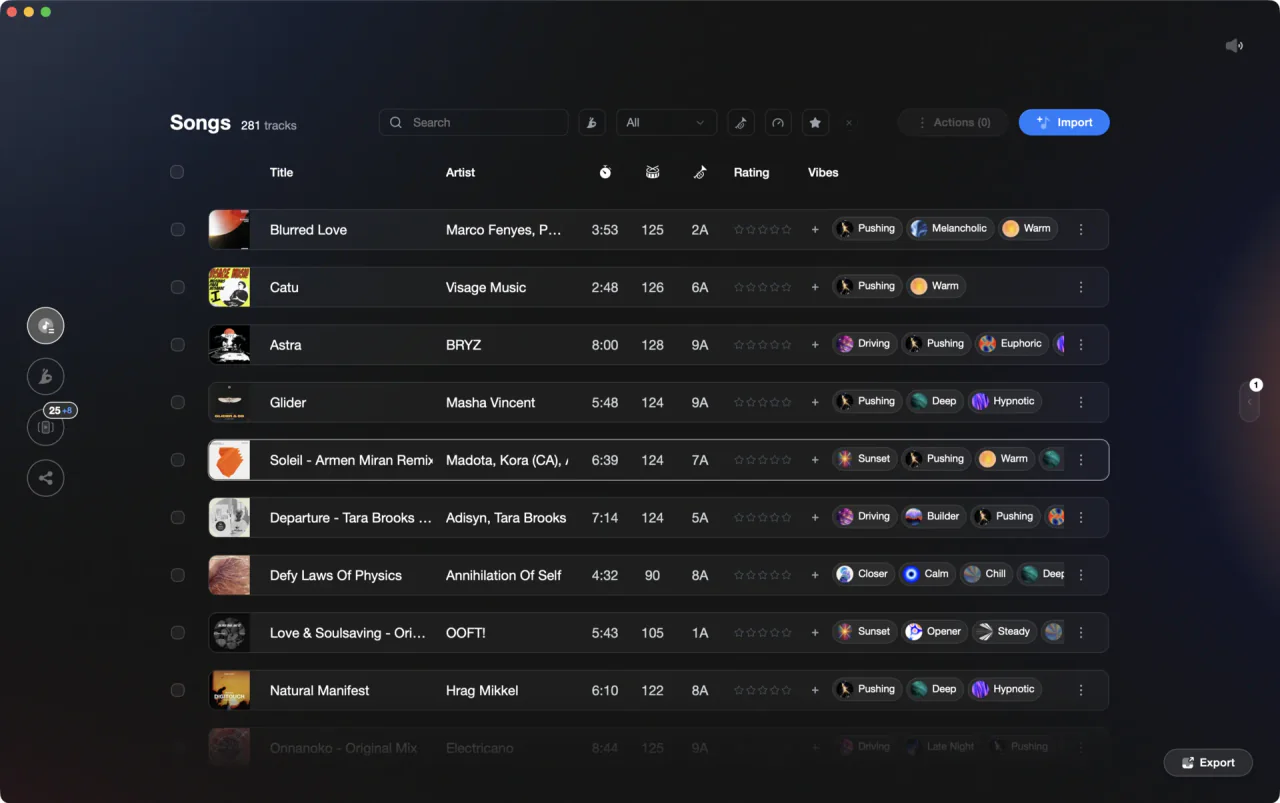
A well-structured Engine DJ library makes Cloud sync far more useful.
Set up Engine Cloud sync in Engine DJ, step by step.
Engine DJ 4.x supports cloud-based library access via Dropbox integration, not a proprietary feature called \"Engine Cloud.\" You export playlists and their metadata (cue points, waveforms, playlist structure) to a Dropbox folder via Sync Manager, then access that library from any Engine OS device logged into the same Dropbox account. Note that sync is one-way only: edits made on hardware do not sync back to your desktop library, and stems do not work via Dropbox at all.
Sign in to Dropbox and connect it in Engine DJ
Install the Dropbox desktop app and ensure you are signed in to your Dropbox account on your computer. In Engine DJ Desktop, go to Settings, select the Library tab, and under the Cloud Storage section toggle Dropbox on. Engine DJ will link to your local Dropbox folder.
Export your playlists to Dropbox via Sync Manager
Open Sync Manager. Dropbox will appear as a destination alongside your USB drives. Select the playlists or crates you want to make available in the cloud and export them to Dropbox. Dropbox then uploads those files to the cloud. This is a manual step, not an automatic background sync.
Access your library on an Engine OS hardware device
On a Denon DJ or other Engine OS device, log in to your Dropbox account. Navigate to the Dropbox source in the device's source menu. The exported playlists, tracks, cue points, and waveform data will be available for playback. You will need an SD card or USB drive in the hardware to store the local database.
Keep your library updated manually
Any time you add or change tracks in your desktop library, re-export the updated playlists to Dropbox via Sync Manager. Changes made to cue points or other metadata on the hardware will NOT sync back to your desktop library. This is a one-way workflow from desktop to hardware only.
The catch
Dropbox-based cloud sync in Engine DJ requires a paid Dropbox account and the Dropbox desktop app installed on your computer. Sync is one-way only: hardware edits do not propagate back to the desktop library. Stems are not compatible with Dropbox sync. Updates to your library require a manual re-export via Sync Manager each time.
 Euphoric
 Melancholic
 Mysterious
 Aggressive
 Peaceful
 Rave
Rave Afterhours
 Club
Club Home
HomeWhere Vibes fits
Send a polished library into Engine Cloud, not a messy one.
Vibes does not control Engine Cloud sync itself, but it shapes what gets synced. Prep and organize your library in Vibes, then export directly into your Engine DJ database. Everything Cloud then carries across devices is already structured, tagged, and analysis-ready.
See how it worksOrganize in Vibes, export to Engine DJ.
Your playlists, tags, ratings, and cue points travel back to the gear you play on, so nothing you do in Vibes is locked away.
Track 001
Artist A
AfterhoursMysterious Introspective
Track 002
Artist B
 Cozy FloorPeacefulHome
Track 003
Artist C
RaveAggressive Festival
 Build & Release
Frequently asked questions
The honest answers, including the trade-offs.
From a Vibes customer
The import worked perfectly. Have created several sets now and my life is so much easier
One-time purchase
Get Vibes with a single payment. No subscription.
Vibes is the step before you open your DJ software, not a replacement for it.
First 250 licenses at this price, then $79.
14 days • Full access
No strings attached
Secure checkout with Stripe
Already have Companion Pro? Upgrade instead

Methodology
How we keep this honest.

Verified against the app
Every step is checked against the current version of Engine DJ.
We own our bias
We make Vibes. We show the native way first and honestly, then where Vibes genuinely helps, and we say when it does not.
Live pricing
The Vibes price shown comes straight from our checkout, never a hardcoded marketing number.
Kept current
Last reviewed September 2026.
Keep exploring
DJ apps head to head
Works with your software
Vibes for DJs
Vibes features
How-to guides
Best DJ software
Move between apps
Learn to DJ