

Analyze tracks in Engine DJ.
Engine DJ can analyze tracks one by one or in batches, but it ties up your hardware and takes time. Vibes runs its own analysis on your laptop, then writes playlists, cue points and ratings into Engine DJ's database. The beatgrid stays Engine DJ's own.
$49$79USD one-time purchase. First 250 licenses at this price. 14-day free trial.
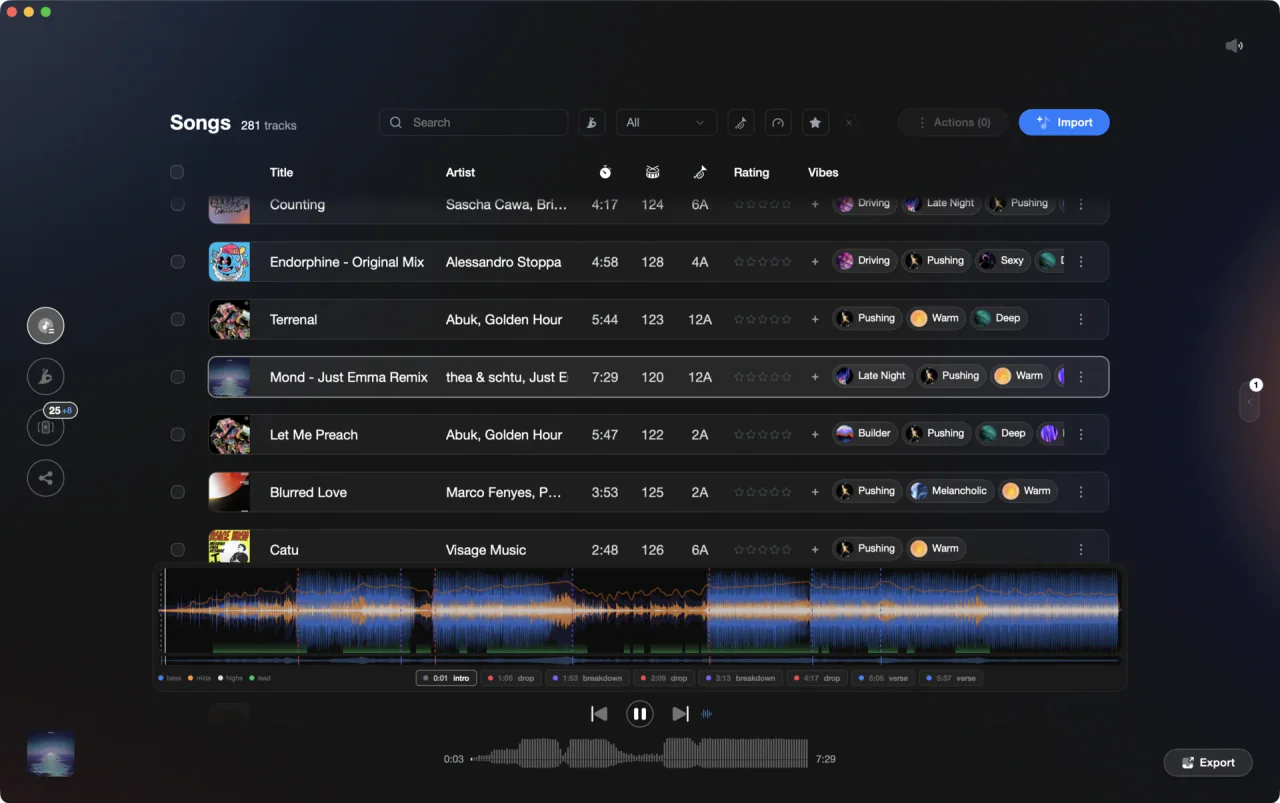
BPM, key, and sections analyzed in Vibes, with the cue points ready to land in Engine DJ.
Analyze tracks in Engine DJ, step by step.
Engine DJ software (the desktop companion to Denon and Rane hardware) can analyze your tracks and write BPM, key, and waveform data to its library database. Here is how to do it natively.
Import your tracks
Open Engine DJ on your computer. Using Finder on Mac or File Explorer on Windows, drag folders or individual files directly into the Collection panel. If Auto Analysis is enabled in Library settings (the default), Engine DJ will begin analyzing BPM, key, and waveform data immediately. A progress bar in the bottom-right corner shows analysis status; 'No Jobs Running' confirms completion.
Select tracks to analyze manually (if needed)
If Auto Analysis was off during import, or you want to force a fresh analysis, go to the Collection view and select the tracks you want to analyze. Use Cmd+A (Mac) or Ctrl+A (Windows) to select all, or hold Shift or Cmd/Ctrl to select a range or individual tracks.
Run analysis
Right-click the selection and choose 'Re-analyze tracks' to process all selected tracks, overwriting any existing analysis data. In Engine DJ 4.x, the context menu exposes 'Re-analyze tracks' as the primary manual analysis trigger. Engine DJ calculates BPM, key, and waveform data for each track in the background while the application stays usable. Note: auto-analysis on import handles unanalyzed tracks automatically, so manual re-analysis is typically used to apply updated algorithms or fix incorrect data.
Review and correct beatgrids
Load a track and open the Grid Edit mode to inspect the beatgrid. If the BPM or downbeat position looks off, use the grid edit controls to nudge or re-anchor the grid before syncing it to a device.
The catch
Native Engine DJ analysis runs in the background with a progress indicator, so the app stays usable during the process. For large libraries the job queue can take a significant amount of time, but you are not locked out of the application while it runs.

Track 001
Artist A
Afterhours Mysterious
 Introspective
Track 001
Artist A
AfterhoursMysteriousIntrospective
Track 002
Artist B
 Cozy FloorPeaceful
 Home
HomeTrack 002
Artist B
Cozy FloorPeacefulHome
Track 003
Artist C
Rave Aggressive
 Festival
 Build & Release
Track 003
Artist C
RaveAggressiveFestivalBuild & ReleaseThe faster way
Analyze your whole library in Vibes, then push it to Engine DJ.
Vibes runs BPM detection, neural-net key analysis (Camelot-aware), 3-band RGB waveform rendering, downbeat-locked beat detection, and auto section detection across your full library in one pass. That analysis is Vibes' own. The export writes playlists, cue points and ratings into Engine DJ's m.db and leaves the beatgrid to Engine DJ.
See how it worksOrganize in Vibes, export to Engine DJ.
Your playlists, tags, ratings, and cue points travel back to the gear you play on, so nothing you do in Vibes is locked away.
Track 001
Artist A
AfterhoursMysteriousIntrospectiveTrack 002
Artist B
Cozy FloorPeacefulHomeTrack 003
Artist C
RaveAggressiveFestivalBuild & Release
Frequently asked questions
The honest answers, including the trade-offs.
From a Vibes customer
The import worked perfectly. Have created several sets now and my life is so much easier
One-time purchase
Get Vibes with a single payment. No subscription.
Vibes is the step before you open your DJ software, not a replacement for it.
First 250 licenses at this price, then $79.
14 days • Full access
No strings attached
Secure checkout with Stripe
Already have Companion Pro? Upgrade instead

Methodology
How we keep this honest.

Verified against the app
Every step is checked against the current version of Engine DJ.
We own our bias
We make Vibes. We show the native way first and honestly, then where Vibes genuinely helps, and we say when it does not.
Live pricing
The Vibes price shown comes straight from our checkout, never a hardcoded marketing number.
Kept current
Last reviewed September 2026.
Keep exploring
DJ apps head to head
Works with your software
Vibes for DJs
How-to guides
Best DJ software
Move between apps
Learn to DJ