

Edit beatgrids in Engine DJ.
Beatgrid errors throw off sync and loop points. Here is how to correct them natively in Engine DJ, and how Vibes can tell you which ones need fixing before you start.
$49$79USD one-time purchase. First 250 licenses at this price. 14-day free trial.
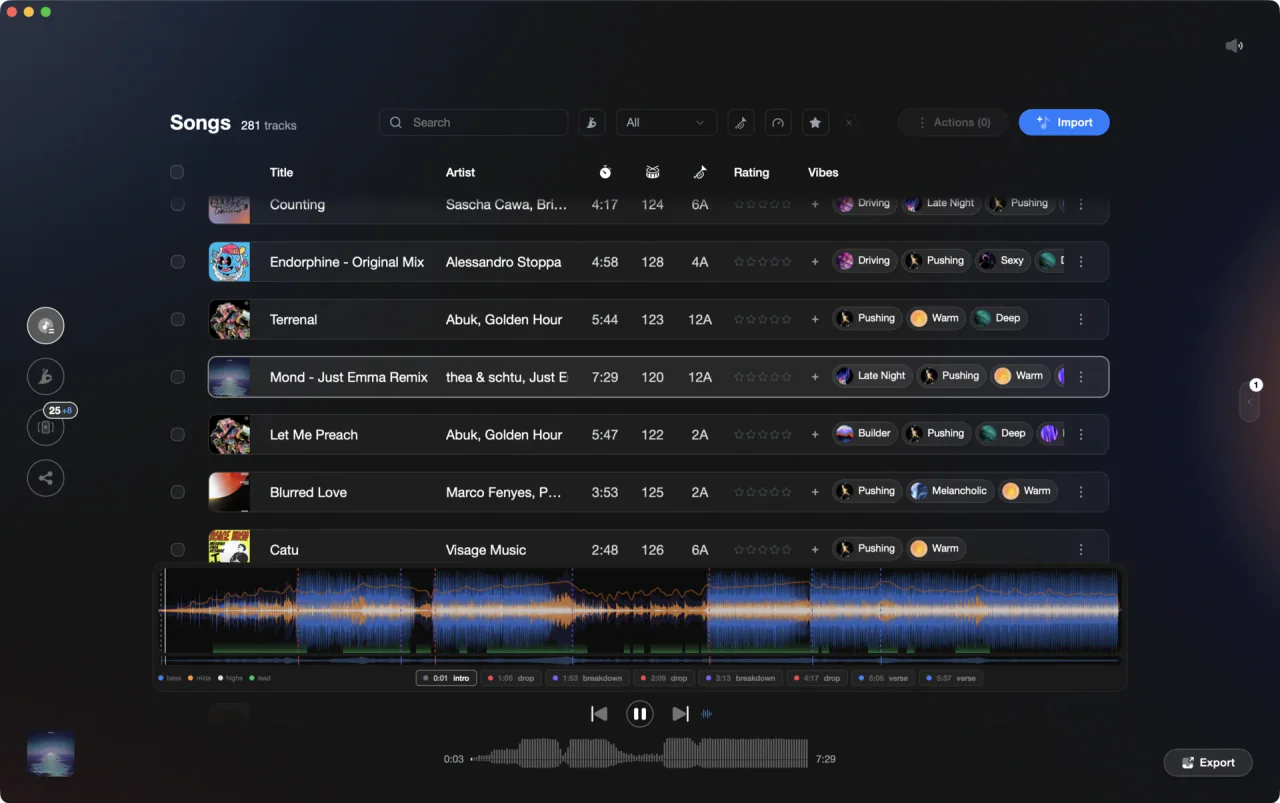
Vibes analyzes BPM and beat positions before the track ever reaches Engine DJ.
Edit beatgrids in Engine DJ, step by step.
Engine DJ lets you correct beatgrids in the desktop app before syncing to hardware. The process is manual but precise once you know where the controls are.
Open the track in Engine DJ desktop
Launch Engine DJ on your computer and locate the track in your collection. Double-click the track, or click and drag it onto the deck waveform area, to load it. The Audio Waveform and Track Overview will appear in the deck, with the beat grid shown as lines overlaid on the waveform.
Switch the deck to Grid Edit Controls mode
At the top of the deck panel there are three deck mode icons: Track Info, Grid Edit Controls, and Loop and Beat Jump Controls. Click the Grid Edit Controls icon to reveal the full set of beatgrid editing controls. Play the track and use the Metronome button to enable an audible tick on each beat marker so you can hear where the grid drifts against the audio.
Adjust the BPM and anchor the downbeat
Use the +/- BPM buttons to raise or lower the tempo in small increments until the beat markers align with audible beats. You can also type a BPM value directly into the BPM field. To shift the phase of the entire grid, use the Grid Left/Right buttons. To move the downbeat position, use the Downbeat Left/Right buttons. For tracks with fluctuating tempo, position the playhead on a beat and click Insert Anchor to lock that point; repeat at each tempo change. Use Delete Anchor to remove an incorrectly placed anchor.
Save and sync to your device
Beat grid changes are saved automatically to your Engine DJ library as you make them - there is no separate save or confirm step. To transfer the updated library to standalone hardware or a USB drive, open the Sync Manager and use the Export to Drive option, which packages the Engine database including the corrected beat grid data. The updated grid will be available on the device at your next gig. Note: the Sync Manager also has a 'Sync to Engine' option, but that moves data in the opposite direction - from a connected device back to your desktop library.
The catch
Engine DJ's beatgrid editor works well for simple corrections, but fixing many tracks one by one is time-consuming, and analysis quality can vary on tracks with complex tempo or noisy intros.
The faster way
Let Vibes tell you which grids to fix before you open Engine DJ.
Vibes runs its own BPM detection and downbeat-locking analysis on every track in your library, so a tempo that reads half, double or drifting is visible during prep. Vibes does not write grids into m.db. Engine DJ keeps its own, and you work through the short list instead of the library.
See how it worksOrganize in Vibes, export to Engine DJ.
Your playlists, tags, ratings, and cue points travel back to the gear you play on, so nothing you do in Vibes is locked away.

Track 001
Artist A
Afterhours Mysterious
 Introspective
Track 002
Artist B
 Cozy FloorPeaceful
 Home
Home
Track 003
Artist C
Rave Aggressive
 Festival
 Build & Release
Frequently asked questions
The honest answers, including the trade-offs.
From a Vibes customer
The import worked perfectly. Have created several sets now and my life is so much easier
One-time purchase
Get Vibes with a single payment. No subscription.
Vibes is the step before you open your DJ software, not a replacement for it.
First 250 licenses at this price, then $79.
14 days • Full access
No strings attached
Secure checkout with Stripe
Already have Companion Pro? Upgrade instead

Methodology
How we keep this honest.

Verified against the app
Every step is checked against the current version of Engine DJ.
We own our bias
We make Vibes. We show the native way first and honestly, then where Vibes genuinely helps, and we say when it does not.
Live pricing
The Vibes price shown comes straight from our checkout, never a hardcoded marketing number.
Kept current
Last reviewed September 2026.
Keep exploring
Compare Vibes
DJ apps head to head
Works with your software
Vibes for DJs
Vibes features
How-to guides
Best DJ software
Move between apps
Learn to DJ