
Crossfader Use
Crossfader settings cover curves, cut lag, reverse/hamster mode, and deck assignment, the hardware configuration that shapes fader response.
Crossfader Use Tutorials
Crossfader Use is the core skill behind smooth blends and precise cuts. Learn it and you unlock fluid transitions, controlled energy shifts, and expressive performance moments. Beginners use the crossfader to fade cleanly between tracks. Scratch and open‑format DJs push it for fast rhythmic patterns and stabs.
Why study Crossfader Use now? Because it directly affects how your mixes feel. Curve shape, cut‑in distance, and assignment decide whether a blend dips, stays constant, or snaps tight. With a clear method you can move from tentative fades to confident, musical control.
This guide covers crossfader curves and modes, step‑by‑step operation, practice drills, and troubleshooting. It references documented behavior in major software and mixers so you can apply settings that match your style.
What Is Crossfader Use?
A crossfader is a horizontal fader that blends between two sources. Move it left to hear the left‑assigned deck. Move it right for the right‑assigned deck. In the center you hear a mix of both. See the Rane overview for a concise definition and setup tips (What is a crossfader? [support.rane.com](https://support.rane.com/en/support/solutions/articles/69000859208-what-is-a-crossfader-)).
Crossfader Use means choosing an appropriate curve, setting cut‑in, assigning decks correctly, and moving the fader with intention. It applies to hardware mixers and to software crossfaders in DAWs.
Why Master Crossfader Use
- Create seamless blends without volume dips.
- Execute sharp cuts and scratches with clear attack.
- Shape tension by riding the center region musically.
- Adapt quickly across club mixers, controllers, and DAWs.
- Recover smoothly from mistakes by controlling exposure.
Crossfader Curves and Modes
Curve shape decides how levels change across the throw. Serato documents two common responses. Linear mode blends both decks evenly, which can dip perceived loudness at center. Power mode keeps perceived power more consistent through the middle and often sounds fuller during blends (Serato Support Mixer page on crossfader curves [support.serato.com](https://support.serato.com/hc/en-us/articles/223446728-Mixer)).
Cut‑in is the dead zone distance from the end before audio opens. Scratch‑oriented mixers let you tighten this for instant sound. Rane’s Seventy‑Series manuals show user‑adjustable cut‑in presets and tension options for precise feel (Rane Seventy‑Two FAQ on cut‑in adjustment [support.rane.com](https://support.rane.com/en/support/solutions/articles/69000814131-rane-dj-seventy-two-frequently-asked-questions)).
Reverse or Hamster style flips the crossfader direction so the left deck opens on the right and vice versa. Mixxx describes this and shows deck assignment switches that route each deck to a side or bypass the crossfader entirely (Mixxx User Manual on crossfader orientation and Hamster style [manual.mixxx.org](https://manual.mixxx.org/2.5/id/chapters/user_interface)).
Most controllers and mixers include a hardware or software control for the curve. Pioneer’s help center outlines crossfader curve and cut‑lag adjustments in rekordbox and Serato workflows (Pioneer DJ help on crossfader curve and cut lag [support.pioneerdj.com](https://support.pioneerdj.com/hc/en-us/articles/4405908406681-I-don-t-like-the-cut-of-the-crossfader-Can-I-adjust-it)).
Core Technique Breakdown
Set the system, choose a curve that suits your goal, and execute consistent movements. Use channel faders and EQ to balance source levels before crossfading.
| Step | Action | Key Point |
|---|---|---|
| 1 | Assign Deck A to left and Deck B to right. | Confirm deck assignment or bypass in software. |
| 2 | Choose curve for the task. | Use Power for fuller blends, sharp for cuts. |
| 3 | Set cut‑in for your style. | Tighter for scratches, slightly wider for control. |
| 4 | Match perceived loudness with channel gains and EQ. | Avoid center dips by pre‑balancing sources. |
| 5 | Blend: move steadily toward center, hold, then continue. | Listen for level behavior at center and adjust curve if needed. |
| 6 | Cut: start closed, tap open to accent rhythm. | Use finger control and the sharpest curve. |
| 7 | Reverse when desired. | Hamster mode can simplify some scratch fingerings. |
DAWs also offer crossfaders. Ableton Live includes seven selectable curves and [MIDI mapping](/glossary/midi-mapping) for performance control (Ableton Live manual on using the crossfader [www.ableton.com](https://www.ableton.com/en/live-manual/11/mixing/)).
Practice Drills for Crossfader Use
Through daily 15–30 minute sessions over years, I found short, focused drills build reliable crossfader control faster than occasional marathon practice. Keep tempos stable and log results.
If you have not yet built solid blends, first master beat matching fundamentals. For tonal blends that feel natural through the middle, also learn harmonic mixing.
Common Mistakes
| Mistake | Why It Happens | Solution |
|---|---|---|
| Volume dip at center | Using a Linear curve that halves both channels at midpoint | Switch to Power curve or rebalance gains to keep energy up (Serato Support Mixer page on crossfader curves [support.serato.com](https://support.serato.com/hc/en-us/articles/223446728-Mixer)). |
| Bleed during cuts | Cut‑in distance not tight enough | Tighten cut‑in and confirm fader calibration in mixer menu (Rane Seventy‑Two FAQ on cut‑in adjustment [support.rane.com](https://support.rane.com/en/support/solutions/articles/69000814131-rane-dj-seventy-two-frequently-asked-questions)). |
| Decks respond backwards | Reverse/Hamster enabled or assignments swapped | Check reverse switch and deck assignment in software or mixer (Mixxx User Manual on crossfader orientation and Hamster style [manual.mixxx.org](https://manual.mixxx.org/2.5/id/chapters/user_interface)). |
| Crossfader does nothing | Crossfader disabled or controlled by hardware utility | Enable in software or set curve in hardware utility as Pioneer describes (Pioneer DJ help on crossfader curve and cut lag [support.pioneerdj.com](https://support.pioneerdj.com/hc/en-us/articles/4405908406681-I-don-t-like-the-cut-of-the-crossfader-Can-I-adjust-it)). |
Equipment for Crossfader Use
Essential: a mixer or controller with a crossfader, reliable headphones, and balanced outputs to speakers. Optional: a scratch‑focused mixer with adjustable cut‑in and contour, plus contactless faders for longevity and consistency.
Expect to set curves in either software or hardware. Pioneer and Rane provide both utility options and front‑panel controls for contour, reverse, and cut‑in so you can match the feel to your style.
Organize Practice Material
Build a small library of practice pairs at known BPM and key. Label tracks by energy and arrangement so blends behave predictably. Use Vibes to group “Blend at Center,” “Cut Training,” and “Curve Test” playlists, then log which curve and cut‑in produced the best results.
Troubleshooting
No sound change when moving the crossfader. Check if the crossfader is disabled in software. Serato includes a disable option and crossfader reverse; re‑enable and verify assignments on each side (Serato Support Mixer page on crossfader curves [support.serato.com](https://support.serato.com/hc/en-us/articles/223446728-Mixer)).
Harsh drop in the middle of a blend. You are on a Linear curve and both channels lose level at center. Switch to a Power curve or raise individual channel gains slightly before reaching center to maintain perceived loudness.
Cuts feel muddy. Tighten cut‑in and reduce fader tension if available. Many Rane mixers let you set cut‑in in the menu for cleaner articulation (Rane Seventy‑Two FAQ on cut‑in adjustment [support.rane.com](https://support.rane.com/en/support/solutions/articles/69000814131-rane-dj-seventy-two-frequently-asked-questions)).
Decks respond on the wrong side. Turn off reverse or reassign decks in software. Mixxx documents Hamster style and assignment switches if you prefer that layout (Mixxx User Manual on crossfader orientation and Hamster style [manual.mixxx.org](https://manual.mixxx.org/2.5/id/chapters/user_interface)).
Settings live in the hardware, not the app. Some controllers move crossfader curve to the hardware utility. Pioneer notes that software dials can be greyed out when hardware takes control. Change it on the mixer and try again (Pioneer DJ help on crossfader curve and cut lag [support.pioneerdj.com](https://support.pioneerdj.com/hc/en-us/articles/4405908406681-I-don-t-like-the-cut-of-the-crossfader-Can-I-adjust-it)).
For deeper fader‑based performance patterns, study advanced scratching techniques after you lock in steady blends.
Community perspectives can help you choose a workflow. The DJ TechTools discussion covers why some DJs favor line faders while others live on the crossfader (DJ TechTools community discussion on crossfader vs line faders [forum.djtechtools.com](https://forum.djtechtools.com/t/do-you-use-the-crossfader/7037)).
The visual way to organize your DJ library
Tag tracks by vibe. See everything at once. Export to rekordbox, Serato, Traktor or Engine DJ.
14-day free trial. Full access, no strings attached.
or see how it works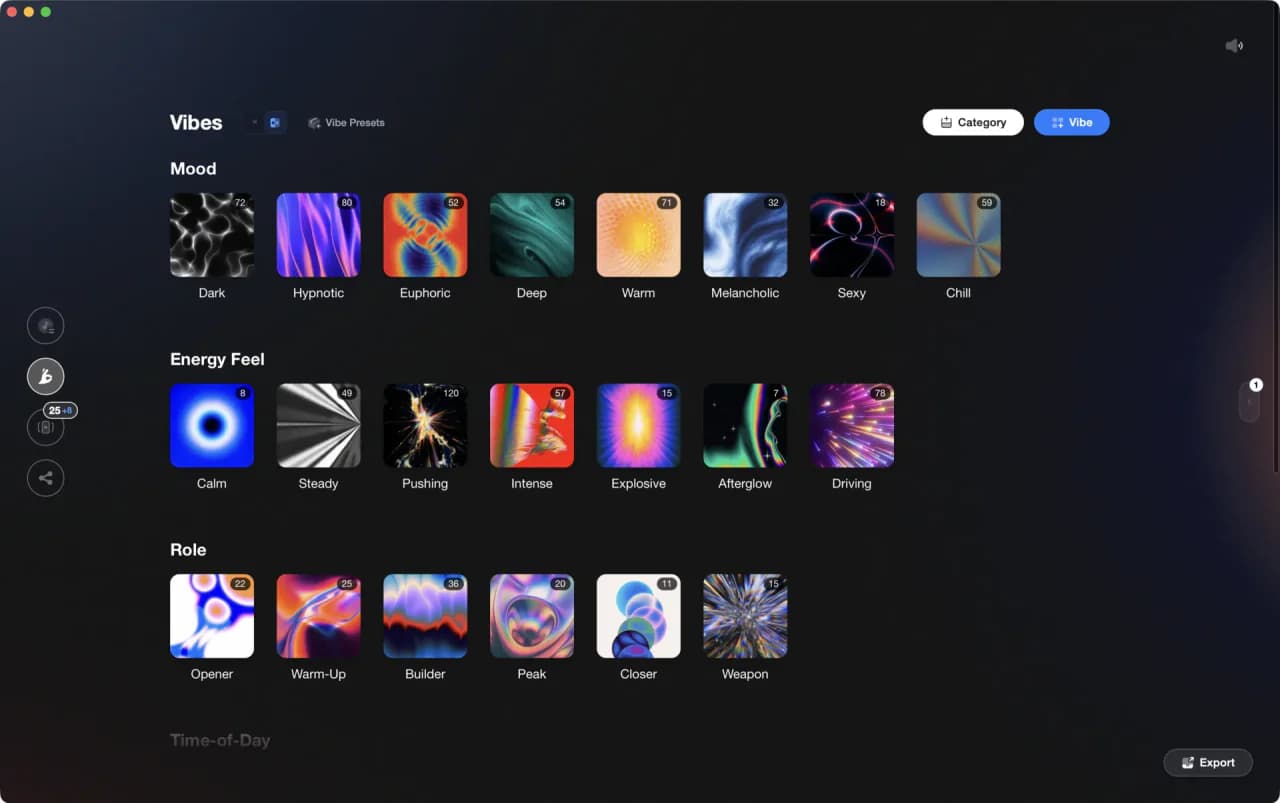
More Tutorials

Equipment You'll Need
Native Instruments Traktor Pro 4
optionalA professional 4-deck DJ software platform with stem separation, flexible beatgrids, effects, DVS support, and broad controller integration.
Native Instruments FM8
optionalNative Instruments FM8 is a powerhouse FM synthesizer for hybrid DJ sets and live performance. Its low CPU usage and bright, cutting tones make it ideal for layering over tracks in a live mix. Bounce FM8 basslines as audio loops for Traktor Remix Decks or Ableton clips.
Yamaha REV5
optionalThe Yamaha REV5 is a 2U rackmount digital **reverberator** built for studios and live rigs. If you want hardware ambience with surgical control, the Yamaha REV5 still delivers. Its balanced I/O, per‑program parametric EQ, and MIDI backup make it a reliable problem solver as well as a creative reverb. This page covers Yamaha REV5 features, specifications, pricing context, and the best alternatives.
VirtualDJ
optionalDJ software for Windows and macOS that handles audio mixing, video mixing, karaoke, stems, and broad hardware support.
Mixed In Key 11
optionalStandalone harmonic-mixing and library-prep software that detects keys, energy levels, cue points, and tags for DJ sets.
DJControl Inpulse 200 MK2
optionalCompact 2‑deck USB DJ controller with built‑in audio, Beatmatch Guide LEDs, and Serato DJ Lite/DJUCED integration.
Serato DJ Pro
optionalProfessional DJ software for mixing, performance, library management, recording, and hardware-integrated club workflows.
Cockos REAPER
optionalA lightweight, deeply customizable digital audio workstation for recording, editing, mixing, MIDI production, and post work on Windows, macOS, and Linux.
Frequently Asked Questions

Hey, it's Ben Modigell 👋
I DJ and produce as so I so: downtempo, minimal, dub house, tech house, and techno (releases on Spotify and SoundCloud, links above). Everything I write here comes from my own gigs, studio sessions, and library cleanups: the rules I follow, the failure modes I have actually hit, and the workflow I use when nobody is watching. If a technique did not earn its place in my own sets, it does not make it into a tutorial.