Master Tempo Adjustment
Master Tempo Adjustment lets DJs change track tempo while keeping musical key stable for cleaner harmonic transitions.
Master Tempo Adjustment Tutorials

[Master Tempo](/glossary/key-lock) Adjustment is the skill of changing a track's tempo while keeping its musical key stable. On many DJ systems this appears as Master Tempo or Key Lock. Learn it well and you can speed up or slow down tracks for smoother blends, cleaner energy shifts, and more confident harmonic transitions.
This matters most when you want a mix to feel natural instead of obviously pitched up or down. Without Master Tempo Adjustment, tempo changes also change pitch, which can make vocals sound thin, muddy, or cartoonish. With it, you get more control over tempo moves while protecting the musical identity of the track.
If you already build reliable beat matching control, this technique is an easy next layer. It does not replace timing, phrasing, or track selection. It simply gives you another decision: should you preserve the key, or let the pitch move naturally?
What Is Master Tempo Adjustment?
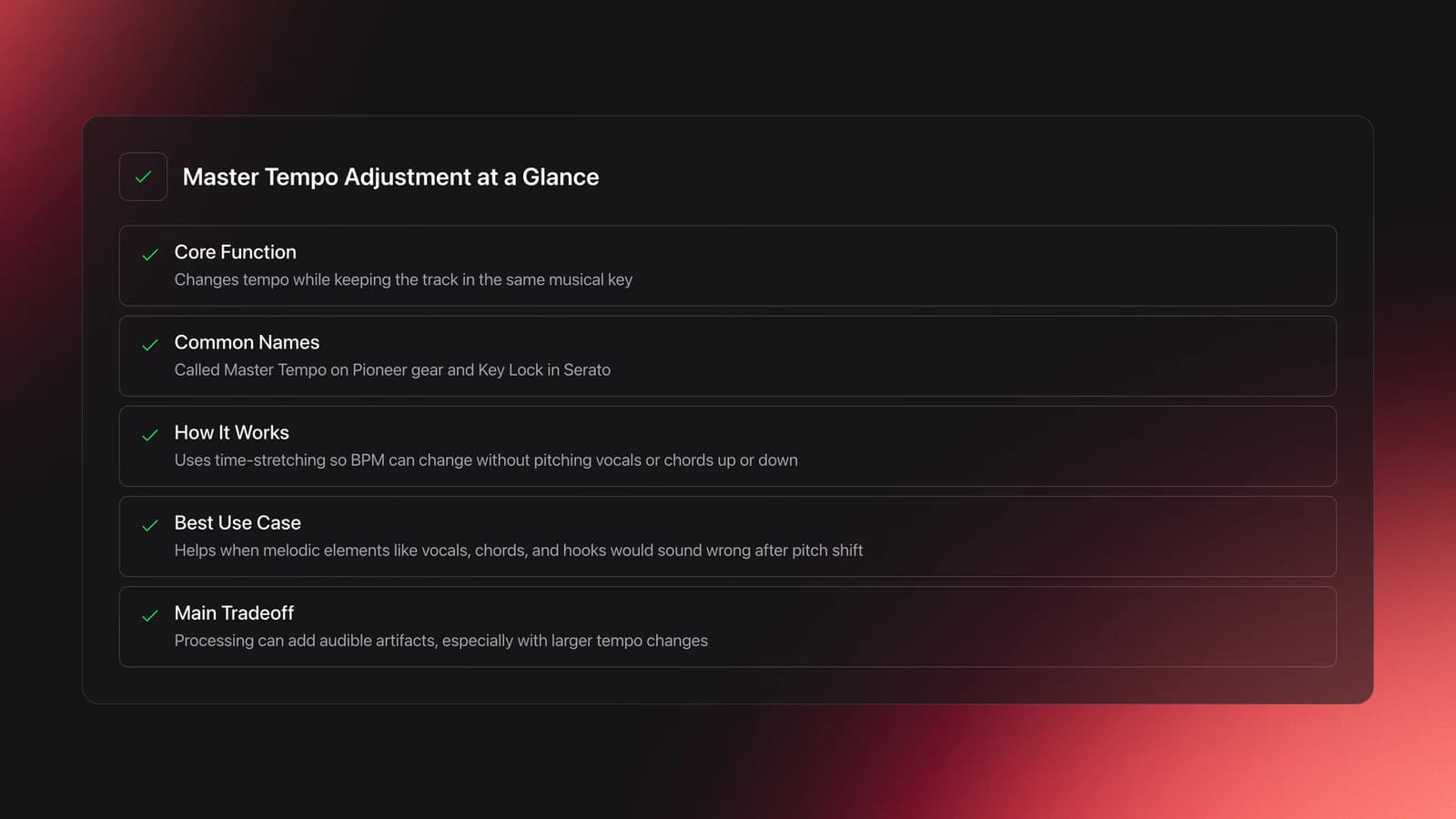
Master Tempo Adjustment means using Master Tempo or Key Lock so tempo changes do not shift the track's pitch. Pioneer describes Master Tempo as changing tempo without affecting pitch, while Serato defines Key Lock as keeping a song's key when tempo changes.
In practice, the software or player is time-stretching the audio. That lets you move the tempo fader to match BPM while the song stays in the same musical key. This is especially useful when vocals, chords, or melodic hooks would sound wrong if they were pitched up or down.
The catch is sound quality. AlphaTheta and Native Instruments both note that Master Tempo or Key Lock processing can introduce audible artifacts, and those artifacts usually become more obvious as the tempo change gets larger.
Why Use Master Tempo Adjustment
Use Master Tempo Adjustment when preserving key matters more than preserving the raw, unprocessed sound of the file. That usually means melodic transitions, vocal tracks, or mixes where harmonic compatibility is part of the plan.
- Keeps vocals and melodies closer to their original pitch
- Makes wider BPM moves possible without obvious key drift
- Supports use harmonic mixing to choose compatible keys
- Helps during warm-up or energy-building sections where tempo changes are gradual
- Reduces the classic sped-up or slowed-down vinyl effect when you do not want it
It is not always the best choice. Some tracks sound better with Key Lock off, especially when the tempo change is small and the original file has rich transients, busy percussion, or exposed high frequencies. Experienced DJs often switch it on only when they need it.
How to Use Master Tempo Adjustment
To use Master Tempo Adjustment well, first choose whether the incoming track needs fixed pitch. Then engage Master Tempo or Key Lock, make the tempo move gradually, listen for artifacts, and decide whether the cleaner key is worth the processing.
Start by loading two tracks with a clear melodic relationship. A vocal house tune into another vocal house tune is easier than two dense techno tools. Your ears will tell you faster when key preservation helps.
Set the incoming track a few BPM away from the playing deck. Turn Master Tempo on only for the incoming track. Adjust the tempo fader until the groove lines up, then monitor in headphones for two things: timing drift and tonal quality.
If the mix sounds musically cleaner with Master Tempo on, keep it engaged through the transition. If the top end turns grainy or the vocal sounds smeared, reduce the tempo gap or switch Master Tempo off and accept the pitch shift.
This is where phrasing matters. Use practice phrase alignment for cleaner drops so your key-preserved transition also lands at the right structural moment. Good tone cannot rescue a badly timed phrase change.
| Step | Action | Key Point |
|---|---|---|
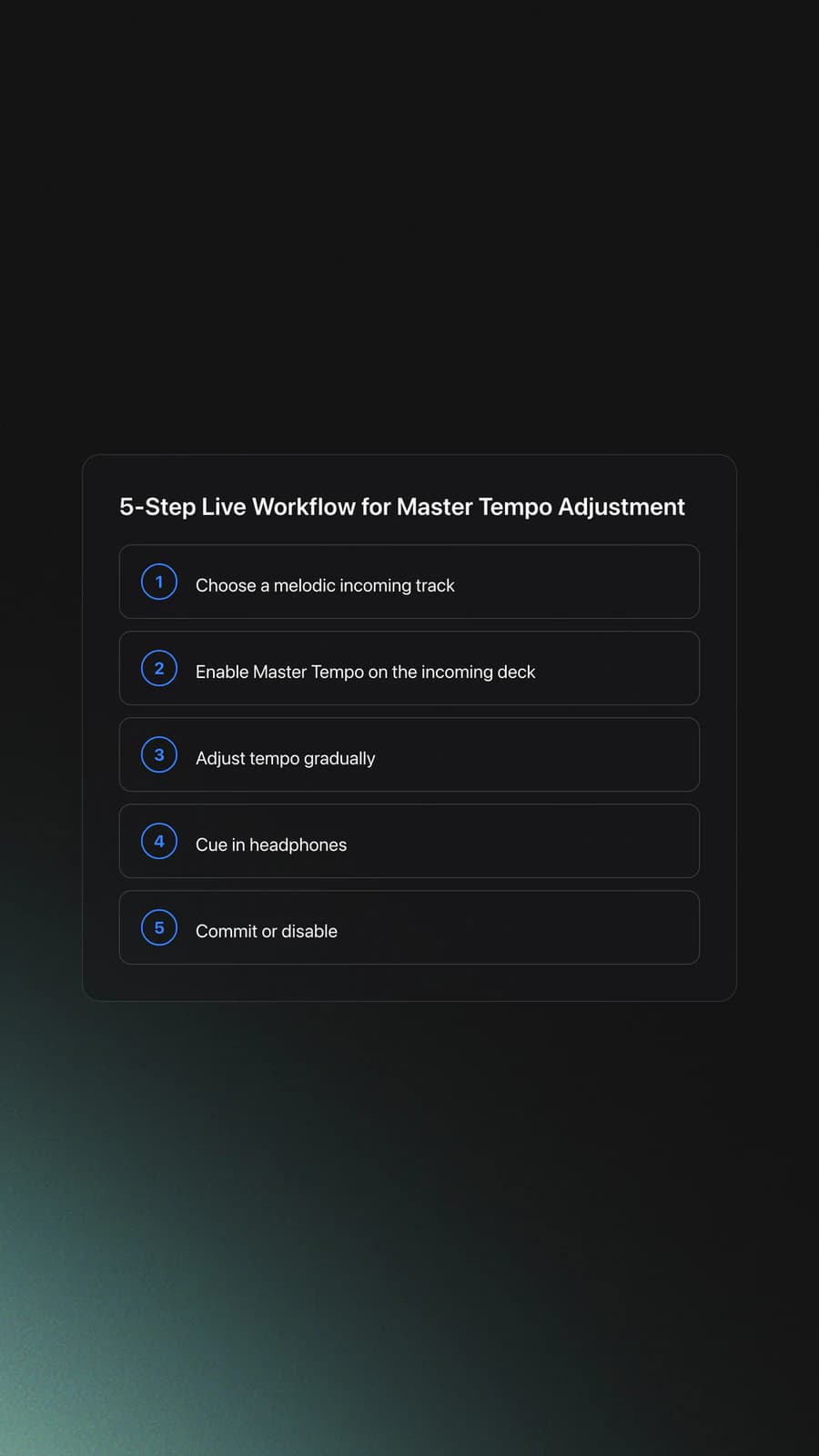
| 1 | Choose a melodic incoming track | The benefit is easiest to hear on vocals and chords |
| 2 | Enable Master Tempo or Key Lock | Use it only on the deck that needs pitch stability |
| 3 | Adjust tempo gradually | Small moves usually sound cleaner than large jumps |
| 4 | Cue in headphones | Check both beat alignment and artifact level |
| 5 | Commit or disable | Keep it on if harmony wins, turn it off if sound quality suffers |
A simple live rule helps. If the crowd will notice the key clash more than the processing, keep Master Tempo on. If they will notice the processing more than the pitch drift, turn it off.
Equipment and Software Notes
Most modern DJ platforms support this function, but the name changes. Pioneer and AlphaTheta commonly label it Master Tempo, while Serato, Traktor, and other platforms often call it Key Lock.
The exact behavior also differs by platform. Serato notes that Key Lock keeps the key stable and includes scratch detection, while Native Instruments explains that Key Lock settings can affect artifacts and even require higher latency in some systems.
Some hardware also links Master Tempo to key features. AlphaTheta support notes that Master Tempo or Key Lock may switch on automatically when using key-related performance modes such as keyboard mode, key shift, or Pitch Play. That means accidental activation is a real troubleshooting issue.
When to Leave It Off
Leave Master Tempo Adjustment off when the tempo move is tiny, the track is mostly drums, or the processing sounds worse than the pitch drift. Many transitions need only a small BPM correction, and that small natural pitch shift is often less noticeable than time-stretch artifacts.
This is common in tougher club tracks. Percussive techno, old rips, heavily compressed edits, and tracks with bright hats can reveal processing quickly. In those cases, natural pitch change can sound more solid.
It also makes sense to turn it off after the mix if you no longer need pitch protection. Digital DJ Tips recommends using key lock to make the mix, then slowly returning the track toward zero tempo change and disabling key lock to restore the cleanest sound.
Practice Drills for Master Tempo Adjustment
Practice Master Tempo Adjustment with short, repeatable drills instead of long unfocused sessions. In practice, small A/B comparisons teach this faster than marathon mixing because your ears stay fresh and your decisions stay measurable.
Drill one is the 2 BPM test. Take one melodic track and mix it against another with Master Tempo on, then repeat with it off. Your goal is not just to beatmatch. Your goal is to describe what changed in the vocal, chord body, and high-end texture.
Drill two is the artifact threshold test. Start at zero pitch change with Master Tempo on. Move the tempo fader in small steps and listen for the point where the processing becomes obvious. That gives you a personal comfort range on your own setup.
Drill three is a workflow drill. Build three short practice crates: melodic tracks, percussion-heavy tracks, and vocal edits. If you keep local files organized in Vibes, a simple category structure for these cases makes repeat testing faster and helps you remember which kinds of tracks tolerate Master Tempo well.
Most DJs can build dependable judgment within 2 to 4 weeks if they practice this way. The skill is not pressing the button. The skill is knowing when the button improves the mix.
Common Mistakes
Most beginners struggle because they treat Master Tempo Adjustment as always on or always off. The better approach is conditional use based on source quality, tempo range, and how exposed the harmonic content is.
| Mistake | Why It Happens | Solution |
|---|---|---|
| Leaving it on all set | It feels safer once harmonic mixing starts | Turn it on only when key stability matters |
| Using large tempo shifts on weak files | Artifacts grow as processing load increases | Keep changes smaller or choose better source tracks |
| Ignoring headphones quality control | DJs focus only on beat alignment | Cue the incoming track and listen for smearing or grain |
| Confusing auto-activation with a bug | Some modes enable Master Tempo or Key Lock automatically | Check key shift, keyboard mode, and Pitch Play settings |
Troubleshooting Master Tempo Adjustment
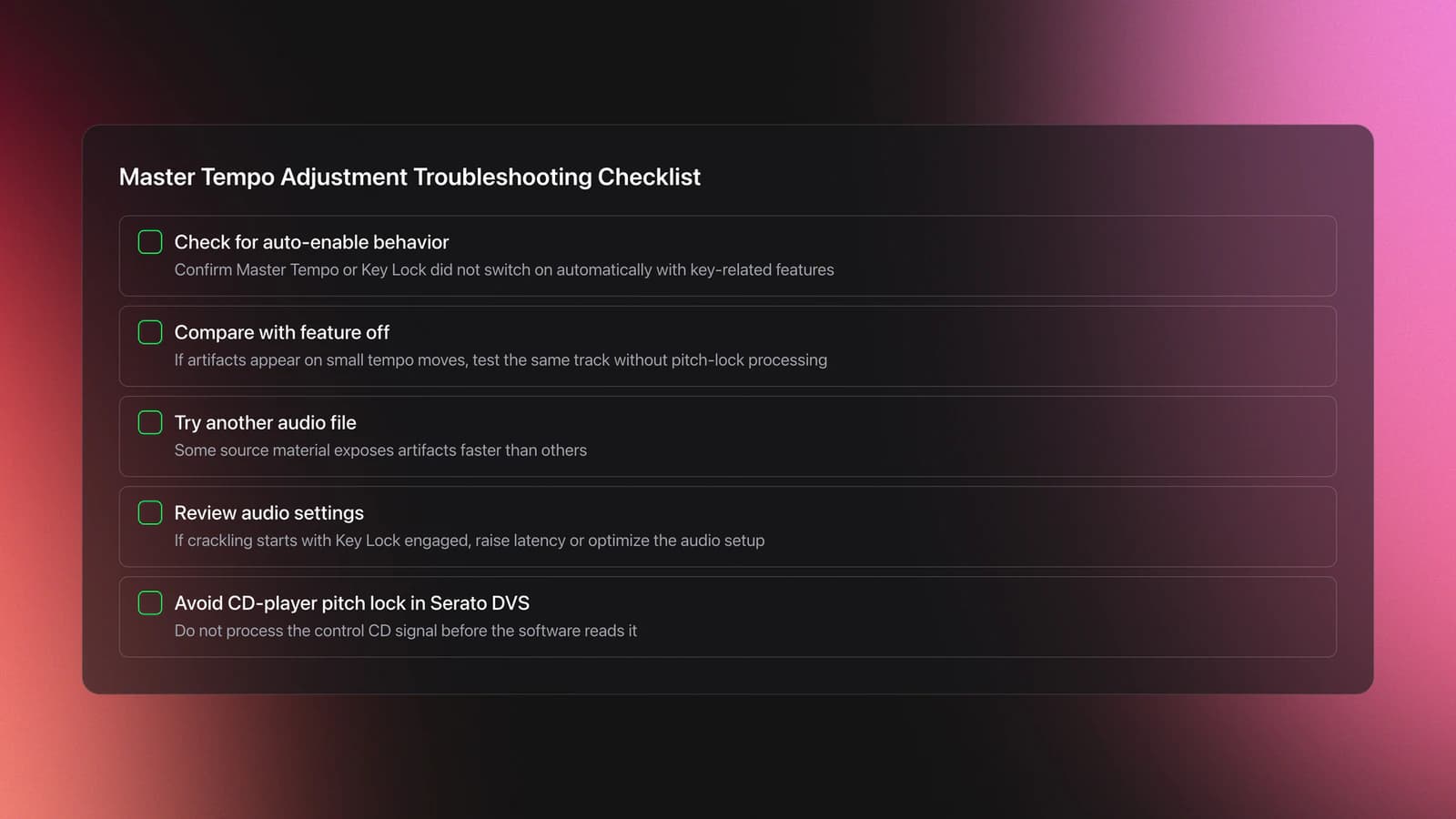
If the track suddenly sounds processed, brittle, or slightly robotic, first check whether Master Tempo or Key Lock turned on automatically. This happens on some systems when you use key-related performance features.
If artifacts appear even with small tempo changes, test the same track with the feature off. Then try another file. Native Instruments notes that source material matters, and some tracks reveal artifacts faster than others.
If your software starts crackling when Key Lock is engaged, check audio settings. Native Instruments specifically notes that Key Lock can require higher latency on some systems.
If you are using control CDs with Serato DVS, do not use Master Tempo or Key Lock on the CD player. Serato warns that processing the control signal can scramble it before the software reads it.
Real-World Use Cases
Master Tempo Adjustment is most useful in long blends, melodic handovers, and open-format sets where tempo changes happen often but tonal identity still matters. It is less critical in quick cuts, percussion-led transitions, or routines where raw energy matters more than harmonic polish.
A common use case is moving from a lower-energy warm-up groove into a slightly faster vocal track without making the incoming singer sound obviously pitched. Another is holding a compatible key center while you guide the room upward in tempo.
It also works well as a bridge skill between build reliable beat matching control and use harmonic mixing to choose compatible keys. Once you can time a transition and hear key relationships, Master Tempo Adjustment gives you finer control over how those two skills meet.
Key Takeaways
Master Tempo Adjustment helps you change BPM without shifting musical key, which makes melodic transitions cleaner and harmonic choices easier. The real skill is not the feature itself. It is hearing when key stability improves the mix and when processing hurts it.
Focus on three habits. Compare on versus off. Keep tempo moves moderate. Judge results in headphones before you commit live.
Start with vocal and chord-heavy tracks first, then test tougher percussion-led material. After that, move deeper into practice phrase alignment for cleaner drops and harmonic control so your transitions improve in timing, tone, and flow together.
The visual way to organize your DJ library
Tag tracks by vibe. See everything at once. Export to rekordbox, Serato, Traktor or Engine DJ.
14-day free trial. Full access, no strings attached.
or see how it works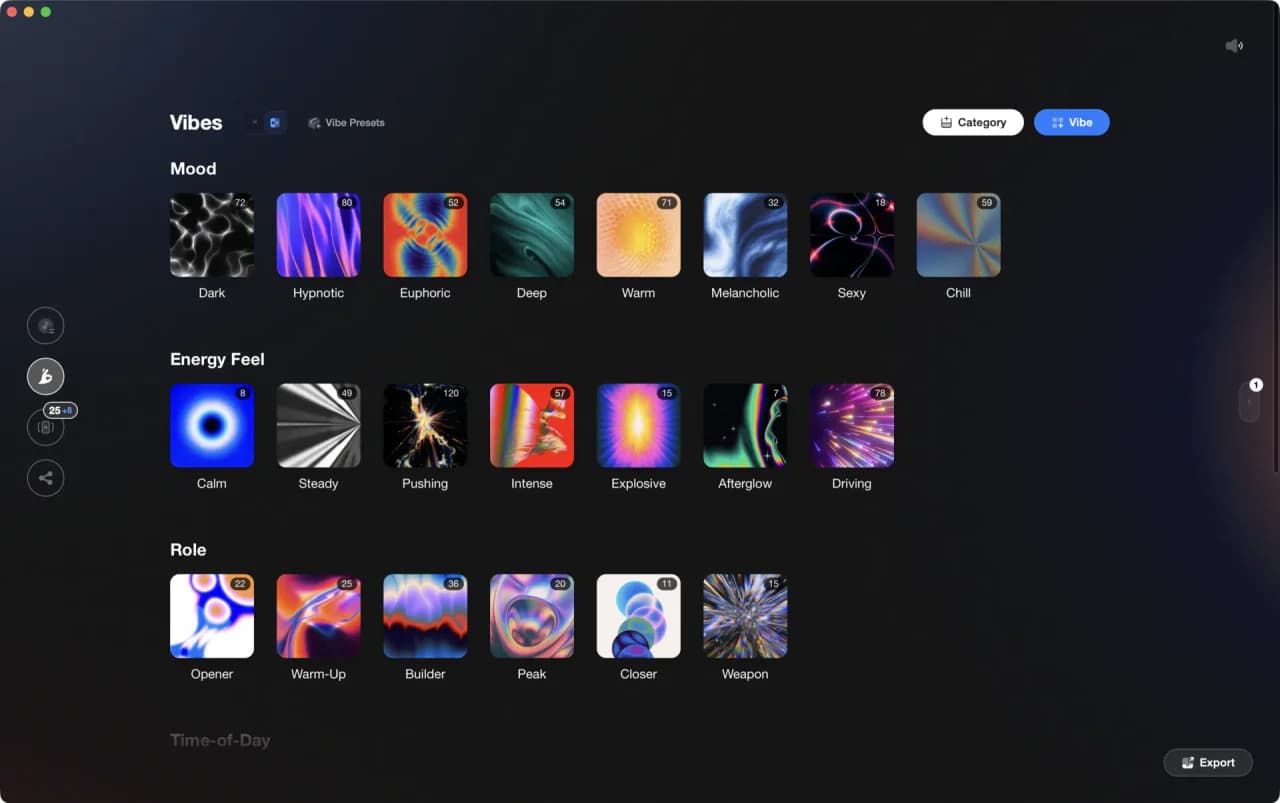
More Tutorials


Equipment You'll Need
Pioneer DJ CDJ-3000
optionalProfessional flagship DJ media player with a 9-inch touchscreen, advanced MPU processing, and club-standard Pro DJ Link workflow.
Pioneer CDJ-400
optionalA discontinued digital DJ media player that plays CDs and MP3 files from USB storage, and can also work as a MIDI controller and USB audio interface.
VirtualDJ
optionalDJ software for Windows and macOS that handles audio mixing, video mixing, karaoke, stems, and broad hardware support.
Mixed In Key 11
optionalStandalone harmonic-mixing and library-prep software that detects keys, energy levels, cue points, and tags for DJ sets.
DJControl Inpulse 200 MK2
optionalCompact 2‑deck USB DJ controller with built‑in audio, Beatmatch Guide LEDs, and Serato DJ Lite/DJUCED integration.
Serato DJ Pro
optionalProfessional DJ software for mixing, performance, library management, recording, and hardware-integrated club workflows.
Cockos REAPER
optionalA lightweight, deeply customizable digital audio workstation for recording, editing, mixing, MIDI production, and post work on Windows, macOS, and Linux.
Native Instruments Traktor Pro 4
optionalA professional 4-deck DJ software platform with stem separation, flexible beatgrids, effects, DVS support, and broad controller integration.
Beatport
optionalBeatport is a DJ-focused electronic music store and streaming platform for discovering, buying, and streaming tracks into supported DJ software and hardware.
Pioneer DJ DDJ-1000
optionalA 4-channel rekordbox DJ controller with full-size jog wheels, onboard displays, and club-style mixer controls.
rekordbox
optionalCloud-connected DJ software for music management, performance, export prep, and club-standard hardware integration.
Pioneer DJ DDJ-400
optionalA compact 2-channel USB DJ controller built for rekordbox with a club-style layout aimed at new and progressing DJs.
VirtualDJ 7
optionalA legacy DJ software platform for audio and video mixing, controller mapping, and DVS playback on Windows and Mac.
Frequently Asked Questions

Hey, it's Ben Modigell 👋
I DJ and produce as so I so: downtempo, minimal, dub house, tech house, and techno (releases on Spotify and SoundCloud, links above). Everything I write here comes from my own gigs, studio sessions, and library cleanups: the rules I follow, the failure modes I have actually hit, and the workflow I use when nobody is watching. If a technique did not earn its place in my own sets, it does not make it into a tutorial.