
Stem Separation
Stem Separation isolates vocals, drums, bass, and instruments from a mixed track so DJs can create live acapellas, instrumentals, and mashups in real time.
Stem Separation Tutorials
Stem Separation lets you isolate vocals, drums, bass, and instruments from a finished track during a DJ set. With Stem Separation you can drop instant acapellas, remove drums for breakdowns, or blend the instrumental of one record with the vocal of another.
DJs use stems to remix live with precision. The result is smoother transitions, creative phrase edits, and flexible recoveries when a mix goes off course. If you already mix confidently, adding Stem Separation extends what is possible without rebuilding edits in a DAW.
What Is Stem Separation?
In DJ software, Stem Separation uses real-time source separation to split a mixed file into components like vocals, melody, bass, and drums. Serato calls this Stems, VirtualDJ calls it Stems 2.0, and Algoriddim calls it Neural Mix. These tools isolate or mute parts while the track plays.
See official references for each platform: the Serato Using Stems guide, the VirtualDJ Stems 2.0 page, and the Algoriddim Neural Mix overview.
Rekordbox also offers STEMS within its performance workflow. Start with the rekordbox STEMS FAQ for supported functions, CPU recommendations, and how to enable the feature.
Do not confuse live Stem Separation with the Native Instruments Stems format. NI Stems are pre-authored four-part files for Traktor Stem Decks, not AI separation of any song. See the Stems format overview for context.
Why Master Stem Separation
- Instant acapellas and instrumentals without external edits.
- Longer, cleaner transitions by removing conflicting elements.
- Creative recoveries when phrases or keys clash.
- Live mashups that respond to the room.
Software and Equipment
Choose a platform that supports real-time stems and fits your hardware. Serato DJ Pro offers stem pads and acapella or instrumental toggles. Read the official Serato Using Stems guide.
Rekordbox includes STEMS with options like Active Stem, Stem ISO, and Stem FX. See the rekordbox STEMS FAQ for enabling, MIDI mapping, and recommended CPUs.
VirtualDJ pioneered live separation and continues to iterate with Stems 2.0. Review features, pad modes, and EQ modes on the VirtualDJ Stems 2.0 page.
On macOS and iOS, Algoriddim’s Neural Mix provides high quality separation and Neural Mix waveforms. See the Neural Mix overview for supported devices and controls.
Historical note: Native Instruments introduced Stems as a multi-track file format for Traktor, not AI separation of any track. See the Stems format overview if you use pre-authored .stem.mp4 files.
Core Technique Breakdown
Before you separate, line up tempo and phrasing. If bars drift, revisit how you master beat matching fundamentals.
Load Track A. Enable stems. Solo vocals or mute drums to hear the isolation quality. Decide which parts you will feature.
Load Track B. Align phrasing and key. If harmonies clash, switch to compatible material or learn harmonic mixing.
Blend. Start with modest stem cuts. Remove vocals from the outgoing track while introducing a contrasting acapella from the incoming track.
Commit the transition. Restore drums, then build the next section with filtered instruments or stem-specific FX.
| Step | Action | Key Point |
|---|---|---|
| 1 | Prep and analyze both tracks | Confirm BPM, grid, and phrase start |
| 2 | Test isolation quickly | Toggle acapella or mute drums to judge artifacts |
| 3 | Plan A/B roles | Decide which track provides drums, which provides vocals |
| 4 | Execute the swap | Crossfade while cutting stems on the outgoing side |
| 5 | Rebuild energy | Bring drums back and release FX to finish cleanly |
Practice Drills
Build a small practice crate of 12 tracks with clear arrangements. Tag each by energy and whether vocals are steady or sparse.
Through daily 15–30 minute sessions over years, I found short, repeatable drills accelerate control far more than marathon jams. Track progress in two-week cycles.
Organize a rehearsal library with labeled examples and notes. Use Vibes to group tracks by BPM ranges, keys, and separation quality so you can repeat drills without hunting.
Common Mistakes
| Mistake | Why It Happens | Solution |
|---|---|---|
| Cutting too much too soon | Full vocal mutes expose artifacts | Blend gradually, then commit at phrase boundaries |
| Ignoring phrasing | Stem tools cannot fix bar misalignment | Practice 32-bar timing and tighten your phrase mixing |
| Redlining during transitions | Added gain on isolated parts clips mixers | Keep meters near 0 dB and avoid red LEDs per mixer manuals |
| CPU overload and lag | Real-time separation is intensive | Use quality modes wisely and test on your machine in advance |
Troubleshooting and Quality Tips
Expect a short initialization delay the first time you trigger stems on a loaded track. Serato documents this behavior in the Using Stems guide.
Rekordbox offers performance and sound quality modes plus CPU guidance. Review supported processors in the rekordbox STEMS FAQ and choose settings that match your hardware.
If artifacts are obvious, simplify. Use instrumental-only layers, reduce FX on separated parts, or choose songs with sparser arrangements. VirtualDJ’s Stems 2.0 article outlines ways to target effects at single stems.
For offline prep, you can pre-separate in a DAW or external tool and bring results into your library. Deezer’s open-source Spleeter shows how offline models create vocal, drum, bass, and other stems for later use.
Keep gain staging clean. Manufacturer manuals advise running around 0 dB on mixers and avoiding continuous red LEDs to prevent distortion. See the Pioneer DJM-900NXS2 manual and Allen & Heath Xone metering guidance.
Creative Use Cases
House and techno: use drum-only beds to extend intros, then drop vocals for hooks.
Hip-hop and pop: layer recognizable acapellas over fresh instrumentals to refresh classics.
Edits on the fly: cut instruments to spotlight a break, then rebuild with stem FX for tension.
Set planning: tag a few reliable acapellas that always separate cleanly. Save them for peak moments in the night.
When organizing your practice sets, store notes about which tracks separate well. Vibes keeps those notes with your categories so you can find the right examples before a gig.
The visual way to organize your DJ library
Tag tracks by vibe. See everything at once. Export to rekordbox, Serato, Traktor or Engine DJ.
14-day free trial. Full access, no strings attached.
or see how it works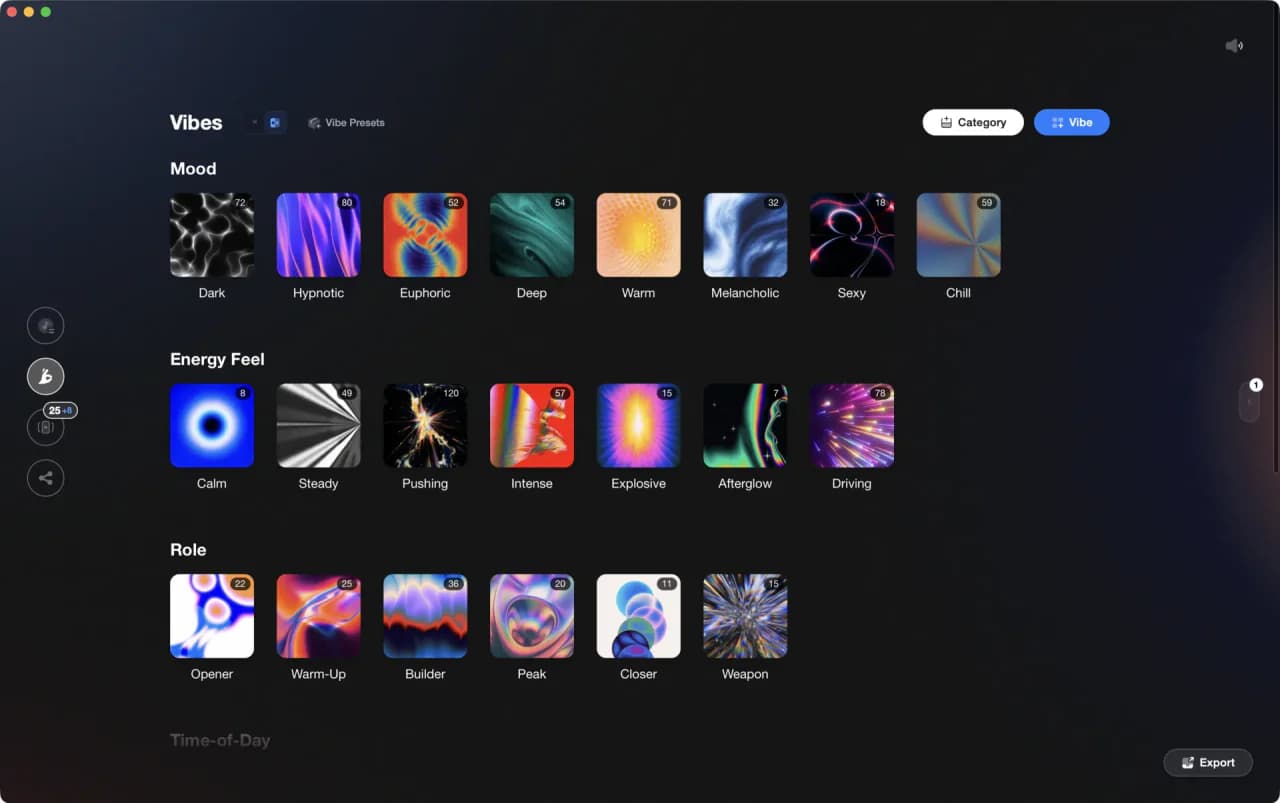
More Tutorials
Equipment You'll Need
Beatport
optionalBeatport is a DJ-focused electronic music store and streaming platform for discovering, buying, and streaming tracks into supported DJ software and hardware.
VirtualDJ
optionalDJ software for Windows and macOS that handles audio mixing, video mixing, karaoke, stems, and broad hardware support.
Yamaha REV5
optionalThe Yamaha REV5 is a 2U rackmount digital **reverberator** built for studios and live rigs. If you want hardware ambience with surgical control, the Yamaha REV5 still delivers. Its balanced I/O, per‑program parametric EQ, and MIDI backup make it a reliable problem solver as well as a creative reverb. This page covers Yamaha REV5 features, specifications, pricing context, and the best alternatives.
Serato DJ Pro
optionalProfessional DJ software for mixing, performance, library management, recording, and hardware-integrated club workflows.
Pioneer DJ DDJ-1000
optionalA 4-channel rekordbox DJ controller with full-size jog wheels, onboard displays, and club-style mixer controls.
DJControl Inpulse 200 MK2
optionalCompact 2‑deck USB DJ controller with built‑in audio, Beatmatch Guide LEDs, and Serato DJ Lite/DJUCED integration.
Mixed In Key 11
optionalStandalone harmonic-mixing and library-prep software that detects keys, energy levels, cue points, and tags for DJ sets.
rekordbox
optionalCloud-connected DJ software for music management, performance, export prep, and club-standard hardware integration.
Pioneer DJ DDJ-400
optionalA compact 2-channel USB DJ controller built for rekordbox with a club-style layout aimed at new and progressing DJs.
Native Instruments FM8
optionalNative Instruments FM8 is a powerhouse FM synthesizer for hybrid DJ sets and live performance. Its low CPU usage and bright, cutting tones make it ideal for layering over tracks in a live mix. Bounce FM8 basslines as audio loops for Traktor Remix Decks or Ableton clips.
Native Instruments Traktor Pro 4
optionalA professional 4-deck DJ software platform with stem separation, flexible beatgrids, effects, DVS support, and broad controller integration.
VirtualDJ 7
optionalA legacy DJ software platform for audio and video mixing, controller mapping, and DVS playback on Windows and Mac.
Frequently Asked Questions

Hey, it's Ben Modigell 👋
I DJ and produce as so I so: downtempo, minimal, dub house, tech house, and techno (releases on Spotify and SoundCloud, links above). Everything I write here comes from my own gigs, studio sessions, and library cleanups: the rules I follow, the failure modes I have actually hit, and the workflow I use when nobody is watching. If a technique did not earn its place in my own sets, it does not make it into a tutorial.